Steam won't open, hangs at sign-in, or leaves you staring at a blank window. Start with a full restart, then follow the fixes that match what you see. For a damaged Windows installation, you can repair Steam while keeping your installed games.
Get Steam running again
A hung Steam process leaves the client unresponsive. Fully quit Steam. Restart your computer. Open Steam again.
If Steam refuses to close on Windows, press Ctrl+Shift+Esc to open Task Manager. Open Processes. Select the unresponsive Steam process. Choose End task.
On a Mac, press Command-Q with Steam active. If it stays frozen, open the Apple menu > Force Quit.
Select Steam. Click Force Quit. Reopen Steam after closing the stuck process.
If Steam is running on Windows with no visible window, click its notification-area icon. The -silent launch option hides normal windows until you click that icon.
To stop that behavior, right-click your Steam shortcut and open Properties > Shortcut. Remove -silent from Target. Select Apply. Click OK.
Check the connection when sign-in stalls
For failed sign-ins or updates, work through these connection checks.
- 1.Restart your modem and router, let connectivity recover, then retry Steam.
- 2.Disconnect your VPN or close traffic-filtering software, such as an IP filter or download accelerator, then restart Steam. Some applications require a computer restart.
- 3.Connect through another network, preferably another ISP, and try Steam again.
- 4.If other Internet services also fail on Windows 11, run the Network and Internet troubleshooter in Get Help.
- 5.If Steam still cannot connect, wait a few hours and retry. Maintenance, local-network failures, and ISP problems all cause connection failures.
Recover a blank or frozen Steam window
When Steam displays its unresponsive-webhelper dialog, choose Restart Steam. If the problem returns, choose Restart steamwebhelper.exe in that dialog to restart the components that render Steam's interface. For a persistent blank window or webhelper hang, select Restart Steam with GPU Acceleration disabled.
Install current graphics drivers from your hardware manufacturer. Retest GPU acceleration afterward through Steam > Settings > Interface. Use these recovery options when Steam starts but its interface stays blank or stops responding.
Review security software and firewall permissions
Antivirus, antispyware, and background applications are potential sources of Steam and webhelper conflicts. Close or temporarily disable one suspected application at a time, then restart Steam to test it.
Restore protection after each test. If a security application causes the failure, correct its Steam exceptions using the vendor's controls.
On Windows, open Windows Security > Firewall & network protection > Allow an app through firewall > Change settings. Select Steam, or choose Allow another app and locate Steam's executable. Use an administrator account if prompted.
For failures immediately after installation or an update, close Steam before removing its stale executable entries from your firewall's permissions. Relaunch Steam and authorize steam.exe when prompted. Restart your computer afterward.
Leave the beta if loading problems persist
This applies if you participate in the Steam client beta. Switching to the stable client lets you check whether the failure is tied to the beta.
Open Steam > Settings > Interface > Client Beta Participation. On a Mac, that menu is named Preferences, so use Steam > Preferences > Interface > Client Beta Participation.
Select No beta chosen. Click Restart Now.
If Settings will not open on your Windows beta installation, quit Steam first. Right-click the Steam shortcut and open Properties > Shortcut. In Target, append a space followed by -clearbeta after the quoted executable path. Keep the option outside the quotation marks.
Select Apply. Click OK. Launch Steam using that shortcut.
Bring your operating system and drivers up to date
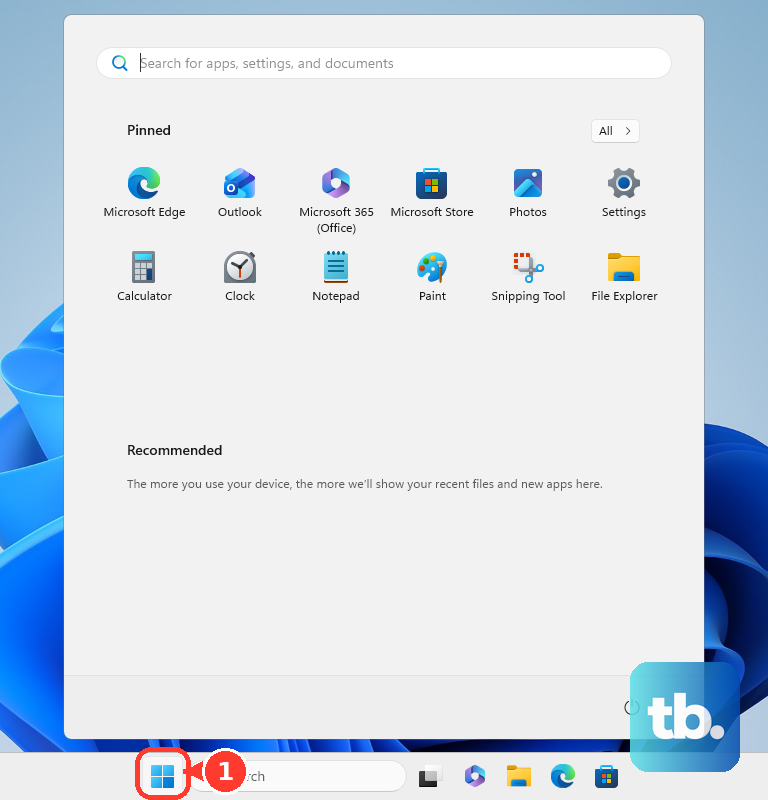
On Windows, open Start and search for Check for Updates. Open the result and install available updates.
Steam ended support for 32-bit Windows on January 1, 2026. If that is your installation, move to a compatible 64-bit Windows edition, then install current Steam. Steam still supports 64-bit Windows 10 and 32-bit games.
On a Mac, search for Software Update in Spotlight, then open it to install a compatible update or upgrade. Steam requires macOS 12 or later; macOS 11 support ended October 15, 2025. Reinstalling Steam alone cannot fix a Mac that cannot run a supported macOS version. For persistent startup crashes, install current hardware drivers from your hardware manufacturer.
Repair Steam on Windows without uninstalling it
Install over your existing Steam installation to repair damaged client or service files while preserving installed games.
- 1.Quit Steam completely.
- 2.Sign in to Windows using an administrator account.
- 3.Open the official Steam download page and select Install Steam for Windows.
- 4.Run Valve's installer and install into your existing Steam location. Do not uninstall first: uninstalling risks deleting game and user data.
- 5.Open Steam again and check whether it loads.
Reinstall a damaged Mac client
A fresh installation replaces a damaged Steam client on Mac. Back up your local saves before removing anything. Choose Steam > Quit Steam.
In Applications, move Steam to Trash. Open Go in Finder. Hold Option while selecting Library. Open Application Support/Steam.
Remove the contents other than SteamApps. Keep that folder to retain your installed games. Choose Finder > Empty Trash.
Open the official Steam download page. Select Install Steam for macOS. Reinstall Steam using the downloaded installer.
Get help when Steam still will not load
If the sign-in screen loads but your password or Steam Guard blocks access, open Steam Support in a browser. Choose Help, I can't sign in. Follow the recovery flow matching your account problem.
For Steam website sign-in failures, disable your browser's extensions and retry. If that fails, try another browser with no extensions installed. These steps address browser sign-in, not desktop-client startup.
For an unresolved desktop-client failure, open Steam Support's I can't sign in to the Steam Client page. Attach an error screenshot and enter your email and problem details. Select Send, then complete the email-code verification.
Frequently Asked Questions
Should I clear the download cache if Steam will not open?
No. Clearing the download cache requires access to Settings and addresses downloads or games that will not start. It does not fix a completely inaccessible client.
What should my administrator allow if Steam fails on a school or work network?
Ask the administrator to permit Steam login and download traffic on TCP remote ports 80, 443, and 27015–27050, and UDP remote ports 27015–27050. These are remote-port permissions, not instructions to forward incoming ports.
How do I restart a Steam Deck when its interface is frozen?
Hold the Power button for 10 seconds on Steam Deck LCD or 16 seconds on Steam Deck OLED. Then power it on again.
What else should I test if Steam keeps crashing at startup?
Unplug nonessential input devices and retry Steam to check for peripheral-driver interference. On an overclocked system, restore the manufacturer's recommended clock settings using the computer's BIOS or UEFI controls.