Steam says it needs to be online to update, but your browser works just fine. Start with a restart and a different connection, then check what’s blocking Steam before repairing its files. The connection checks apply to Windows, Mac, and Linux; follow the platform-specific instructions where marked.
Restart Steam and check your connection
Close Steam completely.
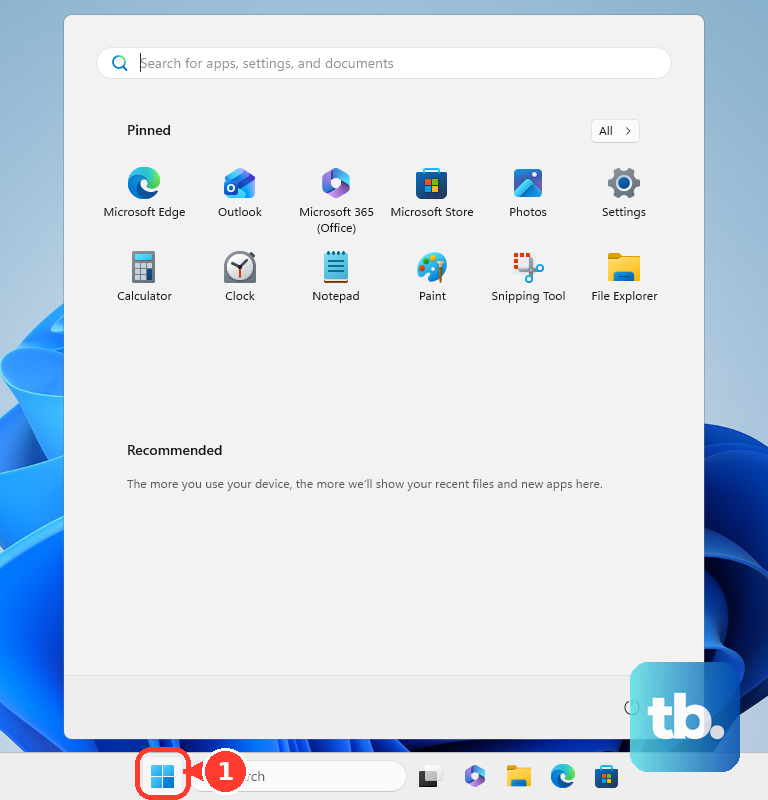
Restart your computer. On Windows, select Start > Power > Restart.
Launch Steam again to retry the update.
Open Steam’s website in your browser to check whether it is reachable.
If your connection checks point to maintenance or an outage, wait a few hours before retrying Steam.
Power-cycle your modem and router using the manufacturer’s instructions.
Wait for internet access to return.
Connect your computer directly to the router with Ethernet instead of Wi-Fi or powerline.
Retry Steam on the wired connection.
Try another internet connection, preferably through a different ISP. A phone hotspot provides an alternate connection.
Launch Steam on that connection.
If Steam works on another connection, focus your next checks on your home network or ISP.
Remove VPN and proxy interference
A VPN, filtering program, or unwanted proxy is a potential roadblock between Steam and its servers.
Exit one suspected VPN, IP-filtering, download-accelerator, P2P, web-security, or bandwidth-monitoring program.
Restart Steam after that change. For software that requires a computer restart, restart the computer before testing.
Repeat with the next suspected program if the error remains.
On Windows, open Settings > Network & internet > Proxy.
In Windows 11, open the relevant Set up dialog.
Disable an unwanted Use setup script or Use a proxy server configuration.
Select Save after changing it in Windows 11.
On a Mac, open the Apple menu > System Settings > Network > your network service > Details > Proxies.
Correct or disable the unwanted proxy configuration.
Retry Steam.
For a required work or school proxy, ask the network administrator to correct its configuration.
Give Steam permission through your security software
Check this especially if the error started after a Steam update. A firewall’s existing permissions do not always authorize the updated executable.
Close Steam.
Remove its existing executable permissions in your firewall. The controls depend on the firewall product.
Relaunch Steam.
Authorize the new executable when the firewall prompts you.
Restart the computer.
For Windows Firewall, open Windows Security > Firewall & network protection > Allow an app through firewall > Change settings.
Enable Steam in the app list. If it is missing, select Allow another app to add steam.exe.
Confirm the change.
Inspect your antivirus software for a Steam block or false positive.
Add a targeted exception only after confirming that the blocked Steam file or folder is safe.
If Steam still fails, close it before testing the firewall.
Temporarily disable the firewall.
Launch Steam to test the connection.
Re-enable the firewall immediately after the test.
If Steam worked during the test, repair its firewall permissions; if it still failed, try the connection checks below.
Repair a Windows connection that still fails
Open Settings > Network & internet.
Turn Airplane mode off.
Turn Wi-Fi on.
Connect to your intended network.
If the connection still fails, open Settings > Network & internet > Wi-Fi > Manage known networks.
Select your network.
Choose Forget.
Reconnect using the network’s password.
On Windows 11, open Microsoft’s Wi-Fi troubleshooting page.
Select Run the troubleshooter in Get Help.
Follow its diagnostics before resetting the connection.
If those checks fail, open Settings > Network & internet > Advanced network settings > Network reset. Windows 10 uses Status > Network reset instead.
Select Reset now.
Confirm with Yes.
Keep your VPN configuration details handy, because Network reset removes adapter configuration and some VPN setups require reconfiguration afterward.
Correct DNS and clock settings
Failed DNS lookups and an incorrect system clock are two connection problems to check when Steam remains unreachable.
On Windows, open Start > Settings > Time & language > Date & time.
Enable Set time automatically.
Correct Time zone if it is wrong.
On a Mac, open System Settings > General > Date & Time.
Enable Set time and date automatically.
Check that the time zone is correct.
If DNS resolution is failing, record your existing DNS settings before testing another resolver.
In Windows 11, open Settings > Network and Internet > your adapter > DNS server assignment > Edit > Manual.
Enable IPv4.
Enter 1.1.1.1 and 1.0.0.1 as the DNS server addresses.
Select Save.
On macOS, open System Settings > Network > your network service > Details > DNS.
Under DNS Servers, use Add to enter 1.1.1.1.
Use Add again to enter 1.0.0.1.
Select OK.
Retry Steam after changing DNS.
Restore the previous DNS settings if the change does not help.
Remove compatibility overrides and leave the beta
On Windows, right-click the installed steam.exe file and select Properties > Compatibility.
Clear checked compatibility overrides. Valve recommends disabling compatibility mode.
Select Apply.
Open Change settings for all users.
Clear overrides there too.
Confirm those changes.
Repeat those checks for the installed steamwebhelper.exe.
Relaunch Steam.
If you enrolled in the Steam client beta and cannot open settings, right-click a Steam shortcut and select Properties > Shortcut > Target.
Append a space followed by -clearbeta after the executable path.
Select Apply.
Select OK.
Launch Steam using that shortcut.
If Steam opens on Windows, the direct route out of the beta is Steam > Settings > Interface > Client Beta Participation > No beta chosen > Restart Now.
Refresh the Steam client files
On Windows, exit Steam before repairing the installation. Open Valve’s Steam download page and select Install Steam to get the latest installer.
Run the installer using Run as administrator and install Steam to its existing location. Valve says this preserves installed games.
On macOS, back up local data and quit Steam before refreshing its files. In Finder, hold Option while opening Go > Library > Application Support > the Steam folder. Remove its contents except steamapps, then launch Steam from Applications; this procedure does not preserve settings, mods, or other local content outside the retained folder.
For a native Debian-package installation on Ubuntu LTS, select steam_latest.deb in Valve’s official repository. It installs the launcher, which still needs internet access to download the remaining client.
Resolve system limits and get targeted help
These final checks address unsupported systems and network restrictions that require outside help.
Check your operating system against Steam’s requirements. Steam no longer supports 32-bit Windows or Windows 7, 8, and 8.1; Windows 10 64-bit remains supported. macOS requires version 12 or later, and Linux requires glibc 2.31 or later, with Valve’s desktop support covering the latest Ubuntu LTS.
Upgrade an incompatible operating system.
Retry Steam after the upgrade.
On a work, school, or other managed device, ask your administrator to review Steam’s network access, required proxies, and security restrictions.
Test Steam at another time of day if the failure follows a schedule.
Contact your ISP if the failure follows its connection or a time-of-day pattern, and ask about blocked or shaped Steam traffic.
Open Steam’s client-connectivity support page in a browser.
Describe the error and the troubleshooting you have completed.
Attach an uncropped screenshot of the error.
Complete the email verification.
Select Send to submit the request.
Frequently Asked Questions
Can Offline Mode bypass the Steam update error?
No. Offline Mode does not bypass a required Steam client update or a required login. Restore the connection so Steam can complete those requirements.
What should I back up before uninstalling Steam?
Back up saves and userdata, and move steamapps outside the Steam installation directory. Uninstalling Steam removes installed games and local Steam data unless you preserve them first.
Can I clear the download cache when Steam will not open?
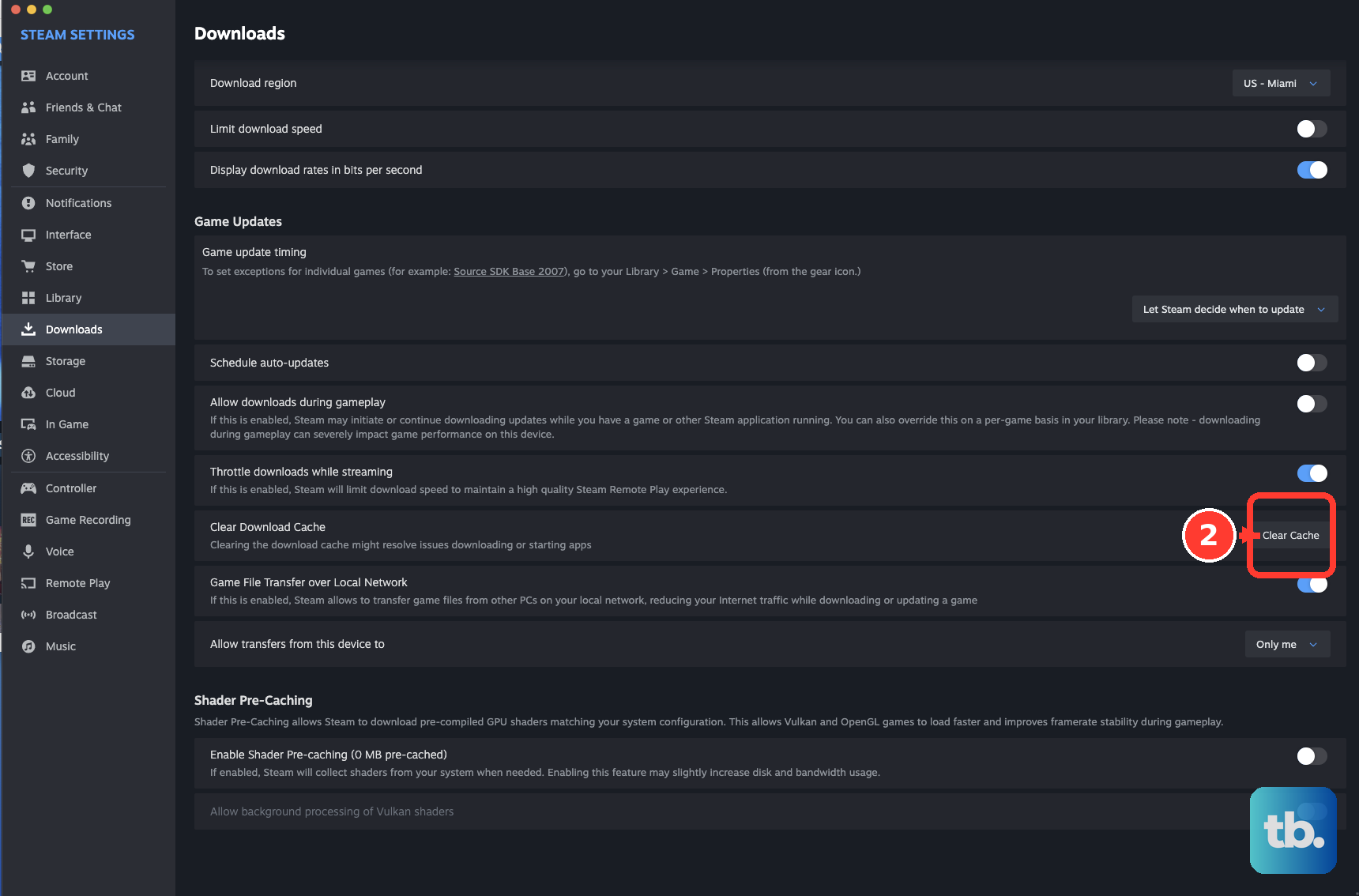
No. Clearing the download cache requires access to Steam’s settings. You cannot reach it from the fatal startup dialog, and Valve documents it for content-download problems.
Do I need to forward every Steam port on my router?
No. Valve’s login and download guidance concerns access to remote ports: TCP 80 and 443, and TCP/UDP 27015–27050. On a restrictive network, ask the administrator to permit that traffic. This is not an instruction to forward every port inbound.