You open Steam expecting a shared library, but the game is missing, locked, or the family invite will not go through. Steam now uses Steam Families for sharing, so old Family Library Sharing fixes send you to the wrong place. Start with the current family setup, then check eligibility, game restrictions, copy locks, child controls, and the Steam client itself.
1. Set up the current Steam Family first
Start in Family Management, because Steam Families is the current sharing system. A Steam Family can contain up to 6 members and is meant for a household of close family members.
- 1.Open Steam in the desktop client, Steam mobile app, or a web browser.
- 2.Go to Account Details or Account Settings.
- 3.Open Family Management.
- 4.Select Create a Family.
- 5.Enter a family name and finish the setup.
Do not use old instructions for Authorize Library Sharing on this device, Manage other computers, Steam Families beta participation, or Family View PIN settings. Valve’s current path is Family Management under Steam Families.
2. Invite the missing Steam account
Open Account Details or Account Settings. Then choose Family Management and select Invite a Member.
Select or search for the family member’s Steam account. Choose adult or child, then have the invited person accept the alert Steam sends to their account.
If the family exists but the shared library still does not show for someone, add that exact account to the Steam Family and choose the correct role. Adults can manage invites and restrictions. Child accounts use the Steam Families parental control settings.
3. Clear account limits and cooldown blocks
Read the message Steam shows on the join attempt when creating or joining a Steam Family fails. Steam lists the block there, including any cooldown time remaining.
A limited Steam account cannot use Creating a Steam Family. To remove the limit, spend at least $5.00 USD in the Steam store by adding $5 or more to Steam Wallet, buying games worth $5 or more, adding a Steam Wallet card worth $5 or more, or buying a Steam gift worth $5 or more.
A gift you buy counts only once the recipient redeems it. Receiving a Steam gift or digital gift card from someone else does not count.
When account activity does not show the account is part of the same household, Steam blocks the join. If the account is still on cooldown from a previous Steam Family, wait for the time shown in Steam. If the Steam Family member slot is still on cooldown, wait for the time shown in Steam.
4. Separate family games in your Library
Open the Steam client and select Library. Open the game list dropdown at the top of the game list, then check Group By Library.
Sharing can be working while the game list makes the shared titles hard to spot, so change the Library view before you rebuild the family. That groups family games separately from games owned by the current account.
5. Check whether that game can be shared
A single missing game points to a game or DLC restriction. Games that require an extra third-party key, account, or subscription cannot be shared, and free-to-play games and DLC for free-to-play games cannot be shared.
Region-restricted games or DLC cannot be shared, and games that do not support the other member’s operating system cannot be shared. Games the publisher marked unavailable for sharing cannot be shared, and games marked private by the owner cannot be shared.
Games already excluded from Family Sharing cannot be shared. Steam Families does not share every title. For a shareable game that the owner marked private, open Library, right-click the game or select the gear icon on its details page, open Manage, and change the private setting. You can also open the game properties dialog and use Privacy.
6. Unlock a shared copy that is already in use
Steam Families shares available copies, not unlimited access to one copy. In the Steam client, check who is playing the locked game; that copy stays locked until that person stops playing.
If another family member owns the same game with identical DLC, Steam launches that available copy. If another copy exists with different DLC, Steam can ask whether to switch to that copy. If no other copy is available, wait for the current player to stop or buy another copy.
7. Adjust parental controls for child accounts
Open Account Settings, then go to Family Management. Select Manage and expand the child’s entry. Toggle Enable Parental controls, then configure game access, Steam feature access, and playtime limits.
When the blocked account is a child account, fix access inside the Steam Families controls instead of changing the old Family View PIN settings. If a child account cannot log in, an adult in the family can expand the child’s entry, select Recover Account, and complete the recovery wizard after that child account has been in the family for at least 30 days.
8. Move out of the wrong family
Fix the membership first if the account joined the wrong Steam Family. Adults can leave a Steam Family at any time, and adult family members can remove any family member. Children cannot leave by themselves; an adult or Steam Support must remove them.
Adults must wait 1 year from joining the previous family before creating or joining a new Steam Family. A user can rejoin the last Steam Family without waiting when that family has fewer than 6 members.
9. Repair Steam and contact support
Before treating the problem as a Steam Families failure, install the current Steam client from Valve’s Steam product page by selecting Install Steam, then downloading and running the Steam installer. If you are repairing an existing installation, running the installer again reinstalls Steam.
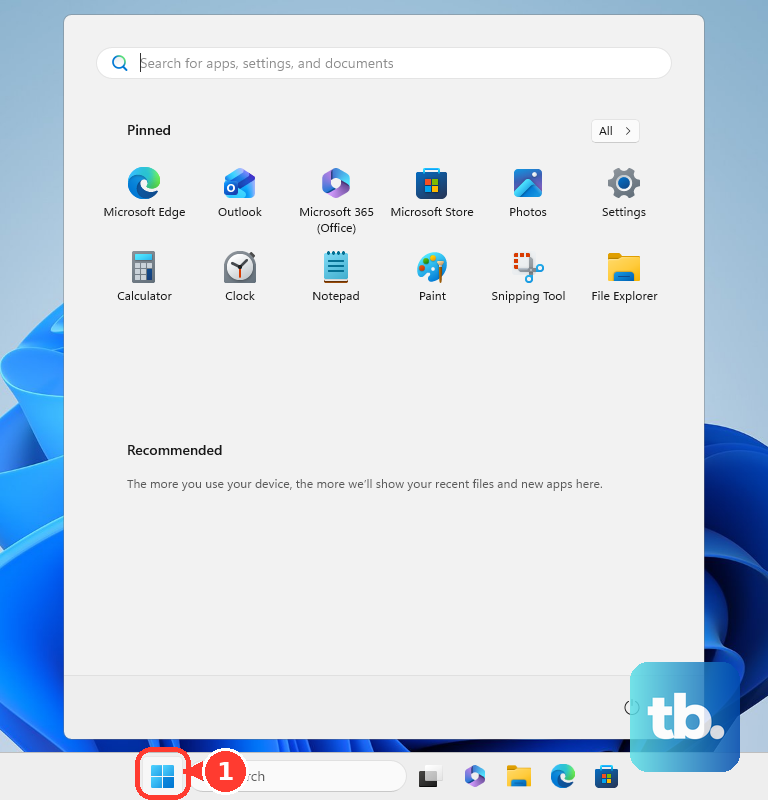
When the desktop client still behaves badly, reinstall Steam as a client repair step. On Windows, exit Steam, move steamapps out of C:\Program Files (x86)\Steam\ if you want to keep installed games, then select Start, Settings, Apps, Installed apps, find Steam, choose More and Uninstall, then in the Steam uninstaller select Automatic, Next, and Finish. Reinstall Steam from Valve’s product page.
On macOS, choose Quit Steam from the Steam menu, drag Steam from Applications to Trash, open the Library folder from the Go menu while holding Option, and delete Steam data in Library/Application Support/Steam except /SteamApps if you are keeping game downloads. Then select Empty Trash and reinstall Steam.
For unresolved Steam Families issues, use the Steam Families forum or the Steam Support issue page. If a family member cheats or commits fraud while using a shared game, Steam Family privileges can be revoked, the owner can also receive a VAC ban, and VAC-banned games cannot be shared.
Frequently Asked Questions
Why did Steam Family Sharing disappear from my settings?
Valve replaced the old Family Library Sharing workflow with Steam Families. Use Account Details or Account Settings, then Family Management, instead of the old per-device authorization pages.
Can two people play the same shared Steam game at the same time?
Yes, but only when the family has another available copy. If the only shared copy is in use, that game stays locked until the current player stops or another copy is bought.
Why can’t I join my family member’s Steam Family?
Steam blocks joins when the accounts do not appear to be in the same household, the joining account is on cooldown from a previous Steam Family, or the member slot is on cooldown. The join message shows the remaining time.
Does Steam Guard fix Steam Family Sharing not working?
No. Steam Guard is still an account security feature, but Valve’s current Steam Families FAQ does not list Steam Guard as a setup or troubleshooting requirement for Steam Families.