Steam Cloud synchronization not working usually means Steam could not upload or download the newest save before a game launched or closed. Start with the Cloud status on the game’s Library page, then move through the Steam settings, connection checks, storage repair, and client repair steps that match the warning you see.
Retry the failed sync from your Library
Use this when one game shows a failed, out-of-sync, or warning state beside its play controls. This is the fastest fix when Steam simply missed one upload or download attempt.
Open Steam and go to Library. Select the affected game, then look next to Play for the Cloud Status text or cloud icon. Click the Cloud Status area and choose Retry Sync. Keep Steam open and online until the status changes to Up to date, then launch the game or switch devices.
Turn Steam Cloud back on
The most common cause is that Steam Cloud is disabled globally or turned off for the individual game.
Open Steam, choose Steam, then open Settings and Cloud. Turn on Enable Steam Cloud Sync for applications that support it. That is how Steam Support names the toggle on the Cloud tab; Valve’s Steamworks documentation still calls the same global setting Enable Steam Cloud synchronization for applications which support it, so match whichever wording your client shows.
Next, check the affected game. In Library, right-click the game or select the gear icon, open Properties..., choose General, and turn on Keep games saves in the Steam Cloud for [game name].
When that per-game switch is missing, the game may not support Steam Cloud or may use another save system. Use the game publisher’s own save or account sync options instead.
Let Steam finish before changing devices
Steam syncs matching Cloud files before launch and again after you exit a game. Closing Steam too quickly after a session can leave the next device waiting for an upload that never finished.
Close the game normally, then leave Steam open while you are online. Watch the game’s Cloud Status on the Library page until it changes to Up to date.
After that, start Steam on the other device and wait for its pre-launch sync to finish before opening the game. This matters most when you just stopped playing on another device.
Moving between a PC, Mac, Linux machine, or Steam Deck is a separate question. Steam supports cross-platform cloud data between different operating systems, but not every game uses that feature, so a save made on one operating system does not always appear on another. Check the game’s store page, or ask the developer or community, before you rely on a cross-platform save.
Pick the right save in a Cloud conflict
A Steam Cloud conflict means Steam found different local and cloud save versions and needs you to choose which copy should win.
Compare the local and cloud timestamps and any save details shown in the dialog. Choose the newer save when you want the latest progress, or choose the other copy when that is the version you want to keep.
Let Steam finish syncing before you launch the game again or close Steam. If the conflict returns, verify the game files next because the game may be having trouble reading or writing its save files correctly.
Repair the game or Steam library folder
The most common cause here is damaged installed files, library metadata, or folder permissions interfering with the game’s ability to read or write saves.
For the game itself, open Library, right-click the game or select the gear icon, then open Properties.... Go to Installed Files and choose Verify integrity of game files.
For the library folder, open Steam, then Settings and Storage. Select the drive or library that contains the game, open the three-dot menu ..., and choose Repair Library. Steam Support documents the same command at the same place as Repair Folder, so use whichever of the two labels your client shows.
Verification can repair damaged installed game files, but it does not repair damaged save data itself. Avoid deleting saves while Cloud status is still unclear.
Clear Steam’s download cache
Use this when Steam Cloud errors appear alongside update, download, or connection problems. Clearing the download cache is a Steam client troubleshooting step and does not require uninstalling your games.
Open Steam, go to Settings, then choose Downloads. Select Clear Download Cache and confirm the prompt.
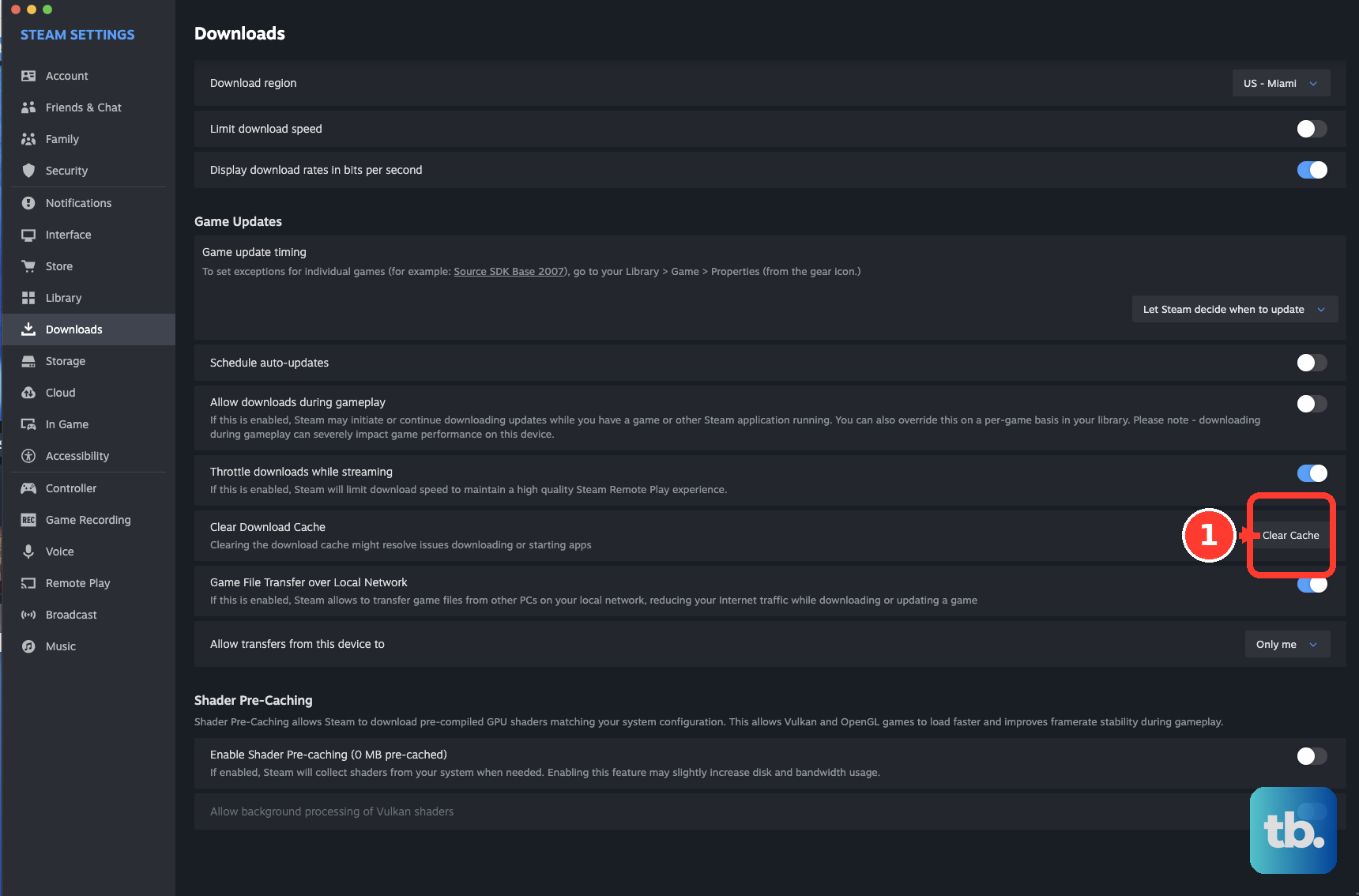
Sign back in if Steam asks, then return to the affected game’s Library page and retry the Cloud sync. If this fails, check whether Steam is offline or whether several games are showing the same sync problem, because that points to connection or service trouble rather than a single game.
Get Steam back online
Confirm the device has internet access. Open Steam and choose Steam. Select Go Online. Choose Connect to the Internet.
Restart Steam when prompted. Progress made while Steam was offline syncs only after you reconnect and let Steam finish the upload.
Fix firewall or network blocks
The most common cause is that Windows, macOS, a router, or a managed network is blocking Steam’s connection to the Steam Network.
On Windows, start with the app-based option. Open Windows Security, go to Firewall & network protection, choose Allow an app through firewall, select Change settings, then allow Steam or use Allow another app to add Steam.exe.
Only open specific Steam ports when allowing the Steam app is not enough. Disable those port rules when you no longer need them.
On macOS, the built-in firewall controls incoming connections only, so it rarely stops a Cloud upload by itself. Check it anyway when Block all incoming connections is turned on: open the Apple menu, go to System Settings, then Network, Firewall, and Options.... Add or select Steam, set it to Allow incoming connections, then choose OK or Done.
If that changes nothing, the block is on the outbound side. Steam Support points to third-party firewalls, antivirus software, and network hardware when a firewall prevents Steam from talking to its servers, so test those next.
On Macs using iCloud+ Private Relay features, open System Settings, choose Network, select Wi-Fi or Ethernet, open Details, and turn off Limit IP address tracking for the active network.
For work or school devices, ask the administrator to allow Steam connectivity or approve a trusted Steam exclusion instead of changing firewall, antivirus, or network policy settings yourself.
Reinstall Steam over the current install
This fixes damaged Steam client files after the lighter Steam Cloud, cache, storage, and network fixes have failed.
Open the official Steam download page at store.steampowered.com/about. Select Install Steam. Run the installer. Install Steam to the same Steam folder or location you already use.
Open Steam and sign in. Return to the affected game and wait for Cloud Status to update before launching.
Avoid uninstalling Steam first unless you have backed up your games and saves. Steam Support says uninstalling Steam removes Steam and may remove installed game content and local saves.
Older guides may send you to a game’s Properties and Updates tab for a per-game Enable Steam Cloud synchronization checkbox. On the current Steam client that per-game control sits under Properties... and General, where Steam Support calls it the Cloud Synchronization setting and the client labels it Keep games saves in the Steam Cloud for [game name]. The separate global toggle in Settings and Cloud has not gone away.
Frequently Asked Questions
Why does Steam Cloud sync fail for only one game?
That usually points to the game’s own Cloud setting, damaged installed files, or the game not supporting Steam Cloud. Check the per-game Cloud toggle first, then verify the game files.
Can I force Steam Cloud to sync from a browser?
No. The Steam Cloud web storage page can show or download files for supported games, but it does not force the Steam client to sync.
Will verifying game files delete my saves?
Verifying integrity repairs installed game files. It does not repair damaged save data itself, so avoid deleting local or cloud saves while troubleshooting.
What should I do if every game shows a Cloud error?
Treat it as a connection or Steam service issue. Go online in Steam, check your firewall or network, and wait before changing or deleting saves.