Spotify not loading usually shows up as a blank screen, a spinner that never ends, an app that will not open, or a web player that refuses to start. Start with the quick resets, then move through Offline mode, cache, updates, reinstalling, browser settings, and account fixes until Spotify opens again.
Start with the fastest reset
Give Spotify and your connection a clean restart before changing deeper settings.
- 1.Close Spotify completely, then open it again.
- 2.On iPhone X or later, swipe up from the bottom and pause, find Spotify, then swipe up on its preview. On iPhone SE, iPhone 8 or earlier, and iPod touch, double-click the Home button, find Spotify, then swipe up on its preview.
- 3.On Android, open Settings, go to Apps, choose Spotify, then tap Force stop.
- 4.Restart your Android phone. On Pixel 6 and later, including Fold, press and hold the Power and Volume up buttons for a few seconds, then tap Restart. On Pixel 5a and earlier, press the Power button for about 30 seconds, or until the phone restarts. On other Android phones, follow your manufacturer's restart instructions.
- 5.Open another app or web page. If nothing else loads, fix the internet connection before troubleshooting Spotify.
Turn off Offline mode and refresh Wi-Fi
Spotify looks broken when Offline mode is on or when the current Wi-Fi connection is stuck. On mobile or tablet, tap your profile picture, open Settings and privacy, go to Data-saving and offline, and switch Offline mode off.
On desktop, open Spotify. On Mac, click Spotify in the Apple menu at the top of the screen. On Windows, click File in the three-dot menu at the top of the screen, then turn off Offline mode.
Next, switch Wi-Fi off in your device settings, wait 30 seconds, and switch it back on. If you are on home Wi-Fi, restart the router using your router maker's instructions.
If Spotify still will not load, switch to another Wi-Fi network or mobile data. When Spotify works on a different connection, contact the service provider for the original connection.
Clear Spotify cache
This fixes loading problems caused by damaged temporary files or low available storage.
On iPhone or Android, tap your profile picture at the top of Spotify.
Open Settings and privacy.
Choose Data-saving and offline.
Under Storage, tap Clear next to Clear cache.
On desktop, click your profile picture, open Settings, scroll to Storage, then click Clear cache.
Keep at least 1 GB of free memory on your device. Clear Spotify cache or remove downloaded tracks from the same Storage area.
Update Spotify and your device software
The most common software cause is an outdated app or operating system that no longer matches Spotify's current requirements.
On iPhone or iPad, open the App Store, tap the My Account button or your photo, tap App Updates, then tap Update next to Spotify or choose Update All. To turn on automatic updates, open Settings, go to Apps, choose App Store, and turn App Updates on.
On Android, open the Google Play Store, search for Spotify, and tap UPDATE. To keep it current, open Spotify's Play Store page, tap the three dots at the top, and check Enable auto-update.
On desktop, click your profile picture when a blue dot appears next to it, then select Update Spotify now. If you installed Spotify from Microsoft Store, open Microsoft Store, go to Library, and click Get updates.
Spotify requires iOS 16.1 or above, Android OS 7.0 or above, Mac OS X 13.0 or above, Windows 10 64-bit, or Windows 11 or above. On Mac, use Apple menu, System Settings, General, and Software Update when the operating system is too old for the current Spotify app.
Reinstall Spotify when the app still will not open
A reinstall replaces the app files and gives Spotify a fresh start.
- 1.On iPhone or iPad, tap and hold Spotify, choose Remove App, tap Delete App, then install Spotify again from the App Store.
- 2.On Android, open Settings, go to Apps, choose Spotify, tap Uninstall, then install Spotify again from Google Play or your phone's app store.
- 3.On Mac, open Finder, select Applications, drag Spotify to the Trash, empty the Trash, then download and install Spotify again.
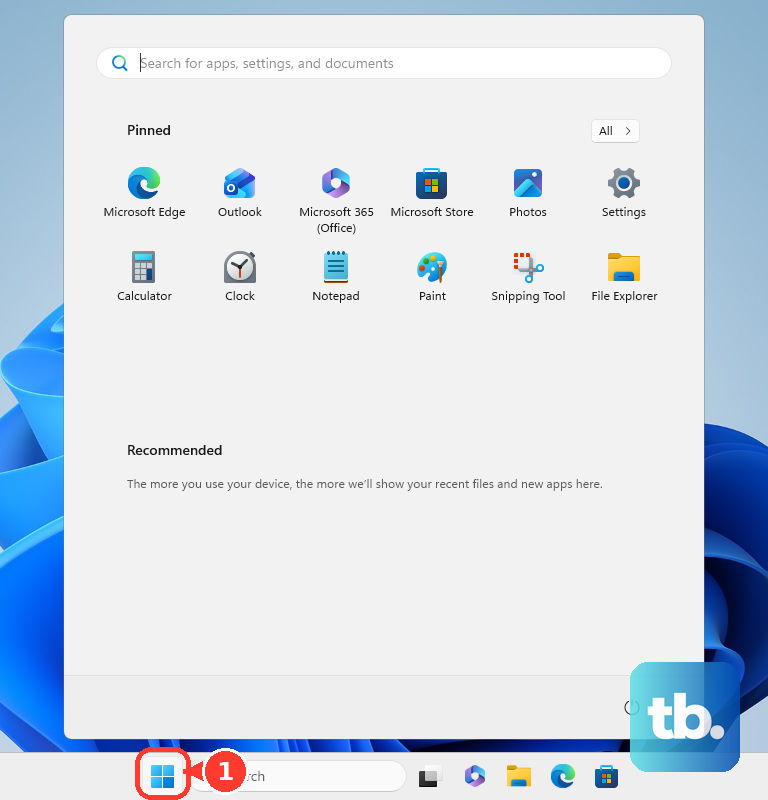
- 4.On Windows 11, close Spotify, open Start, go to Settings, choose Apps, open Installed apps, find Spotify, select More, then choose Uninstall. On Windows 10, close Spotify, open Start, go to Settings, choose Apps, open Apps & features, select Spotify, then select Uninstall. Install Spotify again from Microsoft Store or Spotify.
- 5.Use Spotify's official download page instead of third-party download sites.
Fix Spotify Web Player problems
Use this method when open.spotify.com is the part that will not load. Spotify supports Chrome, Firefox, Edge, Opera, and Safari, with desktop browser support based on widely available versions updated within the last 30 months.
Update your browser from its Help section.
Open Spotify Web Player in a private or incognito window and sign in again.
In Chrome, enter chrome://settings/content in the address bar, click open.spotify.com, scroll to Protected content IDs, then choose Allow or Default when protected content playback is blocked.
In Firefox, click Enable DRM if a yellow warning bar appears. Without that bar, enter about:preferences#content in the address bar and turn on Play DRM under DRM content.
Clear your browser's cookies and cache for a fresh session. In Edge, use Settings and more, Settings, Privacy, search, and services, Choose what to clear, then Clear now; in Firefox, use Settings, Privacy & Security, Cookies and Site Data, and Clear Data; in Chrome, use More, Delete browsing data, and Delete data.
When the web player still will not load after those browser checks, install and use the Spotify desktop app from Spotify's official download page.
Sign out and fix account blocks
Account sessions get stuck across the app, desktop player, and web player. On mobile or tablet, tap your profile picture, open Settings and privacy, scroll to the bottom, and tap Log out. On desktop or web player, click your profile picture and choose Log out.
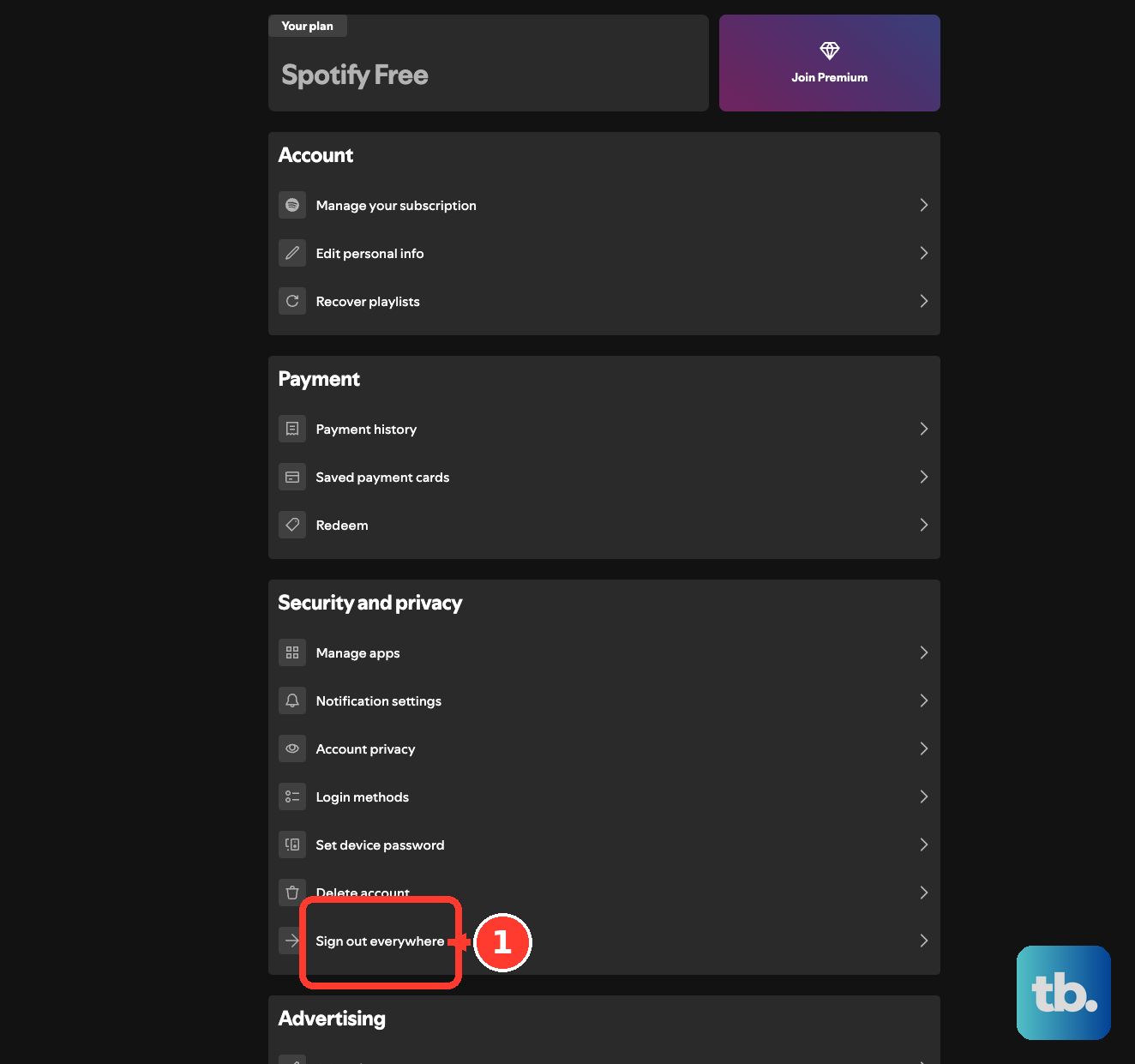
For a wider refresh, go to Spotify's account portal and use Sign out everywhere. That action does not include partner devices such as speakers, game consoles, and TVs, so remove those from Spotify's apps page with Remove Access when a connected device is stuck.
If Spotify loads only to a login problem, open accounts.spotify.com/password-reset, enter your Email address or username, and reset the password. Also try the login method you originally used, such as email, phone number, Apple, or Google.
When Spotify is in Offline mode and will not let you sign in with Facebook or Apple, use an email address and password instead.
Check networks, storage, and TV apps
Close other open apps that are using a lot of internet, then reopen Spotify.
On mobile data, check that you have enough data allowance in your device settings, and turn off the device's data saver when it is blocking Spotify.
Temporarily disable third-party cache-clearing or battery-saving apps, then restart Spotify.
For a TV that will not load Spotify, confirm the TV is connected to the internet, check the TV app store for a Spotify update, update the TV software, restart Spotify, restart the TV, restart Wi-Fi, reinstall Spotify on the TV, and try a different Wi-Fi connection.
On Android TV, allow Spotify Connect by opening Settings, Apps, Special app access, and Display over other apps, then allowing Spotify to display over other apps.
When Spotify fails only on school, work, office, or public Wi-Fi, ask the person who manages that network whether Spotify is restricted.
Keep one simple clue in mind: if Spotify works on another network, the blocked network is the problem.
Check desktop network blocks
The most common desktop-only cause after normal app fixes is security or network software blocking Spotify.
Check your firewall and make sure Spotify is allowed as an exception. Use your firewall provider's instructions for the exact place to change that setting.
If local network changes were made on your Mac or Windows PC, Spotify-related entries in the hosts file can block the service. On Windows, open C:\Windows\System32\drivers\etc\hosts with Notepad as administrator and remove entries containing Spotify or Fastly.
On Mac, use Finder, Go, Go to Folder, open /private/etc/hosts, remove Spotify-related entries, then restart Spotify.
Older Android guides mention labels such as Manage applications and Clear Data. Those are legacy Android menu names; current Spotify support requires Android OS 7.0 or above, so use the current Android path instead: Settings, Apps, Spotify, Storage, Clear storage, and Clear cache.
Frequently Asked Questions
Why is Spotify stuck on a loading screen?
Spotify gets stuck on a loading screen when the app session freezes, Offline mode is on, the connection is blocked, cache is damaged, storage is low, the app is outdated, or the browser blocks protected content.
Does reinstalling Spotify delete my account or playlists?
No. Reinstalling Spotify removes local app files from the device. Your account, playlists, and saved content return when you sign in with the same Spotify login.
What should I do if Spotify Web Player will not load but the app works?
Update the browser, open Spotify Web Player in a private or incognito window, enable protected content or DRM, and clear browser cookies and cache. Use the desktop app when the browser still fails.
Can work or school Wi-Fi stop Spotify from loading?
Yes. Shared networks such as school, work, office, and public Wi-Fi often restrict services. Ask the network manager or IT department whether Spotify is blocked.