Spotify album art can disappear when the app is stuck, offline, low on storage, saving data, or hiding images through a display setting. Start with the fastest fixes, then move into device, browser, and reinstall steps if the covers stay blank.
Restart Spotify first
Close Spotify completely, then open Spotify again. Spotify lists restarting the app as its first quick fix for app problems.
If the album art is still missing, restart your phone, tablet, or computer and open Spotify again. If this method fails, update Spotify next, which Spotify lists as its next quick fix after restarting.
Update Spotify and confirm your device is supported
What this fixes: old Spotify builds and unsupported operating systems. On iPhone, open Settings. Tap Apps, then tap App Store. Turn App Updates on.
To update manually on iPhone, open the App Store. Tap the My Account button or your photo at the top of the screen. Tap App Updates. Tap Update next to Spotify.
On Android, open the Google Play Store. Search for Spotify. Tap the three-dot menu. Turn Enable auto-update on.
To update manually on Android, search for Spotify in the Google Play Store. Tap UPDATE.
On desktop, look for a blue dot next to your profile picture. Click your profile picture. Choose Update Spotify now.
Check your operating system if Spotify still behaves strangely. Current Spotify apps need iOS 16.1 or above, Android OS 7.0 or above, Mac OS X 13.0 or above, or Windows 10 64-bit, Windows 11, or above.
Get Spotify back online
Open another app or web page on the same device. If nothing else loads, fix the connection before changing more Spotify settings.
On Wi-Fi, open your device Settings. Switch Wi-Fi off. Wait 30 seconds. Switch Wi-Fi on again.
Restart your router if Spotify album covers are still blank on Wi-Fi. Try another Wi-Fi network or switch to mobile data. For mobile data, check your data allowance in device settings or with your carrier.
On mobile or tablet, tap your profile picture in Spotify. Open Settings and privacy. Go to Data-saving and offline. Switch Offline mode off.
On Mac, open Spotify. Use the Spotify menu in the Apple menu bar. Turn Offline Mode off.
On Windows, open Spotify. Click the three-dot menu at the top. Go to File. Turn Offline Mode off.
Keep Spotify online and connected while you test the other fixes.
Turn off data and artwork display limits
Data Saver reduces data use by showing fewer images. On mobile or tablet, tap your profile picture, open Settings and privacy, go to Data-saving and offline, and switch Data saver off.
Canvas can replace or cover the normal static album art in Now Playing. On mobile, tap your profile picture, open Settings and privacy, go to Content and display, and switch Canvas off.
On desktop, click your profile picture, open Settings, go to Display, and switch off Display short, looping visuals on tracks (Canvas).
If cover thumbnails are missing in Your Library on desktop or the web player, click your profile picture, open Settings, go to Library, and switch Use compact library layout off.
Clear Spotify cache and free storage
Spotify stores parts of music and podcasts as cache so it can play without lagging. Clearing the cache removes these temporary files, and Spotify lists it as a general fix when the app misbehaves.
On iPhone or Android, tap your profile picture, open Settings and privacy, go to Data-saving and offline, find Storage, and tap Clear next to Clear cache. On desktop, click your profile picture, open Settings, scroll to Storage, and choose Clear cache.
Make at least 1GB of device memory available for Spotify. If storage is tight, clear the Spotify cache or remove downloaded tracks. If clearing cache does not fix the missing covers, remove and re-download the affected offline music next.
Refresh downloaded music and Android storage
On mobile, tap your profile picture in Spotify. Open Settings and privacy. Go to Data-saving and offline. Select Remove all downloads under Storage.
To remove one downloaded item instead, open Your Library. Choose Downloaded. Open the downloaded album or playlist. Tap the green arrow button.
Choose Remove. Download the album or playlist again.
On Android, open the system Settings app. Go to Apps or Applications. Choose Spotify. Open Storage.
Tap Clear cache. Use Clear storage only when you need a fuller reset, because it permanently deletes app data.
On Samsung Galaxy, open Settings. Go to Apps. Choose Spotify. Open Storage.
Tap Clear cache. For a full reset, tap Clear data. Tap Delete.
If Spotify uses an SD card, remove the SD card temporarily and test Spotify again. An SD card used for downloads should be available, accessible, and have at least 1GB free space. Re-download only the music you need first so you can quickly tell whether the album art problem is fixed.
Try the web player or another device
Use this check to separate an app problem from a device, browser, network, or Spotify-side problem.
- 1.Open Spotify on another phone, tablet, or computer.
- 2.Open https://play.spotify.com in a supported browser.
- 3.Use Chrome, Firefox, Edge, Opera, or Safari on desktop.
- 4.Make sure your browser is up to date.
- 5.Open Spotify in a private or incognito window.
- 6.If covers appear there, focus on fixing the original app, browser, or device.
Fix Spotify album art in the browser
What this fixes: missing album covers in the Spotify web player. In Chrome, open More. Choose Delete browsing data. Select a time range.
Choose Cookies and other site data. Choose Cached images and files. Click Delete data.
In Edge, open Settings and more. Choose Settings. Open Privacy, search, and services. Go to Clear browsing data.
Click Choose what to clear. Select Cookies and other site data and cached items. Click Clear now.
In Safari on Mac, open Safari. Choose Settings. Open Privacy. Click Manage Website Data.
Select the Spotify website in the list. Click Remove.
Fix the protected content error in the web player
Use these steps only if the web player shows the Playback of protected content is not enabled error.
In Chrome, enter chrome://settings/content in the address bar. Choose open.spotify.com. Open Protected content IDs. Set it to Allow or Default.
In Firefox, click Enable DRM in the yellow warning bar. Or open Firefox Settings, go to the General panel, and under Digital Rights Management (DRM) Content, check Play DRM-controlled content.
On Windows 10 N editions with Edge, install the Media Feature Pack from Microsoft when Spotify requires it.
Reinstall Spotify and handle blocked networks
Use this when album art stays missing after cache, network, and display settings are fixed. Reinstalling removes local app problems, and a clean reinstall also resets settings and downloads.
On iPhone or iPad, tap and hold the Spotify app icon, choose Remove App, tap Delete App, then install Spotify again from the App Store. For a cleaner reinstall, first clear Spotify cache, then open iOS Settings, go to General, open iPhone Storage or iPad Storage, choose Spotify, and tap Delete App.
On Android, open Settings, go to Apps, choose Spotify, tap Uninstall, then install Spotify again from Google Play or your phone's app store. For a clean reinstall, open Storage or Storage & cache memory on the same Spotify screen, tap Clear storage and Clear cache, then tap Uninstall. Next, delete com.spotify.music from Internal Storage, Android, data when present, restart the device, then reinstall Spotify.
On Mac, open Finder, go to Applications, drag Spotify to Trash, empty Trash, then install Spotify from Spotify's download page. For a clean reinstall, quit Spotify, open Finder, use the Go menu, hold Option or Alt, choose Library, then delete com.spotify.client and com.spotify.client.helper from Caches. Delete the Spotify folder from Application Support, restart, then reinstall.
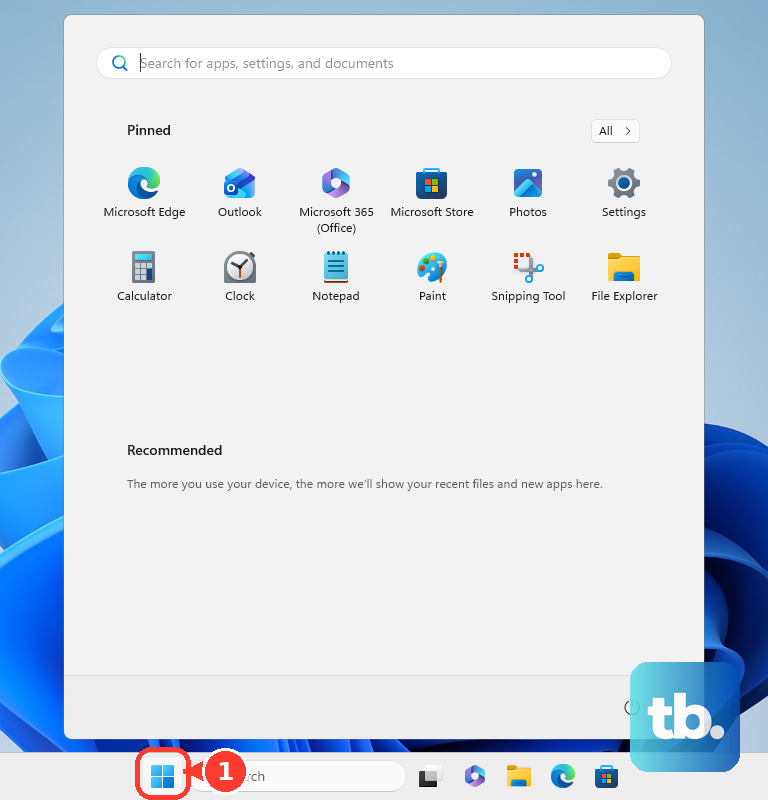
On Windows, close Spotify, open the Start menu, go to Settings, open Apps, choose Installed apps (or Apps & Features if your version of Windows shows that instead), find Spotify, select More if shown, and click Uninstall. Follow the prompts, then install Spotify again from the Microsoft Store or directly from Spotify.
If the problem is only on a Windows PC, Spotify Community moderators suggest opening Spotify's three-dot menu, going to Help, opening Troubleshooting, toggling Hardware acceleration, and restarting Spotify. The same Troubleshooting menu can also reset app data. That signs you out and resets your settings and downloads but keeps your library, so sign in again and re-download offline content afterward.
For a blocked Windows connection, open the Windows Security app, go to Firewall & network protection, choose Allow an app through firewall, click Change settings, and allow Spotify. Allow Spotify instead of turning the firewall off.
Shared or public networks, such as school or office networks, can restrict access to Spotify. Contact the network administrator if covers fail only on that managed network, especially when Spotify works normally on another connection.
If the same wrong or missing cover appears on every device and network, update Spotify, test the track on another device or in the web player, try another Wi-Fi or data connection, then contact Spotify. For local files, remove the local files from playlists, repeat Spotify's Local Files setup, and add them again.
For user-created playlists on mobile, open the playlist and tap Edit, then either select Change cover image, choose a photo, and tap Save, or select Change playlist cover, choose Create cover art, and tap Save. On desktop or the web player, click the image on a playlist you created, choose a photo, and click Save.
Frequently Asked Questions
Why is Spotify showing a blank cover instead of album art?
Data Saver shows fewer images, compact library layout hides cover images in Your Library, and Canvas plays a looping visual in Now Playing instead of the album artwork. If none of those settings is on, check Offline Mode and your connection, then clear the cache, free storage, refresh downloads, or clear browser data for the web player.
Will clearing Spotify cache delete my playlists?
No. Clearing Spotify cache removes temporary files. Removing downloads or resetting app data means you need to download offline music again.
Can I change official Spotify album artwork myself?
No. The artist's label or distributor fixes incorrect release information, and listeners can report inaccurate information to Spotify. If the artwork is wrong everywhere, update Spotify, test another device, try the web player, switch networks, then contact Spotify.
Why does album art show on Wi-Fi but not cellular on iPhone?
Spotify may not have cellular access, or iPhone Low Data Mode may be limiting network use. Turn cellular data on for Spotify and turn Low Data Mode off for the active connection.