Chrome should mark spelling mistakes while you type, but one wrong language setting, extension, keyboard option, or managed profile can stop it from working. Start inside Chrome on desktop, then move to the system or keyboard settings Chrome uses on your device. The fixes below follow the current Chrome, Windows, macOS, Android, iOS, and ChromeOS paths.
1. Turn on Chrome spell check first
Start with the main desktop switch in Chrome. This path applies to Chrome on Windows, macOS, Linux, and ChromeOS.
- 1.Open Chrome.
- 2.Select More.
- 3.Open Settings.
- 4.Choose Languages.
- 5.Under Spell check, turn on Check for spelling errors when you type text on web pages.
On Android, iPhone, and iPad, skip this desktop toggle and use the mobile keyboard settings below. Google says mobile Chrome uses the operating system or keyboard spell checker.
2. Switch between Basic and Enhanced spell check
Open More.
Go to Settings.
Select Languages.
Open Spell check.
Select Basic spell check or Enhanced spell check.
If Chrome is checking spelling but the suggestions are weak, change the spell-check mode. Basic spell check uses Chrome or the operating system. Enhanced spell check sends text typed in the browser to Google for improved suggestions.
Use Enhanced spell check when Basic is not giving useful suggestions. Use Basic spell check when privacy, web-service access, or a managed policy is part of the problem.
3. Match the fix to your device
Chrome does not use the same spelling provider on every platform: Windows 10 and newer use Windows, Mac uses macOS, Linux and ChromeOS use Chrome, Android uses the Android keyboard app, and iPhone and iPad use iOS.
That split matters. When the Chrome toggle is on and spell check still fails, fix the provider Chrome is using: Windows settings on Windows, macOS settings on Mac, keyboard settings on Android and iPhone, and both Chrome plus ChromeOS input settings on a Chromebook.
4. Repair Windows or Mac spelling settings
Open Start.
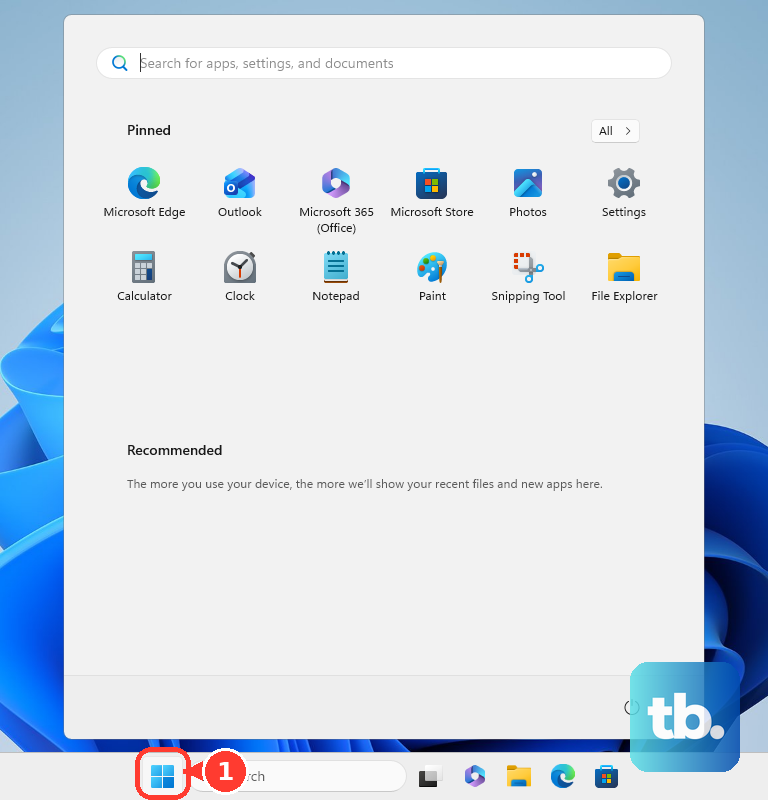
Select Settings.
Go to Time & language.
Open Typing.
Under Spelling, turn on Autocorrect misspelled words and Highlight misspelled words.
Those steps are the Windows 11 path. On Windows 10, open Start, Settings, Devices, then Typing, and use the same Autocorrect misspelled words and Highlight misspelled words switches under Spelling. On either version, those switches turn on the spelling options Chrome can use through Windows.
If one language works and another does not on Windows, install that language. Go to Start, Settings, Time & language, Language & region, Preferred languages, Add a language, choose the language, select Next, choose the language features you need, and select Install. On Windows 10, open Language rather than Language & region, then continue with Preferred languages and Add a language.
On Mac, open System Settings, Keyboard, Text Input, then Edit. Turn on Correct spelling automatically and select Done. To set the language, use the Spelling menu in the same area, choose a language, or select Set Up, choose languages, and select Done.
5. Test Chrome without extension interference
Use Incognito first because Chrome turns your extensions off there by default, so it is a fast way to test. If you have allowed any extension to run in Incognito, turn it off there too so the test stays clean.
Open More.
Select New Incognito window. On Windows, Linux, or ChromeOS, press Ctrl+Shift+N. On Mac, press Command+Shift+N.
Type a misspelled word into a normal text box on a web page.
If spell check works there, return to normal Chrome.
Open More, Extensions, then Manage extensions.
Turn extensions off one at a time, or select Remove and then Remove for the extension causing the issue.
Writing assistants, privacy tools, keyboard helpers, and editor extensions belong in this check.
6. Update Chrome and reset stuck settings
Open More.
Select Help.
Open About Google Chrome.
Wait for Chrome to check for an update.
Select Relaunch when Chrome offers it.
When the spelling controls are on but Chrome still behaves incorrectly, update the browser before resetting anything.
If spell check still looks stuck, reset Chrome settings. Go to More, Settings, Reset settings, Restore settings to their original defaults, then Reset settings. Google says this resets Chrome settings and disables extensions without deleting bookmarks, history, or saved passwords.
7. Fix Android iPhone and Chromebook keyboards
On Android with Gboard, open the Gboard keyboard, select Open features menu, More, Settings, then Text correction. Turn on correction and suggestion options such as Auto-correction and spelling suggestions.
On iPhone or iPad, open Settings, General, then Keyboard, and turn on Auto-Correction. If suggestions are missing, touch and hold the smile emoji or globe icon on the keyboard, choose Keyboard Settings, and turn on Predictive or Predictive Text. You can also go through Settings, General, then Keyboard.
On a Chromebook, check both Chrome and ChromeOS. In Chrome, open More, Settings, Languages, then Spell check. For ChromeOS input settings, press Alt+Shift+S, open Settings, Device, then Keyboard and inputs or Input settings, and adjust the available autocorrect or spell-check options.
8. Check work or school policy controls
A managed Chrome profile or device can lock spell-check settings.
Type chrome://policy in the Chrome address bar and look for SpellcheckEnabled, SpellcheckLanguage, SpellcheckLanguageBlocklist, or SpellCheckServiceEnabled. When one of those policies is enforced, the school or workplace administrator controls that setting.
Admins use SpellcheckEnabled for core spell check, SpellcheckLanguage and SpellcheckLanguageBlocklist for language controls, and SpellCheckServiceEnabled for the Enhanced Spell Check service.
9. Skip old Chrome flag fixes
Use the current Languages and Spell check controls, the matching OS or keyboard settings, extension checks, Chrome updates, and Chrome reset first.
Do not use old fixes that send you to Settings, Advanced, Languages, labels such as Offer to spell-check misspelled words, or the old Enable Automatic Spelling Correction flag. Those are legacy or deprecated paths, not the current supported Chrome repair route.
If you reinstall Chrome after those repair steps fail, uninstall it through your operating system and install it again only from the official Chrome page using Download Chrome.
Frequently Asked Questions
Why does Chrome spell check work on some websites but not others?
Some web pages limit browser spell checking inside specific fields. If Chrome marks mistakes on other sites, the site or text box is the limiting surface.
Does Chrome spell check work the same on mobile?
No. Google says Android Chrome uses the Android keyboard app, while Chrome on iPhone and iPad uses iOS keyboard spelling features.
Will resetting Chrome delete my bookmarks or saved passwords?
No. Google says resetting Chrome settings disables extensions and restores Chrome settings, but it does not delete bookmarks, history, or saved passwords.
Which policy blocks Chrome spell check on a managed device?
Check chrome://policy for SpellcheckEnabled, SpellcheckLanguage, SpellcheckLanguageBlocklist, and SpellCheckServiceEnabled. Enforced values have to be changed by the administrator.