Snap notifications stop showing up when Snapchat is muted in the app, blocked by your phone, silenced by Focus or Do Not Disturb, or denied browser permission on Snapchat for Web.
Start with the Snapchat switches, then check your device settings. The fixes below move from the fastest, most common causes to the deeper phone, browser, and managed-device settings.
Turn on notifications inside Snapchat first
Snapchat has its own alert switches, so check them before changing anything else. On iPhone, open Snapchat, tap your profile icon, tap Settings, open Notifications, and turn on each notification type you want.
On Android, open Snapchat, go to the Profile screen, tap Settings, open Notifications, and check the alerts you want. This fixes the simplest version of the problem: Snapchat is allowed on the phone, but the app itself is not set to alert you.
For Story alerts on iPhone, open Manage Story Notifications, tap the Snapchatter names you want alerts from, then tap Done. You can also swipe right to the Chat screen, press and hold a Chat or Group Chat, open Story Settings, and turn Story Notifications on.
Allow Snapchat in your phone notification settings
Your phone can block Snapchat even when Snapchat’s own settings are enabled. On iPhone or iPad, open Settings, go to Notifications, tap Snapchat, turn on Allow Notifications, then choose Lock Screen, Notification Center, or Banners. Turn on Sounds and Badges for audible alerts and app icons.
On Android, open Settings, go to Notifications, open App notifications, find Snapchat, and turn notifications on. Review Snapchat’s notification categories on the same screen, since Android can leave one category silent while another category still alerts.
If alerts still do not appear, check Focus, Do Not Disturb, and quiet modes next. Those settings can silence Snapchat after app permissions are correct.
Switch off Focus or Do Not Disturb
This fixes Snapchat alerts that are enabled but delivered silently or hidden while the phone is in a quiet mode. On iPhone, open Control Center. Tap the active Focus setting, such as Do Not Disturb or Work. Tap the same Focus setting again to turn it off.
To allow Snapchat through a Focus, open Settings, go to Focus, and choose the Focus you use. Tap Apps, select Allow Notifications From, tap Add Apps, choose Snapchat, and tap Done. Apple does not allow apps through Driving Focus.
On Android, swipe down from the top of the screen to open Quick Settings. Tap Do Not Disturb to turn it off. On Samsung Galaxy, open the Quick settings panel. Tap the illuminated Do not disturb button off.
Fix muted friends and quiet group chats
The most common cause when only one person or one group is quiet is a muted conversation inside Snapchat. Swipe right from the Camera screen to open the Chat screen, then press and hold the friend’s name. Open Chat and Notification Settings, tap Notification Settings, and turn off Mute Chats or Mute Calls.
For Group Chats, press and hold the group on the Chat screen. Open Chat and Notification Settings, then turn off Mute Chats if the group is fully muted.
If the group only sends some alerts, press and hold the Group. Open Chat Settings, tap Message Notifications, and choose All Messages. Mentions Only limits alerts to mentions, and Silent keeps the group quiet.
Check sound, summaries, badges, and Apple Watch
If Snapchat notifications arrive but make no sound, check Silent mode first. On iPhone models with an Action button, open Settings, go to Sounds & Haptics, and turn Silent mode off; on other iPhone models, move the Ring/Silent switch toward the front of the iPhone.
On Apple Intelligence-capable iPhones using iOS 18.1 or later, notification summaries change how alerts are worded and grouped rather than when they arrive, so a summarized Snap alert is easy to miss. Open Settings, go to Notifications, open Summarize Notifications, and turn it off or remove Snapchat from the summarized apps.
Delivery timing is a separate setting. If Snapchat alerts all arrive together at a set time, open Settings, go to Notifications, open Scheduled Summary, and turn it off or turn Snapchat off under the apps in your summary so its alerts arrive right away.
Priority Notifications on iOS 18.4 and later change what appears first. Open Settings, go to Notifications, then use Priority Notifications or Prioritize Notifications to adjust priority behavior.
If you use an Apple Watch, alerts go to the watch or the phone based on lock and unlock state. Open the Watch app on iPhone, go to My Watch, open Notifications, tap Snapchat, and use Mirror my iPhone or Mirror iPhone Alerts for Snapchat.
Refresh Snapchat and clear its cache
On iPhone, open the App Switcher and swipe to Snapchat. Swipe up on Snapchat, then open Snapchat again from the Home Screen or App Library.
On Android, open Settings, go to Apps, and tap Snapchat. Choose Force stop, then reopen Snapchat.
To clear the cache on iPhone, open Snapchat and go to My Account. Tap Settings, open App & Privacy, select My Privacy & Data, and tap Manage My Data. Choose Clear Cache, then tap Clear.
To clear the cache on Android inside Snapchat, open Snapchat and go to My Account. Tap Settings, open App & Privacy, select My Privacy & Data, and tap Manage My Data. Choose Clear Data, tap Clear Cache, then tap Clear. Clearing Snapchat’s cache can troubleshoot app issues without deleting Memories, Snaps, or Chats.
Update or reinstall Snapchat
This fixes notification problems caused by a broken or outdated app install. On iPhone or iPad, open the App Store and tap the My Account button or your photo. Go to App Updates and tap Update next to Snapchat, or tap Update All.
If updating does not help, touch and hold Snapchat. Tap Remove App, choose Delete App, and tap Delete. Reinstall Snapchat from the App Store or Snapchat’s official download page.
On Android with Google Play, open the Google Play Store and tap your profile icon. Open Manage apps & devices, then update Snapchat under Updates available.
To reinstall, go to Manage apps & devices and open Manage. Select Snapchat, then tap Uninstall. Install Snapchat again from Google Play or Snapchat’s official download page.
Android and Samsung battery or data limits
Use these checks when notifications arrive late, appear only after opening Snapchat, or stop while battery or data-saving modes are on. Android and Samsung menu names vary by phone, carrier, and software version.
On Android, open Settings, go to Digital Wellbeing, open Focus mode, and remove Snapchat from paused apps or tap Turn off now. If a schedule is active, tap Set a schedule and change it.
To let Snapchat use data while Android Data Saver is on, open Settings, go to Network & internet, open Data usage, tap Data saver, choose Unrestricted data access, and turn on Snapchat. On Samsung Galaxy, use Settings, Connections, Data usage, Data saver, then allow Snapchat under Allowed to use data while Data saver is on or Apps that can always use data.
Samsung users should also check Power saving. Swipe down to Quick settings and tap Power saving off, or open Settings, go to Battery, open Power saving, and disable it.
If lock screen alerts are missing on Samsung, open Settings, go to Notifications, open Lock screen notifications, and turn the toggle on. Then check Settings, Battery, Background usage limits, and remove Snapchat from any sleeping or deep-sleeping list on your model.
Snapchat for Web notification fixes
Snapchat for Web needs permission in Snapchat, in the browser, and in the computer’s notification settings. Mobile app notification fixes do not repair browser alerts on web.snapchat.com.
Open web.snapchat.com. Click your Bitmoji at the top left, then confirm notifications are enabled.
In Chrome or Microsoft Edge, open web.snapchat.com. Click the lock icon or View site information icon in the address bar. Set Notifications to Allow, then refresh the page.
In Safari on Mac, open Safari, go to Settings, and open Websites. Choose Notifications, then set web.snapchat.com to Allow.
On Windows, open Start.
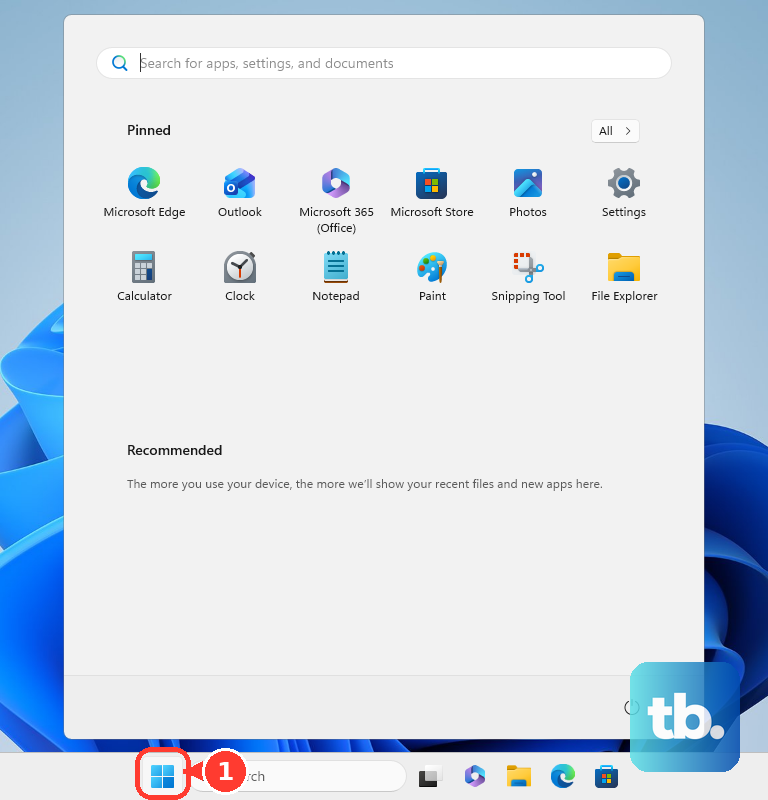
Go to Settings, choose System, and open Notifications. Turn Notifications on, then enable alerts for Chrome, Edge, or your browser.
If Windows Do not disturb is on, open notification center and select the bell icon with zZ to turn it off.
On Mac, open Control Centre from the menu bar. Click the active Focus section, then turn the Focus off.
On Mac, also check the browser's own notification permission, since macOS can block it even when Focus is off. Open the Apple menu, choose System Settings, click Notifications in the sidebar, select the browser you use for Snapchat for Web, and turn on Allow notifications.
For school or work devices, locked notification settings are controlled by the organization. Ask the admin to allow Snapchat or web.snapchat.com notifications for the managed phone, Mac, Windows PC, Chrome browser, or Edge browser.
Frequently Asked Questions
Why am I getting Snapchat notifications only when I open the app?
On Android and Samsung phones, check Focus mode, Data Saver, Power saving, and Background usage limits. These settings can delay Snapchat activity until you open the app.
Why are Snapchat notifications working for everyone except one friend?
Open the Chat screen, press and hold their name, go to Chat and Notification Settings, then Notification Settings, and turn off Mute Chats or Mute Calls.
Why do Snapchat notifications show up with no sound?
Check iPhone Silent mode, Snapchat’s system notification Sounds setting, Android notification categories, or Samsung notification categories. A notification can be allowed and still set to arrive silently.
Does clearing Snapchat cache delete my Memories or Chats?
No. Snapchat says clearing cache can help troubleshoot some issues and does not delete Memories, Snaps, or Chats.