To fix slow game patching on Steam, let progressing disk work finish, free space on the game's drive, and close competing applications before troubleshooting downloads or repairing files. Open Downloads first to check whether Steam is transferring data or applying the update locally. Download settings help with slow transfers, while storage and file repairs address problems applying the patch.
The short version
- Check progress: Let Steam finish disk work that is still progressing.
- Give patching room: Free space on the game's drive and close applications competing for disk or CPU resources.
- Match the fix: Download limits, server regions, and connection changes help the transfer stage.
- Repair genuine stalls: Restart Steam, clear its download cache, then repair the library or verify game files if needed.
| Fix | When to use it |
|---|---|
| Let disk work finish | File processing is still progressing |
| Prioritize the queued update | Your game is waiting behind other updates |
| Allow downloads during gameplay | Playing another game has paused downloading |
| Uninstall unused games | The game's drive needs working space |
| Remove temporary Windows files | Unneeded files occupy the affected drive |
| Free Mac storage | The affected Mac drive needs room |
| Close competing applications | Other programs consume disk, CPU, or bandwidth |
| Adjust the download speed limit | Steam is capped or unrestricted downloads disrupt connectivity |
| Change the download region | Content-server transfers remain slow |
| Disconnect a VPN or filtering utility | Traffic filtering may interfere with Steam |
| Restart the modem and router | The network connection is having problems |
| Try Ethernet | Wi-Fi or powerline networking may limit downloads |
| Try another internet connection | Your provider or network may be responsible |
| Compare downloads at another time | Slowdowns follow a recurring daily pattern |
| Restart Steam and the computer | An installation or update has stalled |
| Clear the download cache | A broken download persists after restarting |
| Repair the library folder | Write-permission problems interfere with updates |
| Verify game files | Files may be damaged or incomplete |
| Check security software | Blocking or scanning may interfere with Steam |
| Move the game | You need to isolate a drive problem |
| Check the drive for errors | Storage errors keep recurring |
| Repair the Steam installation | Client problems persist after earlier repairs |
Check whether Steam is still applying the patch
Open Downloads using the link at the bottom of Steam, or choose View > Downloads. Examine the update's progress before interrupting it. If disk work is progressing, allow it to finish.
Valve explains that SteamPipe, Steam's patching system, rebuilds changed pack files alongside their originals. Even a tiny change can require copying a 25 GB file, so your download size alone does not tell you how much work remains. The game's packaging determines how much data Steam needs to process.
That file rebuilding is why patching can take much longer than downloading. A faster internet connection cannot eliminate it. If progress has stopped, continue with the fixes for the stage causing trouble.
Bring your update to the front of the queue
In Downloads, reorder the queued updates so the game you want is first. Launching that game also requests its update immediately. Either action reduces queue delay without changing how quickly Steam processes the files.
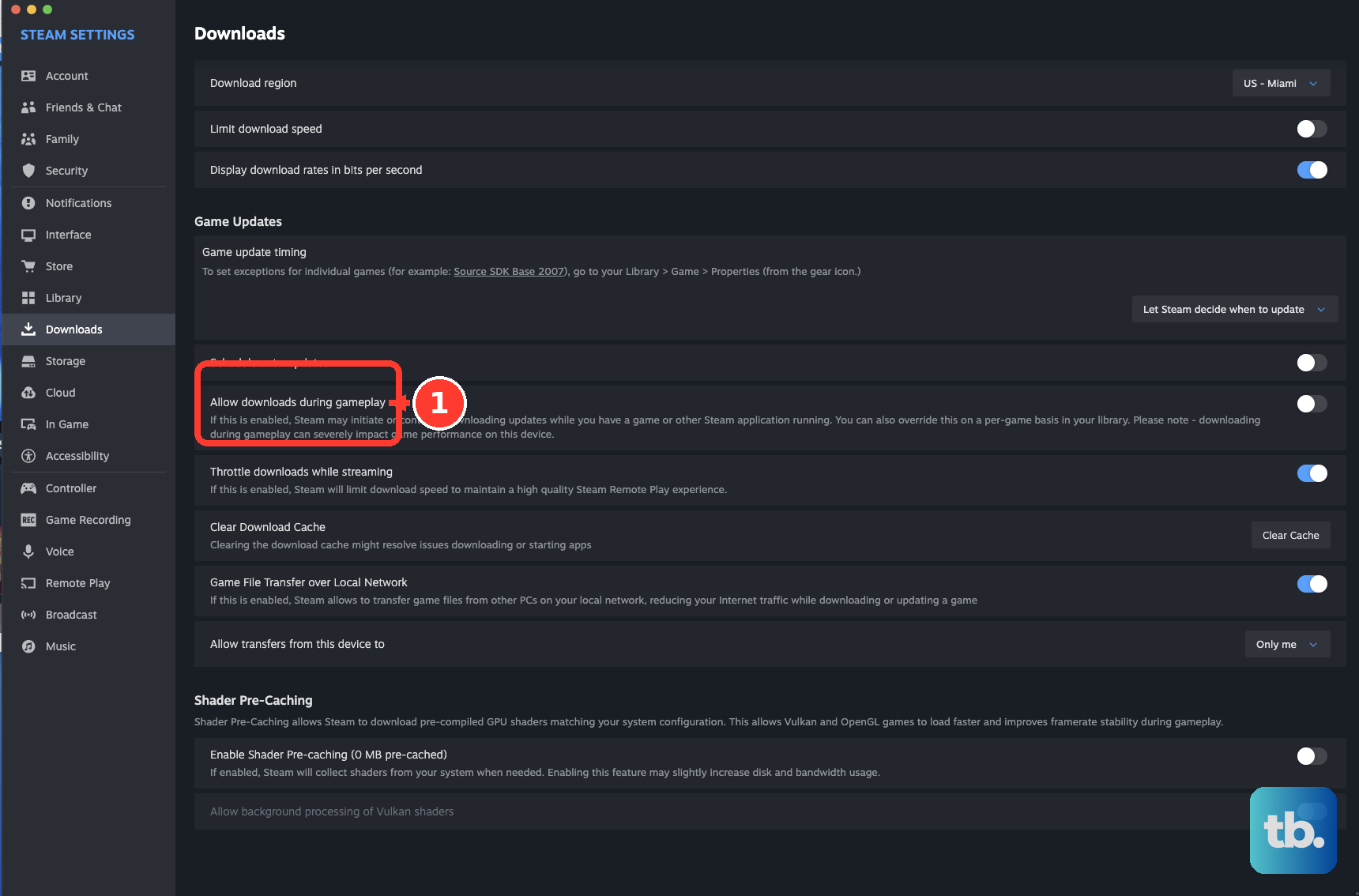
Playing another game can pause downloads. Exit the running game to let Steam resume without competing with gameplay, or open Steam > Settings > Downloads and enable Allow downloads during gameplay. That setting does not let Steam replace files belonging to a running game when those files cannot be patched.
Free working space and reduce competing activity
Because Steam rebuilds changed files alongside the originals, your affected drive needs working space beyond the downloaded patch. Free space on the drive containing the game, rather than an unrelated drive. The amount needed depends on the game's files, so a single free-space percentage cannot account for every update.
To remove an unused Steam game, back up any important local saves or modifications first. Open Library, right-click the unused game, then choose Manage > Uninstall. Choose a game stored on the drive that needs room.
If the game is on your Windows 11 system drive, open Settings > System > Storage > Temporary files. Review the selections before choosing Remove files. For another drive, open Settings > System > Storage > Advanced storage settings > Storage used on other drives and select the affected drive to free space there. On a Mac running macOS Ventura 13 or later, open the Apple menu > System Settings > General > Storage (on earlier versions, choose About This Mac > Storage from the Apple menu), remove or relocate unneeded files, then empty Trash to reclaim deleted files' space.
Other applications can compete with Steam for disk, CPU, or network resources. Close unused resource-heavy applications, competing downloads, file-sharing programs, and download accelerators. On Windows 11, press Ctrl + Shift + Esc and inspect Processes and Performance in Task Manager to identify contention.
After closing a conflicting utility, restart Steam and compare progress. If that application caused the slowdown, reconfigure or remove it as appropriate. If file processing remains slow despite sufficient space and reduced competition, try the drive-related fixes below.
Fix a slow download connection
For slow data transfers, open Steam > Settings > Downloads and disable Limit Download Speed. If unrestricted downloading causes connection problems, enable the limit again and try a lower rate. This setting affects downloading, not the work of applying files already on your drive.
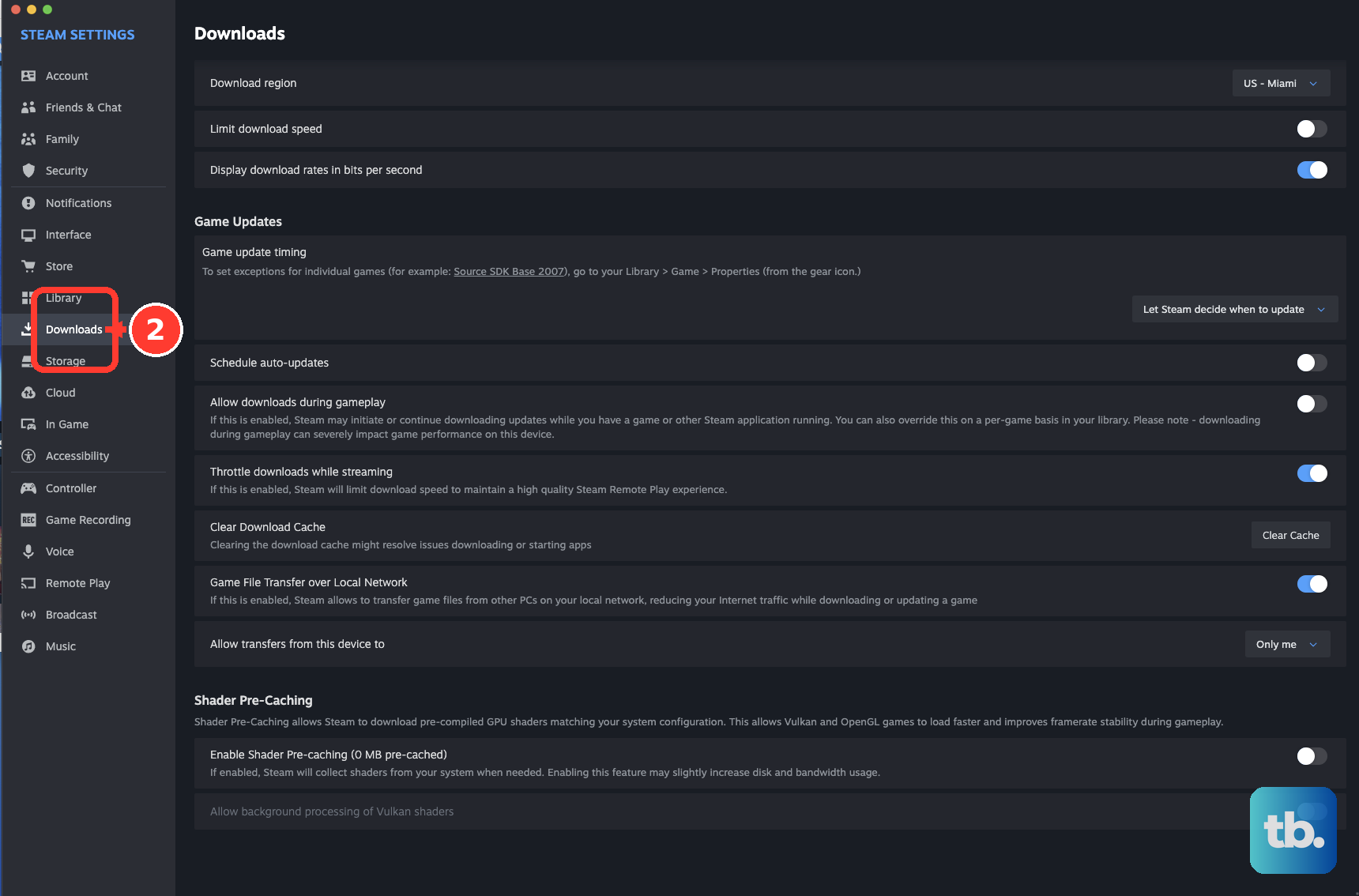
Next, select Download region in the same settings and choose your nearest region. Try another nearby region if transfers remain slow. A region change can help when your connection to the content server is the bottleneck.
Disconnect a VPN or exit a traffic-filtering utility through its own controls, then restart Steam and compare the download. If the utility is responsible, configure it to permit Steam traffic. The controls depend on the application.
If your connection remains slow, restart your modem and router using the manufacturer's procedure. Try a direct Ethernet connection instead of Wi-Fi or powerline networking, then compare the download. If necessary, try another internet connection, preferably from a different provider.
Repeated slowdowns at particular times of day can mean your ISP is blocking or shaping your connection. Compare downloads at another time of day and contact your provider if the pattern persists. Once downloading finishes and Steam is working on local files, use the storage fixes if patching still needs attention.
Restart Steam and clear a stalled download cache
If your update has stalled, exit Steam and reopen it. Restart your computer if the problem persists. Save this step for stalled installation or update behavior rather than interrupting disk work that continues to progress.
If restarting does not help, open Steam > Settings > Downloads. In the download-cache area, select Clear Cache, confirm the action, and sign in again. Look for Clear Download Cache if the control uses that wording.
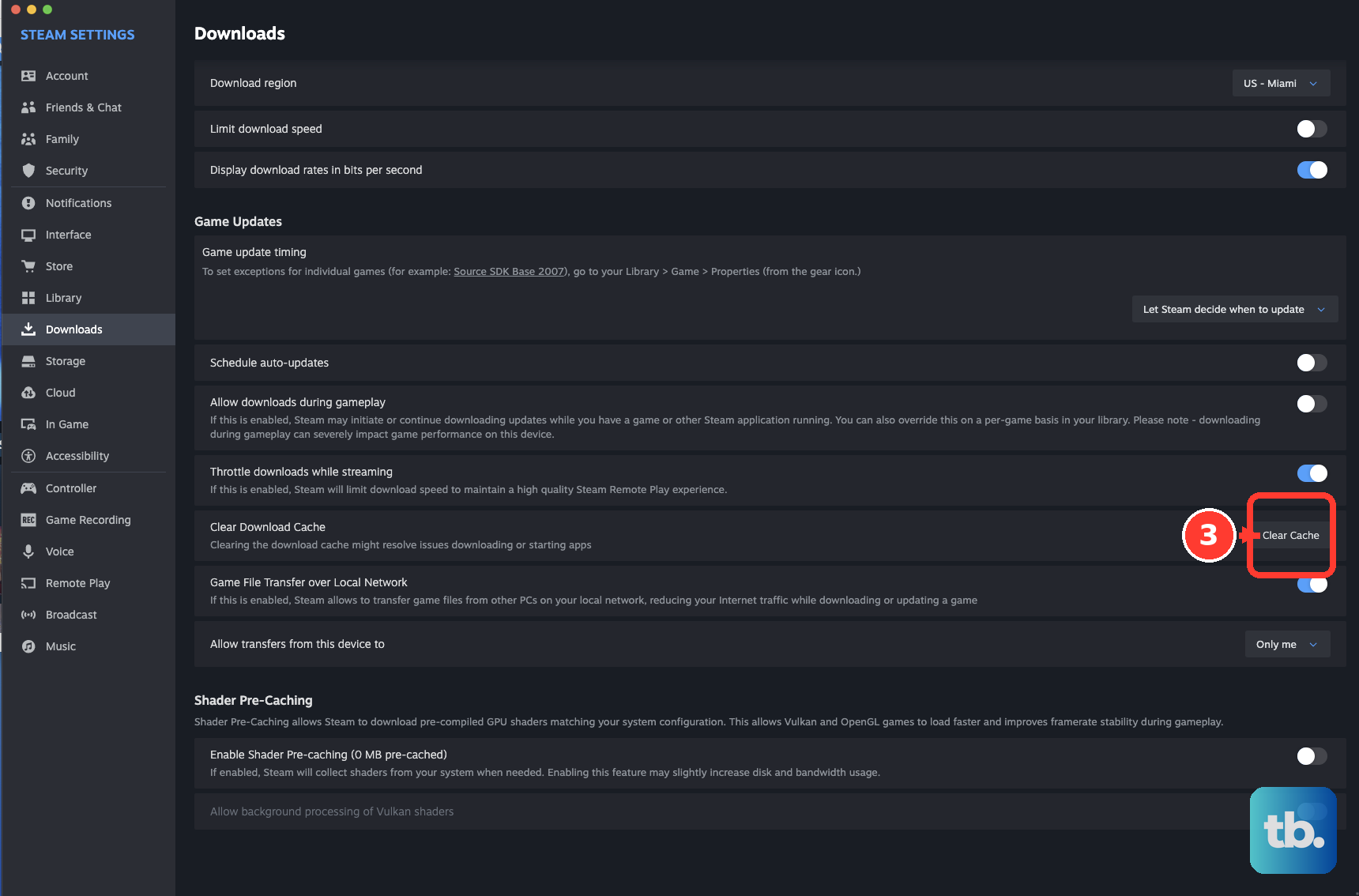
Clearing the download cache leaves your installed games installed. Use it for broken or stalled downloads, since it cannot shorten normal file rebuilding. If the same update still fails, repair the affected library and game files next.
Repair the library and verify game files
Library write-permission problems can interfere with your updates. Open Steam > Settings > Storage, select the affected library, open its ... menu, and choose Repair Folder. Retry the update after the repair.
For suspected damaged or incomplete game files, restart your computer and open Steam. In Library, right-click the affected game and choose Properties... > Installed Files > Verify integrity of game files. If you are following older instructions that mention Local Files, use Installed Files.
Let verification finish without running disk-intensive tasks or verifying another game simultaneously. Verification itself takes time, so use it to investigate damaged files rather than as a routine speed adjustment. If errors continue, check for software interference or storage problems.
Check your security application's blocking and scanning information for Steam-related problems. Security software can interfere with Steam's connections or file activity. If you temporarily disable protection to diagnose interference, restore it afterward and configure an exception only when you have identified it as the cause.
Move the game to another drive
You can use another suitable drive to isolate a storage problem. Because Steam must read and rebuild files, faster storage may help when disk performance limits patching, though the improvement depends on the workload. Moving the game will not resolve a slow internet connection.
Open Steam > Settings > Storage and use + to create a destination library if needed. Select the source drive, select the game, then choose Move and pick the destination. Use this option when you already have another suitable drive to try.
If storage errors keep recurring on Windows, open This PC, right-click the affected drive, then select Properties > Tools > Error checking. Follow up on recurring storage errors before making more changes to Steam's download settings. If moving the game leaves the same update problem unresolved, continue with the client repair.
Repair Steam when the earlier fixes fail
If client or service corruption is behind persistent update failures, repair Steam itself. Get the installer from the official Steam download page by selecting Install Steam for your operating system. Run the installer and target Steam's existing installation location.
Do not uninstall Steam first, because Valve warns that uninstalling removes installed game content. Reinstall over the existing location for this repair. If updates still fail afterward, pursue the recurring connection, software, or storage error you have identified; reinstalling the client cannot eliminate normal pack-file rebuilding.
Frequently Asked Questions
Can you make Steam update your favorite game before other games?
You can set a preferred game to update first through Library, the game, then Manage > Properties > Updates > Automatic updates. Choose the high-priority option, which tells Steam to prioritize this game before other downloads. This sets a standing preference for future updates without accelerating disk patching.
Can Steam finish updates before you want to play?
You can configure permitted automatic-update hours in Steam > Settings > Downloads using the Only auto-update games scheduling control. To override a scheduled delay, start the update through Downloads or launch the game. Scheduling can reduce your wait later, but it does not guarantee an update will finish before you want to play.
Can another computer supply a Steam game update over your home network?
You can use Steam's local game transfers between eligible clients on the same LAN. Enable local transfers on both clients with a matching account or friend scope, keep both online, and leave the sending client idle with the game already updated before starting the target update. These transfers exclude Workshop, shader, and Cloud files.
What should you try if Steam is using a slow local network transfer?
Set local game transfers to Off and retry through Steam's public content servers. This can help when your local transfer route is the bottleneck. You still need to allow time for disk work after the files arrive.
How do you troubleshoot persistent patching problems on Steam Deck?
Press Steam, open Settings > System > Software Updates, and install available updates, then restart through Steam > Power > Restart. Exit third-party Desktop Mode applications and retry. To reach desktop Steam repair controls, choose Steam > Power > Switch to Desktop.
Can Steam maintenance prevent an update from downloading?
You may be unable to download an update during Steam service maintenance or an outage. If your problem coincides with service-wide unavailability, retry after service recovers. Repairing your local installation cannot restore an unavailable Steam service.