Your iPad shows Slide to Power Off, but the slider will not move, or the power screen never appears at all. That points to the button shortcut, the touchscreen, an accessibility setting, or iPadOS. Start with the built-in shutdown routes first, then move through the deeper fixes only when the quick ones fail.
1. Shut Down From Settings
This is the cleanest first move when the top button combo is the part giving you trouble. Open Settings, tap General, scroll down and tap Shut Down, then drag the power slider to turn off the iPad.
Turn it back on by pressing and holding the Top button until the Apple logo appears. Apple gives every current iPad this shutdown option inside Settings, so you can skip the button shortcut completely.
2. Use Control Center on iPadOS 18 or Later
If your iPad responds to touch and runs iPadOS 18 or later, swipe down from the top-right corner to open Control Center. Touch and hold the Power button in the top-right corner, then drag the slider to turn off iPad.
Press and hold the Top button to turn it back on. Control Center gives you another current Apple-supported way to reach the power slider.
3. Match the Button Shortcut to Your iPad
This is where a lot of bad advice causes confusion, because the old “hold the power button” move is current for iPads with a Home button, but not for every iPad. For an iPad without a Home button, press and hold the Top button and either Volume button at the same time until the power slider appears. Then drag the slider.
For an iPad with a Home button, press and hold the Top button until the power slider appears. Then drag the slider.
4. Force Restart a Frozen iPad
Use this when the screen is frozen, the slider ignores touch, or the iPad cannot be turned off and on normally.
- 1.For iPad models without a Home button, press and quickly release the Volume button closest to the Top button.
- 2.Press and quickly release the Volume button farthest from the Top button.
- 3.Press and hold the Top button until the Apple logo appears.
For iPad models with a Home button, press and hold both the Home button and the Top button until the Apple logo appears.
5. Clear Anything Blocking Touch or Buttons
Clean the screen so it is free of debris and water, then disconnect Lightning or USB-C accessories. Remove the case, remove the screen protector, and take off protective films that block the Top button. After that, clean around the button with a soft cloth.
A slider that appears but refuses to move is a touch problem, so treat the screen first, then check the physical button area. After that, try Settings > General > Shut Down again, then try the correct button shortcut for your model.
6. Review Touch Accommodations
Touch Accommodations changes how iPad responds to taps and swipes. When it is turned on, some tap or swipe input can be ignored based on the options selected.
Open Settings, tap Accessibility, tap Touch, and then tap Touch Accommodations. Review Hold Duration, Swipe Gestures, Ignore Repeat, and Tap Assistance. If the power slider started failing after accessibility changes, adjust those touch options before moving to resets.
7. Restart With AssistiveTouch
When a physical button is unreliable but the touchscreen still works, Settings > Accessibility > Touch > AssistiveTouch gives you device controls instead. Open that path, turn on AssistiveTouch, tap the AssistiveTouch menu button, and choose the restart action.
You can also say Siri or Hey Siri, then say Turn on AssistiveTouch. Once the AssistiveTouch button appears, use its menu for device controls.
8. Update iPadOS From Settings or a Computer
Apple says software updates can include bug fixes and security updates, so update iPadOS after the shutdown, touch, and restart fixes above. Back up your iPad, plug iPad into power, and connect to Wi-Fi.
Open Settings, tap General, and tap Software Update. Tap Download and Install when an update is available.
If the update will not install, delete it and download it again. Go to Settings > General > iPad Storage, tap the update in the list, tap Delete Update, then return to Settings > General > Software Update.
For a computer update, connect iPad with a cable. On a Mac with macOS Catalina 10.15 or later, use Finder > General > Check for Update > Download and Update. On Windows, use the Apple Devices app where available. Use iTunes only on macOS Mojave 10.14 or earlier, or on a Windows setup that does not use Apple Devices.
9. Reset Settings Before You Restore
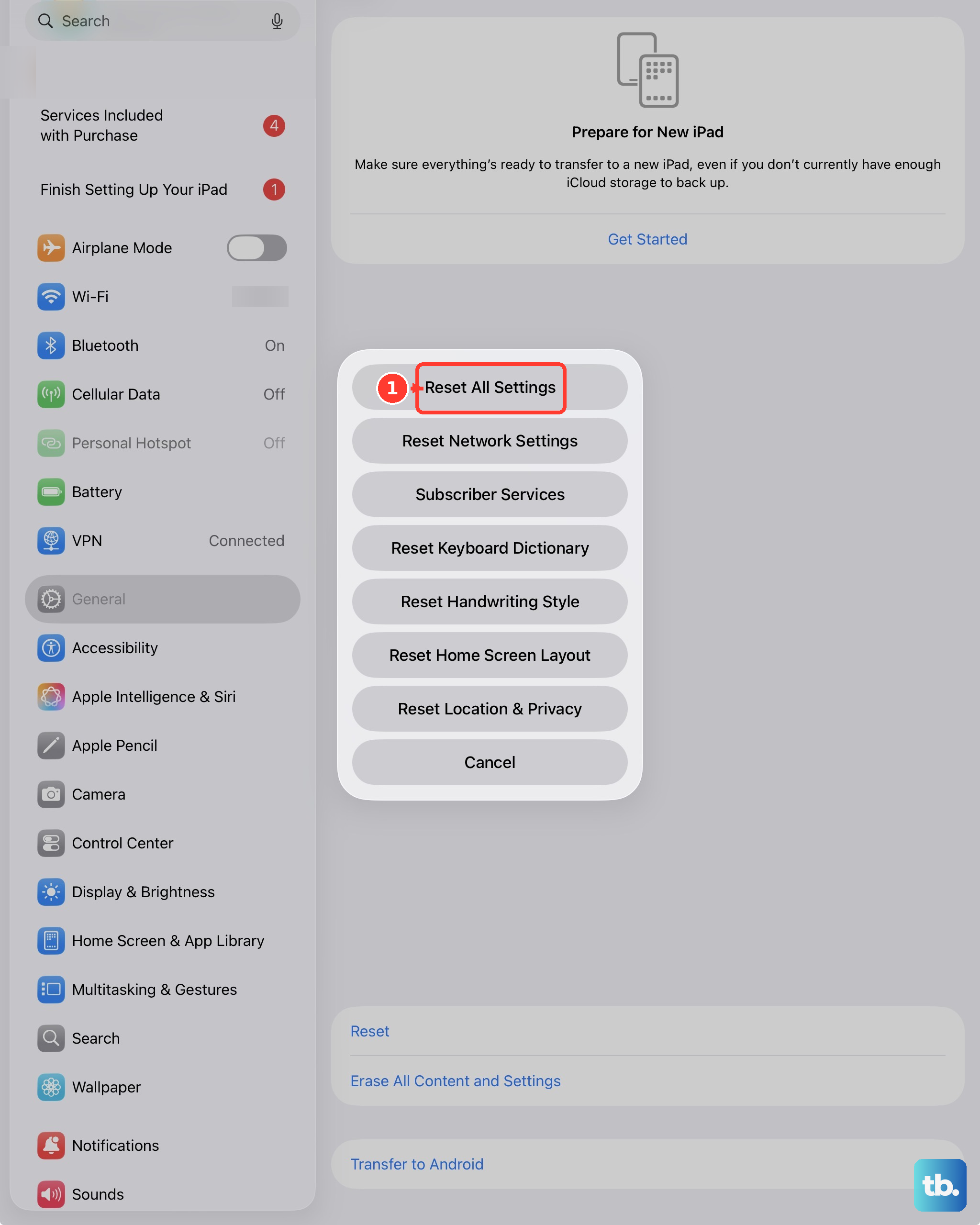
Open Settings, tap General, tap Transfer or Reset iPad, and tap Reset. Then tap Reset All Settings. Reset settings after the simpler fixes fail. This keeps your data and media, but resets settings including network settings, keyboard dictionary, location settings, privacy settings, and Apple Pay cards.
If the iPad starts but remains stuck, connect it to a computer and open Finder, Apple Devices, or iTunes where supported. Put the iPad into recovery mode and choose Update when prompted.
Choose Restore only when Update fails. Restore erases the iPad and reinstalls iPadOS. If Settings still works and you need a full erase, use Settings > General > Transfer or Reset iPad > Erase All Content and Settings. On a school or work iPad, contact the administrator, because supervised iPads can be restarted, shut down, or erased through management tools.
Frequently Asked Questions
Why does Slide to Power Off appear but not move on my iPad?
The screen input is being blocked or ignored. Clean off water and debris, disconnect Lightning or USB-C accessories, remove the case or screen protector, then review Settings > Accessibility > Touch > Touch Accommodations.
Can I turn off an iPad without the top button?
Yes. Use Settings > General > Shut Down. On iPadOS 18 or later, open Control Center, touch and hold the Power button, then drag the slider.
Which shutdown shortcut works on an iPad without a Home button?
Press and hold the Top button and either Volume button at the same time until the power slider appears, then drag the slider.
What should I do if my school or work iPad will not turn off?
Contact the administrator. Supervised iPads enrolled in device management can receive restart, shut down, or erase commands from the organization’s management system.