When iPhone Settings search returns nothing or stops responding, finding a simple control becomes a chore. Start with the search field itself, then work through reopening Settings, restarting your iPhone, and updating iOS. If you need a setting right now, there are other ways to reach it.
Start with the search field inside Settings
Open Settings, then tap the search field. Enter a setting name such as “volume.” Tap a matching result to open it.
Tip: Settings > Search controls system search preferences; it is separate from the search field inside Settings.
Reach the setting another way
For a quick workaround, open Spotlight by swiping down from the middle of the Home Screen. On an iPhone with Face ID, you can also tap Search on the Home Screen.
Enter the setting’s name, then tap its result to open it. Spotlight bypasses the broken Settings search field without repairing it.
For manual access, open Settings > General for software updates, language, keyboard, and reset controls, or Settings > Apps for individual app settings. Another workaround is the Siri request “Open Accessibility settings.”
Reopen Settings if it stops responding
This addresses an unresponsive Settings app. On a Face ID iPhone, swipe up from the bottom of the Home Screen and pause. On an iPhone with a Home button, double-click the Home button instead.
Find the Settings preview and swipe that preview upward to close it. Reopen Settings, then search for “volume” again.
Restart your iPhone
A normal restart is the next troubleshooting step, though it does not guarantee a search repair.
- 1.On a Face ID iPhone, hold the side button and either volume button until the power-off slider appears. On an iPhone SE from the second or third generation, hold the side button instead.
- 2.Drag the power-off slider.
- 3.Wait 30 seconds.
- 4.Hold the side button until the Apple logo appears.
- 5.Open Settings and test its search field again.
Give indexing time after setup or an update
Your iPhone indexes content for search, including system settings. After setup, an update, or substantial data changes, allow hours or days for that work to finish. Unfinished indexing does not explain every Settings search failure.
Connect your iPhone to power, then connect it to Wi-Fi. Leave it unused while indexing finishes. If Settings displays a notification that search and Siri are optimizing, that work is still underway.
Install the latest compatible iOS update
Back up your iPhone before updating. Connect it to power and join a Wi-Fi network. Open Settings > General > Software Update.
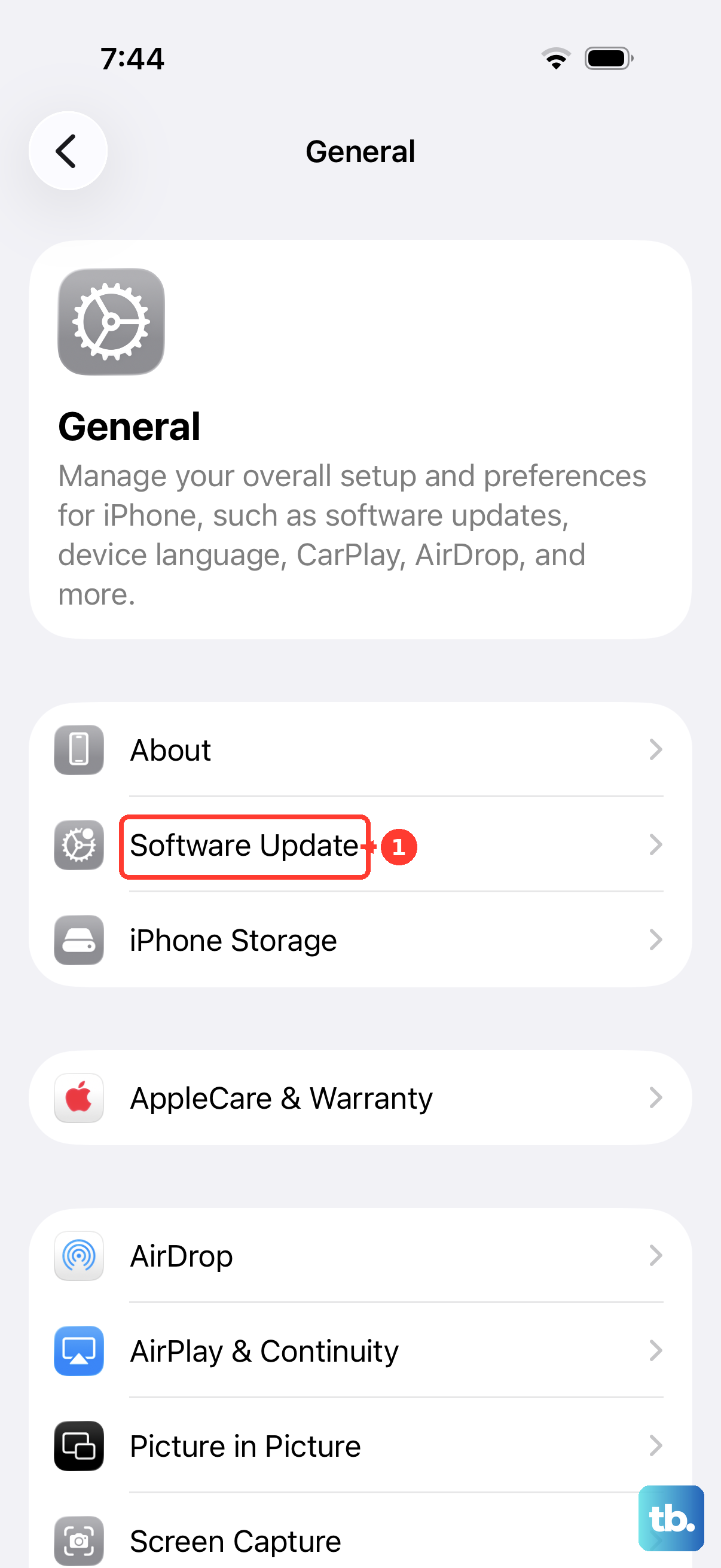
Tap Download and Install when an update is offered. Follow the onscreen prompts to complete the update. Test search inside Settings afterward.
Tip: Apple recommends current software for unexpected search results, but no single iOS release guarantees a fix for every Settings search problem.
Reset all settings only after simpler fixes
This resets incorrect system configurations while keeping your personal content.
Review what you will need to set up again: the reset affects Wi-Fi networks, privacy settings, Apple Pay cards, pairings, and other system preferences. Apple calls this step rarely necessary and recommends restarting first; it does not guarantee a Settings search repair.
Open Settings > General > Transfer or Reset iPhone > Reset.
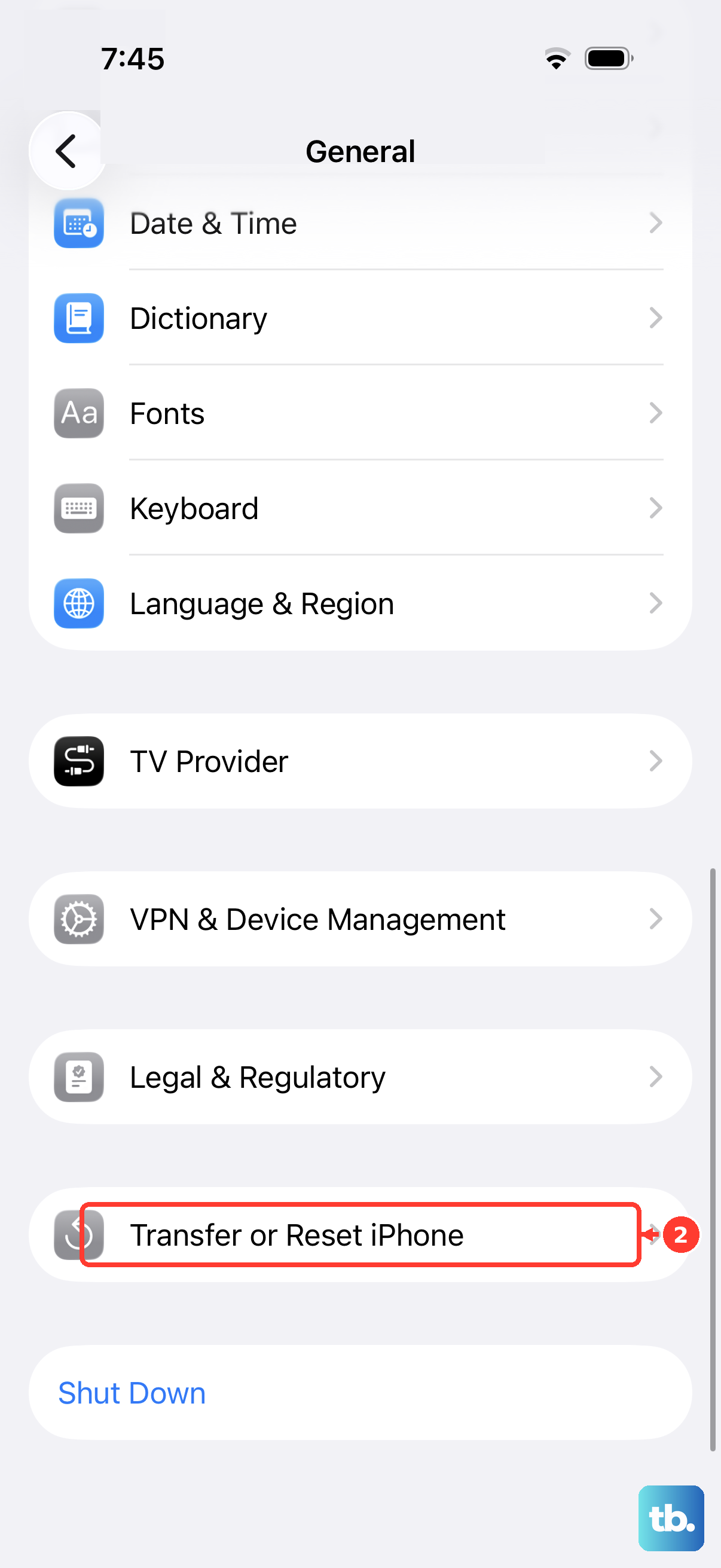
Select Reset All Settings, then test the search field again after the reset.
Contact Apple if search still fails
If Settings search remains unusable after these steps, contact Apple Support for further troubleshooting. A factory erase removes personal content and carries no guarantee of fixing this problem.
Open Apple’s Reset All Settings troubleshooting page, then select Get suggestions to enter the support flow. Describe whether the failure affects Settings alone or Spotlight too, along with your installed iOS version and the steps you have already tried.
For a work or school iPhone, ask your administrator to review relevant restrictions. Removing a management profile also risks removing associated settings, apps, and data, so it is not a routine search repair.
Frequently Asked Questions
Can I delete and reinstall the Settings app?
No. Settings is not on Apple’s list of built-in apps you can delete. Its software updates come through iOS; there is no separate Settings app download.
Will toggling Show Recent Searches or changing languages rebuild Settings search?
Apple’s Spotlight and indexing guidance does not list toggling Show Recent Searches or switching languages as repairs for Settings search. Apple’s indexing article gives manual Spotlight rebuild steps only for Mac; for iPhone, it advises letting indexing finish and installing the latest software updates.
What if my iPhone is frozen and I cannot restart normally?
Use a force restart when normal shutdown is unavailable. On current Face ID iPhones and iPhone SE models from the second or third generation, quickly press and release volume up. Quickly press and release volume down. Then hold the side button and release it when the Apple logo appears.
Should I enable beta updates to fix Settings search?
No. For unexpected search results, Apple recommends installing the latest software updates, not joining a beta. To stop receiving beta updates, open Settings > General > Software Update > Beta Updates. Select Off. This does not uninstall the beta already on your iPhone.