Windows Media Player shows “Server execution failed” instead of opening your file. Start with a quick process check, then work through the repair options below, testing playback as you go. These steps focus on Windows Media Player Legacy, with separate instructions for the modern Microsoft Store app.
Close the stuck player and restart Windows
Press Ctrl+Shift+Esc to open Task Manager. Select Processes, then select the Windows Media Player process. Click End task.
Reopen the player to test it. This checks whether a stuck process is behind the error. If the error returns, save your open work. Select Start > Power > Restart.
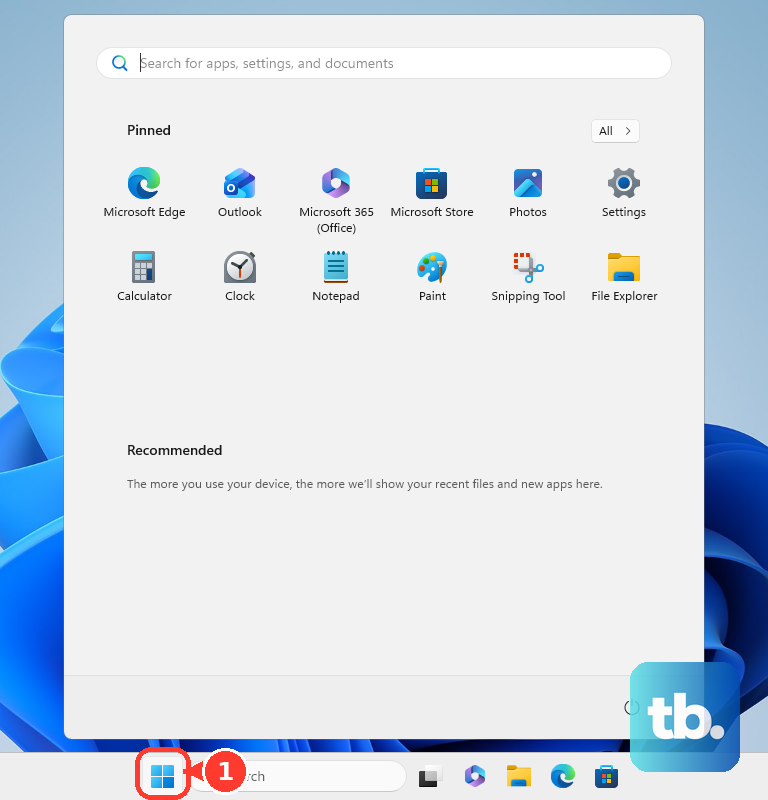
Try the player again after Windows restarts. Test playback after each method so you can stop once it works.
Let Get Help diagnose the problem
Get Help provides guided troubleshooting for player problems, replacing the deprecated Control Panel troubleshooting packs and msdt.exe route on current Windows 11 builds. Microsoft states that Windows 10 and Windows 11 version 22H2 and earlier are not affected by the MSDT troubleshooter retirement, so those PCs may still offer the older troubleshooter.
Open Get Help if it is available on your PC. Enter Windows Media Player troubleshooter in Search. Follow the diagnostic instructions if the Windows Media Player troubleshooter is offered.
Check for pending Windows updates
Windows updates include Windows Media Player Legacy components. The modern Store app has its own update route, covered below.
On Windows 11, open Start > Settings > Windows Update. On Windows 10, open Start > Settings > Update & Security > Windows Update. Select Check for updates, then install the available updates.
Restart your PC once installation finishes. Test Windows Media Player again.
Restore the Legacy media library
Preserve your custom playlists and library information before rebuilding the database. With Windows Media Player Legacy open, press Ctrl+M to access its menus. If the player will not open, skip to the folder-based rebuild below.
Select Tools > Advanced > Restore Media Library. Test playback again.
If restoring the library does not help, close the player before rebuilding its database. Press Windows+R to open Run. Enter %LOCALAPPDATA%\Microsoft\Media Player\, then press Enter.
Delete the files inside that folder, keeping the folder itself. Reopen Windows Media Player Legacy. Keep in mind that clearing playback history is a separate operation and does not rebuild the library database.
Repair Windows components with DISM and SFC
If the error persists, use these Windows repair tools with an administrator account.
- 1.Search for Command Prompt, right-click it, and select Run as administrator. Select Yes at the permission prompt.
- 2.Enter
DISM.exe /Online /Cleanup-image /Restorehealthand press Enter. - 3.After DISM completes successfully, enter
sfc /scannowand press Enter. Allow verification to finish. - 4.Retry Windows Media Player to check whether the error is resolved.
Reinstall Windows Media Player Legacy
If your installation exposes Media Features, open Control Panel > Programs > Turn Windows features on or off. Clear the Media Features checkbox and select OK.
Restart Windows. Return to Control Panel > Programs > Turn Windows features on or off, reselect Media Features, and select OK.
Restart the PC again. Test Windows Media Player Legacy.
To install a missing Legacy player on Windows 11, open Start > Settings > System > Optional Features > View features. Find Windows Media Player Legacy, select its checkbox, and choose Next > Add. Use this route on PCs that offer the feature.
Update and repair the modern Media Player app
Use these steps for the modern Microsoft Store version of Media Player. Its Settings repair and reset controls are separate from the Legacy repair methods above.
Open Microsoft Store. Select Check for Updates. If your Store shows the library layout instead, select Library > Get updates; Microsoft documents both routes. Install available Media Player updates.
Try playback again. If the error persists on Windows 11, open Start > Settings > Apps > Installed apps. For Media Player, select More > Advanced options.
On Windows 10, open Settings > Apps > Apps & features. Select Media Player, then select Advanced options.
Select Repair if that control is present. Test the player after the repair. If repair fails and the page includes Reset, select it. Resetting clears app data and preferences.
Confirm the app-data warning. Retry playback once the reset finishes.
Keep playing your files in another app
Another compatible player gives you a playback workaround without repairing Windows Media Player Legacy. Right-click your media file. Select Open with > Choose another app. Choose an installed compatible player to test the file.
To keep using that player for the file type, open Settings > Apps > Default apps. Search for the file extension. Select the matching result. Choose your preferred player.
Frequently Asked Questions
Does “Server execution failed” mean my internet connection is broken?
No. The wording alone does not establish an internet-server problem. Troubleshoot the network when streaming or connectivity problems accompany the error.
Should I run DLL-registration commands or disable the Network Sharing Service?
Neither is a current official Microsoft remedy for this error. Avoid service changes, blanket permission changes, and DLL-registration commands presented as universal fixes.
What if I have a Windows N edition?
Windows N editions use a separate Media Feature Pack installation route. On Windows 11 N, open Settings > System > Optional Features. Older layouts place Optional features under Apps. Select View features next to Add an optional feature. Select Media Feature Pack and complete installation. Restart afterward, even without a restart prompt.
Do these fixes still apply to Windows 10?
Many procedures also apply to Windows 10, with the menu differences noted above. Standard Windows 10 support ended October 14, 2025, so available updates depend on your PC’s servicing eligibility.