The “Roblox installer cannot continue” message stops you before you even reach an experience. Start with a fresh official download, then work through the steps for a stuck installer, an incomplete installation, or a connection problem. If Safari never downloads the file or macOS displays a security warning, jump to the section that matches your screen.
Start with a fresh Roblox installer
Open Roblox’s official download page and click Download Mac App. Use this copy instead of an older installer saved on your Mac.
Wait for the file to finish downloading in Safari’s Downloads list.
Click the magnifying-glass button beside the completed download to locate it. If you need to check the download folder’s location, look under Safari > Settings > General > File download location.
Open the downloaded disk image to begin installation.
Give the Mac a clean restart
Quit Roblox or its installer with Command-Q.
If the app is unresponsive, press Option-Command-Esc, select it, and click Force Quit.
Choose Apple menu > Restart.
After the Mac starts up, retry just one installer.
If the Mac itself cannot quit or restart normally, hold the power button for up to 10 seconds until it switches off. On a Mac laptop with Touch ID, hold that button. A forced shutdown risks losing unsaved work.
Press and release the power button to start the Mac again.
If installation still fails after restarting, check for a stuck background installer next.
When another installer is already running
A stuck background installer is the cause to check first when the error says another installer instance is running.
Open Activity Monitor.
Select the stuck Roblox installer or launcher under Process Name.
Click the Stop button.
Choose Quit.
If the process does not stop, use Force Quit.
Retry installation after the process ends. Ending the process clears the installer conflict; missing installation files still require reinstallation.
Remove the existing Roblox installation
If the fresh installer still cannot continue, uninstall the existing Player. With Roblox closed, open Finder > Applications and move Roblox to Trash. Leave Roblox Studio installed unless you are troubleshooting Studio.
Review the contents of Trash before deleting them permanently.
Choose Empty Trash once you are sure you do not need those items.
Run the fresh official installer again. You can also start a reinstall from an experience’s Play button on the Roblox website in Safari, then follow the installation prompts.
Rule out a service or connection problem
These checks address download failures caused by service outages or connection trouble.
Open Roblox Status and check active incidents affecting Website, Player, and Asset Delivery.
If an incident matches your failure, retry after the service recovers.
Try the download on another working network.
If it succeeds there, ask your internet provider or network administrator to investigate the original connection.
For an unreliable home connection, restart your router or modem according to its manufacturer’s instructions.
If you suspect a VPN or security app is filtering the connection, temporarily disable that filtering feature using the app’s own controls. Follow the vendor’s instructions for the exact setting.
Restart the Mac after changing those settings.
Retry installation.
If antivirus software is blocking authentic Roblox software, update the security product using its vendor’s instructions.
Use that vendor’s application-permission or allow-list instructions to permit Roblox. The menu labels depend on the security product.
Check compatibility and available storage
Repeated installs will not solve a storage shortage or an unsupported operating system. Roblox will install on macOS 10.13 (High Sierra) and higher. On top of that minimum, Roblox recommends at least 300 MB of system storage space to install Roblox, and a 4–8 Mb/s internet connection for a single-use household. That minimum operating-system version does not guarantee immediate support for newly released or prerelease macOS versions.
Compare your Mac’s operating system with Roblox’s Player requirements.
Open Apple menu > System Settings > General > Storage to review space usage. On macOS versions earlier than Ventura, use Apple menu > About This Mac > Storage.
If space is low, move or delete unneeded files. Look for old installers in Finder > Go > Downloads.
Empty reviewed Trash items to reclaim their storage.
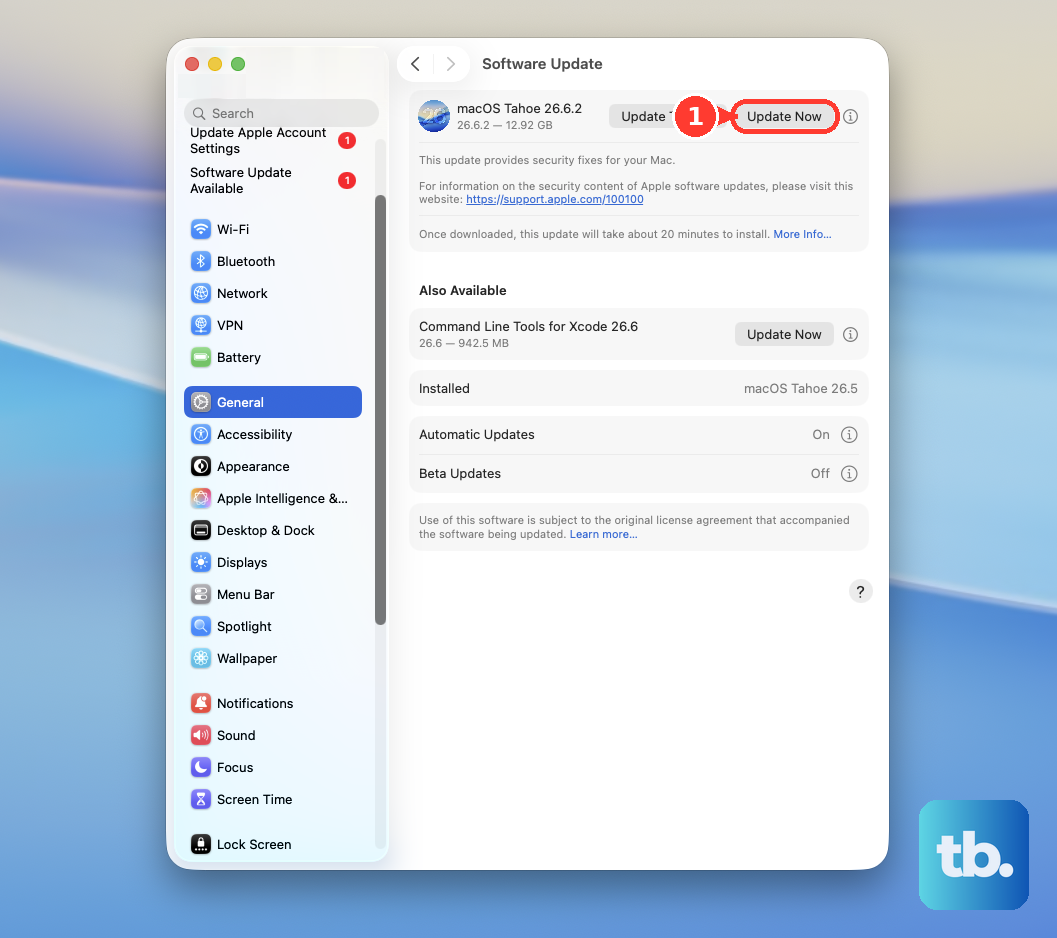
Check Apple menu > System Settings > General > Software Update for a compatible update. Safari updates come with macOS. This keeps the system current but does not guarantee a repair for the Roblox installer error.
If Safari never starts the download
If the Roblox website never downloads or launches the installer, check Safari’s download permission first. With Roblox open, choose Safari > Settings > Websites > Downloads and set Roblox to Allow.
Test without the site’s content blocker by opening Safari > Settings > Websites > Content Blockers and setting Roblox to Off. Roblox recommends checking ad-blocking extensions when connections fail.
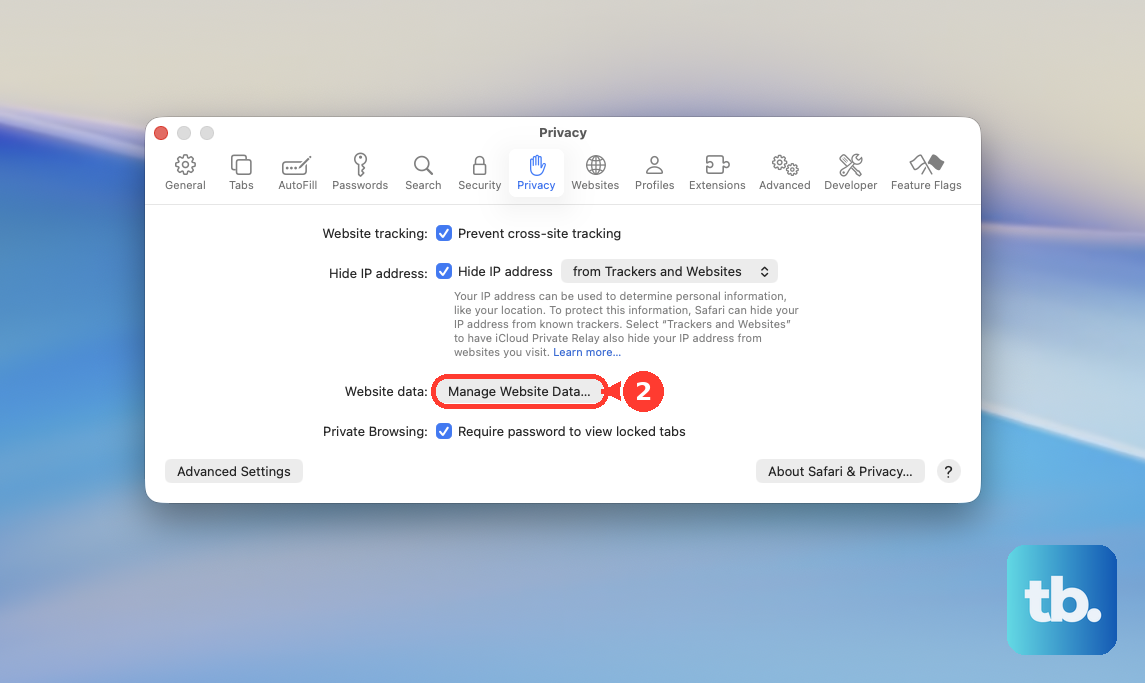
If the sign-in or download flow still malfunctions, open Safari > Settings > Privacy > Manage Website Data, select Roblox’s entries, and click Remove. Be ready to sign in again after removing website data.
Retry through the Roblox website by signing in, opening an experience, and clicking Play. This also starts Roblox’s supported reinstall route in Safari. If Safari continues to fail, repeat that route in Firefox or Google Chrome.
Handle a macOS security warning separately
Follow the option that matches the warning macOS displays for the official installer.
- 1.For an App Store-only restriction, open System Settings > Privacy & Security. Under Security, set Allow apps downloaded from to App Store and identified developers, then retry the installer.
- 2.For an eligible unidentified-developer or notarization warning, first attempt to open the installer. Proceed with an exception only when you are certain the download is authentic and unmodified.
- 3.For that eligible warning, open System Settings > Privacy & Security, click Open Anyway, and confirm with Open.
- 4.For an explicit malware or damaged-app warning, investigate the warning or replace the download. Do not treat it as a routine bypass.
- 5.Skip older advice to Control-click the app and select Open as a security override. Apple removed that override for incorrectly signed or unnotarized software starting with macOS Sequoia. Use the Privacy & Security procedure above for an eligible warning.
Save the error details for Roblox Support
If installation still fails, save the exact error and matching log before making further changes. Installer and bootstrapper logs help Roblox Support investigate launching and updating failures.
Open the log path displayed in the error. Alternatively, press Command-Space and enter ~/Library/Logs/Roblox/ to open Roblox’s log folder.
Preserve the files whose timestamps match the failed installation.
Contact Roblox Support through the support link on its Mac troubleshooting page. Include your username, exact error, Mac model, macOS version, steps that reproduce the failure, and any recent Mac or network changes.
Send logs privately when Roblox staff request them.
Frequently Asked Questions
Does Roblox support Apple silicon Macs?
Yes. Roblox supports Apple silicon Macs, including M1. Player’s operating-system requirements still apply.
What if Roblox says “Upgrade Failed” instead?
Sign in to the Roblox website, open an experience’s details page, and click Play. Roblox documents this route for installing the latest Player when the existing app reports Upgrade Failed.
Roblox is installed, but the website will not launch it. Should I reinstall?
First check that Roblox is in Applications and appears in the Dock, then launch it from the Dock. This requires an installed Player and cannot replace missing installation files.
Can I fix installation restrictions on a school or work Mac?
If security or network controls are locked, ask the Mac’s administrator to permit the official Roblox installation and required connections. There is no universal consumer-side override for managed restrictions.