Realtek High Definition Audio not working on Windows looks like silence, crackling, the wrong speakers, or a microphone apps cannot hear. Start with the quick output and volume checks, then move into Windows repair tools, drivers, Realtek Audio Console, and manufacturer packages. Because Windows 10 support ended on October 14, 2025, the current menu paths below use Windows 11 first.
1. Pick the correct Realtek output
Windows sends sound to HDMI, Bluetooth, USB headsets, or monitor speakers when those devices are selected, so make Realtek the output first. Select the Speakers icon on the taskbar, select the arrow beside the volume slider, open Select a sound output, and choose the Realtek speaker or headphone device. For the full Settings path, open Start > Settings > System > Sound > Output and select the device you want for playback.
2. Check volume, mute, cables, and jacks
Press Power on external speakers or headphones.
Raise Volume on the speaker, headset, keyboard, and Windows volume control.
Turn off Mute on the device and in Windows.
On color-coded 3.5 mm jacks, plug speakers or headphones into green output.
On color-coded 3.5 mm jacks, plug microphone cables into pink input.
Move a USB audio device to another USB port.
Unplug headphones when you want sound from built-in or external speakers.
For app-only silence, right-click or select and hold the Speakers icon, open the arrow beside the volume slider, select the More mixer settings icon beside Volume mixer, then unmute Device, System, and the affected app. When only one app stays silent, also open Start > Settings > System > Sound > Volume mixer, and under Apps unmute the app, raise its slider, and confirm the correct Output device is selected for it.
3. Run the Windows audio troubleshooter
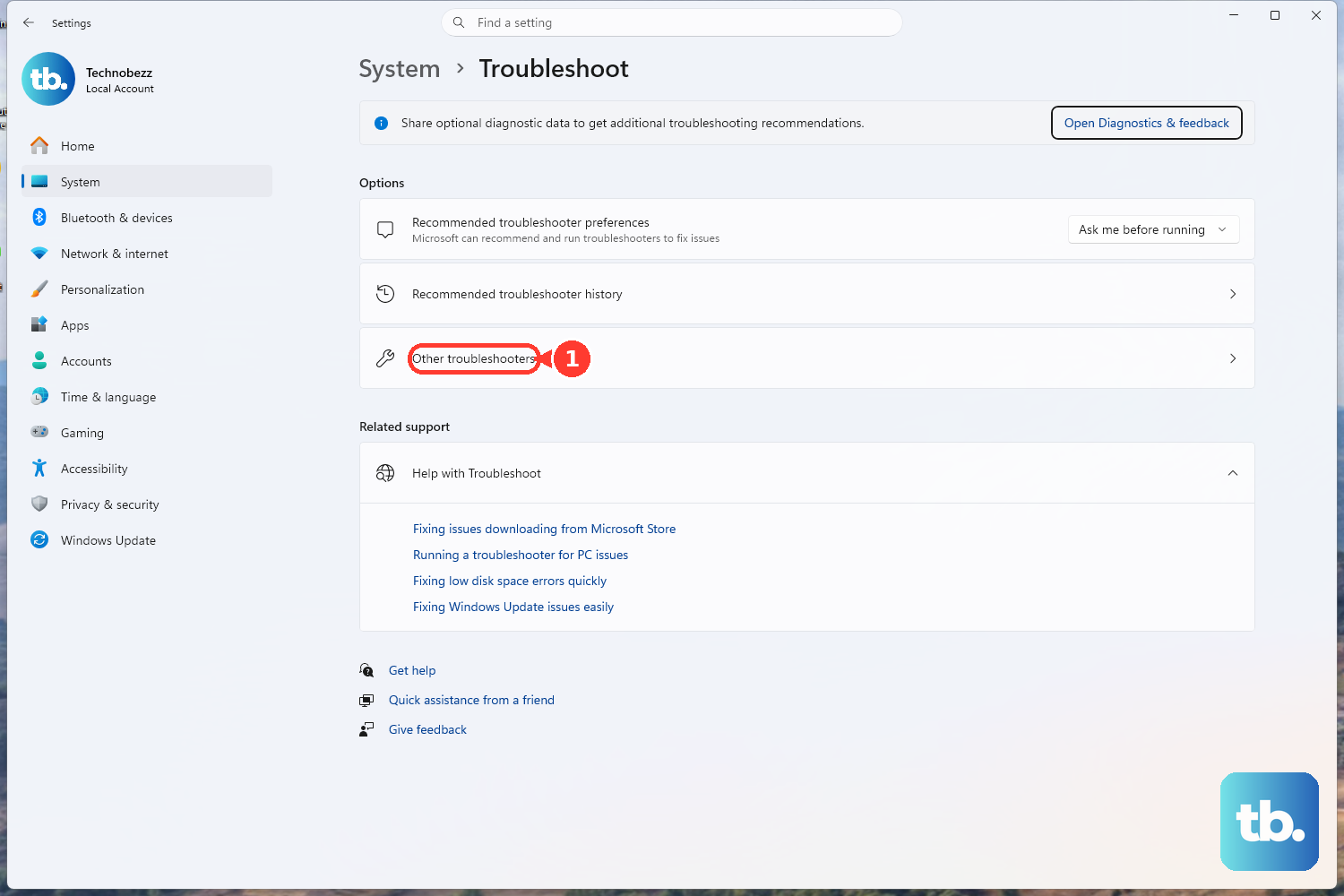
The built-in troubleshooter checks common output failures before you change drivers. Open Start > Settings > System > Troubleshoot > Other troubleshooters > Audio > Run, then follow the prompts. On Microsoft audio support pages, use Run the troubleshooter in Get Help for the same repair flow.
4. Disable enhancements and change the format
Open Start > Settings > System > Sound > Output.
Select the Realtek speaker or headphone device.
Open Advanced settings.
Set Audio enhancements to Off.
Open Default format, choose a different format, and test audio.
Open Start, type services.msc, and press Enter.
Right-click Windows Audio, select Restart, then do the same for Windows Audio Endpoint Builder.
5. Refresh the Realtek driver
Open Start > Settings > Windows Update.
Select Check for updates.
When Updates are available appears, select Install now, choose the updates, select Install, and restart your PC.
Search the taskbar for Device Manager and open it.
Expand Sound, video and game controllers.
Right-click the Realtek audio device, select Update driver, then select Search automatically for drivers.
Follow the prompts and restart your PC.
For a corrupt driver, right-click the Realtek audio device again, select Uninstall device, confirm Uninstall, and restart so Windows attempts to reinstall the driver.
When sound broke after a driver or Windows update, open Properties > Driver > Roll Back Driver, choose a reason, select Yes, and restart when prompted.
6. Restore a missing Realtek device
Open Start, type Device Manager, and select Device Manager.
Expand Sound, video and game controllers.
When the Realtek audio device appears, right-click it and select Enable device.
When the device is missing, select View > Show hidden devices.
Select Action > Scan for hardware changes.
To switch drivers, right-click the audio device and select Update driver > Browse my computer for drivers > Let me pick from a list of available drivers on my computer.
Select the available audio device or driver, select Next, and follow the prompts.
7. Give apps access to the Realtek microphone
For Realtek microphone input, give Windows and the app permission first. Open Start > Settings > Privacy & security > App permissions > Microphone, then turn on Microphone access and Let apps access your microphone, and switch on the app in the list underneath.
Desktop apps, including most browsers, never appear in that list, so turn on Let desktop apps access your microphone for those and set the microphone inside the app itself.
Next, open Start > Settings > System > Sound > Input, select the Realtek microphone under Choose a device for speaking or recording, run Start test, speak, select Stop test, play the recorded sample, and adjust Input volume.
8. Reset Realtek Audio Console
This fixes Realtek Audio Console or Realtek Audio Control when the app opens incorrectly or fails to save settings.
Open Start > Settings > Apps > Installed apps.
Select the More icon next to Realtek Audio Console or Realtek Audio Control.
Open Advanced options.
Select Repair.
When Repair is unavailable or the app still fails, select Reset.
Open Start > Realtek Audio Console.
Check Playback devices, Recording devices, Main Volume, Sound effects, Equalizer, Environment, Default Format, and Device advanced Settings.
9. Install the OEM audio package
Open the manufacturer's Support or Drivers page for your PC, motherboard, or sound card.
Use the site's Search field to enter your exact device model.
Choose your Windows version and download the latest Audio driver.
Run the installer, follow the prompts, and restart your PC.
On Dell PCs, open SupportAssist, go to Home > Update software > Start, install the offered driver or firmware updates, and restart when prompted.
For a manual Dell install, open Dell Drivers & Downloads, use Detect This PC or enter the Service Tag, expand Audio, select Download, run the file, and restart when prompted.
On HP PCs, open HP Support Assistant > My Dashboard, select your computer, open Updates, and install available updates.
On ASUS PCs and motherboards, enter the model name on the ASUS support site, open Support > Driver & Tools, and download the audio or Realtek driver for that model and OS.
Use the OEM package before Realtek's generic download page because Realtek calls its drivers general audio IC drivers and points users to the system or motherboard maker for full customizations.
Frequently Asked Questions
Can I install Realtek Audio Control from the Microsoft Store?
Yes. Open the Microsoft Store page for Realtek Audio Control and select Get or Install. If the app is not offered or does not install, install the OEM Realtek audio driver package first because the Store app depends on compatible Realtek driver components.
Why does my Realtek microphone work in Windows but not in a browser?
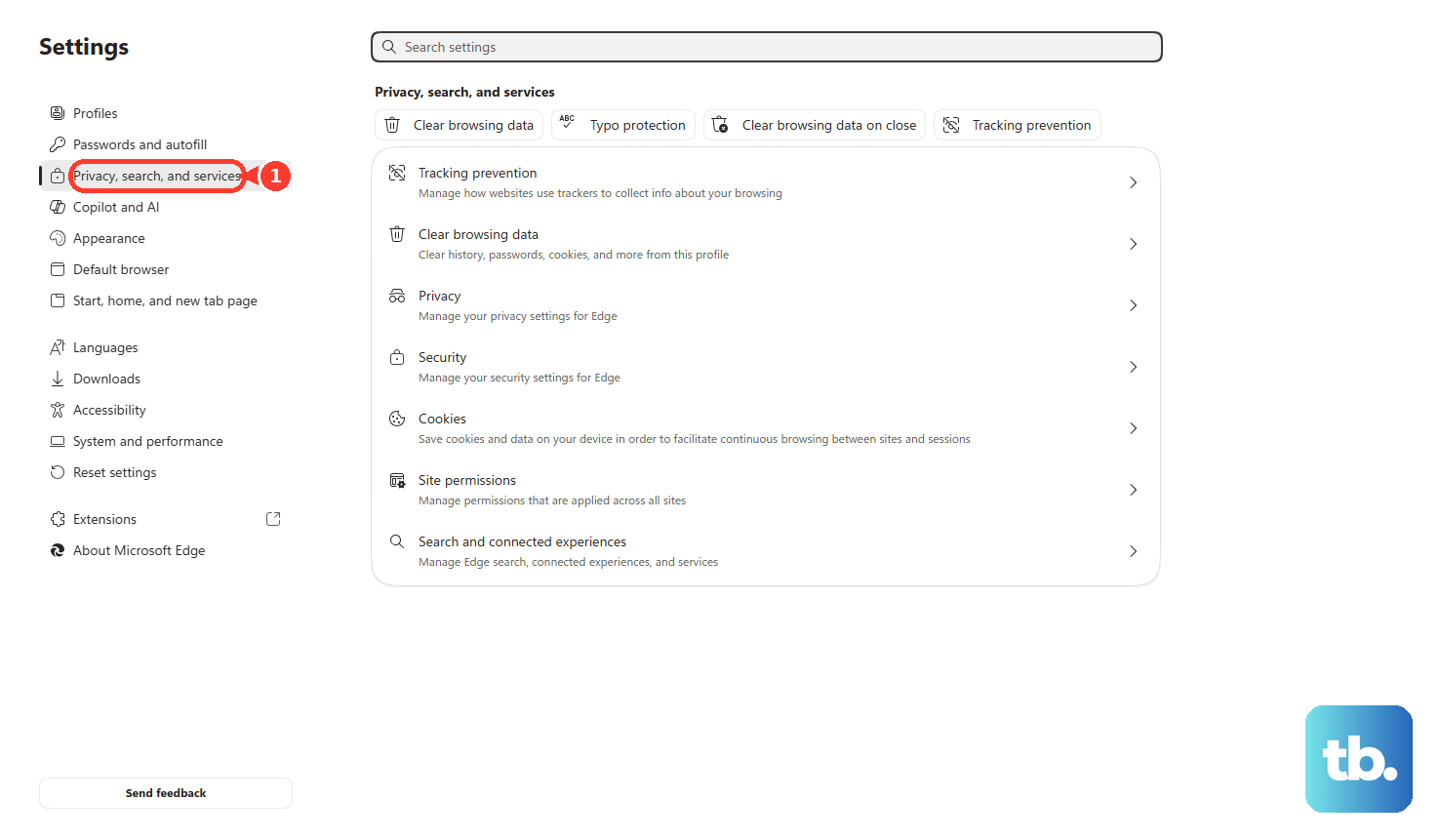
A blocked site permission is the usual cause, but the browser's selected microphone matters too. In Microsoft Edge, use Settings > Privacy, search, and services > Site Permissions > All sites, then allow the site's microphone permission. In Chrome, use Settings > Privacy and security > Site settings > Microphone, then allow the blocked site.
What changed for Windows 10 audio fixes in 2026?
Microsoft notes that Windows 10 support ended on October 14, 2025. Current consumer troubleshooting should use Windows 11 paths first, while managed Windows 10 devices should follow the organization's support process.
What can IT do when Windows Update keeps replacing a working Realtek driver?
Managed Windows devices can use driver controls in Group Policy or Microsoft Intune. Admins can exclude drivers from Windows Updates, restrict specific device installations by hardware ID, or approve, pause, and decline driver updates in Intune.