PEAK audio problems leave you without game sound, unable to hear teammates, or talking into a microphone nobody can hear. Start with the game's volume settings, then follow the checks for the sound or voice problem you're having. The Windows instructions below use Windows 11.
Restore PEAK's volume first
If game sounds or other players' voices have disappeared, check PEAK's audio settings first. Landfall confirms an intermittent bug that sets the game's volume to zero.
Open the game's audio settings, then raise any volume controls set to 0. Clear any mute state.
Close PEAK, then relaunch the game. Select your intended headset in the game's audio settings, as the developer recommends, and test the sound again.
Unmute PEAK and check where Windows sends its sound
A muted app or incorrect per-app output leaves PEAK silent while Windows and other applications sound normal.
With PEAK running, open Start > Settings > System > Sound > Volume mixer. Under Apps, unmute PEAK and raise its volume. Under PEAK, set Output device to your intended speakers or headphones.
If other applications are silent too, return to Sound and select your intended device under Output. Unmute that device and raise its volume.
For speakers, check that the power is on. Check their physical mute control and raise their hardware volume. Reconnect loose cables to the correct sockets.
For a USB headset, try another USB port. Disconnect headphones when testing speakers.
Give your microphone access and test it
Disengage your headset's mute control, check the microphone's connection, and position the microphone correctly. Open Start > Settings > Privacy & security > Microphone. Turn on Microphone access.
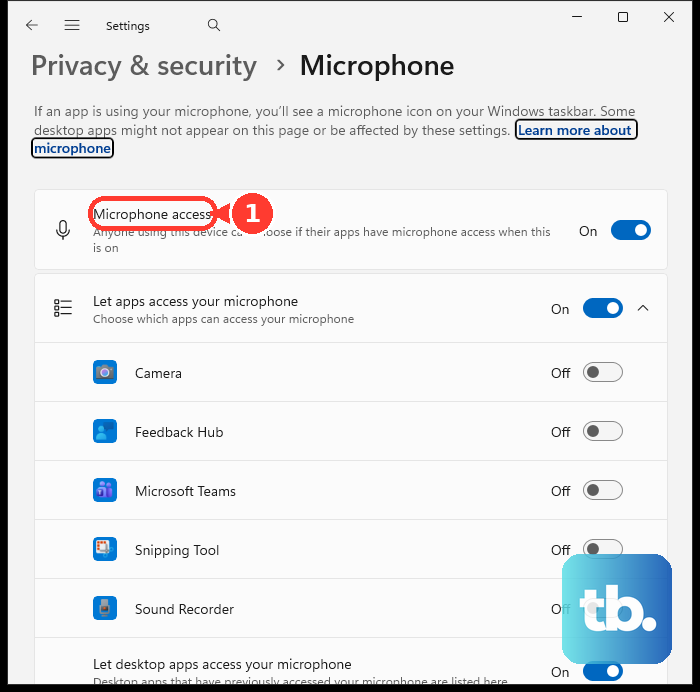
Enable Let apps access your microphone. Switch on Let desktop apps access your microphone. PEAK is a desktop application, so it does not need to appear in the individual Store-app list.
Go to Settings > System > Sound > Input and select your microphone. Under Input settings, select Start test. Speak into the microphone, then select Stop test.
Select Play to listen to the recording. Adjust Input volume if the recording is too quiet. Use this recording to check whether the microphone also fails outside PEAK.
Check multiplayer connections when voice chat drops
Have everyone finish updating PEAK before reconnecting. The developer recommends matching game versions; this does not establish a requirement to match Vulkan or DirectX launch modes.
When voice failure comes with lobby problems or disconnections, ensure everyone in the lobby is friends on Steam. Review Profile > Edit Profile > Privacy Settings for Friends Only restrictions affecting non-friends. Restart your router if connection failures continue.
Test without conflicting background programs, including cFosSpeed. Landfall includes this check in its troubleshooting for Photon connection problems.
For blocked multiplayer communication, open Windows Security > Firewall & network protection > Allow an app through firewall. Select Change settings, then select the check box next to PEAK. If PEAK is absent, select Allow another app and enter the path to PEAK.exe.
Select OK to confirm the change. If reconnecting still leaves voice chat broken, test without the voice-processing software described next.
Remove voice-processing conflicts
Virtual microphones and audio-processing programs are a source of PEAK voice-chat conflicts identified by the developer. Close or disable Voicemod, VoiceMeeter, or similar programs, then retest PEAK.
For a supported Razer headset, open Razer Synapse 4. Select your headset and open MIC. Disable MIC ENHANCEMENT. Landfall identifies Razer microphone noise suppression as a potential conflict.
Enable SIDE TONE temporarily to check microphone quality through the headset, as Razer recommends. To test Synapse itself, right-click its system-tray icon and choose Exit. Retest the headset.
If closing Synapse resolves the problem, follow Razer's recommendation to perform a clean Synapse reinstall. If disabling a confirmed conflicting voice-processing program is insufficient, uninstall it through its supported uninstaller.
Reconnect Bluetooth headsets and address distorted playback
For Bluetooth headphones that connect without producing sound, open Settings > Bluetooth & devices. Turn Bluetooth off, wait 10 seconds, then turn Bluetooth back on.
If the connection still fails, open the headset's More options (…) menu and select Remove device. Reconnect it through Add device.
For distorted playback, open Settings > System > Sound > Output and select your device. If the device exposes enhancement controls, set Audio enhancements to Off.
A separate adjustment addresses Bluetooth LE Audio glitches when the microphone activates. It requires compatible headphones, OEM drivers, and a compatible Windows 11 24H2-or-newer PC running build 26100.4484 or newer.
Select the LE Audio device under Output. Open Output settings > Format > Format when microphone is active. Choose Mono (1 channel), then retest playback with the microphone active.
If these changes do not restore sound, continue with the Windows audio checks below.
Repair audio that fails across Windows
Use these checks when the problem extends beyond PEAK.
- 1.Open Microsoft's audio support page, select Run the troubleshooter in Get Help, and follow the diagnostic prompts.
- 2.Open Start > Settings > Windows Update > Check for updates. Install available updates and restart.
- 3.Open Device Manager > Sound, video and game controllers. Right-click your audio device, select Update driver, follow the prompts, and restart.
- 4.If audio stopped after a driver update, open the affected device's Properties > Driver > Roll Back Driver, then restart. This requires a retained previous driver.
- 5.For a malfunctioning driver that still fails, right-click the affected device and select Uninstall device > Uninstall. Restart Windows to reinstall the driver.
Verify game files and clear leftover mods
Damaged installation files and leftover mods are installation problems to check when PEAK continues to malfunction. In Steam, open Library.
Right-click PEAK and select Properties > Installed files > Verify integrity of game files. Test PEAK after the check finishes. Update the Steam client through Steam > Check for Steam Client Updates….
For a modded installation, remove the installed mods completely. Open the game's installation folder through Library > right-click PEAK > Manage > Browse local files. Remove remaining mod files there, including leftover BepInEx folders identified by Landfall.
Reinstall PEAK through Steam after removing those files. Test the clean installation.
Send Landfall the log if audio still fails
When the relevant fixes have not resolved the problem, report it with PEAK's player log. Collect the log immediately after an affected session.
Reproduce the audio problem in PEAK, then press Windows+R. Enter appdata to open the folder, then open LocalLow\LandCrab\PEAK.
Send the Player log to [email protected], or report the problem through PEAK's official Steam forum or Discord.
Frequently Asked Questions
Why is Use LE Audio when available missing from Windows?
The control requires Windows 11 22H2 or newer, compatible PC hardware and drivers, and LE Audio headphones. It is absent on unsupported systems.
Does Bluetooth LE Audio support stereo while the microphone is active?
Yes, on compatible Windows 11 LE Audio systems that expose the control. Select Stereo (2 channels) under Format when microphone is active. Also turn off the system-wide mono setting under Settings > Accessibility > Audio. This adjusts channel behavior and playback quality.
Are Synapse 3 microphone instructions still the current Razer method?
Partly. Synapse 3 stopped receiving updates and cloud services on February 3, 2026, but Razer still documents the Synapse 3 workaround for devices already installed there: select your headset, open MIC, and clear the MIC ENHANCEMENT boxes. Use Synapse 4 on supported devices.
What if firewall settings are locked on my work or school PC?
Contact the device administrator to review PEAK's access when multiplayer voice fails alongside connection problems. Organization policy controls these settings and can block or override local changes.