Outlook fails in a few recognizable ways: the window never appears, the app freezes at startup, it crashes after the splash screen, or classic Outlook shows “Cannot start Microsoft Outlook.” Start with the fix that matches your Outlook version, then move through add-ins, profiles, repairs, and reinstall options only when the faster routes do not bring it back.
The goal is simple: get your mailbox open again without deleting data or wasting time on old workarounds Microsoft no longer treats as active fixes.
Identify your Outlook version first
New Outlook for Windows and classic Outlook use different repair paths. New Outlook is the modern Windows app installed from Microsoft Store or Microsoft’s Outlook for Windows page. Classic Outlook is the desktop Office app included with Microsoft 365 or Office 2024, 2021, 2019, or 2016.
If new Outlook opens and then stops responding, right-click Start, open Task Manager, select Microsoft Outlook, then choose End task. Confirm Outlook is fully closed, then open it again normally.
If classic Outlook will not start, begin with Safe Mode, COM Add-ins, the navigation pane reset, and profiles. Those fixes target the usual startup blockers before you repair or reinstall Office.
Open classic Outlook in Safe Mode
Use Safe Mode when classic Outlook crashes, freezes, or refuses to open normally.
- 1.Press Windows key + R, type Outlook /safe in Open, then select OK.
- 2.In Choose Profiles, accept Outlook, then select OK.
- 3.Enter your password if Outlook asks for it, then select Accept.
- 4.Go to File, Options, Add-ins, set Manage to COM Add-ins, then select Go.
- 5.Clear the selected add-in check boxes, select OK, then go to File and Exit.
- 6.Press Windows key + R, type Outlook, select OK, then re-enable add-ins one at a time from File, Options, Add-ins.
Disable the add-in that breaks startup
This fixes classic Outlook when Safe Mode opens but a normal launch crashes.
Hold Ctrl while starting Outlook.
Confirm Safe Mode when Windows asks.
Open File, then Options, then Add-ins.
Set Manage to COM Add-ins.
Select Go.
Clear the check box for the suspected add-in.
Select OK.
For the March 2026 Microsoft 365 Apps startup crash, update to the latest build. To get Outlook open first, clear Microsoft Teams Meeting Add-in for Microsoft Office in COM Add-ins.
Reset the classic Outlook window
When classic Outlook says “Cannot start Microsoft Outlook. Cannot open the Outlook Window,” reset the navigation pane. Microsoft provides a command for that specific startup failure.
Close Outlook completely, then press Windows key + R. In Open, type Outlook.exe /resetnavpane, then select OK.
This removes navigation pane customizations on that computer. After the reset finishes, start Outlook normally.
Create a fresh Outlook profile
A damaged classic Outlook profile can stop the app before the mailbox loads. Create a fresh profile from the profile picker.
- 1.Hold Shift while starting Outlook.
- 2.Select Options, then choose Prompt a profile to be used if you want Outlook to ask which profile to open. Microsoft labels this same check box two ways in current documentation, Prompt a profile to be used on the create-a-profile page and Prompt for a profile to be used on the profile-prompt page, so select whichever wording your Choose Profile dialog shows.
- 3.Select New, type a profile name, then select OK.
- 4.Add your email account when Outlook prompts you.
- 5.If Outlook will not show the profile picker, right-click Start, choose Run, type Outlook.exe /profiles, then press Enter.
Repair the profile or data file
If classic Outlook opens far enough to reach its settings, repair the account profile from inside the app. Go to File, Account Settings, Account Settings, then the Email tab. Select the account, choose Repair, follow the wizard, then restart Outlook. Repair is not available if you are using Outlook 2016 to connect to an Exchange account; create a new profile or repair Office instead.
For a damaged .pst file, exit Outlook and open SCANPST.EXE from the Office folder, such as C:\Program Files (x86)\Microsoft Office\root\Office16. Select Browse, choose the .pst file, select Start, then choose Repair when errors are found.
For Exchange .ost files, delete the offline .ost file and Outlook will recreate it when opened. If this method fails, update or repair Office itself.
Update or repair Office from Windows
Use this when Outlook will not stay open but another Office app still works, or when the startup failure points to a broken Office installation. These steps apply to Microsoft 365 or Office on Windows; for new Outlook installed as an app package, use the Windows app repair path instead.
Open Word or another Microsoft 365 app. Go to File, Account, Product Information, Update Options, and Update Now. If updates are disabled, choose Enable Updates first.
On Windows 11, right-click Start, open Installed apps, select the Microsoft 365 or Office product, choose the ellipses, then select Modify. For Click-to-run installs, choose Online Repair and Repair, or use Quick Repair for the faster repair.
For new Outlook installed as an app package, open Start, Settings, Apps, Installed apps, the More icon next to Outlook, Advanced options, and Repair. When Repair is unavailable or does not fix it, use Reset.
Use Outlook on the web while the app is down
The most common reason to use Outlook on the web is that the desktop app is broken while the mailbox still works.
For a work or school account, open a browser and go to Microsoft365.com or outlook.office365.com. Sign in, complete two-factor prompts, select Sign in, then open Outlook from the app launcher if you started at Microsoft365.com.
For a personal Outlook.com or Hotmail account, go to Outlook.com, select Sign in, and enter your Microsoft account credentials.
If Outlook on the web will not load correctly, use a current Microsoft Edge, Firefox, Chrome, or Safari browser. For Outlook.com loading problems, disable ad blockers or pop-up blockers such as AdBlock or Ublock for Outlook.com, then reload the page.
Fix Outlook on Mac and mobile
Safe Mode, COM add-ins, Windows profiles, and Office repair are Windows methods. Outlook for Mac and Outlook mobile have their own steps.
On a Mac, start with updates: open Word or another Microsoft 365 app, go to Help, then Check for Updates, and install what Microsoft AutoUpdate offers. If Outlook opens but the mailbox is incomplete or out of sync, go to Tools, Accounts, select the account, then choose Manage and Reset Account. That deletes anything not yet synchronized with the server, so make sure the Mac is connected first. For a damaged Mac profile, open Finder, Applications, right-click Microsoft Outlook, choose Show Package Contents, open Contents and SharedSupport, then launch Outlook Profile Manager to create a profile and set it as the default.
On a phone or tablet, if Outlook mobile crashes when you open it, clear the browser cache on the device, then remove the app and reinstall it from the app store. On Android, Microsoft also traces crash-on-launch to the system WebView component: open the Play Store, search for Android System WebView, select Update, then repeat for Google Chrome.
Reinstall only after repairs fail
Reinstalling is the slow fix. For classic Outlook, it fits only after Safe Mode, add-ins, profiles, updates, and repairs fail. For new Outlook, Microsoft’s list is shorter: restart the app from Task Manager first, then uninstall and reinstall it, or use the Windows app Repair and Reset options. Safe Mode, COM add-ins, Outlook profiles, and Office repair are classic Outlook methods and do not apply to new Outlook. For Microsoft 365 or Office on Windows, open Control Panel, go to Programs, then Programs and features, select your Microsoft 365 product, choose Uninstall, and follow the prompts.
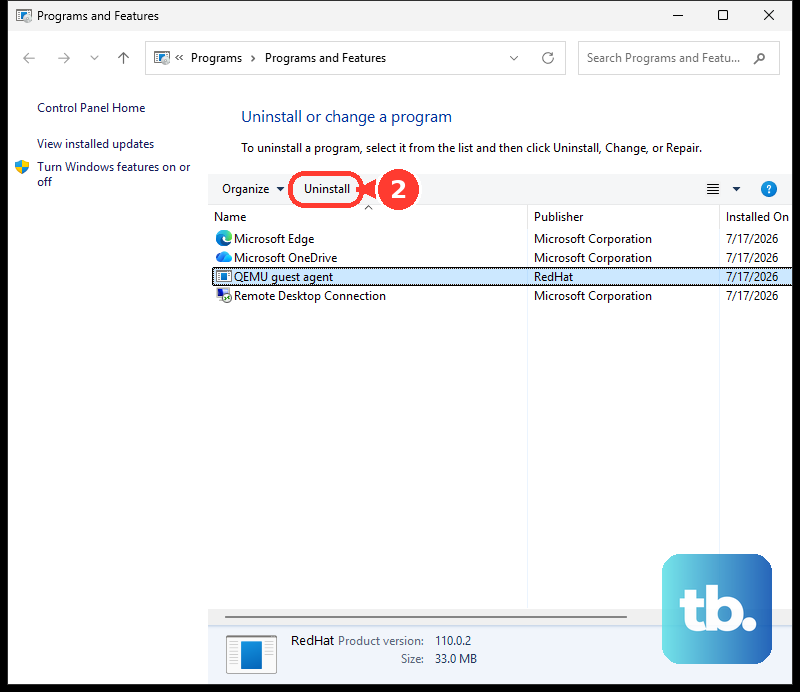
To reinstall Microsoft 365 or Office 2024, go to m365.cloud.microsoft/apps, sign in, open Install apps, and install the Microsoft 365 apps. Run the installer when prompted, accept User Account Control, wait for “You're all set! Office is installed now,” then select Close.
For new Outlook for Windows, uninstall it first: open the Start menu, select new Outlook for Windows, expand the list option, then choose Uninstall. To reinstall, open Microsoft Store, search for Outlook for Windows, choose Get, then select Open after the download finishes and add your account. If this method fails on a work or managed device, ask your IT admin to check centrally deployed Outlook add-ins and the Microsoft 365 Apps update channel.
Frequently Asked Questions
Why does Outlook open in Safe Mode but not normally?
Classic Outlook is loading something during normal startup that Safe Mode skips. Disable COM add-ins, restart Outlook normally, then re-enable add-ins one at a time to find the add-in causing the crash.
Can I keep using email while Outlook desktop is broken?
Yes. Use Microsoft365.com or outlook.office365.com for work or school accounts, and use Outlook.com for personal Outlook.com or Hotmail accounts.
Does resetting the navigation pane delete my email?
No. It removes navigation pane customizations on that computer. It is for the classic Outlook error that says Outlook cannot open the Outlook window.
Should I use older Outlook stuck-at-loading-profile fixes?
No. The older presence-feature workaround was tied to a June 2019 service issue that Microsoft fixed. Use Safe Mode, add-in isolation, profile repair, Office updates, and Office repair instead.