NVIDIA Instant Replay refuses to turn on, stops recording midgame, or leaves you searching for a clip that never saved. Start with the overlay and replay controls, then follow the fix that matches what happens on your PC. These steps cover the current NVIDIA app on Windows 10 and Windows 11.
Get the NVIDIA overlay working first
Enable NVIDIA overlay in the NVIDIA app’s Settings. This is NVIDIA’s first troubleshooting step when the overlay will not open.
Press Alt+Z to open the recording controls.
If Alt+Z does nothing, click the overlay button at the upper right of the NVIDIA app. If that opens the controls, the shortcut is the problem.
If neither method opens the overlay, try the app and driver updates below. If it opens with blank or missing controls, try the Windows Videos folder fix in the storage section.
Stop protected content from turning replay off
Protected-content applications and browser tabs block recording when Desktop capture is enabled.
Close the app named in the recording-blocked notification. Audible, Netflix, Spotify and some games with aggressive anti-cheat software are common triggers.
If the notification names your browser, close the tab streaming protected content.
Enable Instant Replay again after closing the blocking content.
If replay stops while you stream an application through Discord, open the overlay with Alt+Z.
Switch Desktop capture off under the Settings cog > Video capture. This lets you continue recording the game through game capture.
Confirm replay is enabled before you play
Use the shortcuts displayed in your overlay to enable replay and save a test clip.
- 1.Press Alt+Z and open the Settings cog to inspect the recording hotkeys. NVIDIA publishes conflicting replay shortcuts, so use the bindings displayed in your installed overlay.
- 2.Open Video Capture and set Instant Replay length to the amount of recent gameplay you want to keep.
- 3.Enable Instant Replay before playing. The shortcut to turn it on is usually Alt+Shift+F10; use the binding shown in your overlay if it differs.
- 4.Play long enough to capture a test moment, then press the save-replay shortcut. Check the hotkey settings in your overlay first, because that binding is the one your installation actually uses.
- 5.Open the overlay with Alt+Z, then select Gallery to inspect the capture and access its file.
Match desktop capture to your game
Test recording in a DirectX game if replay fails in only one title.
For an OpenGL, Java, or browser game, choose windowed, borderless-windowed, or borderless-full-screen mode in that game’s display controls. The menu path differs by game.
Open the overlay with Alt+Z.
Enable Desktop capture under Settings > Video Capture for that test. Availability depends on your system.
Close protected-content applications before testing capture again.
NVIDIA supports windowed capture, so exclusive fullscreen is not a requirement for every game.
Find missing clips and restore blank overlay controls
Use these checks when a saved clip is missing, the recording drive is full, or the overlay has missing controls. An inaccessible, redirected Windows Videos folder is a documented cause of blank overlay settings.
Open the overlay with Alt+Z.
Select Gallery to look for your captures and access their files.
Review the storage-location and disk-usage controls under the overlay’s Settings cog.
Check available space on both the recording drive and temporary-file drive if they differ.
On Windows 11, open Settings > System > Storage > Cleanup recommendations when a drive is full.
Remove only files you no longer need.
For blank overlay controls after redirecting your Videos folder, open File Explorer.
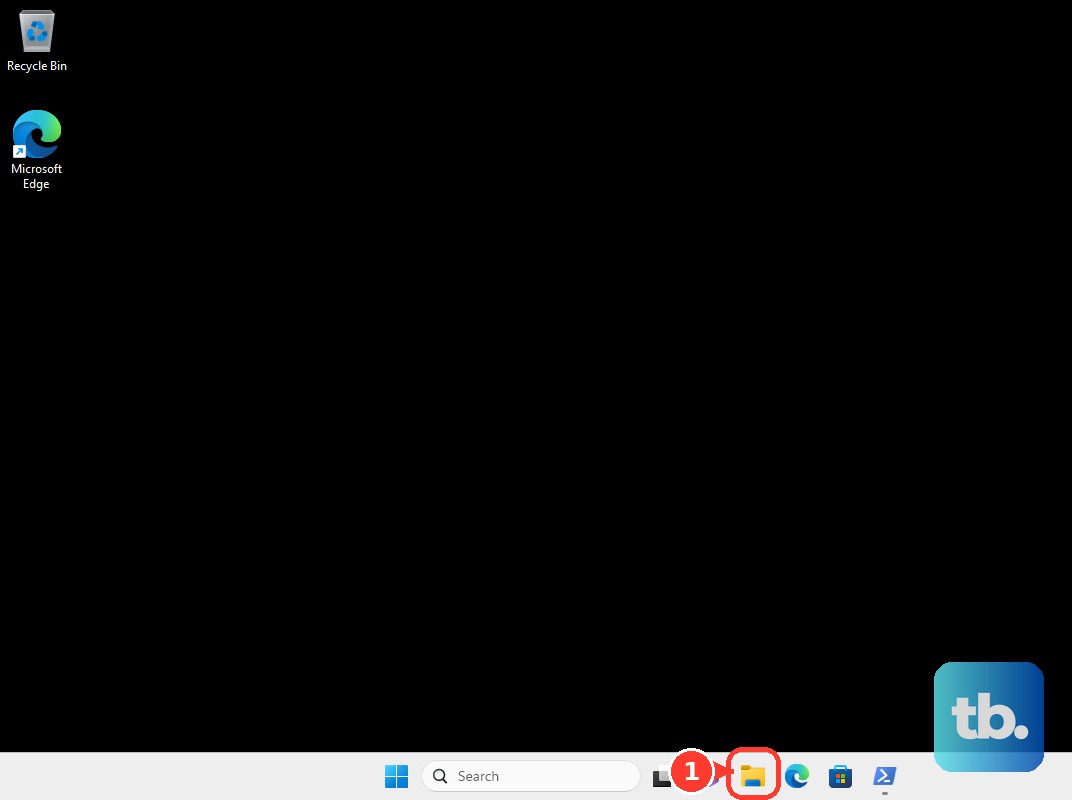
Right-click Videos.
Open Properties > Location.
Select Restore Default.
Click Apply to restore the default local location. NVIDIA documents this workaround for an inaccessible video-folder location.
Update the app and driver to address recording bugs
Install the latest NVIDIA app using Download Now on NVIDIA’s product page. App updates include fixes for recording failures involving special characters in game titles, Numpad shortcuts, disappearing overlays, and recording-folder changes.
Update the display driver through the NVIDIA app’s Drivers > Download > Install controls. Choose the current compatible driver rather than an old minimum version.
If replay broke immediately after a driver update, select Reinstall from the previous driver’s three-dot menu under Drivers. The previous driver appears beneath the newest driver’s details, and this diagnostic requires a previous driver installed through the app to be available.
Older GeForce Experience instructions mention Privacy Control and Keyboard Shortcuts. The current app puts desktop recording under Video capture and hotkey customization under the overlay’s Settings cog. GeForce Experience is no longer supported, so returning to it is not a supported repair.
Install missing media components on Windows N
Check whether your Windows edition is Windows 10 N or Windows 11 N before using this fix. These editions require the Media Feature Pack for the NVIDIA app.
On Windows 11 N, open Settings > Apps > Optional features > View features beside Add an optional feature.
If that path is absent, search Windows Settings for Optional features.
On Windows 10 N, open Settings > Apps > Apps and Features > Optional features > Add a feature.
Install Media Feature Pack.
Restart your PC.
NVIDIA directs you to reinstall the NVIDIA app after adding the media components. Uninstall it first. On Windows 11, use Settings > Apps > Installed apps > NVIDIA App > three-dot menu > Uninstall.
Restart your PC again.
Select Download Now on NVIDIA’s app page.
Run the downloaded installer.
The Media Feature Pack fix applies specifically to Windows N editions.
Restore microphone audio in saved replays
Disabled voice capture or missing Windows microphone permission leaves replays without your voice.
Open the overlay with Alt+Z.
Enable voice capture under Microphone, or configure its push-to-talk behavior.
On Windows 11, open Settings > Privacy & security > Microphone. On Windows 10, open Settings > Privacy > Microphone.
Enable Microphone access on Windows 11, or the equivalent microphone permission on Windows 10.
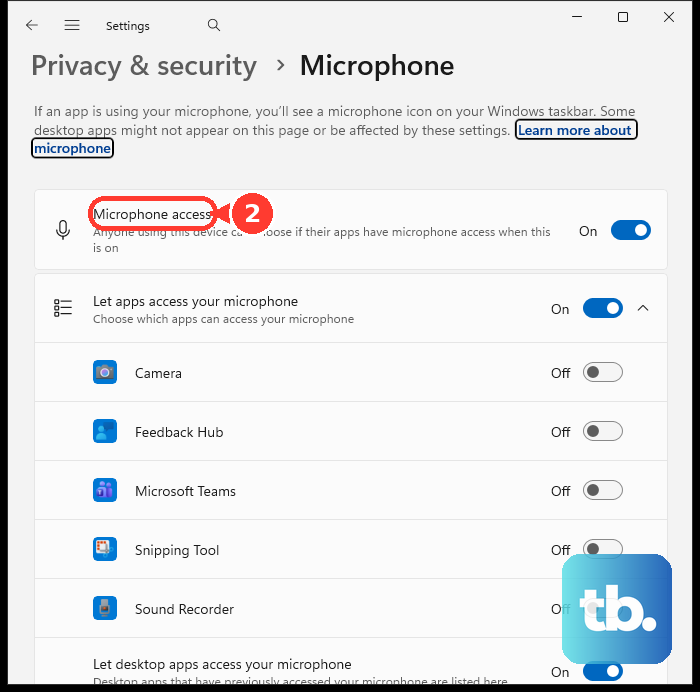
Turn on Let desktop apps access your microphone on Windows 11, or Allow desktop apps to access your microphone on Windows 10. These permissions address missing voice audio; they do not repair replay that fails to start.
Isolate a replay failure that survives these fixes
Manual recording provides a temporary capture option when it works independently of the replay buffer.
Press Alt+F9 to start a manual test recording.
Press Alt+F9 again to stop it. Manual recording captures future activity and cannot recover a moment that was never buffered.
Open the overlay with Alt+Z for a separate replay test.
Shorten Instant Replay length under Settings > Video Capture. Reducing recording demands is a diagnostic test, not a guaranteed repair.
Compare your PC with NVIDIA’s app system requirements before attempting further software repairs. App compatibility alone does not establish recording support for every older GPU.
Click the [!] feedback icon at the upper right of the NVIDIA app’s home page to report a reproducible failure.
Include your app and driver versions, GPU, Windows edition, reproduction steps, and whether Desktop capture is enabled.
Frequently Asked Questions
Does NVIDIA’s 600MB storage requirement include space for replay clips?
No. The 600MB requirement is for NVIDIA app installation. It is not a recording-storage recommendation.
Why does Alt+Z open both NVIDIA app and GeForce NOW?
Both applications use the same overlay shortcut. Open the NVIDIA overlay’s Settings cog and change its overlay-opening binding. NVIDIA suggests Ctrl+Alt+Z for the NVIDIA app.
Do I need to sign in to NVIDIA app to record?
No. NVIDIA app login is optional and is not a recording prerequisite.
Should I clean-install the NVIDIA driver to fix Instant Replay?
Reserve that procedure for a failed or incomplete driver installation. NVIDIA documents clean installation as installer recovery, not as a guaranteed Instant Replay fix.