The “No DHCP server was found” Wi-Fi error means your device joined or tried to join Wi-Fi but did not receive a usable network address. Without that address, the connection can show no internet or fail before it fully connects.
Start with the device showing the warning, then move to the router when several devices fail on the same network. The quickest fixes usually come from reconnecting, renewing DHCP, or turning router DHCP back on.
Check the basic Wi-Fi connection first
On Windows, select the Network, Sound, or Battery icons on the right side of the taskbar and make sure Wi-Fi is turned on. Select your network again if it does not show Connected.
Open Settings > Network & Internet > Airplane mode and make sure Airplane mode is turned off. That switch can block Wi-Fi before DHCP assigns an address.
If your router broadcasts separate 2.4 GHz and 5 GHz Wi-Fi names, connect to the other network name from the available Wi-Fi list. One band can fail while the other still works.
Forget the network and join it again
A saved Wi-Fi profile can keep using stale connection details. Forgetting the network makes your device build the connection again the next time you enter the password.
On Windows, open Settings > Network & internet > Wi-Fi > Manage known networks, choose your Wi-Fi network, select Forget, then reconnect and enter the password.
On Mac, go to Apple menu > System Settings > Wi-Fi, click Details for the connected network, then select Forget This Network. Join the same network again afterward.
On iPhone, iPad, or Apple Vision Pro, open Settings > Wi-Fi > Edit, tap the More Info button next to the network, tap Forget This Network, then tap Forget and join again.
If the error comes back after rejoining, restart the modem and router next because the DHCP server usually runs from the router.
Restart the network when several devices fail
Use this when multiple phones, laptops, or tablets fail on the same Wi-Fi network. A modem and router restart can clear a stuck DHCP assignment problem across the whole home network.
Unplug the router power cable first. Then unplug the modem power cable.
If the modem lights stay on, remove its battery. Wait at least 30 seconds before reconnecting anything.
Replace the modem battery if you removed it, plug the modem back in, and wait until the lights stop blinking. Plug the router back in, wait a few minutes, then reconnect to Wi-Fi.
Renew DHCP on Windows
Use these Windows commands when Wi-Fi connects but still cannot get a proper address.
- 1.Select Search on the taskbar, type command prompt, choose Run as administrator, then select Yes.
- 2.Run netsh winsock reset, then run netsh int ip reset.
- 3.Run ipconfig /release, then run ipconfig /renew.
- 4.Run ipconfig /flushdns.
- 5.Reconnect to Wi-Fi and test the connection again.
Set your device back to automatic IP assignment
DHCP works only when the device is set to receive an address automatically. A manual or static IP setting can break Wi-Fi when it does not match the current network.
On Windows, open Network & internet settings, go to Wi-Fi > Manage known networks, and choose your network. Next to IP assignment, select Edit, set Edit IP settings to Automatic (DHCP), and save the change.
On Mac, open Apple menu > System Settings > Network, click the network connection, click Details, then open TCP/IP. Use the Configure IPv4 pop-up menu and choose Using DHCP.
If automatic IP assignment does not fix it, renew the lease or reset the network settings on the affected device.
Refresh the network stack on your device
On Mac, restarting can automatically renew the Wi-Fi IP address. Open Apple menu > Restart, then reconnect to Wi-Fi after the Mac starts again.
To renew the Mac lease directly, open Apple menu > System Settings > Network, click the network service, click Details, click TCP/IP, select Renew DHCP Lease, then click OK.
On iPhone or iPad, use Settings > General > Transfer or Reset [device] > Reset > Reset Network Settings. This removes saved Wi-Fi networks and passwords, cellular settings, VPN settings, and APN settings.
On Pixel, open Settings > System > Reset options > Reset Bluetooth & Wi-Fi, then tap Reset settings. This deletes saved Wi-Fi connections, so reconnect to your network afterward.
Run the built in Wi-Fi repair tools
Use the repair tool for your device when reconnecting and renewing DHCP do not restore Wi-Fi.
- 1.On Windows 11, open Start > Settings > Network & internet, then run the automated Network and Internet troubleshooter in the Get Help app.
- 2.On Mac, click Wi-Fi in Control Center or the menu bar, then choose Wi-Fi Recommendations when it appears.
- 3.On Mac, hold Option while clicking Wi-Fi in Control Center or the menu bar, then choose Open Wireless Diagnostics.
- 4.On Pixel, go to Settings > Device health & support, then tap Wi-Fi diagnostics or Connectivity health. Google lists this feature as available only in the US for US subscribers on Pixel 11 phones, so use the other Pixel steps here on any other phone.
- 5.On Chromebook, run the network diagnostic tool from Settings > About ChromeOS > Diagnostics, then restart the Chromebook.
Repair Windows Wi-Fi drivers and services
This fixes DHCP errors caused by a stuck Wi-Fi service, adapter power saving, or a damaged wireless driver.
Press Win + R, type services.msc, press Enter, find WLAN AutoConfig, right-click it, and select Restart.
Open Device Manager > Network adapters, right-click your Wi-Fi adapter, choose Properties, open Power Management, then uncheck Allow the computer to turn off this device to save power.
Open Device Manager, expand Network adapters, right-click the Wi-Fi adapter, select Uninstall device, check Attempt to remove the driver for this device, choose Uninstall, then use Start > Power > Restart.
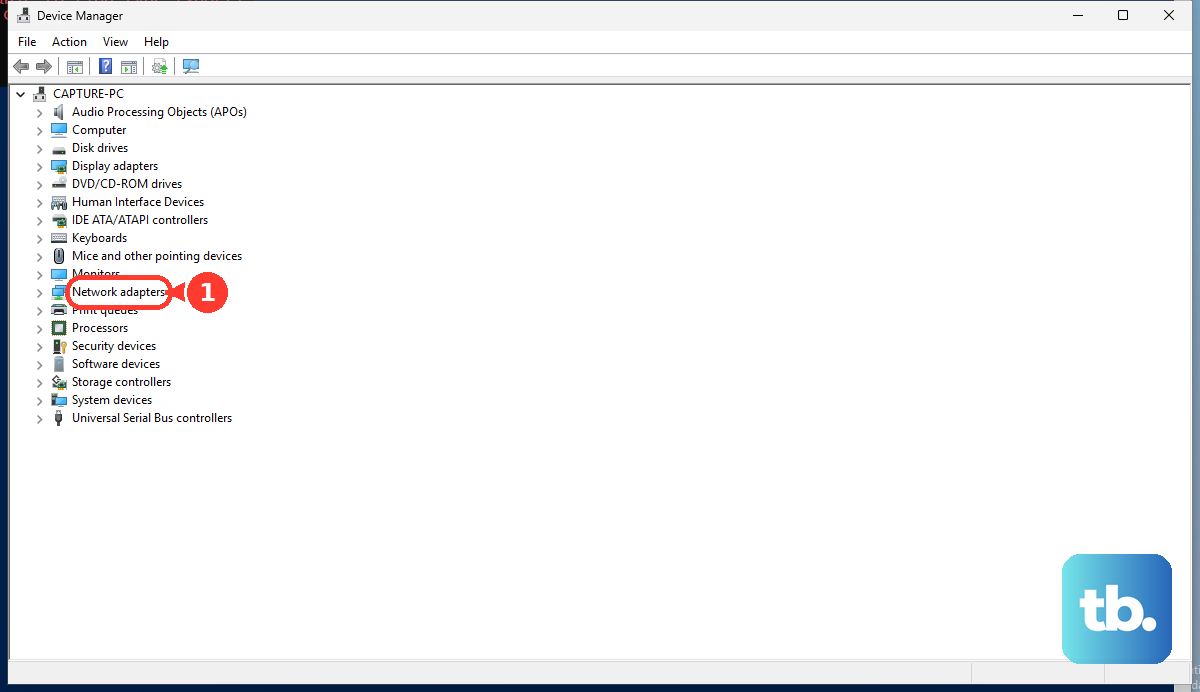
Right-click Start, open Device Manager, expand Network adapters, and right-click the Wi-Fi adapter. Use Update driver > Search automatically for updated driver software, or choose Properties > Driver > Roll Back Driver when the problem started after a driver update.
Install system updates from Start > Settings > Windows Update > Check for updates. For supported Intel Wi-Fi adapters, use Intel’s official Wireless Wi-Fi Drivers download page when Windows Update or the PC maker’s support page is not enough.
Fix DHCP on the router
This fixes whole-network failures where devices cannot get addresses from the router.
Run ipconfig in an administrator Command Prompt on Windows. If the Wi-Fi IP address starts with 169.254 and you are not using static IP addresses, check router DHCP next.
Sign in to your router’s admin app or web portal and set DHCP to Enabled when that router is the only DHCP server. Keep only one DHCP server active on the same network.
Reduce the router DHCP lease time if the address pool is exhausted. Use 8 hours for home or office networks, or 1 hour for hotspots or guest networks.
On eero, open the eero App > Settings tab > Advanced networking > DHCP & NAT and switch from Bridge to Automatic when eero should be the router and DHCP server. The network restarts to apply the change.
On NETGEAR Nighthawk routers, open http://www.routerlogin.net, sign in, go to ADVANCED > Setup > LAN Setup, check Use Router as DHCP Server, and click Apply. NETGEAR documents this LAN Setup path across its home router range and notes that some models use Settings > Setup > LAN Setup instead.
On Google Nest Wifi or Google Wifi, use Google Home > Wifi > Network settings > Advanced Networking > DHCP IP reservations when you need to reserve an address for a device. On TP-Link routers, use the official download center or Tether app > More > System > Firmware Update for firmware updates, and match the exact model, hardware version, and purchase region.
If your Wi-Fi belongs to work, school, a hotel, an airport, or another managed network, complete the sign-in page on public Wi-Fi or contact the network owner. Do not change router or policy settings on a network you do not manage.
Skip older fixes that no longer fit
Some older Android guides recommend WPS Push Button or WPS PIN for connection problems. Google lists WPS only for older Android versions, so use the normal saved-network removal and reconnect flow on current Android devices.
Windows 10 guides may point to the old Network troubleshooter under Settings > Network and Internet > Status. Windows 10 reached end of support on October 14, 2025, with Extended Security Updates offered through October 12, 2027, so on Windows 11 use the automated Network and Internet troubleshooter in Get Help.
If none of the current device and router steps works, reset Windows network adapters from Settings > Network & internet > Advanced network settings > Network reset > Reset now, then reconnect to Wi-Fi.
Frequently Asked Questions
What does no DHCP server was found on Wi-Fi mean?
It means your device did not receive a usable network address from the Wi-Fi network’s DHCP server. On a home network, that DHCP server is usually the router.
Why do I see a 169.254 address on Windows?
A 169.254.x.x Wi-Fi address means Windows assigned itself an address because it did not get one from DHCP. Check that the router’s DHCP server is enabled and that only one device is providing DHCP on the network.
Will resetting network settings delete my Wi-Fi password?
Yes. On iPhone and iPad, Reset Network Settings removes saved Wi-Fi networks and passwords, cellular settings, VPN settings, and APN settings. Pixel’s Reset Bluetooth & Wi-Fi also deletes saved Wi-Fi connections.
Should I change router DHCP settings on public or work Wi-Fi?
No. For public Wi-Fi, complete the sign-in page. For work, school, hotel, airport, or managed networks, contact the network owner or IT administrator instead of changing network settings yourself.