Night Light is supposed to warm the screen when you turn it on or when its schedule starts, but the toggle can disappear, stay grayed out, miss sunset, or make no visible color change. Start with the Windows 11 controls that prove whether Night Light itself works, then move to location, display driver, color override, and repair checks. Skip registry resets and script fixes because they are not supported consumer repair paths.
1. Restart Night light from Quick Settings
Use the fastest switch first. If Night Light responds here, the feature is present and the problem is limited to schedule, strength, or another color setting.
Select the Network or Speakers icon on the right side of the taskbar.
Use the down arrow on the right side of Quick Settings to find Night light.
Select Night light to turn it off.
Select Night light again to turn it back on.
You can also press Windows logo key + A, then select Night light. If the button is missing or grayed out, go straight to the display driver section below.
2. Force the change in Display settings
Quick Settings only proves the switch is visible. Display settings let you make the color shift obvious.
Open Start > Settings > System > Display.
Turn on Night light.
Select Night light.
Move the Strength slider to the right until the warmer color is clear.
For a clean test, turn off Schedule night light, turn on Night light manually, then move Strength again. A manual color change means the schedule needs attention. No color change points to the driver, color filter, HDR, GPU, or monitor checks below.
3. Rebuild the schedule and location setup
Go to Start > Settings > System > Display > Night light.
Turn on Schedule night light.
Select Sunset to sunrise for automatic timing, or select Set hours and enter the exact on and off times.
When Sunset to sunrise is unavailable or using the wrong time, turn on Windows location access. Open Start > Settings > Privacy & security > Location, turn on Location services, then return to Settings > System > Display > Night light and choose Schedule night light > Sunset to sunrise.
4. Identify a blocked display path
A missing or grayed-out Night Light toggle is a display support problem. Microsoft says Night Light is not available with certain drivers, including DisplayLink and Microsoft Basic Display.
Check the hardware path before reinstalling Windows. USB display adapters, docks, remote display drivers, virtual display drivers, and PCs running the basic Windows display driver belong in this bucket. Connect the screen through a GPU-backed display output, or install the correct display driver for the PC, graphics card, dock, or adapter.
5. Replace the display driver cleanly
Use these driver fixes in order when Night Light is missing, grayed out, or stopped working after display changes.
- 1.Open Start > Settings > Windows Update > Advanced options. Turn on Receive updates for other Microsoft products, select Optional updates, choose any listed display or graphics driver, select Download and install, then restart.
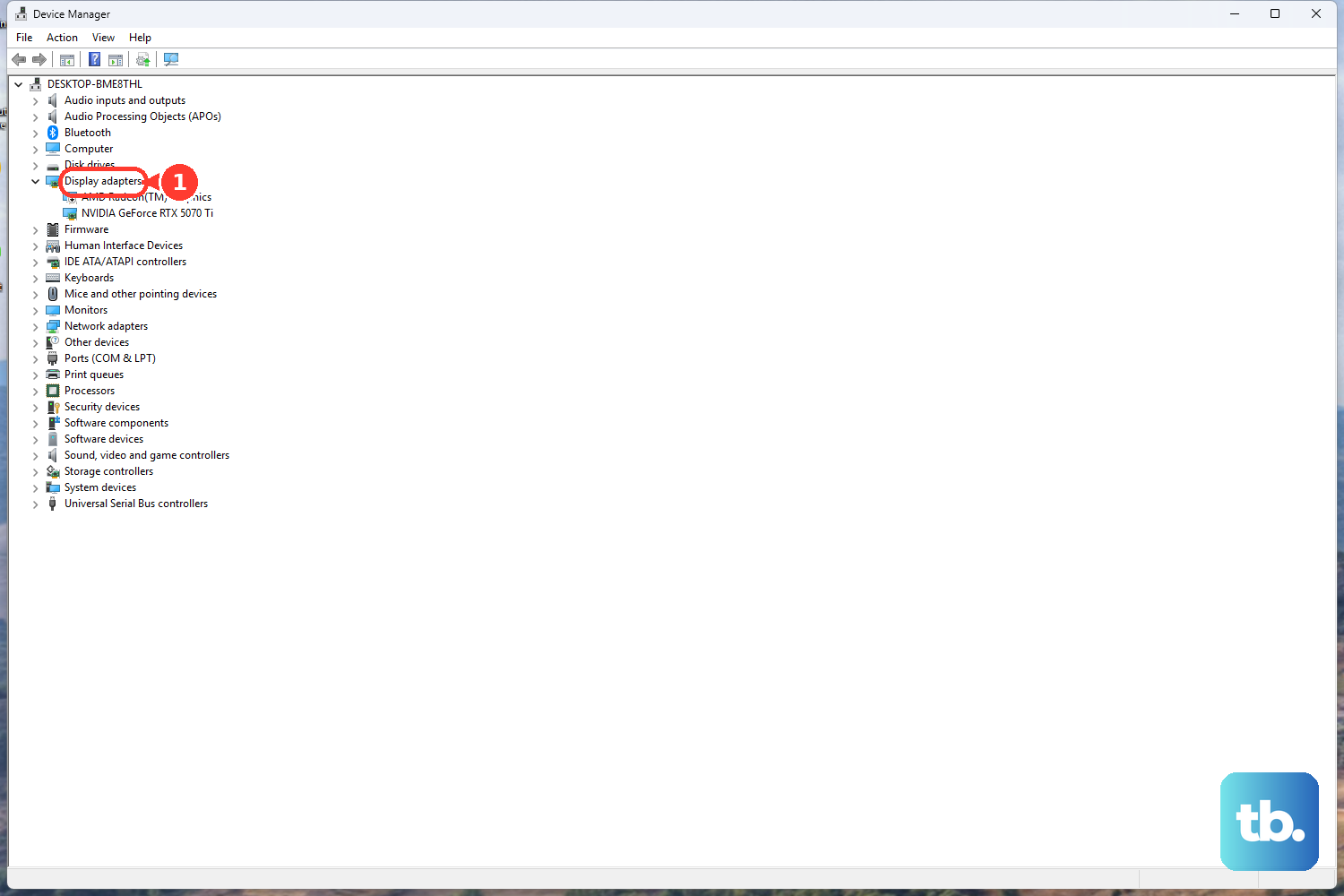
- 2.Right-click Start, select Device Manager, expand Display adapters, right-click the display adapter, select Update driver, then choose Search automatically for updated driver software.
- 3.Download the correct display driver from the PC, GPU, dock, or adapter manufacturer. In Device Manager, open Display adapters, right-click the device, select Update driver > Browse my computer for drivers > Browse, choose the downloaded driver folder, then select Next.
- 4.To reinstall a corrupted driver, open Device Manager > Display adapters, right-click the adapter, select Uninstall device, confirm with Uninstall, then right-click Start > Shut down or sign out > Restart. Windows reinstalls the driver after restart.
6. Remove color tools that override Windows
Night Light changes display color, so other color controls can make the feature look broken even when it is on. Clear Windows color settings first.
Press Windows logo key + U, select Color filters, then turn off Color filters. If the shortcut is enabled, Windows logo key + Ctrl + C also toggles color filters.
Next, open Settings > Accessibility > Screen Tint, then turn off Screen tint while testing Night Light.
On an HDR display, open Settings > System > Display > Night light. Drag Strength left if the screen is too red or unreadable, or select Turn off now.
Then remove third-party and hardware color changes. Open Start > Settings > Apps > Installed apps, select More for the blue-light, dimming, color-temperature, OEM display, or GPU utility, then select Uninstall. If you keep the app, open its own settings and disable its blue-light, dimming, color-temperature, or schedule controls.
On an external monitor or TV, use the physical buttons, joystick, or on-screen display menu and return low blue light, eye comfort, reading mode, or preset color modes to a standard or default mode.
7. Turn off adaptive and GPU color changes
Some devices and graphics apps keep adjusting color after Night Light is set. Use only the controls that exist on your hardware.
Open Settings > System > Display and turn off Adaptive Color when that toggle appears.
On Surface with Windows 11, open Start > Settings > System > Display, select Brightness, then set Change brightness based on content to Off. Connecting the Surface to power is Microsoft’s temporary workaround.
On supported Intel Surface models, open Intel Graphics Command Center, select System, select Power, then move Power Efficiency left or set Display Power Savings to Off.
After that, in Intel Graphics Command Center, select Display, open Color, then select Restore to Original Colors.
In NVIDIA Control Panel > Display > Adjust desktop color settings, clear Override to reference mode. Review Brightness, Contrast, Gamma, Digital Vibrance, and Hue.
In AMD Software, search for Display, select Display Settings, then set Custom Color, Display Color Enhancement, and Color Deficiency Correction to Disabled.
8. Repair Windows after the display checks
Use Windows repair only after the Night Light switch, schedule, location, driver, and color override checks fail.
Open Start > Settings > Windows Update > Check for updates. Install available updates, then restart.
For a Windows 11 feature update, open Microsoft’s Download Windows 11 page, go to Windows 11 Installation Assistant, select Download Now, and run the assistant on a compatible x64 PC. Microsoft says the assistant does not run on Arm-based PCs.
Open an elevated Command Prompt, run DISM first, then run sfc /scannow. Restart after repairs complete.
Open Start > Settings > System > Recovery. Under Fix problems using Windows Update, select Reinstall now, choose the restart option shown, then select OK.
If Night Light broke immediately after a Windows update, use Windows Recovery Environment. Select Troubleshoot > Advanced options > Uninstall Updates, then choose the latest quality update or feature update option shown. For deeper recovery, use Control Panel > Recovery > Open System Restore, Windows Recovery Environment > Troubleshoot > Point-in-time restore, or Windows Recovery Environment > Troubleshoot > Reset this PC.
Back up data and keep the BitLocker recovery key available before reset or full recovery work.
Do not delete Night Light CloudStore registry keys, build PowerShell or Task Scheduler toggles, or hunt for a direct Night Light Group Policy. Microsoft Q&A identifies those registry and script approaches as unsupported workarounds, and Microsoft does not document a supported direct Night Light policy. On work or school PCs, contact IT when Night Light is blocked or controlled by the organization.
Frequently Asked Questions
Why is Night Light missing from Quick Settings?
Night Light does not appear on unsupported display paths. Microsoft lists DisplayLink and Microsoft Basic Display as examples of drivers where Night Light is not available.
How do I make Night Light less red?
Open Settings > System > Display > Night light, then drag the Strength slider left. On HDR displays, Microsoft also lists Turn off now as the direct way to stop an unreadable red tint.
Does Night Light need Location services?
Only the Sunset to sunrise schedule needs Windows Location services. Custom Set hours scheduling does not depend on the sunset calculation.
Can f.lux replace Windows Night Light?
Yes. f.lux is a third-party blue-light alternative when Windows Night Light is unavailable, but it does not repair the built-in Windows feature.
Should I use registry fixes for Night Light?
No. Older CloudStore registry edits and PowerShell toggles are legacy workarounds, and the supplied Microsoft Q&A research says they are not officially supported or reliable consumer repair methods.