A cursor that skips or trails behind your hand makes even a simple click frustrating. Delayed input, slow pointer speed and choppy screen motion need different fixes. Start with the connection and tracking checks below, then move to the Windows settings that match your symptoms.
Start With Batteries and the Connection
Low batteries and connection trouble are the first causes to check when a wireless mouse stops responding properly. Fully charge a rechargeable mouse. For a mouse with replaceable batteries, install fresh ones with the correct orientation.
Unplug a wired USB mouse, then wait briefly before reconnecting it. For a wireless USB mouse, unplug its receiver and wait about 10 seconds before reconnecting the receiver.
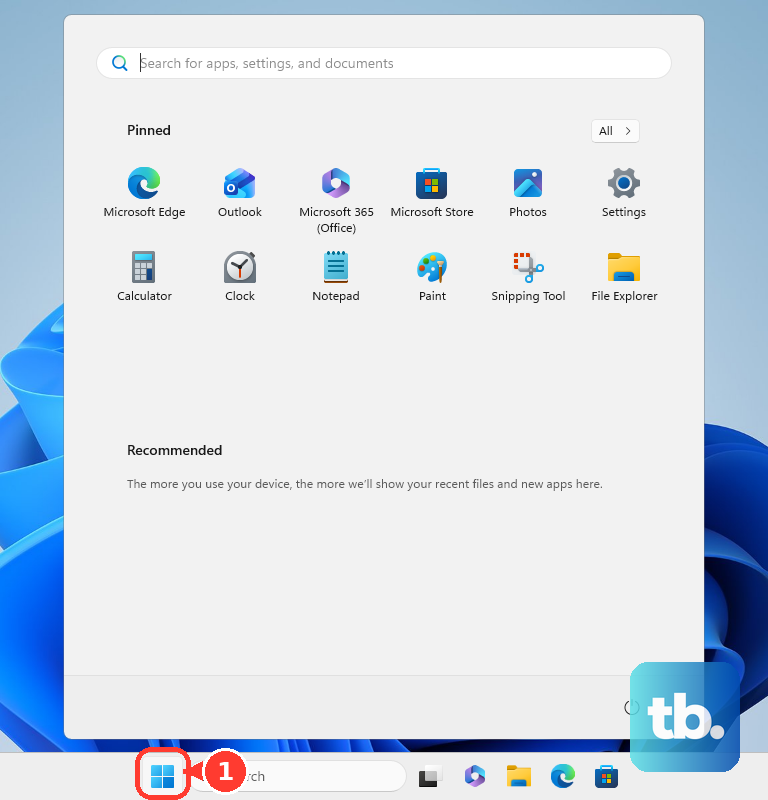
If your mouse or receiver has a Reset button, use it according to the model's instructions to reestablish the wireless connection. Save your work before restarting the PC. Microsoft recommends a restart for slow mouse input. Select Start > Power > Restart.
Move the Receiver and Skip the USB Hub
Start with a different USB port. Connect the mouse or receiver directly to the PC instead of through a hub. Check a wired mouse's cable for damage.
For a Logitech wireless mouse with a USB receiver, move the mouse closer to the receiver. Try a front USB port if the desktop case obstructs reception. Move other wireless electrical devices away from the mouse and receiver.
For a Razer Viper V2 Pro affected by wireless interference, test a 5 GHz Wi-Fi connection or wired Ethernet. Razer also documents changing the router's 2.4 GHz channel; follow your router's instructions for that setting.
If these checks fail, test the mouse on another computer with its required driver installed. Failure on both computers points toward a hardware problem; replacement is the next option.
Clean the Sensor and Test the Surface
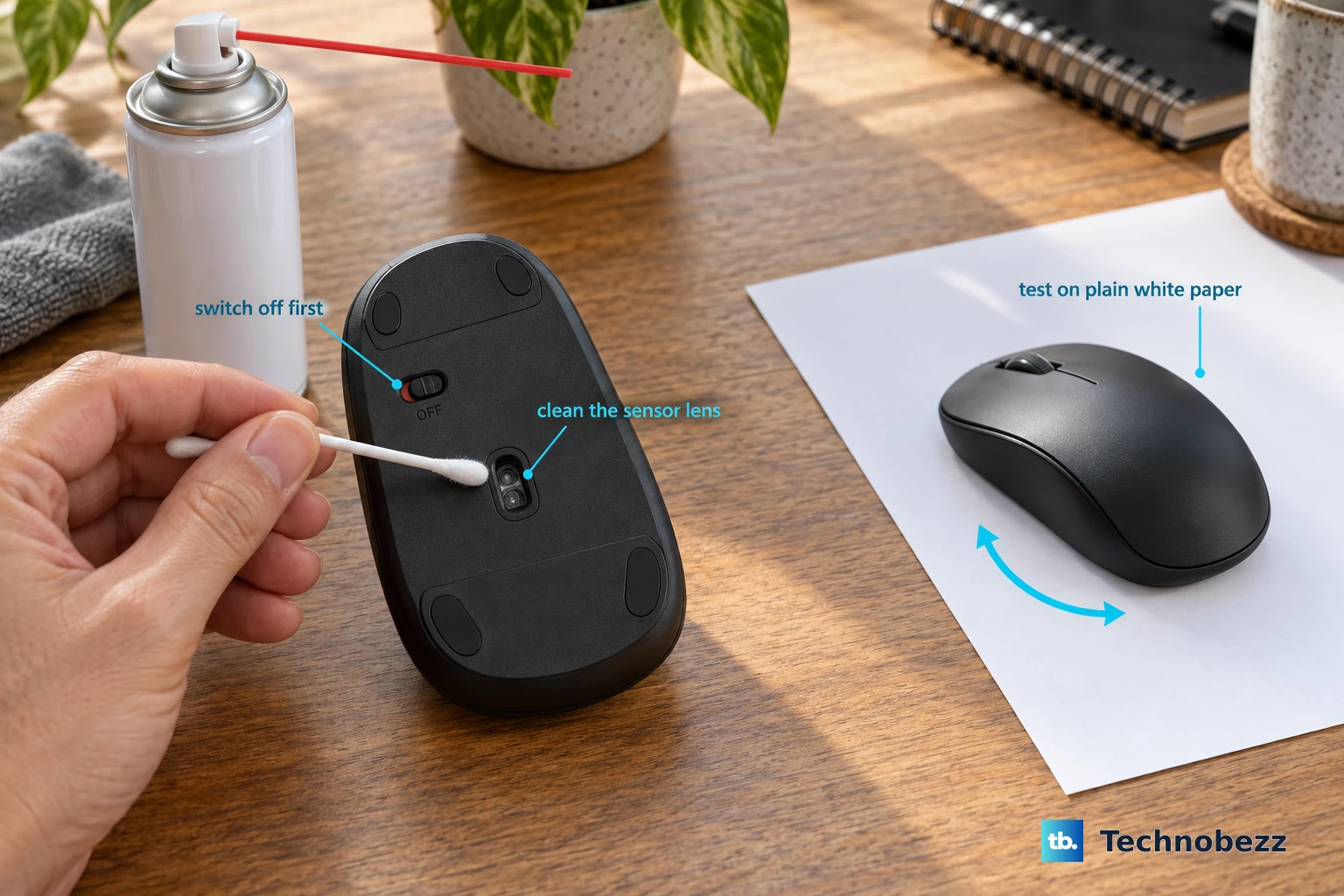
Switch off or unplug a Logitech optical mouse before cleaning its sensor. For another brand, follow the manufacturer's cleaning instructions. Remove debris from the underside sensor with compressed air or a cotton swab.
For a Logitech gaming mouse with inconsistent tracking, test movement on plain white paper. Change the mouse surface if tracking improves on the paper.
For a Razer mouse whose CALIBRATION menu offers surface profiles, open Synapse 4. Calibration controls vary by model; if your mouse offers only tracking-distance settings such as Low, Medium and High, follow that model's own calibration instructions instead.
Select your mouse, then open CALIBRATION > ADD A SURFACE. Select your Razer mouse mat. For a non-Razer surface, choose the Razer mat profile closest to it.
Click ADD, then adjust LIFT-OFF RANGE if needed. Tip: Use the white-paper test to check the surface before replacing your mouse pad.
Restore a Stuttering Bluetooth Connection
These checks address Bluetooth connection stutter and dropouts. Turn the mouse off, wait a few seconds, then turn the mouse back on. Keep it within Bluetooth range of the PC.
Open Start > Settings > Bluetooth & devices. Switch Bluetooth off, wait a few seconds, then switch Bluetooth on again.
For a Surface or Microsoft Bluetooth mouse, temporarily turn off other Bluetooth devices connected to the PC. Retest the mouse with those devices disconnected. Move the mouse and Bluetooth equipment away from nearby USB 3.0 devices and poorly shielded USB equipment. Microsoft identifies this interference as a cause of sluggish Bluetooth input.
If the problem continues, open Bluetooth & devices > Devices. Open the mouse's More options menu, select Remove device, then confirm with Yes.
Put the mouse into pairing mode using its model-specific instructions. Pair the mouse again according to those instructions.
For automated diagnostics, open Settings > System > Troubleshoot > Other troubleshooters. Select Run next to Bluetooth, then follow the Get Help prompts.
Stop Windows From Putting Bluetooth to Sleep
Use this test when a Bluetooth mouse hesitates after being idle or repeatedly disconnects. The adapter setting applies only when its driver exposes a Power Management tab.
Open Device Manager by right-clicking Start, then expand Bluetooth. Open your Bluetooth adapter's Properties by right-clicking it. Select Power Management.
Clear Allow the computer to turn off this device to save power. Click OK, then restart the PC.
Leave USB selective suspend enabled. Microsoft advises against disabling it; the Bluetooth adapter test is a separate setting.
On a device with energy saving enabled, select the taskbar battery icon. Turn off energy saver while testing the Bluetooth connection.
For continued dropouts, press Windows+R. Enter services.msc, then select OK. Right-click Bluetooth Support Service and select Restart, providing administrator permission if prompted.
Update or Roll Back the Mouse Driver
These steps address driver faults affecting the mouse, Bluetooth adapter or graphics device. Open Settings > Windows Update, then click Check for updates. Open Advanced options > Optional updates.
Select the driver updates that apply to your hardware. Click Download & install.
To update an individual device, open Device Manager by right-clicking Start. Expand the category containing the affected mouse, Bluetooth adapter or display adapter. Right-click the affected device and select Update driver.
Choose the automatic search. For a manual update, download the matching driver from the hardware manufacturer's support page. Match the device, Windows version and processor architecture.
Open the affected device's Update driver > Browse my computer for drivers > Browse.... Select the extracted driver folder, click OK, then click Next.
If lag began after a driver update, open the device's Properties using an administrator account. Select the Driver tab. Click Roll Back Driver when a previous driver is available.
Choose a reason, then confirm with Yes. Restart if requested.
Before attempting a driver reinstall, keep another mouse or a touchpad available. Save your work. Right-click the affected device in Device Manager, then select Uninstall device.
Confirm with Uninstall. Restart the PC so Windows can attempt to reinstall the driver.
Check the mouse manufacturer's support page for an applicable firmware update for your exact model. Install an applicable update using that model's instructions. Logitech recommends current Logi Options+ for supported devices instead of its retired standalone updater. Logitech G HUB and Razer Synapse 4 support compatible gaming devices; available firmware controls depend on the model.
Use current tools when following older troubleshooting advice. Microsoft retired the MSDT Hardware and Devices troubleshooter, and Logitech retired SetPoint, Unifying Software, Connection Utility and its standalone Firmware Update Tool. Razer Synapse 3 updates and cloud services ended February 3, 2026; supported devices use Synapse 4 for continued customization.
Free Up Resources When the Whole PC Slows Down
Resource-heavy applications cause broader slowdowns that include sluggish mouse input. Press Ctrl+Shift+Esc to open Task Manager. Inspect Processes for applications consuming resources. Check Performance for broader system load.
Close unnecessary applications consuming resources. Open Startup apps in Task Manager.
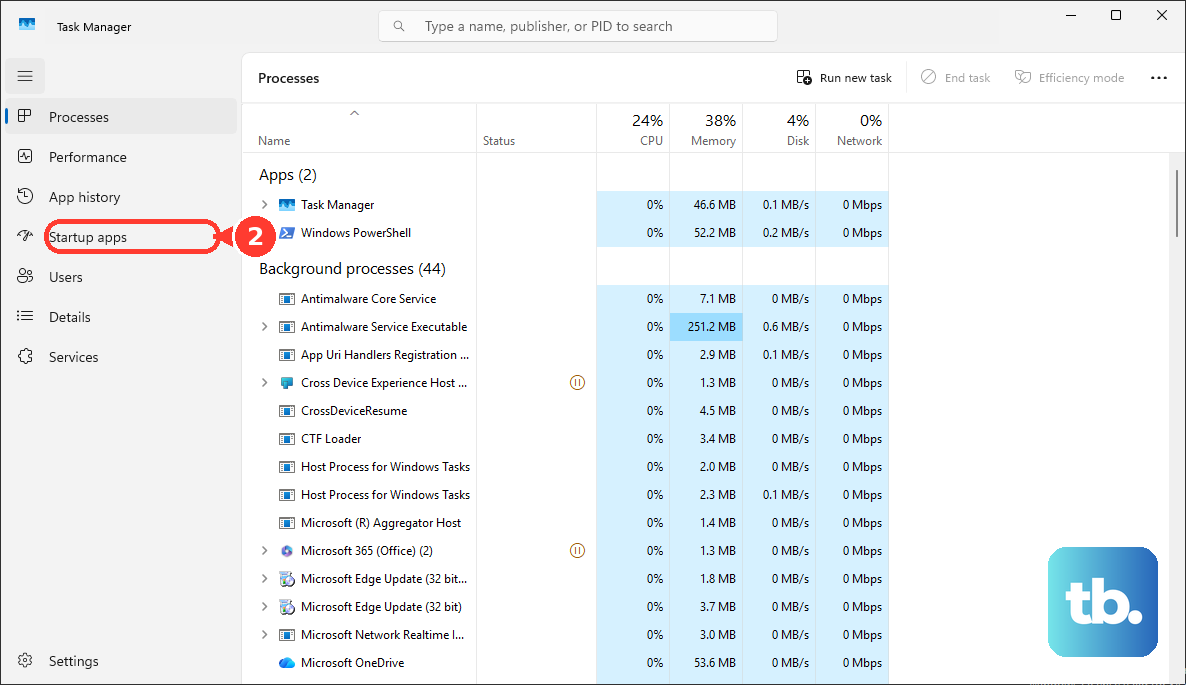
Right-click an unnecessary startup application, then select Disable. For software you no longer use, open Settings > Apps > Installed apps.
Open the application's More options menu and select Uninstall. Remove a mouse utility only when testing points to it as the cause.
For a power-mode test, open Settings > System > Power & battery. Set Power mode to Best performance where available. This uses more power.
To reduce visual effects, search for Adjust the appearance and performance of Windows. Select Adjust for best performance on the Visual Effects tab.
To check for malware with Microsoft Defender Antivirus, open Settings > Privacy & security > Windows Security > Virus & threat protection. Run a Quick scan.
For a persistent software conflict, search for msconfig using an administrator account. Organizational policy controls whether these changes are allowed. Open System Configuration, then select Services.
Check Hide all Microsoft services, then select Disable all. Click Apply. Open Startup > Open Task Manager.
Record the enabled items under Startup apps. Disable those startup items, then restart the PC. Test whether the lag remains.
Re-enable disabled items in groups, testing after each restart to identify the conflict. Restore normal startup after testing.
Adjust Pointer Settings That Mimic Lag
Use these controls for slow cursor travel, visual trails or scrolling feel; sensitivity changes do not repair connection latency.
- 1.Open Start > Settings > Bluetooth & devices > Mouse. Adjust Mouse pointer speed, then retest cursor travel.
- 2.On the same page, compare Enhance pointer precision with the toggle on and off. Keep the response you prefer.
- 3.Open Additional mouse settings > Pointer Options. Clear Display pointer trails and click OK to remove visual trailing.
- 4.For a Pebble Mouse 2 M350s, open Logi Options+, select the mouse and adjust Pointer Speed under POINT AND SCROLL. On other supported mice, use this control only where available. For scrolling problems, open Scroll wheel, disable smooth scrolling and compare. Re-enable it if it does not help.
- 5.For a compatible Razer mouse, open Synapse 4, select the mouse and adjust DPI under PERFORMANCE. Use assigned DPI buttons where your model provides them. To test polling separately, open DASHBOARD, select the mouse and compare supported POLLING RATE presets under PERFORMANCE.
Smooth Out Motion in Games and on High-Refresh Displays
Open Settings > System > Display > Advanced display to check visible motion smoothness. Select the affected monitor. Choose a supported higher value under Choose a refresh rate, if the display offers multiple rates.
On a display supporting Dynamic Refresh Rate, set Dynamic refresh rate to Off if it reduces a game's maximum refresh rate. Retest the affected game.
For compatible DirectX 10/11 games in windowed or borderless mode, open Settings > System > Display > Graphics > Default settings. Turn on Optimizations for windowed games, then restart the game.
On a PC with multiple GPUs, open Custom options for apps on the Graphics page. Select the game, then click Options. Choose High performance where available. Click Save, then restart the game.
For a supported game with a compatible NVIDIA GPU, open the game's graphics options. Enable its NVIDIA Reflex low-latency option. The exact label and parent menu depend on the game.
For supported Radeon RX 400-series or newer GPUs and Ryzen 2000-series or newer APUs, open AMD Software. Search for Graphics, then open Graphics Settings. Set Radeon Anti-Lag to Enabled. For a game-specific setting, use Gaming > Games > the selected game > Radeon Anti-Lag.
Check the NVIDIA app or AMD's driver download page for a graphics driver matching your hardware. Tip: Use these display and game settings for visible motion delay, and use the connection checks for mouse dropouts.
Frequently Asked Questions
Why does my mouse lag only in my web browser?
Test the browser's rendering and customizations. In Firefox, open the menu and select Help > Troubleshoot Mode… > Restart. In the Open Firefox in Troubleshoot Mode? dialog, select Open, then test the affected page. If the problem disappears, open Extensions and themes and disable extensions individually, retesting each time. Under Themes, enable System theme to test without a custom theme. To test acceleration separately, open Settings and find Performance. Clear Use recommended performance settings, then clear Use hardware acceleration when available. Exit and reopen Firefox. For Edge stutter tied to page rendering or video, open edge://settings/system, change Use graphics acceleration when available and restart Edge. Restore the setting if it does not help.
My mouse started lagging right after a Windows update. What should I do?
If the fault began after a particular update, open Settings > Windows Update > Update history > Uninstall updates. Select the affected update and choose Uninstall. Some updates cannot be removed. Removing a security update also removes its protections, so reserve this step for troubleshooting a specific update regression.
What polling rate should I use for a gaming mouse?
There is no universally best polling rate. Available rates depend on the mouse and receiver. Compare the supported presets on your setup instead of applying one rate to every gaming mouse.
Nothing has worked. Is there a last resort short of a full reset?
For a persistent Windows fault, open Settings > System > Recovery > Fix problems using Windows Update. Select Reinstall now, then OK. Keep power and internet connected during the repair, then restart. This reinstalls the current Windows version while preserving apps, files and settings. It requires Windows 11 22H2 or later with the required servicing updates. Availability also depends on device management; contact your organization's helpdesk for a managed PC.