A mouse that double-clicks when you press once opens files, submits buttons, and selects text before you mean to. Start with the click-speed setting, then check the connection, driver, cleaning, and device software steps that match your mouse.
Slow Down the Double-Click Setting
This sets how close together two clicks must land before the system counts them as one double-click. The setting controls recognition only; it cannot stop a mouse from sending two clicks from one press.
On Windows 11, open Start.
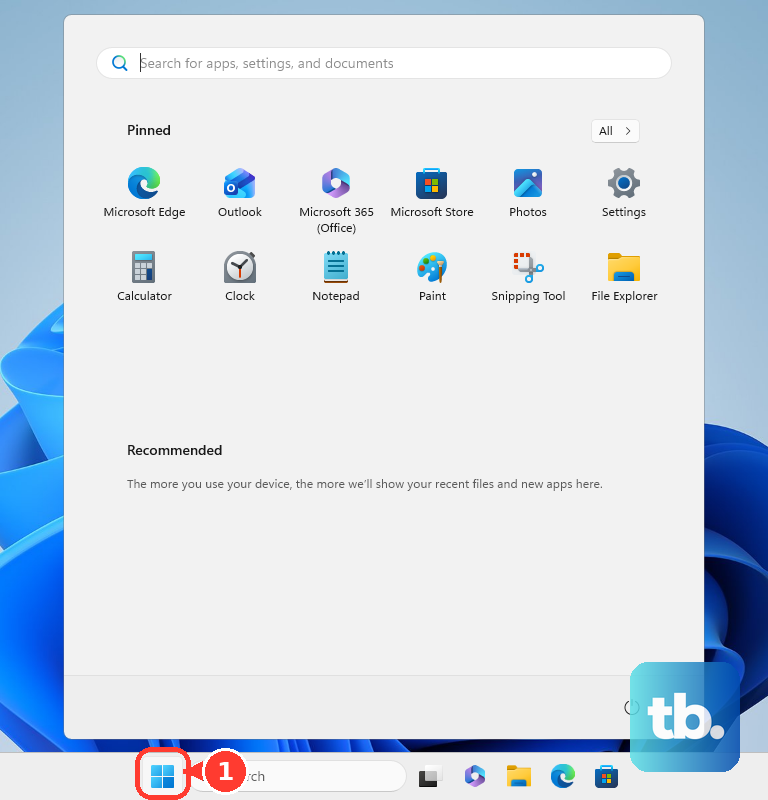
Select Settings.
Go to Bluetooth & devices, then Mouse.
Open Related settings, then choose Additional mouse settings.
In Mouse Properties, open the Buttons tab.
Move the Double-click speed slider toward the faster end if separate single clicks keep merging into one unwanted double-click, or toward the slower end if intentional double-clicks fail to register.
Test the folder icon in that window, then select OK.
If one physical press still registers as two clicks, no slider position will fix it. Work through the connection, driver, cleaning, and device-software steps below.
On a Mac, open the Apple menu.
Choose System Settings, then Accessibility.
Open Pointer Control.
Move the Double-click speed slider until normal clicks and intentional double-clicks feel distinct.
Check the Mouse Connection First
Connection resets clear many click problems before you touch drivers or app settings.
- 1.For a wired USB mouse, unplug the USB cable and wait for the device driver to unload.
- 2.Plug the mouse back in, then test it in several apps.
- 3.Try a different USB port on the computer.
- 4.If the mouse uses a USB hub, confirm the hub has power, then plug the mouse directly into the computer.
- 5.Check the cable, USB plug, and wireless receiver for visible damage.
- 6.For a USB wireless mouse, unplug the receiver, wait about 10 seconds, then plug it back in.
Refresh the Windows Mouse Driver
A damaged, stale, or recently changed Windows driver creates strange click behavior. Start in Device Manager: right-click Start, open Device Manager, and expand Mice and other pointing devices or Human Interface Devices. Right-click the mouse or related input device, choose Update driver, select Search automatically for updated driver software, and finish with Close.
Next, check optional driver updates. Open Start, Settings, Windows Update, then Advanced options. Make sure Receive updates for other Microsoft products is turned on, then select Optional updates. Under Driver updates, select available mouse, HID, Bluetooth, USB, or manufacturer driver updates, then choose Download & install.
When the issue started after a driver change, sign in with an administrator account, which Microsoft requires for driver rollback, then return to Device Manager, open the device Properties, choose the Driver tab, and select Roll Back Driver. Pick a reason, choose Yes, and restart if Windows asks.
If the driver refresh fails, save your work, return to Device Manager, right-click the mouse or input device, choose Uninstall device, select Uninstall, then right-click Start and choose Shut down or sign out, then Restart.
Restore Double-Clicking in File Explorer
Use this when Windows only opens items with one click inside File Explorer. That points to a File Explorer setting, not a broken mouse button.
Open File Explorer.
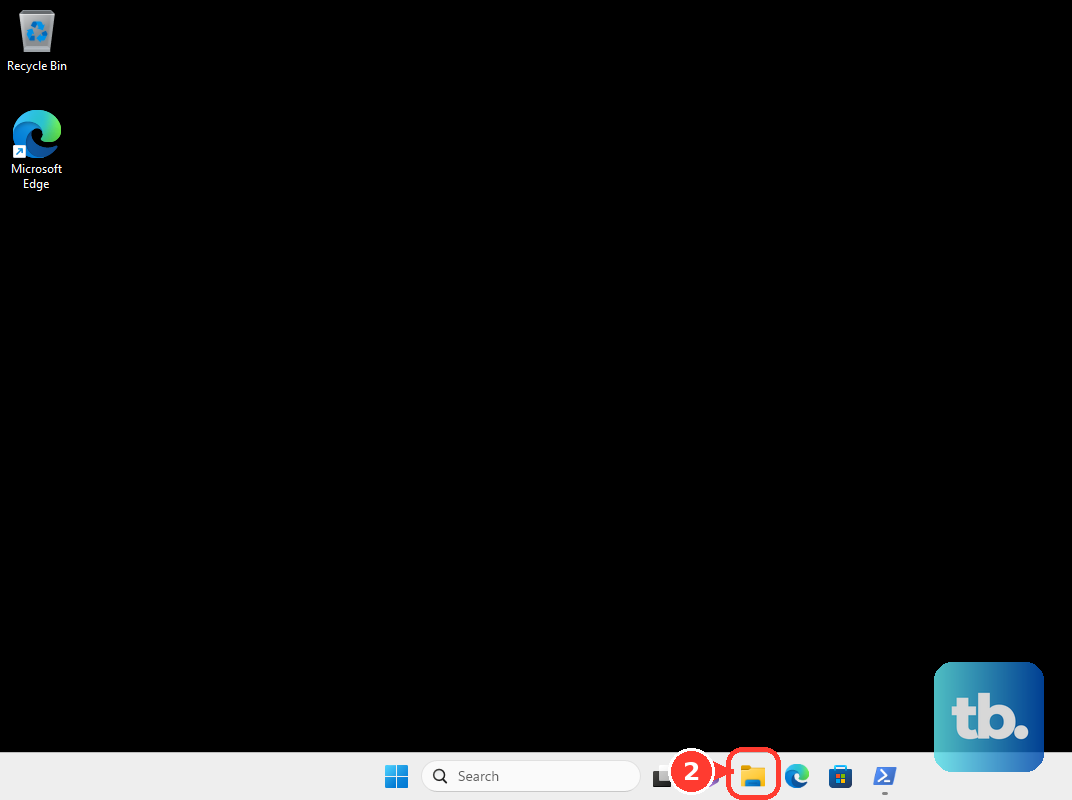
Select See more, the three-dot menu near the top of the window.
Choose Options.
Stay on the General tab and find Click items as follows.
Select Double-click to open an item (single-click to select).
Choose Apply, then OK.
Clean the Mouse and Check the Button
This fixes double-clicking caused by dirt, poor contact, weak power, or a failing physical switch.
Turn off the mouse.
Unplug its cable or receiver before cleaning.
For a Magic Mouse, clean the outside with a clean, soft, lint-free cloth lightly moistened with water.
Keep moisture out of openings.
Skip aerosol sprays, solvents, and abrasives on the exterior.
If pointer lag or jitter is making clicks feel wrong on a Magic Mouse, find the sensor on the bottom.
Clean the sensor with compressed air or a cloth.
Keep the compressed-air can upright while spraying.
On a wireless mouse, check or replace the batteries, then test again.
If a Microsoft-branded mouse still double-clicks and the button is physically faulty, use Microsoft accessory support or the warranty replacement flow for eligible devices.
Repair Bluetooth Pairing on a Mac
For a Magic Mouse with a built-in rechargeable battery, connect it to the Mac with a Lightning to USB Cable, USB-C to Lightning Cable, or USB-C to USB-C Cable. Wait 1 minute, disconnect the cable, then test the mouse again. This pairs the mouse with the Mac and charges its built-in battery.
The original Magic Mouse has no charging port. Replace its two AA batteries under the bottom cover, turn the mouse back on, then use the Bluetooth steps below.
For a Bluetooth mouse on macOS 13 or later, open the Apple menu, go to System Settings, and choose Bluetooth. Control-click the device name, select Forget, then put the mouse in pairing mode.
Return to System Settings and Bluetooth, select the mouse under Nearby Devices, and click Connect. A clean pairing clears connection problems that feel like random extra clicks.
Use Keyboard or Voice Double-Click Controls
These controls keep you working when the main mouse button is unreliable.
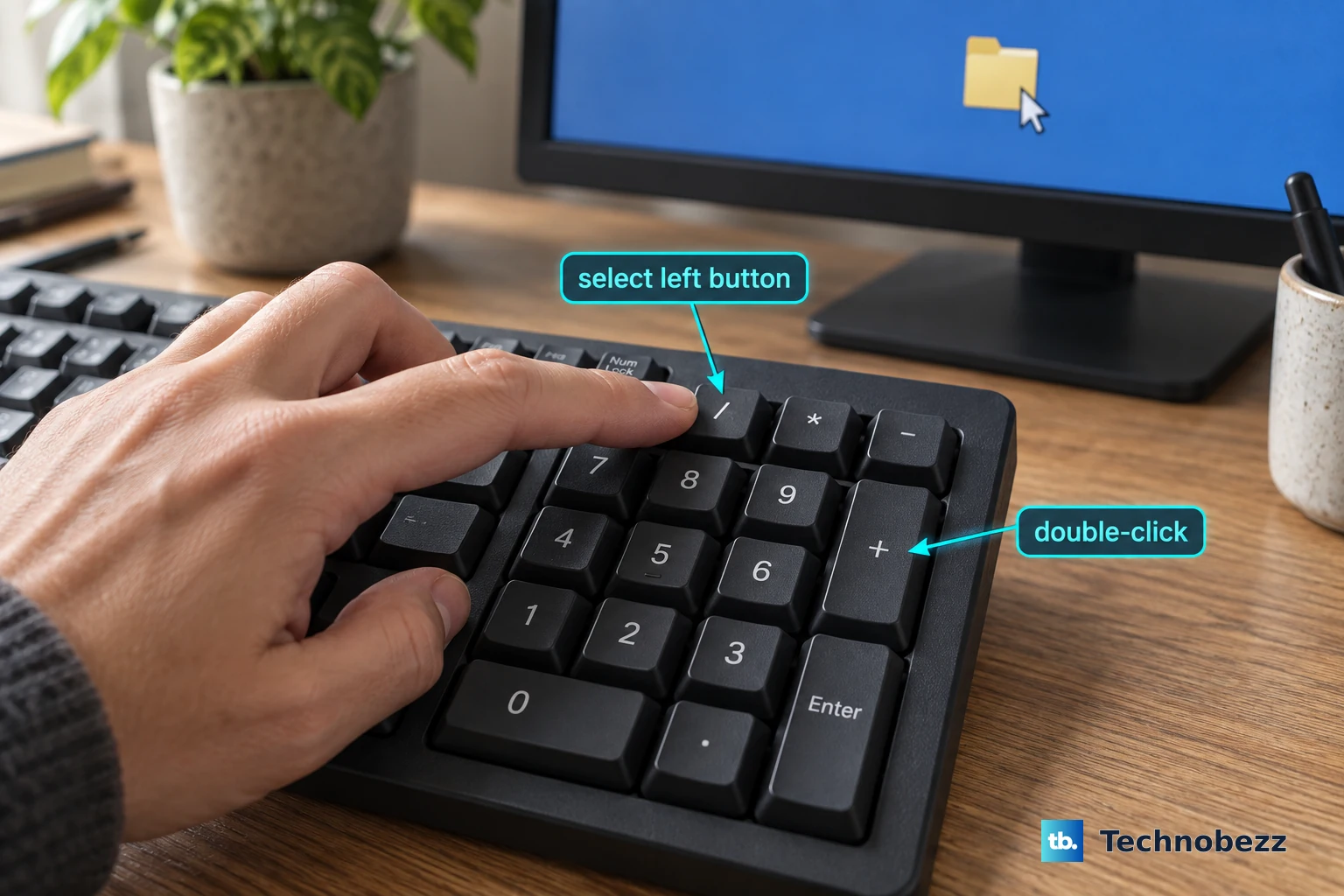
- 1.On Windows 11, go to Settings, Accessibility, and Mouse, then turn on Mouse keys; select the left mouse button with / and double-click with + on the numeric keypad.
- 2.On Windows 11 version 22H2 or later, use voice access and say Double-click, Double-click <item name>, or Mouse double-click; use Show grid to position the pointer first.
- 3.On Mac, open Apple menu, System Settings, Accessibility, and Pointer Control, then turn on Mouse Keys.
- 4.On Mac, open Alternate pointer actions in Pointer Control, then use the Info button to configure keyboard shortcuts, assistive switches, or facial expressions for double clicks.
- 5.On ChromeOS, open Settings, Accessibility, and Mouse and touchpad, turn on Automatically click when the mouse cursor stops, then choose Double-click from the automatic-clicks menu.
- 6.On ChromeOS, open Settings, Accessibility, Cursor and touchpad, and Mouse keys; select the left button with / and double-click with / on the primary keyboard or + on the numeric keypad.
Fix Logitech and Razer Mouse Software
This applies when you use Logitech or Razer software, or when extra buttons and macros are sending unwanted double-clicks. Brand software controls button assignments, surface behavior, and firmware, so check it before replacing the mouse.
For Logitech mice, review Windows mouse settings and Logitech button assignments.
Use Logi Options+ for supported Logitech productivity mice, and use G HUB for Logitech gaming mice that use it.
Install Logi Options+ from Logitech’s official support page for supported devices.
Select the mouse, then review button assignments and pointer settings.
Do not use old Logitech utilities as the current fix for supported devices. Logitech says Firmware Update Tool, Logitech Preference Manager, Logitech Control Center, Logitech Connection Utility, Unifying Software, and SetPoint are no longer supported or maintained, and recommends Logi Options+ for supported devices.
For Razer mice, connect a wired mouse directly to a PC USB port, or connect the wireless dongle directly to a PC USB port with a clear line of sight.
Test after each change.
Update the mouse firmware from Razer’s official firmware page for your exact device model.
If the device is not listed there, Razer says it does not have firmware available for download.
Use compressed air to gently remove dirt from under the affected buttons, then test the mouse on a different system without Razer Synapse.
If supported, reset surface calibration in Razer Synapse.
Exit Razer apps from the system tray with Exit All Apps.
Reinstall Razer Synapse.
Uninstall the mouse driver so Windows reinstalls it.
If an auxiliary Razer button is sending the wrong command, open Razer Synapse 4, select the device under DEVICES, choose the key or button to modify, pick the correct function, and select SAVE.
Adjust Ubuntu and Chromebook Click Settings
On Ubuntu or another GNOME desktop, a strict double-click delay makes normal clicks feel unreliable. Open the Activities overview, type Accessibility, open Accessibility, then go to Pointing & Clicking and adjust the Double-Click Delay slider.
On ChromeOS, mouse button customization changes what a click does. Open device settings, go to Mouse, then Customize mouse buttons, and review Swap your left and right mouse buttons plus any extra button actions.
For customizable ChromeOS mouse buttons, open the drop-down menu next to the button, choose the intended action, and use Save for key combinations. If this method fails, plug a different mouse into your computer, then test the original mouse on another computer. If it still double-clicks there, the mouse itself is at fault rather than your settings, so arrange service or replacement.
Frequently Asked Questions
Why does my mouse double-click when I only click once?
The common causes are a fast double-click speed setting, a loose USB or wireless connection, driver problems, button assignments in mouse software, dirt under the button, low battery, or a worn physical switch.
Can software fix a physically bad mouse button?
Software gives you workarounds such as Mouse Keys, voice access, automatic clicks, and button remapping. A failed switch needs replacement or warranty service.
Should I use old registry edits or third-party debounce tools?
No. Use vendor-supported settings, drivers, cleaning steps, firmware pages, and warranty options instead of registry debounce edits, third-party debounce utilities, third-party driver portals, or soldering.
What should I do on a work or school computer?
Try the mouse settings available to your account. If File Explorer behavior or driver settings are locked, contact your IT team because managed devices enforce those choices.