Minecraft stops at the launcher, freezes before the main menu, or refuses to open a particular world. Start with a restart and the latest updates, then use the fix that matches your edition and device. Before resetting or reinstalling the game, back up your local worlds, because signing in does not guarantee you can recover them.
Get Minecraft out of its frozen state
Close Minecraft and reopen it. If only the Launcher is stuck, restart the Launcher instead.
On Windows, press Ctrl+Shift+Esc to open Task Manager.
Under Processes, select the unresponsive Minecraft or Minecraft Launcher process.
Choose End Task. Force-closing a running game risks losing unsaved progress.
On a Mac, open the Apple menu and choose Force Quit.
Select Minecraft or its Launcher.
Select Force Quit.
Reopen the game after ending the stuck process.
If Minecraft still will not load, restart your computer. On Windows, select Start > Power > Restart; on Mac, select the Apple menu > Restart. If that fails, update the game and Launcher next.
Install the updates that address loading crashes
Bedrock 26.51 fixes a world-loading crash involving large connected arrangements of fences, panes, bars, or walls. Update Minecraft through your platform’s store using the Windows, mobile, or console instructions below. Availability depends on each platform’s approval.
For Java Edition, open Minecraft Launcher and choose Latest Release, then Play. Java Edition 26.3 is the September 2026 stable release.
Restart Minecraft Launcher to trigger its automatic update. On Windows, if it does not update, open Microsoft Store and find the Launcher in Library to update it.
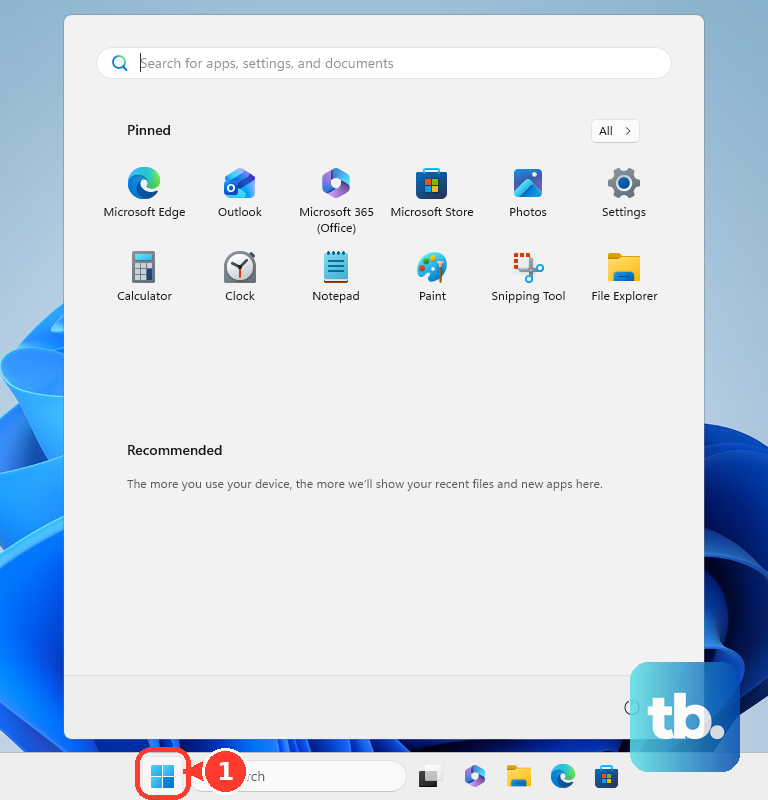
For Minecraft for Windows, open Microsoft Store and select Check for Updates; the alternative Store layout uses Library > Get updates. Install the offered Minecraft, Launcher, Store, and related app updates.
Test Java Edition without mods
Select Latest Release in a separate, ordinary official Launcher installation, keeping it apart from your modded or snapshot installation. This installation uses the supplied Java runtime; Minecraft 26.1 introduced Java 25 and bundled Microsoft OpenJDK 25.
Select Play to test the stable game.
If you already use CurseForge, select Create in its Minecraft section to begin a separate test profile.
Under Game Type, choose Vanilla.
Select the Minecraft version you want to test, leaving optional content out of the profile.
Open the new profile under My Modpacks.
Select Play.
If the unmodified profile loads, compare each mod’s All Game Versions and All Mod Loaders filters with your original profile’s version and modloader labels. Forge, Fabric, NeoForge, and Quilt mods are not interchangeable.
Use a matching profile for the mods you want to run.
Keep your original modded installation separate while testing the clean profile.
Isolate Add-Ons when one Bedrock world will not open
Conflicting Bedrock Add-Ons cause world-loading failures, particularly when several are active or modify a Marketplace world.
Close Minecraft after an Add-On fails to load.
Reopen the game.
Allow the Add-On files time to finish updating.
Retry the affected world.
If it still fails, disable that world’s Add-Ons in its world settings.
Test loading the world again.
Create a separate test world to narrow down the failing Add-On while preserving your original world.
Activate one Add-On in the test world.
Retry loading after each addition to identify the failing pack.
Check the resource and behavior packs in Settings if an Add-On still fails on its own.
Reactivate any required packs that were accidentally disabled.
Prioritize the desired pack above conflicting packs when the problem involves pack order.
Redownload an Add-On whose packs are missing or corrupted.
For a separate test of graphics demand on a supported Vibrant Visuals device, save and exit any open world, then open Settings > Video > Graphics Mode from the main menu. Mojang also offers the same Graphics Mode drop-down in the Video settings of the Create New World and Edit World screens.
Select a simpler mode, such as Fancy or Simple. This performance test requires working menus.
Repair a Windows installation that will not open
Windows app repair targets a packaged Minecraft game or Launcher that fails to open.
Open Start > Settings > Apps > Installed apps. Windows 10 uses Apps & features.
Open the failing app’s More menu. Choose Minecraft Launcher when the Launcher fails, or Minecraft when the game itself fails.
Select Advanced options, if available for that installation.
Select Repair. If the installation does not expose this option, continue to the Windows update check below.
Test Minecraft again after the repair finishes.
Check for Windows updates through Start > Settings > Windows Update > Check for updates. On Windows 10, use Settings > Update & Security > Windows Update > Check for Updates; availability depends on its support or Extended Security Updates status.
Install the offered updates.
Restart Windows when requested.
If the problem continues, back up local worlds and other important app data before trying a reset.
Return to the failing app’s Advanced options.
Select Reset, if available. Resetting Minecraft itself puts locally stored game data at risk of deletion.
Clear a Microsoft Store download or update blockage
A Microsoft Store failure blocks Minecraft or its Launcher from installing or updating.
Press Windows+R to open the Run dialog.
Enter wsreset.exe.
Select OK.
Wait for the command window to close and Microsoft Store to reopen.
Retry the Minecraft installation or update.
If your purchase is missing instead, sign in to your Microsoft account’s Order history with the account that bought Minecraft.
Locate the Minecraft purchase.
Use Product key/Install or the installation action shown for it. The Store also lists purchased downloads under My Library.
Match the console fix to your platform
Use the entry that matches your console and where Minecraft stops loading.
- 1.On Xbox One or Xbox Series X|S, highlight Minecraft in the games library and press the more-options button. Select Manage game & add-ons > Updates and install the offered update.
- 2.On PS5, press PS and select Power > Restart PS5. On PS4, hold PS to open the Quick Menu, then choose Power > Restart PS4. To update Minecraft on PS4, highlight Minecraft, press OPTIONS, and select Check for Update.
- 3.For a PlayStation lock or entitlement problem, confirm that the signed-in account purchased Minecraft. On PS5, open Settings > Users and Accounts > Other > Restore Licenses and select the Minecraft license. On PS4, use Settings > Account Management > Restore Licenses > Restore.
- 4.On Switch, Switch Lite, or Switch OLED, hold POWER for three seconds, then select Power Options > Restart. If the console is unresponsive, hold POWER for twelve seconds to shut it down, then turn it back on. These button timings apply to those three models.
- 5.To update Minecraft on Switch, highlight Minecraft on HOME without opening it. Press + or −, then select Software Update > Via the Internet.
- 6.For persistent loading problems on Switch or Switch 2, open System Settings > Data Management > Software or Manage Software > Minecraft, then run the corrupted-data check. Follow its repair or redownload instructions.
Unstick Minecraft on Android or iPhone
On a Pixel, force-stop Minecraft through Settings > Apps > See all apps > Minecraft > Force stop > OK. Android menu labels vary by manufacturer.
Reopen Minecraft to test it.
If it still fails on Pixel, clear its cache through Settings > Apps > See all apps > Minecraft > Storage & cache > Clear cache.
Relaunch Minecraft to test it after clearing the cache.
Update Minecraft on Android through Google Play Store > the profile icon > Manage apps & devices > Updates available.
On an iPhone with Face ID, swipe up from the bottom and pause to open the app switcher. On a Home-button iPhone, double-click Home instead.
Swipe Minecraft’s preview upward to close it.
Reopen the game to test whether it loads.
Restart your iPhone or iPad if Minecraft still will not open.
Update Minecraft through App Store > the profile icon > App Updates.
Back up local worlds before using Android’s Clear storage or Clear data, because both erase app data.
Reinstall after protecting your worlds
Reinstall when restarting, updating, and the relevant platform fixes have failed. Back up local worlds before removing Minecraft or its game data.
On Windows, uninstall the failing app through Start > Settings > Apps > Installed apps > the app’s More menu > Uninstall.
Reinstall Minecraft Launcher from Microsoft Store, or choose your platform under Other versions & platforms on the official Minecraft download page. That page also provides Java Edition launcher distributions for macOS and Linux.
For Android, reinstall from Mojang’s Minecraft listing in Google Play using the purchasing Google account.
On iPhone or iPad, touch and hold Minecraft.
Select Remove App > Delete App > Delete. Removing only its Home Screen icon leaves the game installed.
Redownload Minecraft from Mojang’s App Store listing using the purchasing Apple Account.
For downloadable Minecraft on Switch, open HOME > System Settings > Data Management. Select Software, or Manage Software on consoles that show that label, then Minecraft.
Choose Archive Software. This retains the HOME icon.
Select that icon to redownload the game.
Frequently Asked Questions
Should I install Java 8 to fix current Minecraft releases?
No. Java 8 is not a valid runtime fix for Minecraft Java Edition 26.x. Oracle’s older Java Platform SE binary crash instructions concern Java 7 and 8; their historical runtime and driver references do not apply to current releases.
Does falling below the new Java Edition requirements prevent Minecraft from launching?
Mojang says the July 2026 requirements revision alone does not immediately prevent launching. The requirements specify a 64-bit system, four-core processor, Vulkan 1.3-capable graphics with at least 2 GB VRAM, and 8 GB RAM with discrete graphics or 12 GB with integrated graphics. Acceptable performance below those specifications is not guaranteed.
Should I disable the firewall if Minecraft will not load?
No. Firewall troubleshooting applies to network or multiplayer failures caused by blocking. Microsoft recommends allowing the confirmed blocked app through the firewall. Changing firewall settings does not address general offline-loading failures.
Why is Delete App missing when I try to reinstall Minecraft on iPhone?
Parental controls and device-management restrictions both affect app deletion. Have the parent set Deleting Apps to Allow. For a managed device, contact its administrator.
Does deleting Minecraft software on Switch delete its save data?
Nintendo states that deleting software does not delete save data. Redownload a purchased digital copy through Nintendo eShop using the purchasing Nintendo Account.