Minecraft Launcher is stuck on “Windows is updating,” leaving you unable to finish installation or open it. Start with a restart and available updates, then work through the Store and launcher repairs below. Keep the Windows Update troubleshooting branch for when Windows Update itself also fails.
Finish Windows updates and restart
Start by reopening the affected app, then finish any pending Windows updates.
- 1.Select Close (X) on the launcher or Microsoft Store window, reopen the app, and retry.
- 2.On Windows 11, open Start > Settings > Windows Update > Check for updates. On Windows 10, use Start > Settings > Update & Security > Windows Update > Check for Updates.
- 3.Select Install now when offered and let the updates finish.
- 4.Save your work, then select Start > Power > Restart.
- 5.After Windows restarts, retry the launcher or its installer.
Bring Store and Xbox components up to date
Pending Store app updates leave the launcher and Xbox components out of date separately from Windows.
Open Microsoft Store and select Check for Updates. If your Store displays the Library interface, select Library > Get updates instead. Let the available app updates finish.
For Xbox components, open Microsoft Store and go to Library, or Downloads if your Store shows that label instead. Under Updates & downloads, select Update beside Xbox and Gaming Services wherever offered. Once those updates finish, retry Minecraft Launcher.
If the website installer keeps getting stuck
Try Microsoft Store when the downloaded installer repeatedly stops at the same message. It's another installation route, but it still depends on working Windows and Store components.
Open Microsoft Store. Search for Minecraft Launcher, then open the Minecraft Launcher listing. Select Install.
For a previously acquired copy, open Library instead. Select Minecraft Launcher, then choose Install.
If installation is unavailable, check Description and device compatibility on the official Minecraft Launcher listing. It specifies Windows 10/11 and excludes Windows 10 in S mode and ARM devices.
Clear the Store cache and correct the clock
Press Windows+R to open Run. Enter wsreset.exe and select OK. Wait for the blank command window to close and Microsoft Store to reopen. Retry the launcher installation.
If your computer shows an incorrect date or time, open Start > Settings > Time & language > Date & time. Turn on Set time automatically, then turn on Set time zone automatically.
To choose the time zone manually instead, turn off Set time zone automatically. Then choose the correct Time zone.
Tip: Keep the clock and time zone accurate to avoid interference with Store or update connections.
Repair an installed launcher before resetting it
Problems within the installed app are the next target after updates and a Store cache reset. This option requires an installed launcher with repair controls. Skip it if installation never completed or the controls are missing.
On Windows 11, open Start > Settings > Apps > Installed apps. Open the More menu beside Minecraft Launcher, then select Advanced options. On Windows 10, open Settings > Apps > Apps & features > Minecraft Launcher > Advanced options instead.
Select Repair. After the repair finishes, retry the launcher. If the problem remains, return to the launcher's Advanced options and select Reset.
Read the confirmation before proceeding. Resetting can clear app data and sign-in state. Keep these actions focused on Minecraft Launcher or the malfunctioning companion app. Leave Minecraft's game and world folders alone.
When Xbox or Gaming Services also has problems
Use the Gaming Services Repair Tool when Xbox or Gaming Services is also malfunctioning. The launcher's updating message alone does not establish a Gaming Services fault.
Open the Xbox app and select your profile at the top-left. Select Support to access Gaming Services Repair Tool, then follow its prompts.
If the Xbox app cannot open, get the downloadable tool from the official Gaming Services Repair Tool support page.
Reinstall the launcher if it still will not work
Try a fresh installation after repair and reset fail. Remove the launcher specifically; deleting game folders is a separate action.
On Windows 11, open Settings > Apps > Installed apps. Open More beside Minecraft Launcher, then select Uninstall. Alternatively, right-click Minecraft Launcher in the Start menu and select Uninstall.
Open Minecraft's official download page. Select Download Launcher, or use Other versions & platforms > Windows 10/11. Run the downloaded installer.
If Windows Update itself is failing
Use this branch only when Windows Update also fails.
Check your connection under Settings > Network & Internet > Wi-Fi. Reconnect if necessary. Keep the computer connected to power, and disconnect unnecessary external drives and docks. Retry Windows Update.
If storage is insufficient on Windows 11, open Start > Settings > System > Storage > Cleanup recommendations. Review the suggestions, then select only files you intend to delete. Choose Clean up.
On Windows 11, open Start > Settings > System > Troubleshoot > Other troubleshooters > Windows Update > Run.
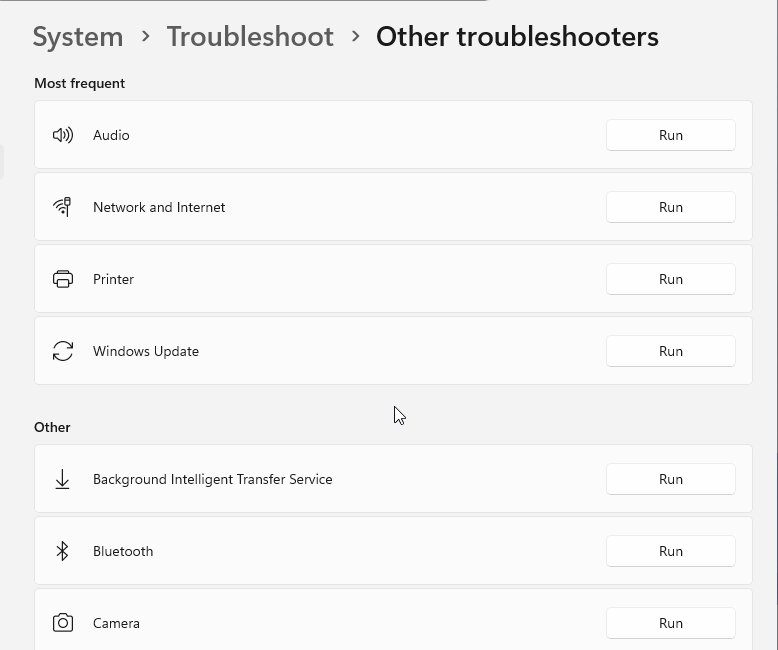
Follow the Get Help diagnostics. If the failure persists, follow Contact Microsoft Support from Microsoft's Store troubleshooting page. Enter the problem, then choose Get Help.
If it remains unresolved, select Contact Support. Include the exact launcher message plus whether Microsoft Store and Windows Update also fail.
Frequently Asked Questions
What if Minecraft also says I don't own the game?
Check which Microsoft account owns Minecraft using your purchase-confirmation email or Microsoft account Order History. Sign into Xbox with that account, then retry Minecraft sign-in. If Xbox shows the wrong account, choose Sign in with a different account. This addresses ownership and sign-in errors.
Does the Windows legacy launcher fix the updating message?
Minecraft still offers a Windows legacy download, but there is no current official recommendation to use it as a fix for this message on Windows 10/11.
Why is the Windows Store Apps troubleshooter missing?
Microsoft has announced the retirement of the legacy Windows Store Apps troubleshooter and redirected Store troubleshooting to the Get Help platform. Microsoft's deprecation notice says the removal takes effect on devices running the next release of Windows 11, and that this release date is still to be determined, so whether you still see the option depends on your build. Windows 11 22H2 and older are exempt from the retirement entirely, which is why older tutorials show an option your installation may not have. Use the Store repairs above plus the Windows Update and Get Help diagnostics instead.
Does Minecraft Launcher compatibility mean Windows 10 is still supported?
No. Windows 10's ordinary support ended October 14, 2025. Available Windows updates depend on your remaining update entitlement, even though the launcher listing still includes Windows 10.