Your microphone stops working in the middle of a call, a browser meeting, a game chat, or a recording, and Windows gives you very little to go on. The fix depends on where the signal is being blocked: the device, Windows input settings, privacy permissions, the browser, the app, or the driver. Work through these checks in order and you will know exactly where the failure is.
1. Rule out the microphone hardware first
Start with the parts you can see and touch.
Make sure the microphone, headset, webcam mic, or USB audio device is fully connected to the correct port.
Check the headset boom, inline remote, webcam, or external microphone for a physical Mute button and turn mute off.
Move the microphone into the correct speaking position.
For a Bluetooth microphone, earbuds, or headset, confirm the device is paired and connected.
For a webcam microphone, check camera access too, because the microphone can be part of the camera device.
A disconnected cable, muted headset, or inactive Bluetooth connection can look like a Windows problem when the microphone is never reaching the PC. If the microphone is Bluetooth and does not appear in Windows, select Start > Settings > System > Sound.
Under Input, select Add device and follow the prompts.
2. Pick the correct Windows input device
Select Start > Settings > System > Sound.
Under Input, go to Choose a device for speaking or recording.
Select the microphone you want to use.
Select the arrow to the right of that device.
Under Microphone test, select Start test, speak normally, then select Stop test.
Select Play under Recorded sample to hear the result.
Move the Input volume slider up if the recorded sample is too quiet.
Windows can listen to the wrong input after you connect a headset, webcam, dock, monitor, or Bluetooth device. When the test plays your voice clearly, Windows can hear the microphone. Move to permissions or the app that is failing.
3. Allow microphone access in Windows
Windows 11 has a global microphone switch and separate app permissions. Turn on both before troubleshooting Teams, Zoom, Slack, Discord, Chrome, Edge, Firefox, or another desktop app.
Select Start > Settings > Privacy & security > Microphone.
Turn on Microphone access.
Turn on Let apps access your microphone.
Under Choose which apps can access your microphone, turn on the app you want.
Turn on Let desktop apps access your microphone for desktop meeting, chat, and recording apps.
Desktop apps are not individually toggled in that Windows list. If a desktop app still cannot use the mic, open that app's own audio settings next.
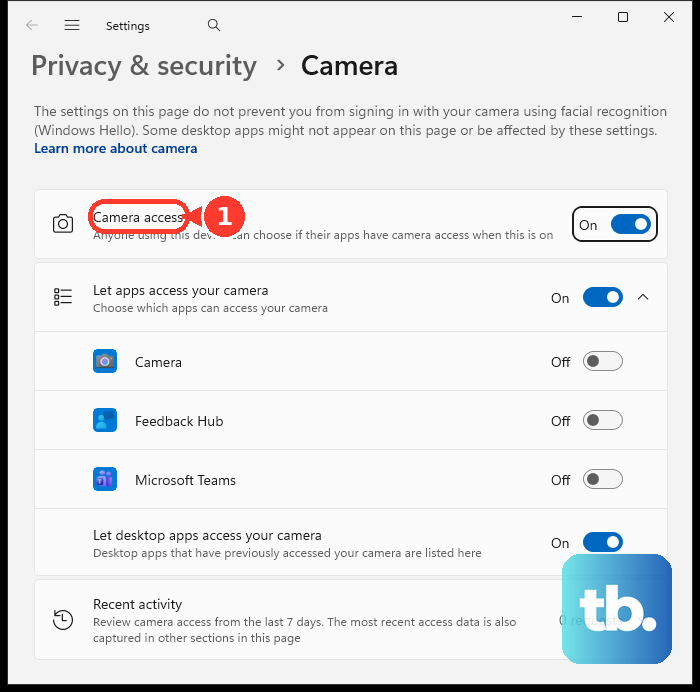
For a microphone built into a webcam, also select Start > Settings > Privacy & security > Camera.
Turn on Camera access and Let apps access your camera.
For desktop meeting apps, also turn on Let desktop apps access your camera.
4. Remove browser microphone blocks
A browser can block the microphone even after Windows allows it. Fix the browser that hosts the call, recorder, or web app.
In Chrome, open the site that needs your microphone and choose Allow this time or Allow while visiting the site when prompted.
To change a saved setting, select More > Settings > Privacy and security > Site settings > Microphone.
Choose the default microphone from the down arrow, set Sites can ask to use your microphone, and remove blocked site entries.
In Microsoft Edge, select Settings and more > Settings > Cookies and site permissions > Microphone, then turn on Ask before accessing (recommended).
For one website, open Privacy, search, and services > Site Permissions > All sites, select the website, and change the Microphone dropdown.
In Firefox, select Menu > Settings > Privacy & Security.
In the Permissions section, select Settings next to Microphone, change the site to Allow, then select Save Changes.
You can also click the permissions icon in the address bar and clear the blocked microphone status.
5. Set the mic inside the calling app
Microsoft Teams: install the latest Teams version and current Windows updates.
In a meeting, make sure Mic is unmuted.
Before a meeting, select Settings and more > Settings > Devices, choose the microphone under Audio settings, then select Make a test call.
The test call is currently English only and isn't available on Teams for the web.
During a meeting, select the dropdown arrow next to Mic, choose More audio settings, and pick the correct microphone.
Teams Free: select More next to your profile picture, then Settings > Devices.
Under Audio Settings, choose your primary audio device, speaker, and microphone from the dropdown menus.
Zoom: sign in to the Zoom desktop app, select your profile picture, then Settings > Audio.
Under Microphone, test the mic, choose the right input from the dropdown, and adjust Input Volume.
During a meeting, use the upward arrow beside Mute to switch microphones, and select the muted audio icon to unmute.
Discord: open User Settings > Voice & Video settings > Voice, choose your microphone from Input Device, then press Let's Check.
Check the mute icon in the channel or server, because server permissions can affect speaking.
Slack: click your profile picture, select Preferences > Audio & video, then choose the microphone from the Microphone dropdown.
Say a few words and check that the input level moves up and down.
Once Windows and the browser are clear, the app that is actually using the microphone is the next place to check. Meeting and chat apps keep their own microphone dropdowns, mute controls, and test tools.
When a mic works in Windows but sounds wrong in Zoom, open Settings > Audio > advanced audio settings and disable Signal processing by Windows audio device drivers.
6. Restart and rescan the audio device
Restart after detection, update, or privacy changes by selecting Start > Power > Restart, then test the microphone again.
If Windows still does not list the audio device, open Start, type Device Manager, and select Device Manager.
Expand Sound, video and game controllers.
If the device appears, right-click it and select Enable device when that option is available.
If the device does not appear, select View > Show hidden devices, then Action > Scan for hardware changes.
Run the Windows sound troubleshooter from Settings > System > Sound.
Scroll to Advanced and choose Output devices or Input devices under Troubleshoot common sound problems.
You can also open the Get Help app, search for audio troubleshooter, consent to diagnostics when prompted, and follow the prompts.
7. Repair the audio driver
Use driver fixes after the microphone is connected, selected, allowed, and unmuted.
- 1.Select Start > Settings > Windows Update.
- 2.Select Check for updates.
- 3.Install available audio driver updates.
- 4.Select Start > Power > Restart.
If Windows Update does not install a newer driver, open Device Manager, expand Sound, video and game controllers, right-click your audio device, select Update driver, then choose Search automatically for drivers.
Restart after the update completes.
When updating does not fix the driver, open Device Manager, right-click the audio device, select Uninstall device, confirm the uninstall, and restart.
Windows automatically reinstalls the audio driver after restart.
For persistent problems, download the latest Windows 11 audio driver from your PC or audio-device manufacturer's support website, install it, and restart again.
8. Check Remote Desktop and managed PC limits
If the microphone works on your PC but not inside a Remote Desktop session, set microphone passthrough inside Remote Desktop Connection.
Open Remote Desktop Connection, go to Local Resources, select Settings under Remote audio, choose Play on this computer, choose Record from this computer, then select OK.
On a work or school PC, administrators can control Windows microphone access and browser audio capture. Use the Windows, browser, and app checks above first.
If microphone access is blocked or unavailable, contact your IT team and ask them to check the Windows microphone privacy policy or the browser audio capture policy.
Skip older Skype fixes. Microsoft retired Skype on May 5, 2025 and directs users to Teams Free. On current PCs, use Windows 11 Sound and Privacy & security settings, plus the microphone controls in Teams Free or your current calling app.
Frequently Asked Questions
Why does my microphone work in Windows but not in Chrome or Edge?
Windows permission and browser permission are separate. Open the browser's microphone settings, remove the blocked site entry, reload the site, and choose Allow when the prompt appears.
Why does my headset microphone show up but nobody can hear me?
The common blocks are physical mute, the wrong Windows input, low input volume, or app mute. Check the headset mute switch, run the Windows microphone test, raise Input volume, and unmute the app.
What should I do when my Bluetooth microphone is missing from Windows?
Open Start > Settings > System > Sound, go to Input, select Add device, and pair the Bluetooth microphone again. Confirm the device is turned on and connected.
Should I reinstall the audio driver first?
No. Check the connection, Windows input device, microphone permissions, and app settings first. Reinstall the driver after update checks fail or the device remains undetected.