Your Logitech G920 should power on, spin left and right, center itself, and appear in Logitech G HUB or your racing game. When it sits there flashing, loses the pedals, or drops force feedback mid-race, start with the connection chain before blaming the wheel. These fixes move from the fastest checks to the deeper Windows and G HUB repairs.
1. Confirm the wheel has power and calibrates
The G920 needs its power adapter and USB connection. USB alone is not enough for normal operation.
Connect the G920 power adapter, then connect the USB cable to the PC. Push the pedal cable firmly into the wheel’s DB-9 pedal port.
Watch the wheel after connection. It should rotate fully left, fully right, then return to center.
That left-right-center movement is the startup calibration. If it never happens, stay on cables, power, and hardware before spending time in game menus.
2. Move the USB cable to a direct PC port
Unplug the G920 USB cable and wait about 10 seconds. Then plug it into a different USB port directly on the PC. Do not use USB hubs, pass-through ports, or adapters during testing.
A USB hub can stop the G920 from being detected cleanly. Keep the wheel connected directly to the PC for the rest of the fixes so you are testing one clean setup.
3. Install or repair Logitech G HUB
Use Logitech G HUB as the current Logitech software for setup and detection.
- 1.Open Logitech’s official G HUB download page.
- 2.Select DOWNLOAD G HUB - Windows or DOWNLOAD G HUB.
- 3.Install G HUB. Current G HUB supports Windows 10 and 11; on Windows 10 1803 (OS build 17134) or older, install G HUB 2023.1 from Logitech instead.
- 4.Launch G HUB and connect the G920.
- 5.On the G HUB home page, click the G920 device tile to configure it.
- 6.Open the device Settings cog to check firmware, power, and device options.
If G HUB is stuck or broken after an update, run the latest installer again. When the installer offers it, choose Reinstall, let it remove and reinstall G HUB, then launch the app and test the wheel.
Skip the standalone Logitech Firmware Update Tool. Logitech says that tool is no longer supported or maintained.
4. Reset G HUB when profiles act corrupted
Right-click the G HUB applet in the task tray and choose Quit. Open C:\Users\[USERNAME]\AppData\Local\LGHUB. Back up settings.db, delete settings.db, then run G HUB again.
When the wheel appears sometimes, settings do not stick, or profiles behave strangely, rebuilding G HUB’s local settings database can help. G HUB rebuilds the file with default settings. Set up any custom profiles again after the wheel is detected.
5. Reinstall the G920 device in Device Manager
Use this when the G920 does not appear in G HUB, Windows detects it incorrectly, or Device Manager shows a driver problem. Right-click Start and open Device Manager.
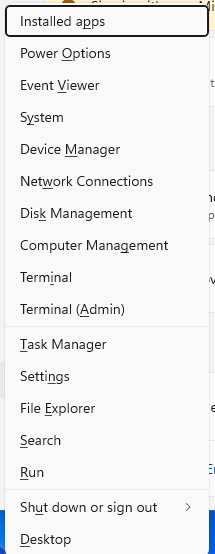
Open View and select Devices by container, then expand the Logitech or G920 device entry. Right-click the device and choose Uninstall Device. Check Delete the driver software for this device if Windows shows that option.
Choose Uninstall, then unplug the wheel and plug it into a different direct USB port. Logitech says the wheel should re-enumerate, and G HUB should download the driver.
For a Windows driver warning or a problem that started after an update, stay in Device Manager. Right-click the G920, HID, or USB device entry, then use Update driver, Uninstall device, or Properties > Driver > Roll Back Driver.
6. Test the wheel in Windows Game Controllers
Press Windows key + R, type joy.cpl, then press Enter. Select the G920 or controller entry and open Properties.
Use the Test tab to turn the wheel and press the pedals and buttons. If a Settings tab with calibration appears, choose Calibrate and follow the wizard.
Windows has a built-in controller panel that tells you whether the PC sees the wheel inputs before the game gets involved. If the wheel works here but fails in one game, the PC connection is working. Move to the game controls.
7. Remap pedals and buttons in the game
Games do not all pick up the same bindings automatically. Set the wheel up inside the racing game itself through the game’s Options, Settings, or Controls menu, then open the wheel or controller bindings screen.
Assign Steering, Throttle, Brake, Clutch, Paddles, Shifter, and buttons. If the pedals act backwards, turn on the game’s Invert Pedal or Invert Control option. Logitech points pedal problems back to the game’s control options, and some games invert pedal controls.
8. Disable Steam Input for the problem game
Open Steam and go to Library. Right-click the game and choose Properties..., then open Controller.
Set the per-game Steam Input override to Disable Steam Input when the game should talk directly to the wheel. Restart the game.
Logitech now notes that Steam no longer detects racing wheels the way it once did, so this step only matters when a specific Steam game still routes the G920 through Steam Input. In that case, when the G920 works in Windows but one Steam game ignores it, check that game’s Steam Input setting. Use the game’s recommended Steam Input setting instead when that game requires it.
9. Isolate force feedback or hardware failure
If steering and pedals still work but force feedback stops, stop using the wheel, let it cool down, then power it down by unplugging it. Repeated force-feedback shutdowns belong with Logitech product support.
Next, connect the G920 to another computer. If the same failure follows the wheel, use Logitech support for contact options, warranty claims, product registration, downloads, and spare parts.
On a work, school, or managed PC, ask the admin to check USB or HID device installation restrictions. The relevant Windows policy area is gpedit.msc > Computer Configuration > Administrative Templates > System > Device Installation > Device Installation Restrictions.
Frequently Asked Questions
Why is my Logitech G920 not showing up in G HUB?
Connect the wheel directly to another PC USB port, avoid hubs, then reinstall the device from Device Manager using View > Devices by container. After you plug it back in, G HUB should re-enumerate the wheel and download the driver.
How do I know if my Logitech G920 has power?
After the power adapter and USB cable are connected, the wheel should rotate fully left, fully right, then center. No startup calibration points to power, cable, or hardware trouble.
Can I use Logitech Gaming Software with the G920?
Use G HUB first. Logitech still has older G920 instructions that reference Logitech Gaming Software 8.70 or later, but that is a legacy workflow, not the current first fix.
What should I do if the G920 works on another PC?
Focus on the original PC. Use a direct USB port, repair or reinstall G HUB, reinstall the G920 device in Device Manager, and check whether admin device-installation restrictions are blocking USB or HID devices.