Your laptop speakers are silent, and turning up the volume has done nothing. The selected output, an app’s mute setting, or an audio software problem can interrupt playback. Start with the sound controls for your operating system below, then move through app checks, software repairs, and hardware diagnostics as needed.
Make sure sound is going to the built-in speakers
If nothing plays through your laptop speakers, check the system output first. Raising the volume will not help when another audio device is selected.
On Windows 11, open Start > Settings > System > Sound. Under Output, select the built-in speakers. Their name depends on the laptop’s audio driver.
Raise the Volume slider. Clear mute using the speaker icon.
On a Mac, disconnect headphones, external audio interfaces, USB or Thunderbolt audio devices, and USB or HDMI displays before testing the internal speakers. Open the Apple menu > System Settings > Sound > Output.
Select the built-in speakers. Raise Output volume. Clear Mute. If sound is missing on one side, center Balance.
On a Chromebook, unplug headphones and external speakers. Select the time to open Quick Settings. Raise the volume slider.
Open Audio settings beside the slider. Under Output, select the built-in speakers. A green check marks the active output.
On Ubuntu with GNOME, open Activities. Search for Sound. Open the Sound panel.
Under Output, select the built-in speakers in Output Device. Select Test to check that output.
Check the app when other sounds still work
Play audio in another app to establish whether the silence is limited to one program. For a single affected Windows app, open Start > Settings > System > Sound > Volume mixer.
Under Apps, unmute the affected app using its speaker icon. Raise the app’s volume slider. Set its Output device to the laptop speakers.
On a Mac, raise the affected app’s own volume slider, such as the one in Music or Apple TV.
For Zoom, open your profile picture > Settings > Audio. Under Speaker, choose the laptop speakers. Raise Volume. Select Test speaker to check playback.
In Teams, open Settings and more > Settings > Devices > Audio > Audio settings. Under Speaker, choose the laptop speakers. On the meeting pre-join screen, select Computer audio to use the laptop’s normal audio output. Keep troubleshooting inside the affected app when other apps play sound correctly.
When only websites are silent
A muted tab or blocked website sound causes browser-only silence. Unmute the video or music player using its speaker or mute control. Raise the player’s volume slider.
In Chrome, open More > Settings > Privacy and security > Site settings > Additional content settings > Sound. Set the Sound permission to allow sound.
For one affected Chrome website, open that site. Select View site information beside its address > Site settings. Allow the site’s Sound permission.
In Firefox, click the muted tab’s speaker icon to unmute it. After changing the system’s audio output, reload the affected Firefox webpage. Restart playback on that page.
In Edge, right-click the affected tab and choose Unmute tab. In Safari, click the Audio button in the search field to restore muted webpage sound.
Give the system a fresh start
If the speakers remain silent across apps, move to a restart and operating-system updates. Windows also includes an audio diagnostic for the next checks.
Save your work before restarting Windows. Select Start > Power > Restart.
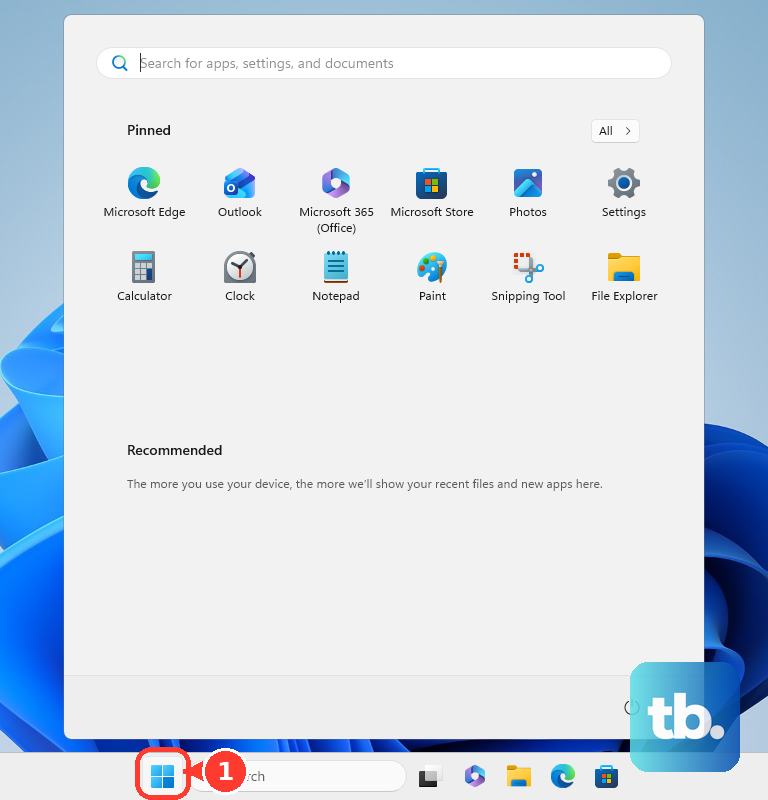
Test playback after signing in. If sound is still missing, open Start > Settings > System > Troubleshoot > Other troubleshooters > Audio > Run. This launches the current diagnostic in Get Help. Microsoft has deprecated MSDT, including the older audio troubleshooting packs and downloaded .diagcab approach.
Follow the Get Help diagnostic prompts. For Windows updates, open Start > Settings > Windows Update > Check for updates. Install available updates. Restart Windows.
On a Mac, open System Settings > General > Software Update. Install available macOS updates.
On a Chromebook, select the time > Settings > About ChromeOS > Check for updates. Install an available update. Select Restart when prompted.
Restore Windows speaker settings
Open Start > Settings > System > Sound. Select your speakers under Output.
Under Advanced settings, set Audio enhancements to Off. If your driver does not expose this control, continue to the speaker enablement check below. Test playback again.
To check whether the speakers are disabled, open Settings > System > Sound > More sound settings > Playback. Select the speakers. Open Properties. Under Device usage, select Use this device (enable).
If Windows does not detect an audio output, open Device Manager > Sound, video and game controllers. Right-click a disabled audio device and select Enable device if that option appears. If the device is missing, select View > Show hidden devices.
Select Action > Scan for hardware changes. Complete these enablement checks before treating a missing speaker entry as a hardware failure.
Repair the Windows audio driver
Move to driver troubleshooting when output settings and the audio diagnostic have not restored sound. If the failure began immediately after a driver update, try rolling back that change first.
For a rollback, open Device Manager > Sound, video and game controllers. Right-click your audio device and choose Properties. Open Driver > Roll Back Driver. This option is available only when a previous driver remains installed; otherwise, continue with an update.
Complete the rollback prompts. Restart the laptop.
To update the driver after checking Windows Update, right-click the audio device in Device Manager and select Update driver > Search automatically for drivers. Restart after the driver update.
If sound still fails, visit your laptop manufacturer’s support site. Identify your exact laptop model and operating system. Download the matching audio driver from that manufacturer’s support site. Manufacturer drivers include model-specific audio functionality that generic drivers can omit.
Install the downloaded driver. Restart the laptop.
For a corrupted or incomplete driver installation, return to Device Manager > Sound, video and game controllers. Right-click the audio device and select Uninstall device. Confirm the removal.
Restart the laptop. Windows attempts to reinstall the driver during startup.
Isolate persistent Mac sound problems
Safe mode helps isolate startup-software conflicts affecting sound. Shut down your Mac. On an Apple-silicon Mac, hold the power button until startup options appear.
Select the startup volume. Hold Shift and click Continue in Safe Mode. On an Intel Mac, start the computer while holding Shift instead.
Test the affected audio playback. Audio devices behave differently in safe mode, so silence there does not prove that the speakers are damaged. Restart normally afterward.
If the problem disappears in safe mode but returns during normal startup, open System Settings > Users & Groups > Add User. Administrator credentials are required. Create a temporary user account. Restart your Mac.
Sign into the temporary account. Test audio there to isolate settings associated with your usual account.
Try a Chromebook hardware reset
Back up files in Downloads before a hardware reset, which can remove some of them. Check Google’s model-specific hardware reset instructions, since some Chromebooks use a different procedure.
For most Chromebook laptops, turn the device off. Hold Refresh and tap Power. Release Refresh once the Chromebook starts. Test the built-in speakers again.
If the remaining problem involves browser settings or extensions, open Settings > System preferences. Under Reset, select Safety reset. This retains local apps and data but disables extensions and removes temporary site data.
Select Done. Review the reset settings. Re-enable extensions selectively. Try these targeted resets before considering Powerwash, which erases local files, apps, and settings.
Know when to use diagnostics or service
If the speakers remain silent after the relevant checks, use hardware diagnostics before a major software reset. Working headphones narrow the problem, but they do not prove that the internal speakers are defective.
On a supported Dell laptop, open Dell’s Audio, Speakers, and Microphone support page. Select Speaker Diagnostics. Install SupportAssist if prompted by the diagnostic. Follow the diagnostic’s result-specific instructions.
On a supported HP laptop with the diagnostics tool installed, search for HP PC Hardware Diagnostics Windows. Select Run as administrator. Open Component Tests > Audio > Audio Playback Test > Run once. Select the output to test.
Answer whether sound played. Retain any 24-digit failure ID for HP support.
For Apple Diagnostics, shut down your Mac. Disconnect unnecessary peripherals. On Apple silicon, hold the power button until Options appears. Hold Command+D to start diagnostics.
On Intel, hold D during startup instead, or Option+D if needed. Follow the diagnostic tests. Available tests depend on the Mac and macOS version. Retain any reference code for service.
If your Mac’s internal speakers remain silent after Apple’s checks, select Set up service on Apple’s internal-speaker support page. Describe the failure when arranging service.
For persistent Windows software problems, back up your files before recovery. Eligible Windows 11 installations offer a repair reinstall that retains apps and files.
Open Settings > System > Recovery > Fix problems using Windows Update > Reinstall now. Select OK. Keep the laptop connected to power and the internet throughout the repair. Restart when the repair finishes.
If that recovery option is absent, contact your laptop manufacturer’s support before choosing a more disruptive reset.
Frequently Asked Questions
Why is Make a test call missing in Teams?
Teams for web does not offer Make a test call, and the feature is currently available in English only. In the desktop app, check Settings and more > Settings > Devices > Audio > Audio settings for the option.
Why can I hear voices but not music on my ASUS laptop?
On supported ASUS laptops, AI Noise-Canceling Speaker suppresses music and other non-voice audio. Open MyASUS > Device Settings > Audio & Visual > AI Noise-Canceling Speaker. Turn the feature off.
Should I reset NVRAM to fix silent MacBook speakers?
Use an NVRAM reset for malfunctioning stored sound settings on Intel Macs. Shut down the Mac. Turn it on while immediately holding Option+Command+P+R for approximately 20 seconds. Release the keys and let startup finish. Restore any preferences that were reset. This procedure is unnecessary and inapplicable to Apple-silicon Macs.
What if my school or work Chromebook will not play sound?
Ask your administrator to review the Audio output policy and enable output if it is disabled. Users cannot override that policy. Factory resets on managed Chromebooks also require administrator involvement.