A laggy PC slows down apps, browser tabs, games, video, and the Windows desktop itself. The fastest fixes start with the processes, startup items, storage, updates, and browser settings that create the most visible slowdowns. Follow these in order, with Windows 11 paths first and only current vendor-supported methods included.
Restart and close heavy tasks
This fixes sudden lag caused by active apps, background tasks, memory pressure, or disk activity.
Press Ctrl + Shift + Esc to open Task Manager.
Open the Processes tab.
Review CPU, Memory, and Disk usage.
Close apps you are not using.
Open the Performance tab to check broader resource pressure.
Select Start > Power > Restart.
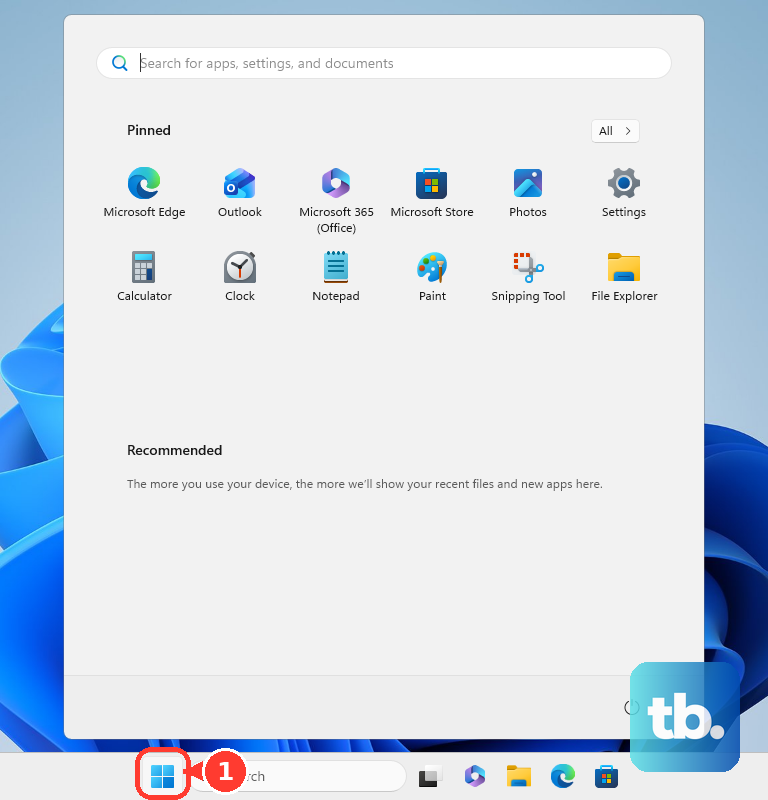
After Windows restarts, reopen only the apps you need.
Stop startup clutter
The most common cause of everyday PC lag is too many apps launching with Windows and staying active in the background.
Open Start > Settings > Apps > Startup.
Set unused startup apps to Off.
Right-click Start and select Task Manager.
Open Startup apps, select an app, then select Disable.
Right-click Start > Run.
Type shell:startup and press Enter.
Delete unwanted startup shortcuts from the folder.
Free storage safely
Low drive space slows Windows while temporary files and the system drive compete for room. Use the built-in cleanup tools before removing personal files.
Go to Start > Settings > System > Storage > Storage Sense > Run Storage sense now to run cleanup immediately.
Open Start > Settings > System > Storage, set Storage Sense to On, then open Storage Sense to choose the cleanup frequency and preferences.
For manual cleanup, open Start > Settings > System > Storage > Temporary files, check the file types you want removed, then select Remove files.
Remove unused apps
This method applies when lag comes with low storage, long startup time, or background apps you no longer need. It also fits after trial software or utility apps start running every time Windows starts.
Open Start > Settings > Apps > Installed apps.
Find the app, select More, choose Uninstall, and confirm the prompt.
Select Start > All apps.
Right-click the app and select Uninstall.
For classic desktop programs, search for Control Panel and open it.
Open Programs > Programs and Features.
Right-click the program and choose Uninstall or Uninstall/Change.
Update Windows and drivers
Use Windows Update first, then move to hardware driver tools for graphics, storage, network, audio, Bluetooth, or chipset lag.
- 1.Open Start > Settings > Windows Update > Check for updates, then select Download & install when updates appear.
- 2.Select Start > Power > Restart when Windows prompts you.
- 3.Open Start > Settings > Windows Update > Advanced options > Optional updates, select available optional driver updates, then choose Download & install.
- 4.Select Start, type Device Manager, open Device Manager, expand the device category, right-click the device, select Update driver, then choose Search automatically for updated driver software.
- 5.For manufacturer updates, use NVIDIA App or NVIDIA's current driver page, AMD's drivers page or AMD Software: Adrenalin Edition, or Intel Driver & Support Assistant for supported Intel hardware. NVIDIA has retired its old browser scan page, and that address now redirects to the current drivers page, so let NVIDIA App handle automatic updates or use the manual driver search there.
Scan for malware
This fixes lag caused by unwanted software or a suspicious file consuming system resources.
Open Start > Settings > Privacy & security > Windows Security > Virus & threat protection.
Select Quick scan.
Open File Explorer to scan a suspicious item.
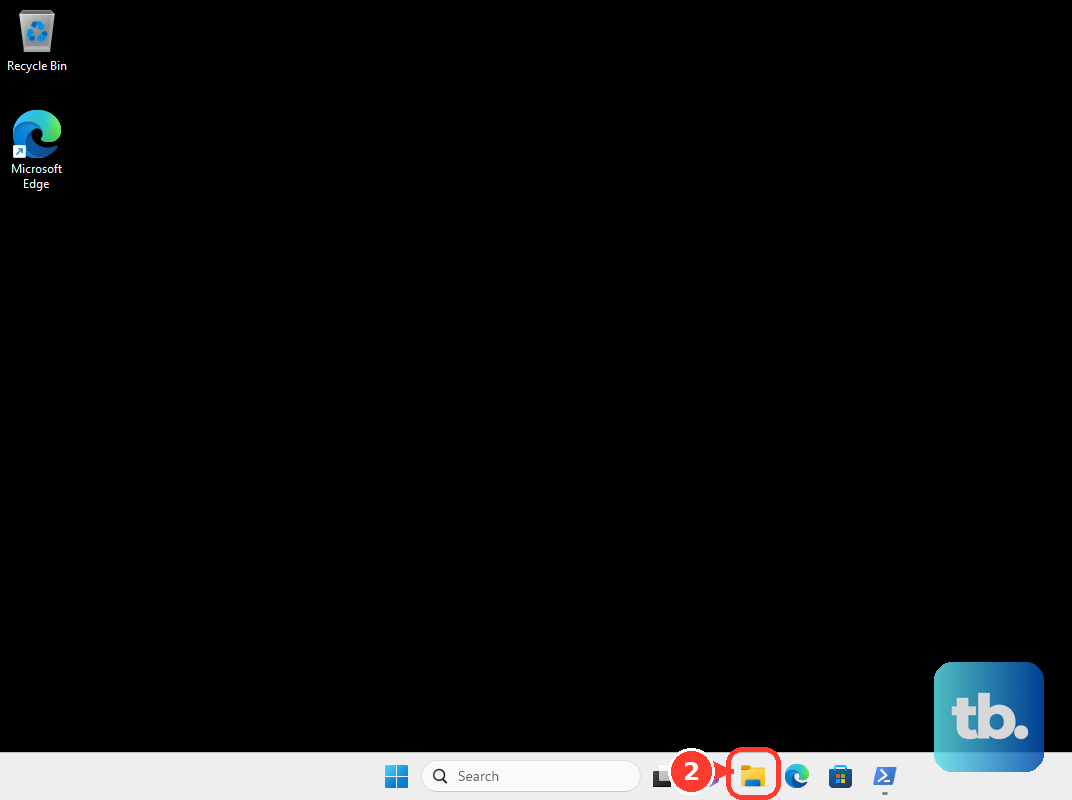
Right-click the file or folder.
On Windows 11, select Show more options if the menu shows it.
Select Scan with Microsoft Defender.
Fix browser slowdowns
Browser lag comes from heavy tabs, extensions, energy-saving settings, or graphics acceleration settings. Start with the browser you use most.
In Chrome, open More > Settings > Performance and turn Memory Saver on. For smoother browsing, video, or gaming on a laptop, turn Energy Saver off in Performance.
Open Chrome More > More tools > Task manager, select a stuck page, extension, or app, then choose End process. For extension trouble, open More > New Incognito Window and test the site, then go to More > Extensions > Manage extensions, turn extensions off, and select Remove for the extension causing the problem.
In Microsoft Edge, open Settings and more > Settings > System and performance > Performance, turn Automatically put tabs to sleep on, and set Enable energy saver to Off when it causes visible slowdowns or less smooth video.
In Firefox, open the menu, select Settings, then in the General panel select Tabs and browsing on the left and go down to Performance; on older Firefox builds, Performance sits directly in the General panel. Uncheck Use recommended performance settings, change Use hardware acceleration when available, and restart Firefox. If browser fixes fail, update Chrome by selecting More, choosing Update Google Chrome when shown, then selecting Relaunch.
Improve game and video performance
Games and video lag even when the rest of Windows feels responsive, so use the graphics and overlay settings tied to that activity. For Windows 11 games, open Start > Settings > System > Display > Graphics.
Under Default settings, turn on Optimizations for windowed games, then restart the game. This applies to DirectX 10 and DirectX 11 games running in windowed or borderless windowed modes.
On a PC with more than one GPU, stay in Graphics, select the app or game under Custom options for apps, choose Options, select High performance, then select Save and restart the game or app.
For Steam games, open Steam > Settings > In-game and turn off Enable the Steam Overlay while in-game. To change one game, open Library, right-click the game, select Properties, open General, and clear Enable the Steam Overlay while in-game.
Repair Windows after the basics
The most common cause at this stage is Windows needing repair, cleanup, or isolation from third-party startup services.
Select Start, type Adjust the appearance and performance of Windows, and open it.
On the Visual Effects tab, select Adjust for best performance.
Select Start, type Defragment and Optimize Drives, and open it.
Select the drive and choose Optimize.
Install the latest Windows updates and restart.
Search for Command Prompt.
Right-click Command Prompt, select Run as administrator, then choose Yes.
Run DISM.exe /Online /Cleanup-image /Restorehealth.
After DISM completes, run sfc /scannow.
After verification reaches 100%, type exit and press Enter.
Use a clean boot only as troubleshooting. Sign in as an administrator, select Search, type msconfig, and open System Configuration.
On Services, select Hide all Microsoft services, then select Disable all and Apply.
On Startup, select Open Task Manager.
On Startup apps, select each enabled startup item and select Disable.
Close Task Manager, select OK in System Configuration, and restart.
Avoid System Configuration advanced boot options because Microsoft warns misuse can make the computer unusable.
As a last resort, back up important files, open Start > Settings > System > Recovery, select Reset PC under Recovery options, and follow the prompts for Keep my files or Remove everything.
Frequently Asked Questions
Why is my PC suddenly lagging?
Check Task Manager first. High CPU, Memory, or Disk usage points to an active app or process; startup apps, low storage, malware, browser extensions, and driver problems are the next places to fix.
Does Windows Update help with PC lag?
Yes. Use Settings > Windows Update > Check for updates first, then check Advanced options > Optional updates for available driver updates and restart when Windows prompts you.
Should I use Disk Cleanup or Storage Sense?
Use Storage Sense for Settings-based cleanup and automatic cleanup. Disk Cleanup is still listed by Microsoft for Windows 11 and Windows 10, so it remains supported.
When should I reset my PC to fix lag?
Reset the PC only after the simpler fixes and repair steps fail. Back up important files first, then use Settings > System > Recovery > Reset PC.