iPhone Mirroring won't connect, keeps disconnecting, or gets stuck before your phone appears on your Mac. Start with the quickest checks, then work through wireless settings, account requirements, and pairing resets. You'll also find the hardware and regional limits that a settings change can't fix.
Lock your iPhone and reopen Mirroring
Keep your iPhone powered on, within 30 feet (10 meters) of your Mac, and locked. It needs to stay locked while you control it from the Mac.
With iPhone Mirroring active on your Mac, press Command-Q to quit it. Reopen iPhone Mirroring from Applications. Complete any requested iPhone-passcode verification, then leave the phone locked.
If the app is unresponsive, press Option-Command-Esc, select iPhone Mirroring, and click Force Quit. If reopening still doesn't connect, check compatibility and your Apple Account next.
Check compatibility and your Apple Account
You need a Mac with Apple silicon or an Apple T2 Security Chip running macOS Sequoia 15 or later, plus an iPhone running iOS 18 or later. Apple lists iPhone Mirroring as unavailable in the European Union. A setting won't change unsupported hardware or regional availability.
Compare the account at the top of Settings on your iPhone with the one in System Settings on your Mac. Both devices must use the same Apple Account. Sign in with that account wherever it differs.
The account also needs two-factor authentication. On your iPhone, open Settings > [your name] > Sign-In & Security. Enable two-factor authentication if it isn't already on, and complete the verification prompts.
Your iPhone needs a passcode too. To add one, open Settings > Face ID & Passcode > Turn Passcode On, then enter and confirm it. On supported Home-button models, use Touch ID & Passcode instead.
Enable wireless connections and Handoff
Check these switches even if your Mac gets internet access through another connection.
- 1.On your iPhone, open Settings > Wi-Fi and turn on Wi-Fi.
- 2.Open Settings > Bluetooth on the iPhone and turn on Bluetooth. To cycle either radio off and on, use its Settings switch. The Control Center buttons primarily disconnect networks or accessories while leaving Continuity radios available.
- 3.On your Mac, open Control Center > Wi-Fi and turn on Wi-Fi.
- 4.Open Control Center > Bluetooth on the Mac and enable its switch.
- 5.On your iPhone, open Settings > General > AirPlay & Continuity and enable Handoff.
- 6.On your Mac, open the Apple menu > System Settings > General > AirDrop & Continuity and enable Allow Handoff between this Mac and your iCloud devices. Older Mac releases call this pane AirDrop & Handoff.
Stop AirPlay, Sidecar, and competing sessions
Use these checks when AirPlay, Sidecar, or Mac Internet Sharing is active, since they conflict with iPhone Mirroring. Only one Mac-to-iPhone Mirroring connection can operate at a time.
To stop iPhone screen sharing through AirPlay, open Control Center > Screen Mirroring > Stop Mirroring. For media streaming, stop playback through the app's AirPlay control. Disconnect Sidecar on your Mac through Control Center > Screen Mirroring by deselecting your iPad under Mirror or extend to.
Turn off connection sharing through the Apple menu > System Settings > General > Sharing > Internet Sharing. Quit iPhone Mirroring on another Mac by pressing Command-Q with the app active. Reopen iPhone Mirroring on the Mac you want to use.
Restart and update your devices
Restart your Mac through the Apple menu > Restart. On a Face ID iPhone, hold the side button and either volume button until the power-off slider appears. On an iPhone SE, second or third generation, hold the side button instead.
Drag the power-off slider. Wait 30 seconds before holding the side button until the Apple logo appears.
Back up your Mac before installing an update. Install the available compatible update through the Apple menu > System Settings > General > Software Update.
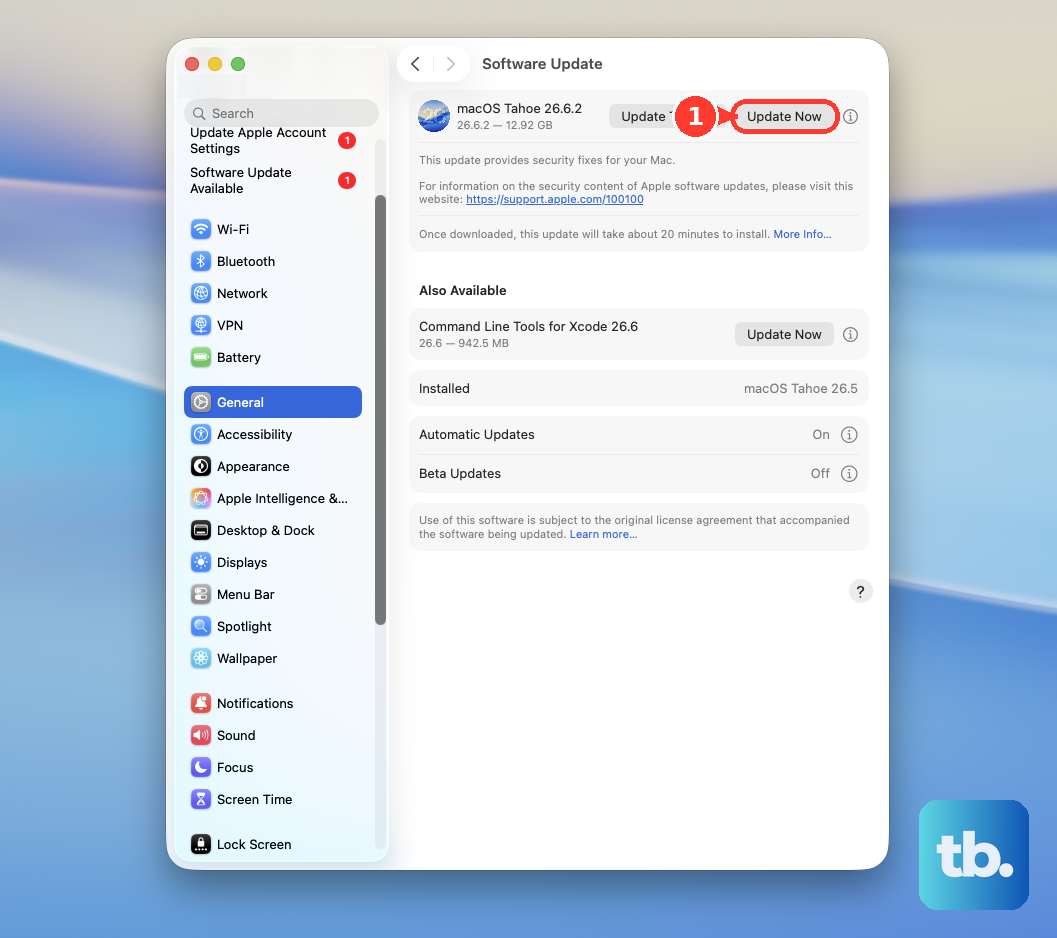
Back up your iPhone before updating it too. Connect the iPhone to power and Wi-Fi. Open Settings > General > Software Update.
Select the available update. Choose Download and Install and follow the prompts.
Tip: iPhone Mirroring comes with macOS, so updating macOS also keeps the app up to date.
Select the right iPhone and reset pairing
With multiple eligible nearby iPhones on the same account, check which phone your Mac is targeting. On macOS Tahoe 26.4 or later, open the Apple menu > System Settings > General > AirDrop & Continuity > iPhone and select the intended device. On earlier macOS versions, open the Apple menu > System Settings > Desktop & Dock and pick the phone from the iPhone pop-up menu, just below the iPhone Widgets setting.
If that phone still won't connect and you've configured Mirroring before, reset its authorization. Open iPhone Mirroring, choose the iPhone Mirroring menu > Settings, and select Revoke iPhone Access, which some macOS versions label Revoke Access to [name of your iPhone]. This also removes Allow notifications from iPhone from Notifications settings on your Mac.
If you can't use the Mac app's settings, remove the authorization on your iPhone instead. Open Settings > General > AirPlay & Continuity > iPhone Mirroring > Edit, then select the Mac to remove.
After either reset, reopen iPhone Mirroring on your Mac and repeat setup. Complete any requested iPhone-passcode verification, then leave the iPhone locked and nearby.
Reduce interference and check network filters
For frequent disconnections or slow discovery, check wireless interference and network-filtering software. Any VPN in use must permit local networking.
Move the devices closer together and away from metal obstructions, microwaves, and other interference sources. Pause intensive wireless streaming or file transfers before retrying. Move USB 3 or Thunderbolt 3 hubs away from the Mac. Disconnect unused USB 3 devices.
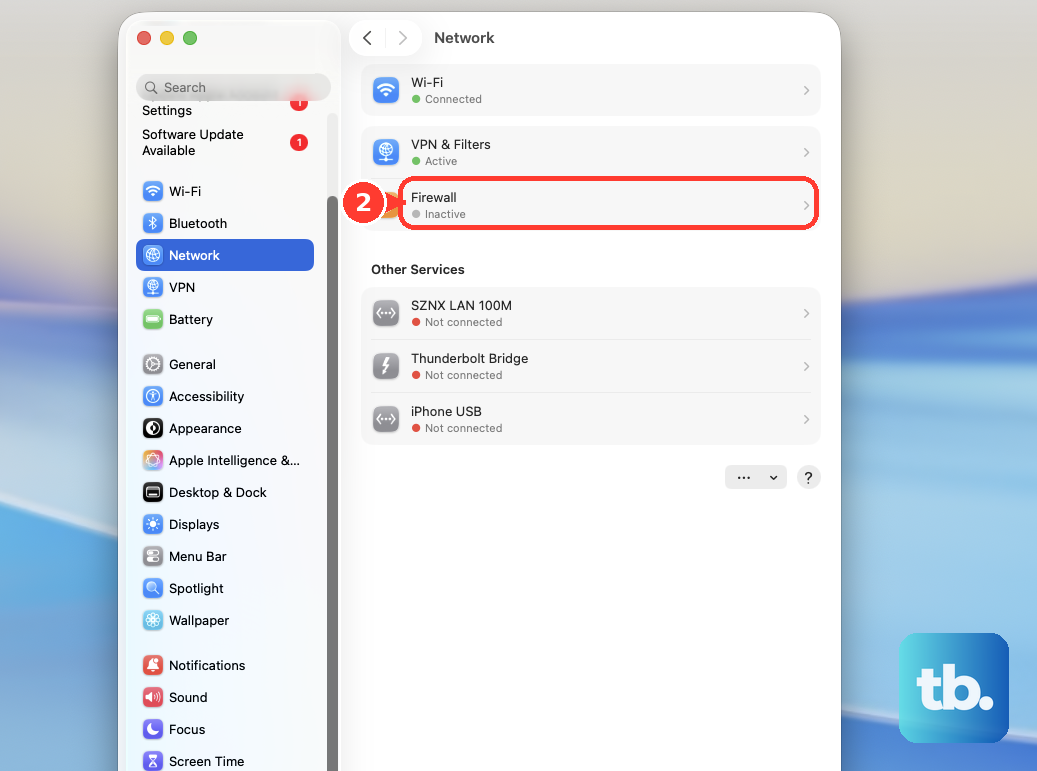
On your Mac, open the Apple menu > System Settings > Network > Firewall > Options and turn off Block all incoming connections. The firewall itself can stay on.
Open any VPN, antivirus, parental-control, or content-filter app you installed and temporarily disable its network-filtering features. Use the app vendor's instructions to locate its controls.
Retry iPhone Mirroring. Restart after changing the network software's settings. Test iPhone Mirroring again.
For a work or school device, ask your administrator to review Allow iPhone mirroring on both devices and check managed network restrictions.
Sign back in after the simpler fixes fail
Save Apple's account sign-out remedy for last.
- 1.Make sure important iCloud data has synced and is backed up before signing out.
- 2.On your iPhone, open Settings > [your name] > Sign Out > Sign Out But Don’t Erase and complete the prompts. Older iOS versions use different sign-out wording.
- 3.On your Mac, open System Settings > [your name] > Sign Out, retaining needed local copies when prompted.
- 4.Restart both devices using the restart steps above.
- 5.Sign back into the same Apple Account through Settings on the iPhone and System Settings on the Mac. Open iPhone Mirroring again with the iPhone locked and nearby.
Separate feature limits from connection failures
A working Mirroring connection doesn't provide access to the iPhone's camera or microphone, including Face ID and phone calls. Protected-video providers also impose playback restrictions. A blocked feature alone doesn't mean the connection is broken.
If Mirroring works but iPhone notifications are missing, open System Settings > Notifications > Allow notifications from iPhone on your Mac. Enable notifications and the apps you want. These settings appear after successful Mirroring setup.
If that doesn't restore notifications, or eligible devices still won't connect after the fixes above, open Apple's iPhone Mirroring support page and select Get suggestions. Describe the exact error and include both device models and their software versions.
Frequently Asked Questions
Do I need AirPlay Receiver enabled for iPhone Mirroring?
No. AirPlay Receiver is a separate feature for viewing content on your Mac. It isn't a required switch for interactive iPhone Mirroring.
Can I view my iPhone on the Mac without interactive Mirroring?
Yes. AirPlay displays the iPhone screen on an AirPlay-to-Mac-compatible Mac with receiving enabled and both devices on the same Wi-Fi network. A wired QuickTime connection also displays or captures the iPhone. Neither provides interactive iPhone control.
Should I reset network settings to fix Mirroring?
Reserve a network reset for broader connectivity problems that persist after simpler network fixes. It removes saved Wi-Fi networks and passwords and resets cellular, VPN, and APN settings. It addresses general connectivity and doesn't guarantee a Mirroring repair.
How do I restore iPhone apps in Spotlight on my Mac?
After setting up Mirroring on macOS Tahoe 26 or later, open System Settings > Spotlight and enable iPhone Apps.