Hulu not working on Apple TV can show up as a frozen app, endless buffering, a blank screen, no sound, or a Live TV location error. Start with the fastest resets, then move into updates, reinstalling, network checks, account fixes, and playback settings. Work through the fixes in order and stop as soon as Hulu plays normally again.
Make Sure Your Apple TV Can Run Hulu
Hulu supports Apple TV 4th generation, also called Apple TV HD, and Apple TV 4K running tvOS 15.3 or later. Apple TV 3rd generation and earlier do not support the current Hulu app, so reinstalling the old channel will not fix it.
On Apple TV, open Settings, go to General, then choose About. Check the Apple TV model and tvOS version before spending time on deeper fixes.
If your Apple TV is unsupported, use Apple TV HD, Apple TV 4K, or another Hulu-supported device instead.
Force Quit Hulu and Open It Again
A frozen Hulu session starts with the quickest app reset. Press the TV button twice quickly on the Apple TV remote to open the app switcher. Move to Hulu, swipe up on the clickpad or touch surface, then return to the Home Screen and open Hulu again.
If Hulu opens but still hangs on loading or playback, restart the Apple TV next.
Restart Apple TV
The most common cause after a stuck app is a temporary tvOS glitch that blocks Hulu from launching cleanly. Open Settings, choose System, then select Restart. After Apple TV comes back on, open Hulu and try the same show, movie, or live channel again.
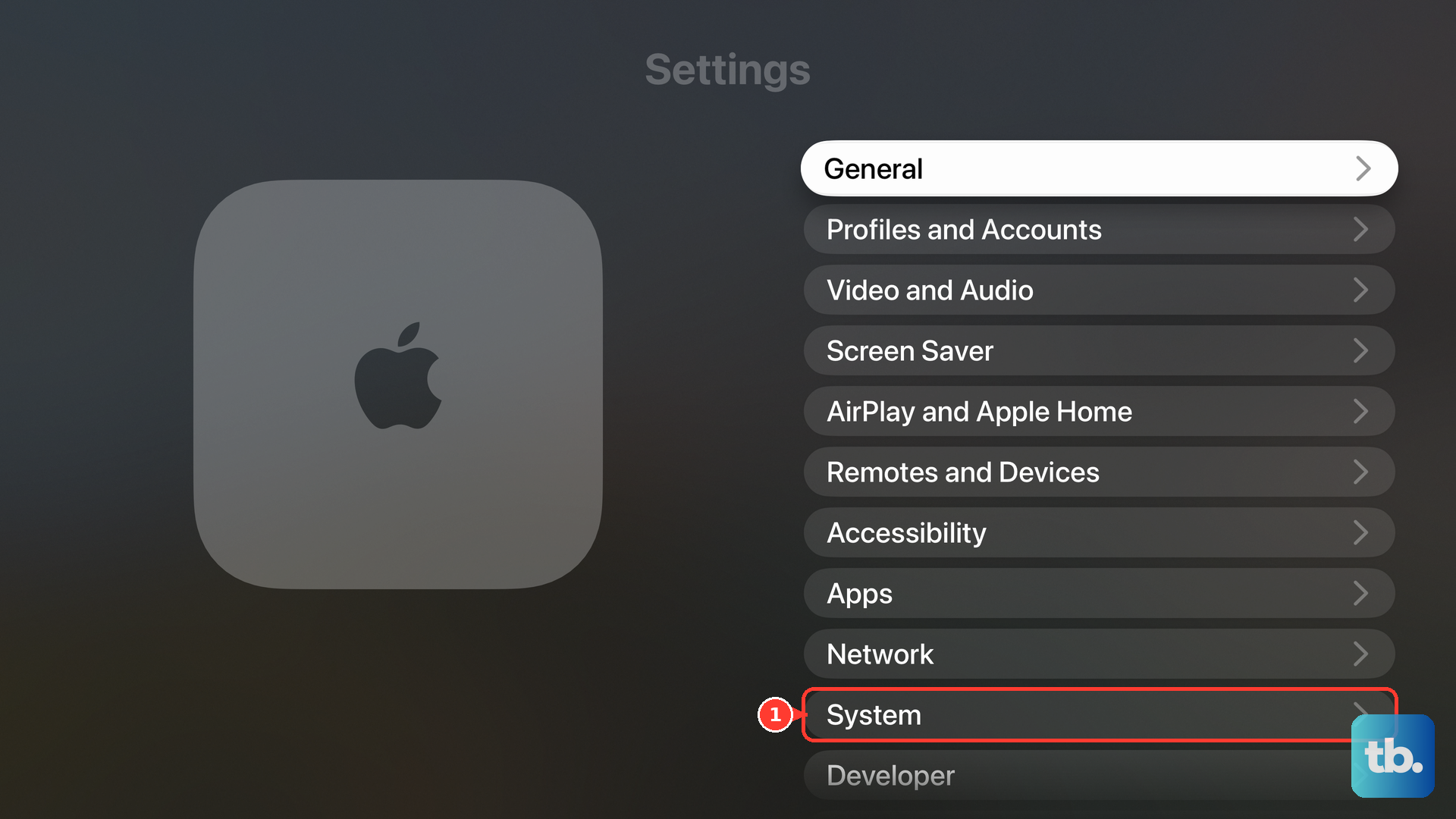
When Apple TV is not responding, use the remote shortcut instead. Press and hold the TV button and the Back or Menu button until the Apple TV status light blinks rapidly. If the remote shortcut does not help, disconnect Apple TV from the power outlet, wait five seconds, then reconnect it.
Update tvOS and the Hulu App
This fixes Hulu problems caused by outdated Apple TV software or an old Hulu app build. Open Settings on Apple TV, choose System, select Software Updates, then choose Update Software.
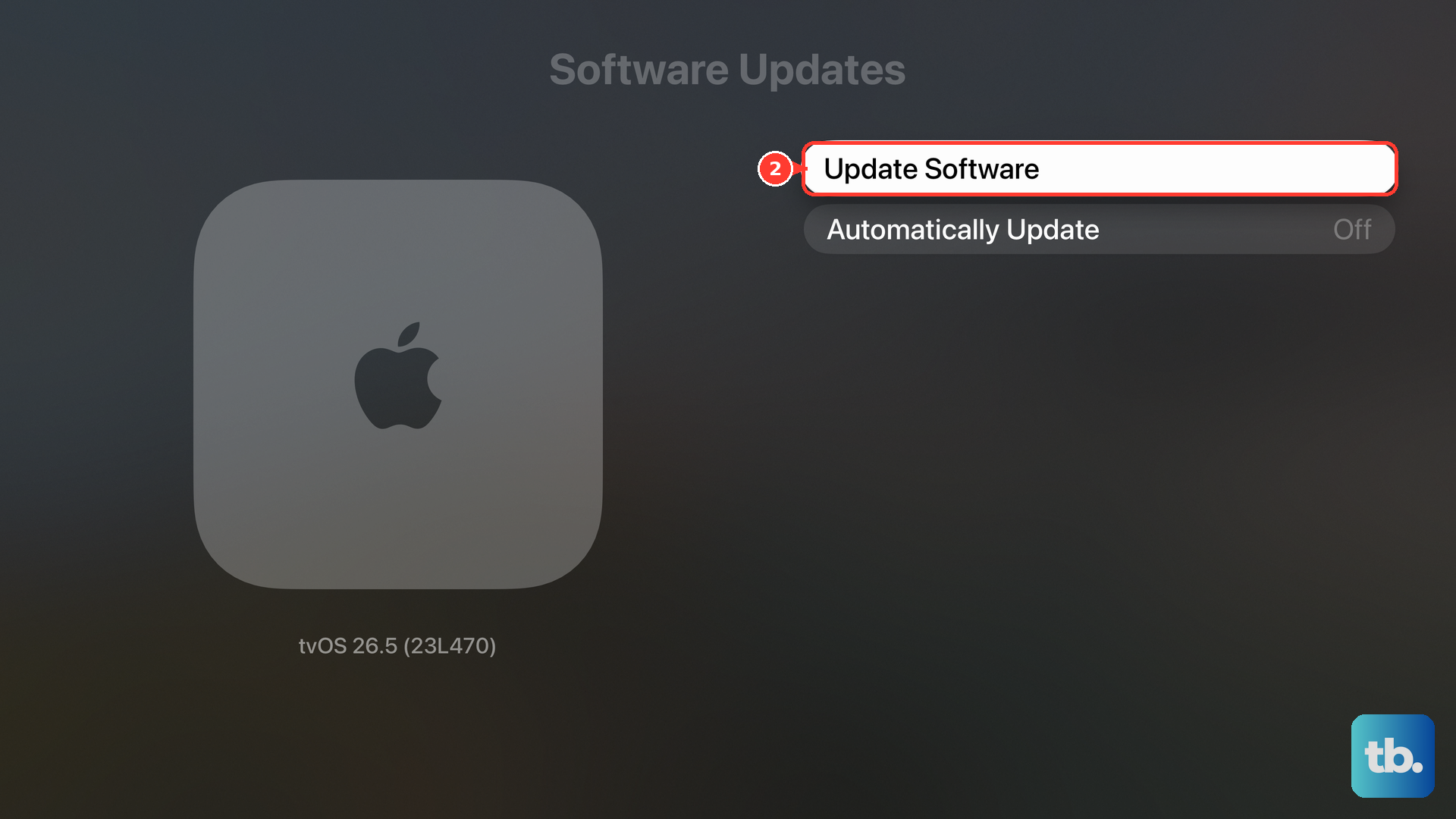
Select Download and Install. To keep tvOS current afterward, go back to Software Updates and turn on Automatically Update. For Hulu app updates, open Settings, choose Apps, then turn on Automatically Update Apps. If automatic updates were off, open the App Store, select Hulu, and install any update shown.
Delete Hulu and Reinstall It
Apple TV does not have a supported Hulu cache-clearing button. Deleting Hulu and installing it again is Hulu's cache-clear path on Apple TV because it removes app data that has become corrupted.
Highlight Hulu on the Apple TV Home Screen, press and hold the clickpad or touch surface, then choose Delete App and confirm Delete. You can also enter wiggle mode, press Play/Pause, then choose Delete.
Reinstall Hulu from the App Store by opening Search, entering Hulu, selecting the Hulu app, and choosing Get or Install. If the button says Open, Hulu is already installed.
If Hulu still fails after a clean reinstall, move on to the internet and Wi-Fi checks.
Fix Wi-Fi, Ethernet, and Speed Problems
This fixes buffering, freezing, low video quality, and Hulu screens that fail to load because Apple TV cannot hold a strong connection. Restart Apple TV first by opening Settings, choosing System, and selecting Restart. Unplug your router and cable or DSL modem from power. Plug the router and modem back in.
To reconnect Wi-Fi, open Settings, choose Network, select Wi-Fi, choose your current Wi-Fi network, then select Forget Network.
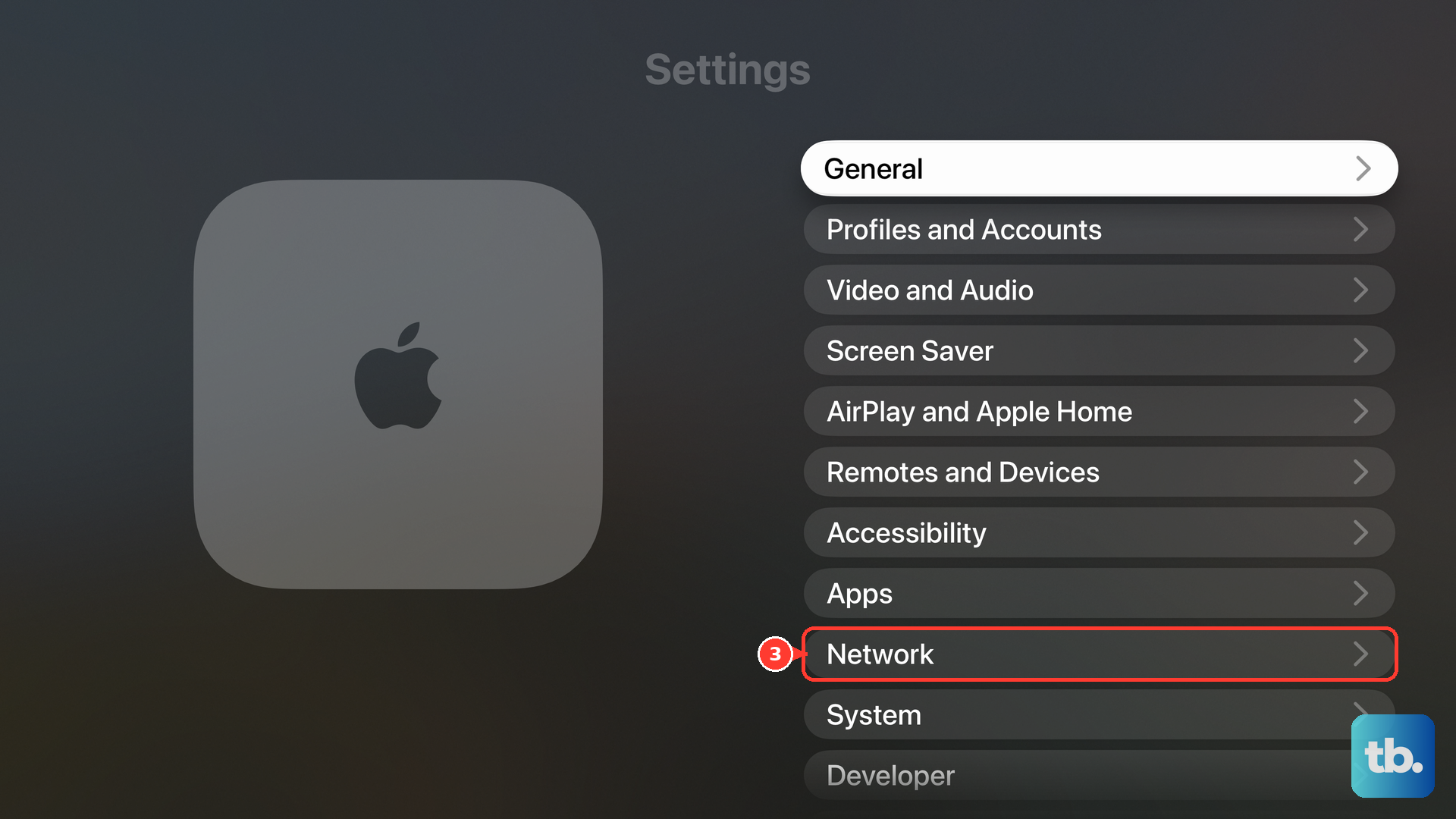
Press Menu or Back, then return to Network. Choose your Wi-Fi network and enter the Wi-Fi password.
For a stronger test, connect Apple TV directly to the router or modem with an Ethernet cable. Apple TV automatically uses Ethernet instead of Wi-Fi. Run a speed test on a phone or computer using the same network. Hulu needs 3 Mbps for HD 720p, 6 Mbps for HD 1080p, 16 Mbps for 4K Ultra HD, and at least 8 Mbps for smooth Hulu + Live TV streams.
Power off other devices using your home network, move Apple TV and the router closer together, reduce physical obstructions, or keep Apple TV on Ethernet.
Check Hulu Account and Live TV Home Issues
The most common account-side cause is a billing, activation, or Hulu + Live TV Home network mismatch. On a phone or computer browser, go to Hulu.com/account and review your account notices. If payment needs attention, open Payment Information, then choose Update Payment next to Payment Method.
For sign-in trouble on Apple TV, open the Hulu app and choose Log In, then select Activate on a computer. Use the activation page shown on your TV, sign in, and enter the activation code displayed on Apple TV.
To clean up old device sessions, go to Hulu.com/account, open Your Account, choose Watch Hulu on Your Devices, then select Manage Devices. Choose Remove next to old or unused devices, then sign in again on Apple TV.
For Hulu + Live TV, set or change your Home network from Hulu.com/account under Privacy and Settings by choosing Set or Change Home. Hulu allows up to four Home changes in a 12-month period, and Apple TV needs to be on the network set as Home for living-room Live TV access.
Turn Off VPN or Proxy Routing
Turn off any VPN, proxy, or anonymizer running through your router, DNS, network, or device setup before opening Hulu again. If Hulu shows proxy or location errors such as P-EDU101 or BYA-403-011, reopen Hulu after that routing is disabled.
When Apple TV is on a school, hotel, apartment, or business network, ask the network administrator about captive login, DNS, firewall, VPN, proxy filtering, streaming restrictions, or the network profile Apple TV needs. A quick way to narrow this down is to try Hulu on Apple TV from a regular home network without proxy or VPN routing.
Location-sensitive playback also depends on Apple TV location access for Hulu + Live TV local channels. Open Settings, go to General, choose Privacy & Security, then open Location Services and turn it on. Use a regular home network test before changing account settings again.
Fix Blank Screen or No Sound Problems
When Hulu plays but the picture flickers, goes blank, or fails through HDMI, the Apple TV video format is the place to check. Open Settings, choose Video and Audio, then review Match Content, including Match Dynamic Range and Match Frame Rate.
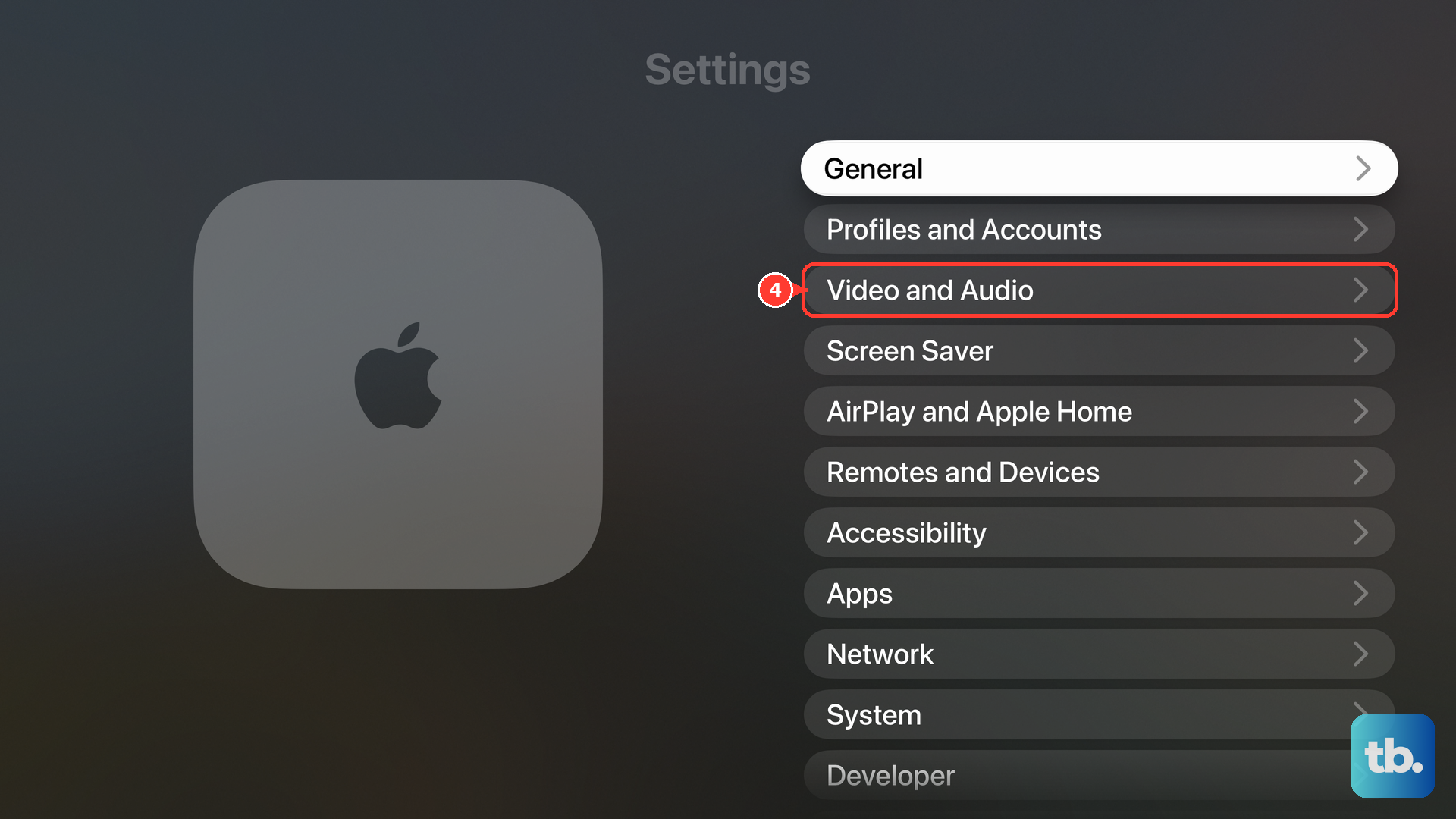
Go to Settings, then choose Video and Audio. Use Format, Check HDMI Connection, or Reset Video Settings.
If Hulu video plays but audio does not, open Settings, choose Video and Audio, and select Audio Format. Choose Change Format, then try a different audio format. Review Audio Mode and Audio Output, and use AirPlay as a temporary workaround before resetting Apple TV.
Use AirPlay or Reset Apple TV as a Last Resort
AirPlay is a supported workaround when the Apple TV Hulu app itself keeps failing. Keep your iPhone or iPad and Apple TV on the same Wi-Fi network, open the Hulu app on the iPhone or iPad, start the video, tap the AirPlay button, choose Apple TV, and enter the AirPlay passcode if asked.
If AirPlay does not work, make sure both devices are on, near each other, updated, and connected to the same Wi-Fi network. On iPhone or iPad, open Settings, go to General, choose AirPlay & Continuity, then set Automatically AirPlay to Automatic, Never, or Ask as needed.
Reset Apple TV only after the app, software, network, account, and playback settings have failed. Open Settings, choose System, select Reset, then choose Reset; for a reset plus the latest software, choose Reset and Update.
A reset erases accounts, apps, and configuration. If Hulu still will not work after that, contact Hulu support through the Hulu Help Center's Contact Us path for account, billing, activation, Live TV Home, or service-side problems.
Frequently Asked Questions
Can I clear Hulu cache directly on Apple TV?
No. Apple TV does not provide a supported direct Hulu cache-clearing menu. Delete Hulu and reinstall it to clear Hulu app data.
Why is Hulu not working on my Apple TV 3rd generation?
The current Hulu app supports Apple TV 4th generation or Apple TV 4K on tvOS 15.3 or later. Apple TV 3rd generation and earlier are unsupported.
What internet speed does Hulu need on Apple TV?
Hulu needs 3 Mbps for HD 720p, 6 Mbps for HD 1080p, 16 Mbps for 4K Ultra HD, and at least 8 Mbps for smooth Hulu + Live TV streams.
Why does Hulu Live TV say my Apple TV is not at home?
Your Apple TV must be connected to the network set as your Hulu Home network. Update the Home network at Hulu.com/account under Privacy and Settings, or return Apple TV to the existing Home network.