Guided Access breaks in a few obvious ways: the triple-click shortcut does nothing, the app will not stay locked, touch stops working, or the session will not end cleanly. Start with the main Guided Access settings, then test the current shortcut and session controls. These fixes use Apple's current iPadOS paths for 2026.
1. Check Guided Access Settings First
Open Settings > Accessibility > Guided Access and turn on Guided Access. Then tap Passcode Settings, choose Set Guided Access Passcode, and set the passcode you will use to end sessions.
When the option appears, turn on Face ID or Touch ID for faster exits. Before leaving the screen, review Time Limits, Accessibility Shortcut, and Display Auto-Lock.
2. Start It With The Current Shortcut
- 1.Open the app you want to lock on screen.
- 2.Triple-click the top button on an iPad without a Home button, or triple-click the Home button on an iPad with a Home button.
- 3.If the Accessibility Shortcuts panel appears, tap Guided Access.
- 4.Check the Guided Access setup screen, then tap Start.
Use triple-click to start Guided Access on current iPadOS. Double-click was the iPadOS 18 or earlier shortcut for ending a session, not for starting one, so triple-click is the correct start gesture on current iPads.
3. Slow The Button Click Speed
If triple-click never opens Guided Access, change how quickly iPadOS expects the button presses.
- iPad without a Home button: Open Settings > Accessibility > Top Button, then change the click speed.
- iPad with a Home button: Open Settings > Accessibility > Home Button, then change the click speed.
After changing the speed, open the target app and triple-click the button again.
4. Launch It From Control Center Or Siri
The hardware shortcut is not the only way in. Swipe down from the top-right corner to open Control Center, tap the Add button in the top-left corner, choose Add a Control, then add Guided Access or Accessibility Shortcuts.
To start it later, open the app, open Control Center, and tap the control you added. You can also open the app and ask Siri, Turn on Guided Access. When the setup screen appears, tap Start.
5. Fix Touch Keyboard And Button Controls
Sometimes Guided Access is working exactly as configured, but the current session has blocked the controls you need. Pause or start Guided Access, then tap Session Settings or Options.
Turn Top Button, Volume Buttons, Motion, Software Keyboards, Touch, and Time Limit on or off for that session. Tap Done, then tap Start or Resume.
6. End The Session Correctly
Triple-click the top button on iPad models without a Home button, or triple-click the Home button on iPad models with a Home button. Enter the Guided Access passcode, or authenticate with Face ID or Touch ID when you enabled it.
If the Accessibility Shortcuts panel appears, tap Guided Access. Tap End to exit the locked app, or tap Resume to keep the session running.
7. Restart The App Then The iPad
A frozen app makes Guided Access look broken. Open the app switcher, swipe up on the affected app, then reopen it from the Home Screen, App Library, or Dock.
Restart the iPad next. On models without a Home button, press and hold either volume button and the top button until the power-off slider appears. Drag the slider, wait 30 seconds, then press and hold the top button until the Apple logo appears.
On models with a Home button, press and hold the top button until the slider appears. Drag it, wait 30 seconds, then press and hold the top button until the Apple logo appears. On iPadOS 18 or later, you can also open Control Center, press and hold the Power button in the top-right corner, then drag the slider.
If the iPad is frozen or unresponsive, force restart it. Without a Home button, press and quickly release the volume button closest to the top button, press and quickly release the volume button farthest from the top button, then press and hold the top button until the Apple logo appears. With a Home button, press and hold both the Home button and the top button until the Apple logo appears.
8. Update iPadOS And The App
- 1.Open Settings > General > Software Update.
- 2.If an update is available, tap Download and Install.
- 3.Keep the iPad connected to Wi-Fi and plugged into power.
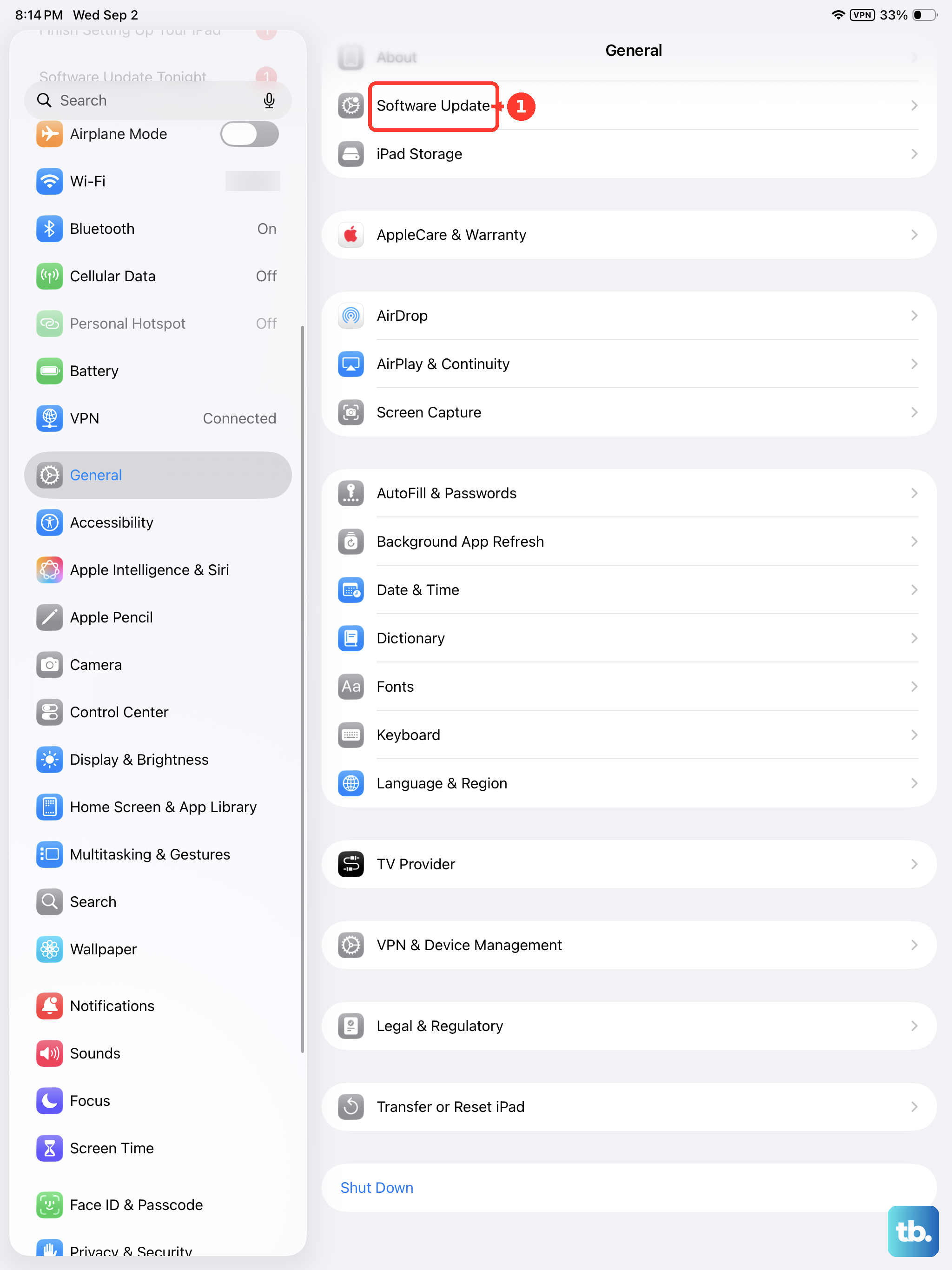
Update the app that fails in Guided Access too. Open the App Store, tap the My Account button or your photo, go to App Updates, then tap Update next to the affected app or tap Update All.
If one app still freezes, closes, or refuses to open, delete and redownload it. Touch and hold the app, tap Remove App, tap Delete App, then tap Delete. To reinstall it, open the App Store, tap the My Account button or your photo, open Apps & Purchase History, tap Your Apps, choose Not on this iPad, then tap the Redownload button.
9. Reset Or Restore As A Last Resort
Use Reset All Settings before erasing the iPad. Open Settings > General > Transfer or Reset iPad > Reset > Reset All Settings. This resets incorrect or damaged settings without deleting photos, messages, apps, or documents.
Erase the iPad only after the safer fixes fail. Open Settings > General > Transfer or Reset iPad > Erase All Content and Settings, tap Continue, choose the eSIM option when shown, enter the device passcode, enter the Apple Account password, and wait for the erase to finish.
For a computer restore, update the Mac or PC first and create a backup when possible. On the iPad, turn off Find My from Settings > [your name] > Find My > Find My iPad. Then open Finder on macOS Catalina or later, the Apple Devices app on Windows, or iTunes on macOS Mojave or earlier, select the iPad, click Restore iPad, then confirm Restore.
When the iPad is inaccessible because the device passcode is forgotten or disabled, use Apple's recovery-mode restore flow from a Mac or PC. If a school or work iPad stays locked by Single App Mode, Classroom, or another managed-device policy, contact the teacher, workplace, or device administrator.
Frequently Asked Questions
Why does Guided Access keep ignoring the Home or top button?
The click speed setting can be too fast for your presses. Change it in Settings > Accessibility > Top Button on newer iPads, or Settings > Accessibility > Home Button on iPads with a Home button.
Can Control Center replace the Guided Access triple-click shortcut?
Yes. Add Guided Access or Accessibility Shortcuts from Control Center > Add > Add a Control, then open the app and tap that control from Control Center.
Why did my keyboard or touch stop working in Guided Access?
The current Guided Access session has controls for Software Keyboards and Touch. Pause the session, open Session Settings or Options, turn those controls back on, tap Done, then Resume.
What if this is a school or work iPad?
A supervised iPad can be locked to one app through device management, Apple Configurator, or Classroom settings. Only the organization, teacher, or administrator can release that managed lock.