Your Google Nest Mini will not connect to Wi-Fi, and that usually leaves setup stuck before the speaker ever answers a command. Start with the fastest checks, then move into the Google Home app, phone permissions, router settings, and reset steps that clear the problem.
Start With The Basics
Check these first before digging into router settings.
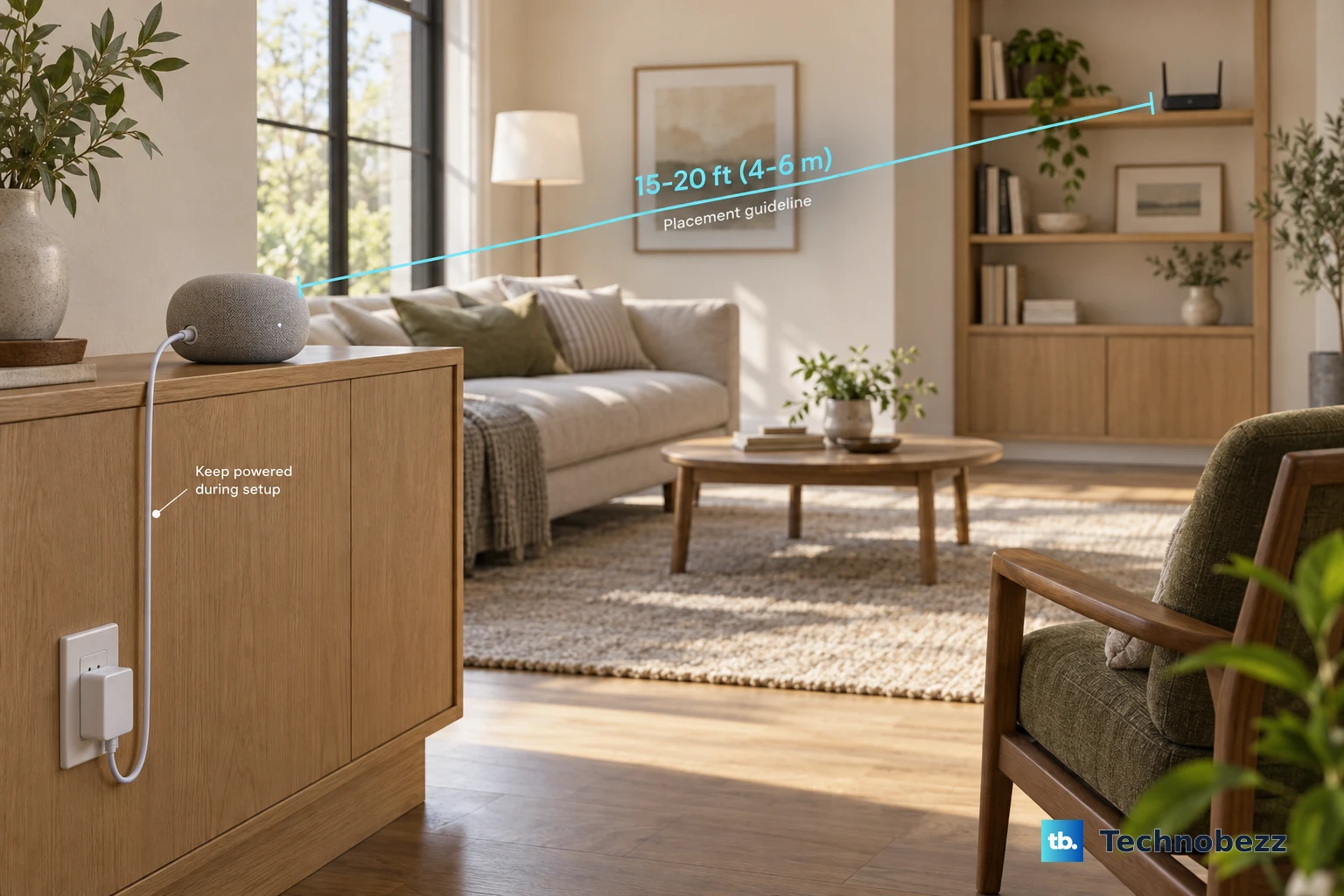
- 1.Plug the Nest Mini into a wall socket and keep it powered during setup.
- 2.Connect another phone, tablet, or computer to the same Wi-Fi network.
- 3.Confirm the Wi-Fi password before entering it in Google Home.
- 4.Place the Nest Mini within 15 to 20 feet of the Wi-Fi router.
- 5.Update your phone or tablet OS and install the latest Google Home app.
Reboot The Router And Nest Mini
Unplug your Wi-Fi router from power.
Leave it unplugged for one minute, then plug it back in and wait for the network to return.
Unplug the Nest Mini power cable from the wall socket.
Leave it unplugged for one minute, then plug it back in.
Force close Google Home on your phone, then reopen it.
On Android, open Settings, go to Network & internet, then Internet, and turn Wi-Fi off and back on.
On iPhone or iPad, open Settings, tap Wi-Fi, turn Wi-Fi on, and choose your Wi-Fi network.
Retry setup after the phone reconnects to Wi-Fi.
Update Google Home And Use The Current Setup Flow
On Android, open Google Play Store, search for Google Home by Google LLC, and choose Install or Update. On iPhone or iPad, open the App Store, search for Google Home, and choose Get or Update.
Open Google Home, then at the top right tap Add, choose Device, and follow setup. When a setup screen appears, tap Set up or Next, scan the QR code, wait for Connected, and finish the in-app steps.
If the QR code will not scan, tap Use setup code or Add a different way, select the Nest Mini, and continue setup.
If setup fails here, reboot the router and Nest Mini again, then check the Wi-Fi name, password, and band below.
Reconnect After A Wi-Fi Or ISP Change
Use this when you changed your Wi-Fi name, Wi-Fi password, router, modem, or internet provider. The Nest Mini still has the old network details saved.
Open Google Home and go to the Home tab.
Tap Add, choose Device, then choose Search for device.
Complete the setup steps and connect the Nest Mini to the current Wi-Fi network.
Fix Wi-Fi Name Password And Band Problems
When Google Home reaches the Wi-Fi screen but will not finish, check the exact network details.
- 1.Open the Network name drop-down, expand the available Wi-Fi names, and scroll to the correct network. On iPhone or iPad, tap the network scan refresh button next to Network Name.
- 2.If the Wi-Fi network is hidden, tap the arrow to the right of the network name field, choose Other, enter the Wi-Fi name, choose None, WEP, WPA, or WPA2, enter the password, then tap Set network.
- 3.When Android shows Get Wi-Fi password, tap OK. If that fails, choose No, thanks and manually enter the Wi-Fi password.
- 4.Use the eye icon in the password box on Android, or tick Show password on iPhone or iPad, to confirm every character.
- 5.If your router has separate 2.4 GHz and 5 GHz network names, rerun setup and try each SSID in turn.
Allow Phone Discovery Permissions
Use this when Google Home cannot find the Nest Mini or setup stalls before the Wi-Fi step. The setup phone needs local discovery access to see the speaker.
On iPhone or iPad, open Settings, tap Bluetooth, and turn Bluetooth on.
Return to Settings, open Google Home, tap Local Network, and turn Local Network on. In the same Google Home settings screen, turn on Location Access as well, because Google requires it for iPhone and iPad setup.
On Android, open Settings, go to Location, turn on Use location, open App location permissions, choose Home, then select Allow all the time. Google also requires Bluetooth on the Android phone or tablet, so open Settings, tap Bluetooth, and turn it on before you retry setup.
If Android still cannot find the speaker, open Settings, go to Network & internet, then Internet. Connect to the setup network named GoogleHomeXXXX or the speaker's previous name, such as Kitchen home speaker, then reopen Google Home and set up the device again.
When one phone keeps failing, try another supported phone or tablet with the latest Google Home app. Google lists Android 9.0 or later for Android setup devices, while the current App Store listing requires iOS or iPadOS 17.4 or later for Google Home.
Check Network Limits And Router Settings
Nest Mini belongs on a private, secure home Wi-Fi network. Do not use public Wi-Fi, school networks, university hall networks, business or shared flat networks, pocket Wi-Fi, mobile hotspots as a regular setup target, or WPA2-Enterprise networks.
Google Nest Mini supports 802.11b/g/n/ac Wi-Fi on 2.4 GHz or 5 GHz. If your phone must be on 2.4 GHz during setup, connect the phone to the 2.4 GHz SSID or move farther from the router until the phone switches to 2.4 GHz, then continue setup.
For Netgear Nighthawk routers, open the router admin surface and disable Access Control. In Guest Network Setup, enable Allow guests to see each other and access my local network, then retry setup.
On Nest Wifi Pro, Nest Wifi, or Google Wifi, open Google Home, then go to Wi-Fi, Settings, and Advanced networking. Turn off Use Wi-Fi Protected Access 3; the network restarts and devices briefly lose connectivity.
Use A Hotspot Test Or Factory Reset
A temporary mobile hotspot is a diagnostic test, not the everyday network for a Nest Mini. Create a temporary mobile Wi-Fi hotspot on another phone, then run Google Home setup and connect the Nest Mini to that hotspot.
On iPhone or iPad, open Settings, then Personal Hotspot, or open Cellular, then Personal Hotspot. Turn on Allow Others to Join, set a Wi-Fi password of at least eight characters from Wi-Fi Password, and keep that screen open during setup.
If the Nest Mini connects to the hotspot, the speaker can join Wi-Fi and the problem is the router, modem, ISP, or network settings. If it still cannot connect, contact Google support.
For a full reset on Google Nest Mini 2nd gen, switch the mic off on the side so the lights turn orange. Press and hold the center of the Nest Mini where the lights are on top; after 5 seconds, reset begins, and after about 10 more seconds a sound confirms the reset.
If the device is the older Google Home Mini 1st gen, press and hold the factory reset button on the bottom below the power cord. Keep holding after reset begins until a sound confirms the reset.
You cannot reset a Nest Mini by voice command or from the Google Home app, and Nest Mini setup does not use the Nest app. Use Google Home for setup and the hardware controls for reset.
If factory reset fails, try setup with a different supported phone or tablet, then contact Google support.
Frequently Asked Questions
How do I know whether my Nest Mini is connected to Wi-Fi?
Say a normal request such as "Hey Google, what time is it?" If the assistant responds, the device is connected to Wi-Fi.
Does Google Nest Mini work on 5 GHz Wi-Fi?
Yes. Google Nest Mini supports 802.11b/g/n/ac Wi-Fi on both 2.4 GHz and 5 GHz networks.
Can I set up a Google Nest Mini with the Nest app?
No. Google Nest Mini setup uses the Google Home app.
Can I factory reset a Nest Mini from the Google Home app?
No. Use the hardware reset controls on the device. Voice commands and the Google Home app do not factory reset a Nest Mini.