Google Drive stops syncing when the desktop app is paused, the connection is blocked, storage is full, permissions changed, or the Drive folder moved. Start with the sync panel, then use the fix that matches the error on your screen. By the end, Drive for desktop, offline files, and stalled uploads all get a clean path to start again.
Start with the Drive sync panel
Open Drive for desktop first and check the status tile before changing deeper settings.
- 1.Click the Google Drive for desktop menu on your Windows taskbar or Mac menu bar.
- 2.Check the homepage Sync status tile for paused sync, errors, or files still waiting.
- 3.Open the detailed sync activity view and find the file or folder that is stuck.
- 4.Read the notifications, especially time-sensitive sync errors that need action.
- 5.If syncing is paused, open Menu, then Settings, then choose Resume syncing.
Restart syncing and reopen Drive
Click the Drive for desktop menu, open Settings, and choose Pause syncing.
Wait a moment.
Open Settings again and choose Resume syncing.
On Mac, click Settings, choose Quit, and reopen Drive for desktop.
On Windows, click Drive for desktop in the bottom-right taskbar, choose Settings, select Quit, and reopen Drive for desktop.
Restart your computer if Drive still sits on the same file or never starts syncing again.
Use this restart path before you disconnect accounts or change deeper sync settings.
Fix your connection and proxy settings
Use this when Drive shows connection errors, sync never starts, or your computer is on a VPN, office network, proxy, or strict security setup.
Open another site or service to confirm the computer is online.
If the internet connection is down, reconnect first and let Drive retry the upload or download.
When the connection works but Drive still cannot sync, open Drive for desktop.
Go to Menu, Settings, Preferences, and Advanced Settings.
Under proxy settings, select Auto-detect or Direct connection.
If security software repeatedly makes Drive for desktop stop, exclude the Drive streaming location from virus scanning.
Update Drive and check your system
Use the current Drive for desktop app on a supported computer.
- 1.Install Drive for desktop from Google’s official Drive download page.
- 2.On Windows, use Windows 10 or later 64-bit, Windows Server 2016 or later, or Windows 11 or later on ARM64.
- 3.On Mac, use macOS Ventura 13.0 or higher.
- 4.Avoid 32-bit Windows, beta operating systems, and network volumes such as SMB or NFS for Drive cache or sync locations.
- 5.If Drive setup or sign-in fails on Windows, install Microsoft WebView2 from Microsoft’s official WebView2 download page.
Clear storage problems
Drive sync fails when your computer runs out of local disk space or your Google storage is full. Those are separate limits, so match the fix to the message before deleting anything.
If Drive reports low disk space on your computer, delete unneeded local files on the drive named in the message.
Remove offline availability from files managed by Drive for desktop if those pinned files are taking up space.
Quit Drive for desktop and restart it.
If Google storage is full, go to your Drive storage quota page and remove large files you no longer need.
Empty Trash so the deleted files stop counting against storage.
Get more storage through Google One if the account still needs more room.
If storage cleanup does not restart syncing, reopen Drive for desktop and check Sync status for the next specific error.
Repair file permissions
The most common permissions problem is that your computer no longer lets Drive read or write the file or folder it is trying to sync.
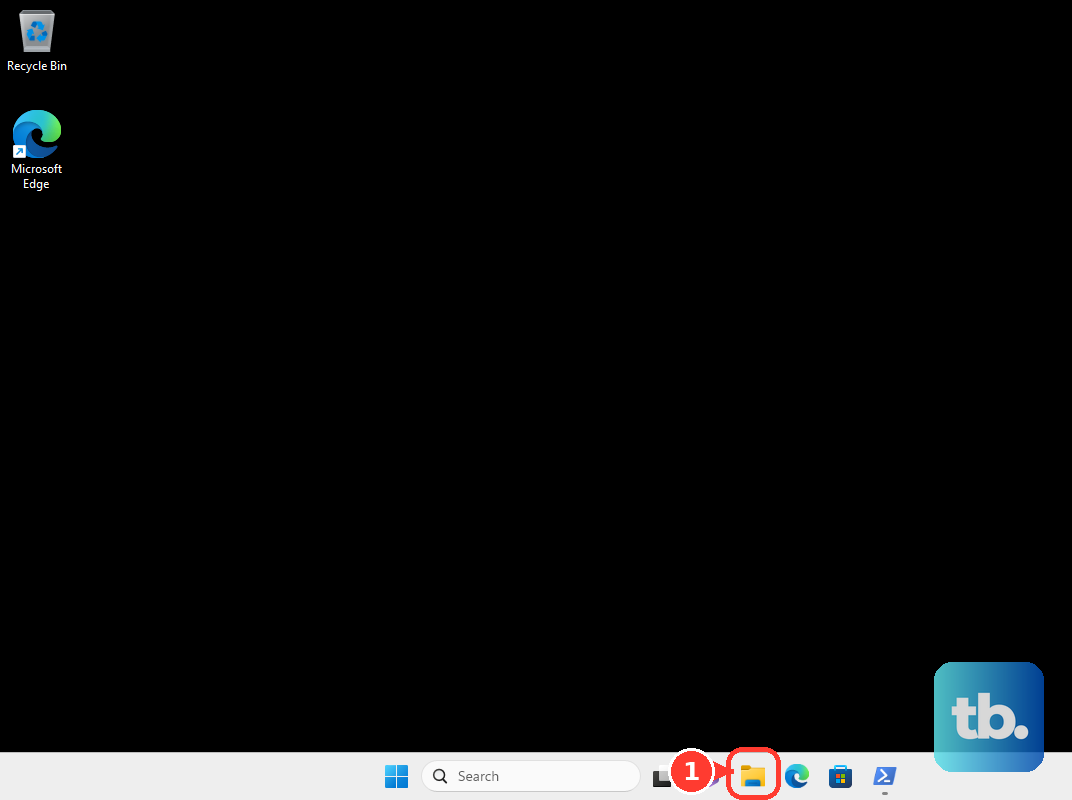
On Windows, open File Explorer and select the file or folder.
Right-click it, choose Properties, and open the Security tab.
Select your username and confirm the needed permissions are allowed with no Deny checks.
Use Edit only when you need to correct those permissions, then choose OK.
On Mac, open Finder and select the folder.
Choose File or right-click, open Get Info, and check Sharing & Permissions.
Set your username to Read & Write.
Mac users should also open System Settings, then Privacy & Security, then Files and Folders, and turn on Google Drive access for the Desktop, Documents, and Downloads folders and for removable and network volumes you sync. Use the Photos pane for your photo library, and restart Drive for desktop or your computer if the change does not take effect.
Recover moved, deleted, or unavailable files
Use this when Drive says a file cannot sync because something changed on your computer or in Drive online. The right fix depends on where the file went.
If you moved or renamed the Google Drive folder, open the Drive notification and click Locate.
Select the moved or renamed folder and choose Open.
If you deleted the mirrored My Drive folder, click Stop syncing this directory.
If Drive says a local file was deleted or moved to trash, restore that item from your computer’s trash.
When the cloud copy was deleted, unshared, or access was removed, ask the owner to share it again.
If the cloud copy was deleted, remove it from the syncing folder and add it back.
Delete the local copy when you do not want to sync those changes.
If Drive moved files to Lost & Found, open that folder from the Drive notification.
Move the files back into My Drive to retry syncing, or move them to another safe local folder.
Check streaming, mirroring, and offline access
Open Drive for desktop, then go to Settings, Preferences, and Folders from Drive.
Under My Drive syncing options, choose Stream files or Mirror files.
Streamed files stay in the cloud until you open or pin them.
Mirrored My Drive files are stored locally.
For streamed files that are not Google Docs, Sheets, or Slides, open the Google Drive folder in File Explorer on Windows or Finder on Mac.
Right-click the files or folders and choose Available offline.
For Drive on the web, use Chrome or Microsoft Edge and go to Drive settings.
Next to Offline, turn Create, open, and edit your recent Google Docs, Sheets, and Slides files on this device while offline off or on.
With that setting on, right-click the Google Docs, Sheets, or Slides file you want and choose Make available offline. That is the only way to take Google files offline, so Available offline in the Google Drive folder will not cover them.
My Drive can be streamed or mirrored. Local folders or your desktop can only be mirrored, and files from shared drives, other computers, and backed-up USB devices can only be streamed.
Reconnect the account when sync still fails
This fixes account-level sync problems after the simpler Drive fixes fail.
Before you start, move anything important out of Lost & Found and handle offline streamed files you still need.
Open Drive for desktop and go to Settings, Preferences, and Advanced Settings.
Find the affected account and click Disconnect account.
Click OK.
Sign in again.
Choose a new location for the Google Drive folder when Drive asks.
If you use more than one Google Account, click the Drive for desktop menu and select your profile picture.
Choose Add account, sign in through your browser, and restart Google Drive for desktop.
Backup and Sync and the legacy Google Drive for Mac/PC app are no longer working fixes. Use Drive for desktop or Drive on the web instead.
For work or school accounts, ask your administrator to allow Google Drive for desktop for your organization or device.
Frequently Asked Questions
Why is my Google Drive not syncing even though I have internet?
Drive for desktop is usually paused, blocked by proxy or security software, low on local disk space, out of Google storage, or stuck on a file permission error. Open Drive for desktop and check Sync status first.
Does reinstalling Google Drive delete my files?
Uninstalling Drive for desktop leaves files stored in Drive on the web. Before disconnecting or uninstalling, handle offline streamed files and anything in Lost & Found that you still need.
Why are my Google Drive files visible but not available offline?
Your My Drive is set to Stream files. Right-click the needed files or folders in the Google Drive folder and choose Available offline, or switch My Drive to Mirror files.
What should I do if Drive says my upload or download limit was reached?
Wait a day, then restart Drive for desktop if it does not automatically retry.