Google Chrome on your Mac can fail in a few annoying ways: it will not open, it freezes, pages refuse to load, or updates get stuck. Most of the time, the fix is a stuck process, a bad extension, old software, damaged site data, or a Mac setting blocking Chrome.
Start with the quick checks, then move into Chrome settings and reinstall only when the simple fixes do not clear it.
1. Quit Chrome and clear stuck processes
Start here when Chrome is frozen, keeps running in the background, crashes on launch, or refuses to open normally.
In the menu bar, choose Chrome and then Quit Google Chrome.
Use Command-Q if the menu still responds.
Reopen Chrome from Applications or the Dock.
Press Command-Shift-T to reopen closed tabs after Chrome starts again. Incognito windows do not reopen after a Chrome update or relaunch.
If Chrome will not quit, force it closed.
Press Command-Option-Esc, select Google Chrome, and click Force Quit.
Or Control-click the Chrome icon in the Dock and choose Force Quit.
If a Chrome helper process stays stuck, open Finder > Applications > Utilities > Activity Monitor, select the Chrome process, then quit or force quit it.
After that, open the Apple menu, choose Restart, then launch Chrome again.
2. Separate a bad website from a bad browser
Check the address for typos, then click Reload this page at the top left of Chrome.
Open the same page in Safari or Firefox.
If the page works there, keep troubleshooting Chrome.
If it fails in every browser, confirm the Mac is connected through Wi-Fi or Ethernet.
Restart the modem or router when multiple sites fail.
On public Wi-Fi, sign in through the portal page when Chrome prompts for it.
A single broken page needs a tighter fix than a browser that cannot load anything.
When only one site loads strangely in Chrome, delete just that site's data. Go to More > Settings > Privacy and security > Third-party cookies > See all site data and permissions, search for the website, choose Delete, then confirm with Delete.
3. Update Chrome and confirm macOS support
Chrome can behave badly when the browser update is stuck or the Mac is below Google's current requirement. Current Chrome for Mac requires macOS 12 Monterey or later.
- 1.Open Chrome and choose More > Help > About Google Chrome.
- 2.Let Chrome check for updates.
- 3.Click Relaunch. If Relaunch is not shown, Chrome reports that it is already up to date.
- 4.Open Apple menu > System Settings > General > About and check the macOS version.
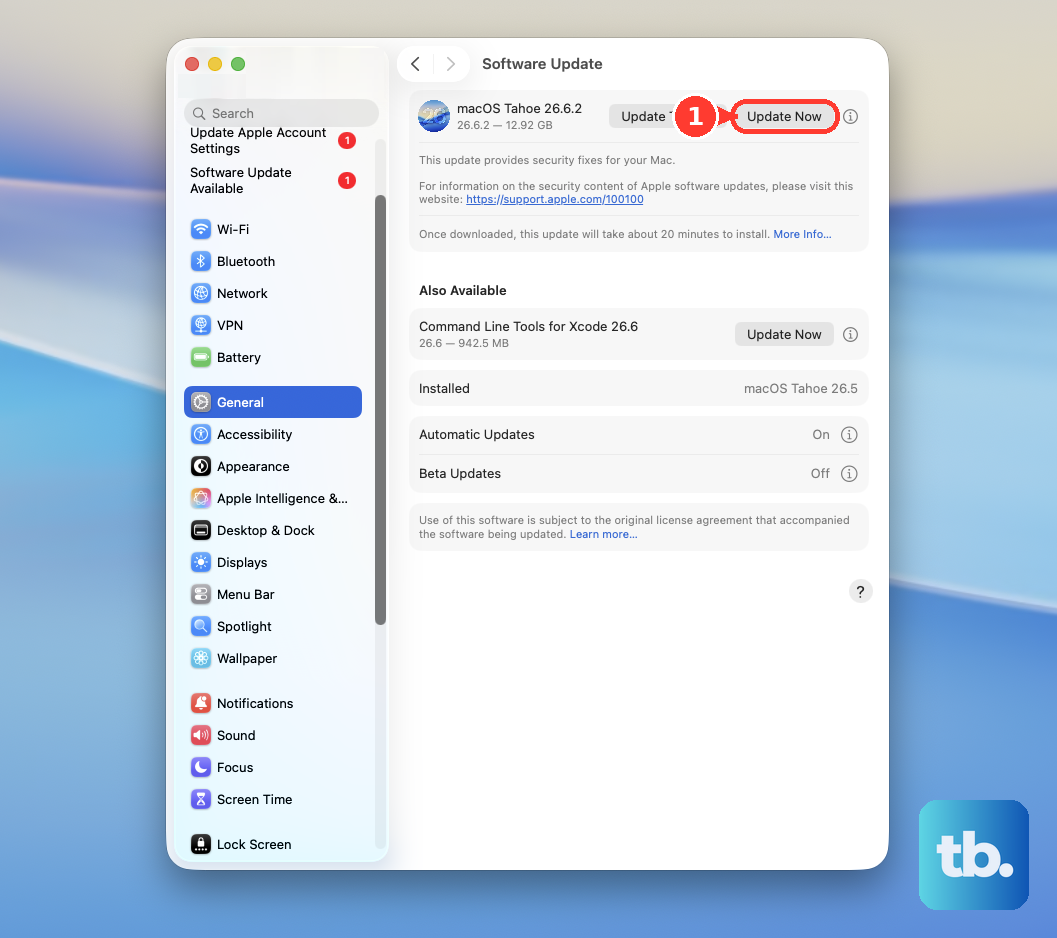
- 5.If the Mac is below macOS 12 Monterey, go to Apple menu > System Settings > General > Software Update.
- 6.Use Update, Upgrade, or Restart Now when macOS offers it.
On Mac, Chrome can show Automatically update Chrome for all users from About Google Chrome when Chrome is installed in the Applications folder.
4. Open Chrome without restoring the crash
Press and hold Shift while opening Chrome. That prevents previous windows from reopening.
On macOS Ventura or later, open Apple menu > System Settings > Desktop & Dock, then turn on Close windows when quitting an application.
Sometimes Chrome keeps reopening the same bad window or tab. Stop that loop before digging deeper.
If Chrome opens cleanly after restored windows are blocked, close the problem tabs before returning to your normal browsing session.
5. Strip out broken extensions and cached data
Incognito is the fastest test for extensions, cookies, and cached data. Choose More > New Incognito window, or press Command-Shift-N, then open the problem site.
If the page works in Incognito, clean up your regular Chrome profile.
Go to More > Extensions > Manage extensions.
Turn extensions off, choose Repair for corrupted extensions, or choose Remove and confirm with Remove.
For unsupported extensions, open Manage Extensions, select the extension, choose Details > More > Find Alternatives, or remove the extension.
Run Safety Check from More > Settings > Privacy and security > Go to Safety Check, then follow Chrome's prompts.
Delete browsing data from More > Delete browsing data, choose Last hour or All time, select the data types, and click Delete data.
6. Reset Chrome or build a fresh profile
Go to More > Settings > Reset settings > Restore settings to their original defaults > Reset settings. Google says this is not a full reset and does not delete some settings, including fonts or accessibility settings.
Choose Profile > Add Chrome profile, decide whether to sign in, then choose a name, photo, and color scheme.
Delete a broken profile only when you are ready to remove its local data from the Mac. Choose Profile, go to Other Chrome profiles, open Manage Chrome profiles, select the profile, choose More > Delete, then confirm with Delete.
Use reset when Chrome's startup behavior, search, pages, or extension settings still feel broken after cleanup. A new profile is the cleaner test when the current Chrome profile is corrupt. Deleting that profile erases that profile's local bookmarks, history, passwords, and settings from the computer.
7. Tame freezes, blank pages, and slow tabs
When Chrome opens but feels heavy, blank, or unstable, focus on graphics and memory first.
Turn off hardware acceleration from More > Settings > System, switch off Use graphics acceleration when available (labeled Use hardware acceleration when available in older Chrome versions), then restart Chrome.
Close every tab except the one showing the error.
Quit other apps, pause downloads, and uninstall extensions you do not need.
Open Chrome Task Manager from More > More tools > Task Manager. Select Memory, choose a heavy task, then click End Process. Unsaved work in that task is lost.
Turn on Memory Saver from More > Settings > Performance > Memory Saver. Choose the tab deactivation level, and add important sites under Always keep these sites active.
On a MacBook, review Energy Saver in Settings > Performance when Chrome performance drops on battery.
Use Preload pages under Settings > Performance to change Chrome's page-load behavior.
8. Check Mac network and privacy controls
For firewall access, open Apple menu > System Settings > Network > Firewall > Options. Add Google Chrome with the Add button when needed, use the app arrows to allow or block connections, and click OK.
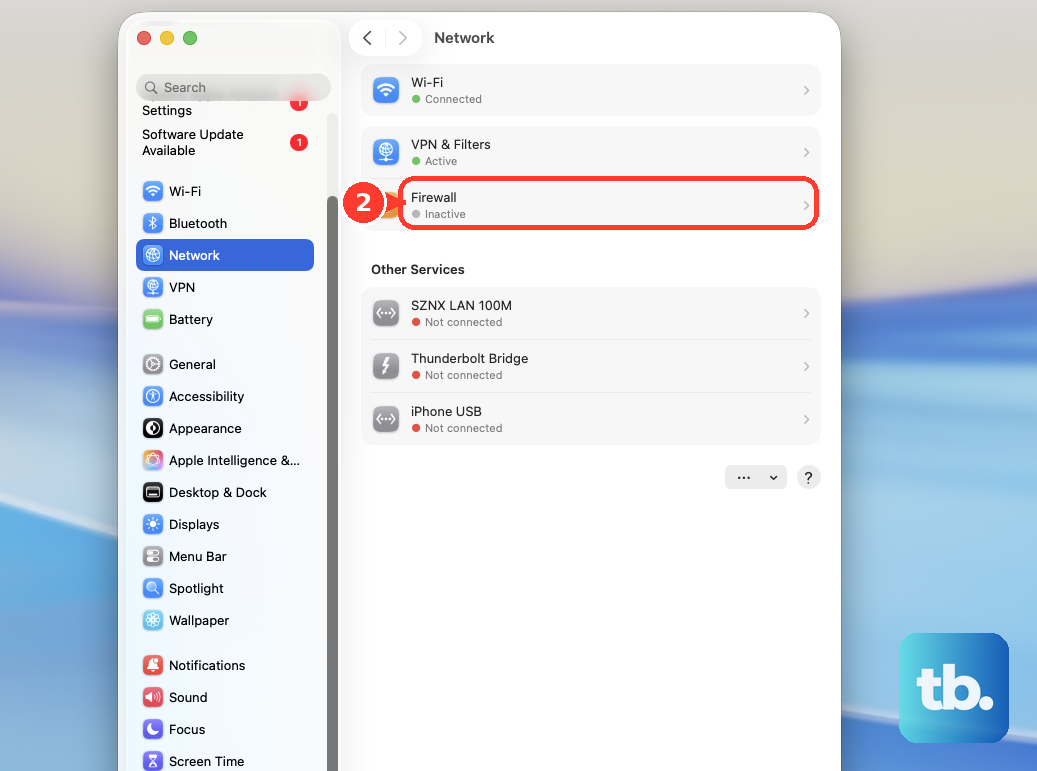
For proxy problems, open Apple menu > System Settings > Network, select the active network service, choose Details > Proxies, correct unintended proxy settings, and click OK.
For Secure DNS errors, open More > Settings > Privacy and security > Security, then use Use secure DNS under Advanced.
For website permissions, open More > Settings > Privacy and security > Site settings, then select the permission to update.
For camera or microphone issues, go to Site settings, choose Camera or Microphone, set the default option, review allowed and blocked sites, and select the device from the down arrow.
For macOS permissions, open Apple menu > System Settings > Privacy & Security, choose the relevant permission, and turn access on for Google Chrome where listed.
If Chrome cannot connect, a site cannot use the camera or microphone, or local network features fail, check the Mac settings around Chrome.
9. Reinstall Chrome from Google
Reinstall when updates fail, Chrome still will not open, or the app files are damaged after the earlier fixes.
Quit Chrome from the Dock or the Chrome menu.
Open Finder and go to Applications.
Drag Google Chrome to the Trash.
For optional profile removal, choose Go in the Finder menu bar, choose Go to Folder, enter ~/Library/Application Support/Google/Chrome, select the folders, and drag them to the Trash.
Use Empty Trash. If macOS says the app is in use, quit it, restart the Mac, or start in Safe Mode and try again.
Download Chrome only from Google's official Chrome page.
Install it, then open Chrome from Applications or the Dock.
If macOS blocks a trusted Chrome download from Google, open System Settings > Privacy & Security, scroll to Security, choose Open Anyway, then click Open.
If update errors continue after reinstalling Chrome, Google says to download Google Software Update again and reinstall it.
Skip older advice that tells you to run Chrome Cleanup Tool or use chrome://settings/cleanup. Google removed user-requested Chrome Cleanup Tool scans starting in Chrome 111, and that is not a current Mac fix.
When Chrome says it is managed by an organization, open chrome://policy, choose Reload policies, and check the policy sources. Work, school, or security software can enforce Chrome settings, extensions, updates, and browser behavior.
Frequently Asked Questions
Why does Chrome open but pages keep failing on my Mac?
Open the same page in Safari or Firefox. If it fails there too, check Wi-Fi, Ethernet, the router, a captive portal, firewall settings, proxy settings, or Secure DNS. If it works elsewhere, fix Chrome extensions, site data, the profile, or reinstall Chrome.
Will resetting Chrome delete my bookmarks and passwords?
Chrome's reset is not a full reset and does not delete some settings such as fonts or accessibility. Deleting a Chrome profile is different: it erases that profile's local bookmarks, history, passwords, and settings from the computer.
What macOS version does current Chrome need?
Current Chrome for Mac requires macOS 12 Monterey or later. Check it from Apple menu > System Settings > General > About, then use Software Update if your Mac needs an update or upgrade.
Should I use Chrome Cleanup Tool on Mac?
No. Google removed user-requested Chrome Cleanup Tool scans starting in Chrome 111, and the cleanup scan is not a current Mac fix. Use Safety Check, extension removal, reset settings, unwanted app removal, or reinstall Chrome.