Gmail notifications can stop working on Android when the phone blocks alerts, Gmail quiets one account, sync stalls, or battery settings delay background activity. Start with the switches that can silence every alert, then move into account, sync, and battery fixes.
Each fix below follows current Google Android and Gmail support guidance.
Check Gmail’s main notification switch
Open the Gmail app, tap Menu, then open Settings and General settings. Tap Manage notifications and turn on All Gmail notifications.
Stay there and check the Gmail notification types shown on your phone. Android manufacturers can use different category names, so turn on the Gmail categories you expect to receive.
If Android already allows Gmail notifications, this setting still matters. Gmail can be permitted at the phone level while the app’s own alert controls are too narrow.
Turn Android notifications back on for Gmail
Now check the Android switch that decides whether Gmail can show notifications at all.
- 1.Open Settings.
- 2.Tap Notifications, then App notifications.
- 3.Select Gmail.
- 4.Turn on Gmail notifications.
- 5.Turn on the Gmail notification categories you want.
- 6.If your phone shows a separate permission, open Apps, Gmail, Permissions, Notifications, then choose Allow.
Fix the Gmail account that stays quiet
Use this when one Gmail account alerts normally but another account stays silent. Gmail notification settings are set per account, so each signed-in address needs its own alert settings.
Open Gmail, tap Menu, choose Settings, and select the account that is missing alerts. Under Notifications, tap Email notifications and choose the email notification types you want.
For inbox alerts, stay in that account’s settings, scroll to Notifications, then tap Inbox notifications and select the behavior you want.
For important-message alerts only, open Email notifications for that account and choose High priority only. Google says high-priority emails can override notification settings for certain labels.
Set label and inbox category alerts
Gmail label notifications need label sync first. Open Gmail, go to Menu, Settings, select your account, tap Manage labels, then choose a label such as Important.
Tap Sync messages and choose Last 30 days or All. Then choose the notification settings for that label and repeat the same check for any other label that should alert you.
If expected mail is being sorted away from Primary, open Gmail, go to Menu, Settings, choose your account, then use Inbox type, Default Inbox, and Inbox categories to check or uncheck categories. Google says that when new-mail notifications are on, notifications are only for messages in Primary.
Make Gmail sync new mail
When sync is off or stuck, Gmail cannot reliably notify you about new messages.
- 1.Open Gmail, tap Menu, then tap Settings.
- 2.Select your account.
- 3.Under Data usage, check Sync Gmail.
- 4.Return to the inbox and swipe down from the top until the refresh icon appears.
- 5.Open Settings, then About phone, Google Account, and Account sync; choose the account if needed, tap More, then tap Sync now.
Rule out connection and quiet modes
Open Settings, then Network & internet or Connections.
Turn Wi-Fi off and Mobile data on, then test Gmail.
Turn Mobile data off and Wi-Fi on, then test again.
Open Airplane Mode, turn it on, wait 10 seconds, then turn it off.
Swipe down from the top of the screen and tap Do Not Disturb to turn it off.
On Android 14 or newer, open Settings, go to Modes, select the mode, choose Apps under Notification filters, and allow Gmail notifications.
If you silenced your phone through Google Assistant on a speaker or Smart Display, check Do Not Disturb again afterward.
Use the connection test first, then quiet mode, because both can make Gmail look broken when notifications are simply blocked or delayed.
Loosen battery and unused app limits
Open Settings, tap Battery, then Battery Saver. Turn Battery Saver off or change its schedule, because Google says Battery Saver can limit or turn off background activity and delay apps.
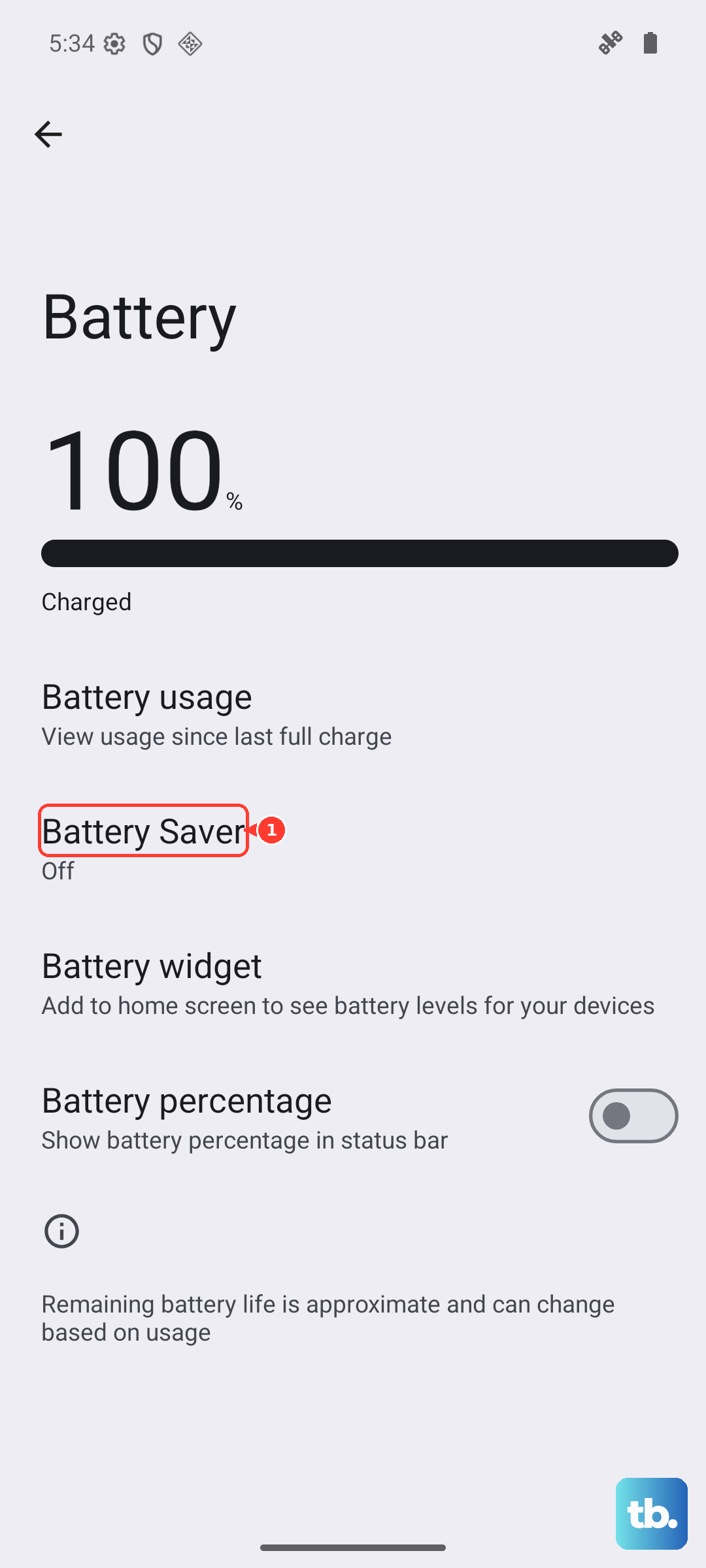
On Pixel phones running Android 14 or newer, open Settings, go to Apps, See all apps, Gmail, and App battery usage. Under Allow background usage, use Optimized; Google’s Pixel guidance also says Adaptive Battery can delay notifications.
Android can pause apps you have not used. Open Settings, go to Apps, Gmail, and Unused apps, then turn off Pause app activity if unused.
Update or re-enable Gmail
This fixes Gmail alerts when the app is outdated, disabled, or missing.
Open the Google Play Store app and tap your profile icon.
Tap Manage apps & device.
Under Updates available, tap See details.
Next to Gmail, tap Update.
To keep Gmail current afterward, open Manage apps & device, tap Manage, choose Gmail, tap More, then turn on Enable auto update.
If Gmail was removed or disabled, go to Manage apps & device, open Manage, select Gmail, then tap Install or Enable.
Use last-resort sync repairs
Restart the phone. On most Android phones, press the power button for about 30 seconds or until the phone restarts, then tap Restart when it appears.
Free device storage by uninstalling unused apps, deleting downloaded files, or moving files from the phone or tablet to a computer. Google says Gmail does not sync when device storage is low.
Free Google Account storage by deleting large attachments, emptying Trash and Spam, or using Google One’s Free up your storage now. When Google Account storage is full, the account cannot send or receive messages.
Clear Gmail storage only after the other sync fixes fail. Go to Settings, Apps, See All Apps, Gmail, Storage & cache, then tap Clear storage.
Restart the device after clearing Gmail storage. Google warns this can erase drafts, signature, ringtone, and other settings.
For a stubborn account problem, remove the Google Account. Open Settings, go to Passwords & accounts, select the account, tap Remove account, then tap Remove account and Delete.
If your phone has no Passwords & accounts entry, Google says to tap whichever of these your device shows instead: Users & accounts, Passwords, passkeys & autofill, Password, passkeys & accounts, or Manage accounts. The same menu handles adding the account back.
Add the Google Account back from Passwords & accounts, Add account, and Google.
For work or school Gmail on a managed Android device, sync the work profile from Settings, Google, Work, Device Policy, and Sync.
If work Gmail still will not sync or notify, contact your administrator because policy can block Google apps or work data.
Use Clear storage and account removal last, because they change local Gmail data and account setup.
Frequently Asked Questions
Why do Gmail notifications work for one account but not another?
Gmail notification settings are per account. Open Gmail settings for the quiet account and check Email notifications, Inbox notifications, labels, and Sync Gmail for that account.
Why do Gmail notifications appear but make no sound?
The notification sound may be set to None. In Gmail, open the affected account’s settings, tap Notification sounds, then under Email choose Notification sound, tap Sound, and pick a sound other than None.
Why are Gmail alerts delayed on Android?
Battery Saver, Adaptive Battery behavior, paused unused-app activity, weak connectivity, or Gmail sync delays can hold back alerts. Check Battery Saver, Gmail sync, and Gmail background usage first.
Should I clear Gmail cache to fix notifications?
Only as a last resort. Google's Gmail sync troubleshooting lists Clear storage as the final step and warns it can erase your message drafts, signature, ringtone, and other settings, and the same step covers the cache. Work through the notification, account, and sync fixes first.