You changed your Google password, and now Gmail will not load mail, keeps asking you to sign in, or stopped syncing on your phone or computer. One browser, phone, or mail app is still using the old sign-in session. Start with a fresh Google sign-in, then reconnect the app or account that is stuck.
Sign back in to Gmail on the web
Start here when Gmail fails in a browser after the password change. A fresh web sign-in confirms that the new Google password opens Gmail before you spend time on phone apps or desktop mail clients.
Open gmail.com in a supported desktop browser. Enter your Google Account email address or phone number, then type the new password when Gmail asks for it.
If another account is already filled in, choose Use another account and sign in with the Gmail address that stopped working. If Gmail opens a marketing page instead of your inbox, select Sign in and continue with the same Google Account. If Google rejects the new password here too, use Google's account sign-in troubleshooter or account recovery flow before changing app settings.
Add your Google account again in the Gmail app
Open the Gmail app on Android, iPhone, or iPad. Tap your profile picture in the search bar.
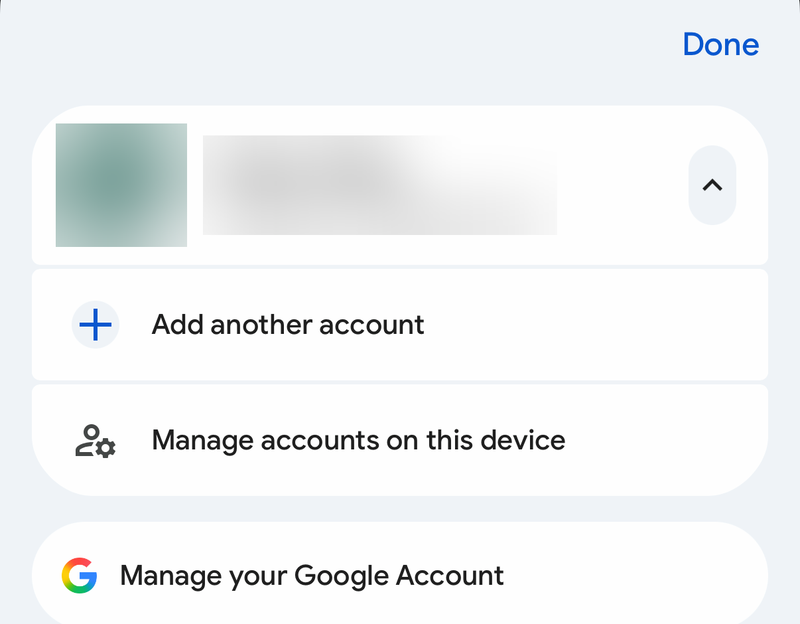
Choose Add another account, then select Google. Follow the on-screen sign-in steps with your new Google password, and complete the second step when Google asks for 2-Step Verification. After the account is added, switch to that inbox from the profile menu and wait for Gmail to refresh.
Remove the stale Gmail app account
This fixes a Gmail app account that stayed tied to the old password or a broken session; on Android, it also signs that Google Account out of other Google apps on the device.
On Android, open Gmail and tap your profile picture. Choose Manage accounts on this device, then select the Google account that is not working. Tap Remove account.
Open Gmail again and tap your profile picture. Choose Add another account, select Google, and sign in again.
On iPhone or iPad, open Gmail and tap your profile picture. Choose Manage accounts on this device, then tap Remove from this device for the affected account.
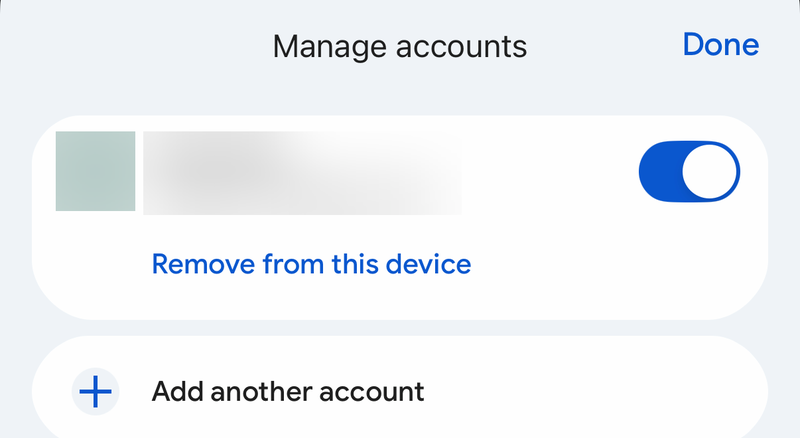
Open Gmail again and tap your profile picture. Choose Add another account, select Google, and sign in again.
Refresh Gmail sync on your phone
Try this when Gmail opens, but new messages are missing or the inbox looks frozen. After a password change, a manual refresh and the sync toggles get the app pulling mail again.
On Android, open the Gmail app and go to your inbox. Swipe down from the top to force a sync. Open the Gmail menu and choose Settings, then choose your account. Open Data usage and turn on Sync Gmail.
Open the Android Settings app, then open Passwords & accounts. Check that account sync or automatic sync is enabled for the affected Google account. Some Android devices use labels such as Users & accounts, Passwords, passkeys & autofill, Password, passkeys & accounts, or Manage accounts.
On iPhone or iPad, open the Gmail app and go to your inbox. Swipe down from the top to refresh. Open the Settings app, go to General > Background App Refresh > Gmail, and turn on Gmail.
In Gmail, open Menu and choose Settings.
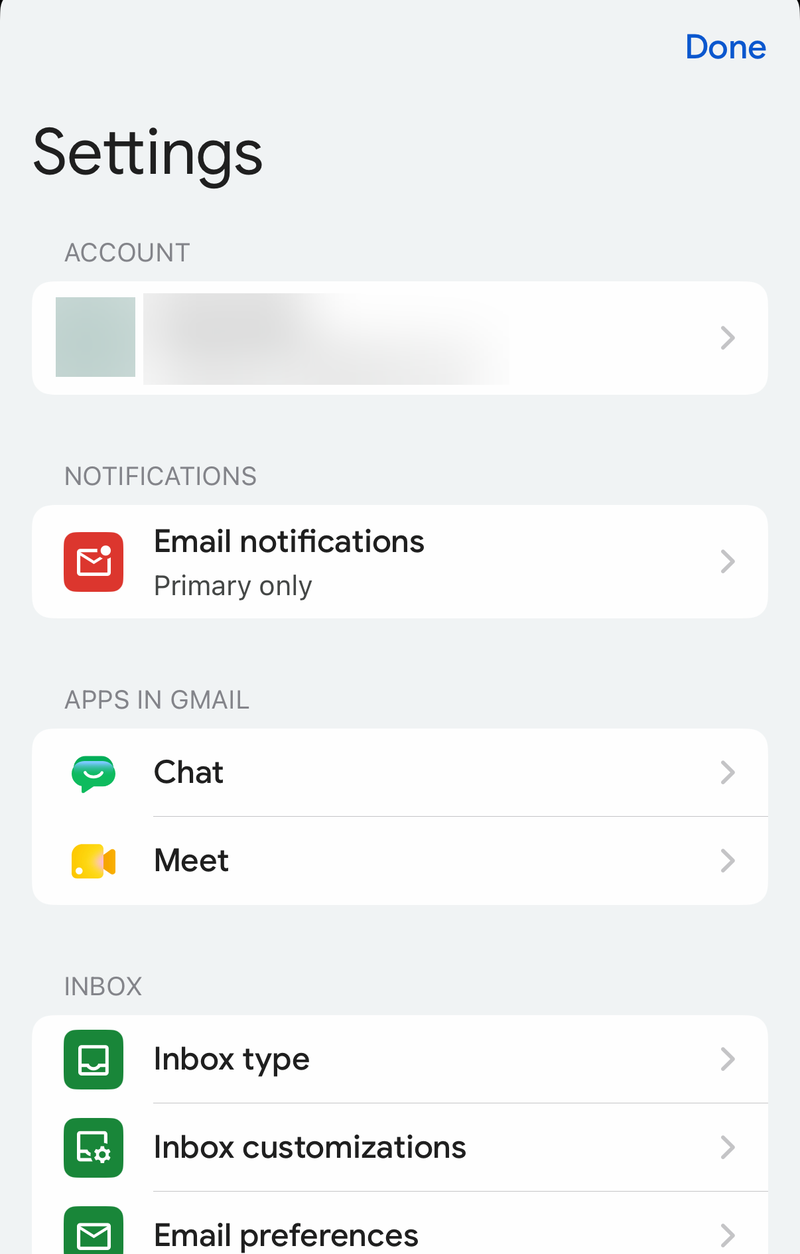
Under General, open Data usage > Sync settings. Set how many days of email should sync.
Update or reinstall the Gmail app
An outdated or damaged Gmail app can keep failing even after you enter the right new password. Update first because it keeps the app in place and brings in the current sign-in flow.
On Android, open the Google Play Store and tap your profile icon. Choose Manage apps & device, then under Updates available, open See details. Tap Update next to Gmail, or tap Update all to update every app. You can also open the official Gmail listing in Google Play and choose Install or Update.
On iPhone or iPad, open the App Store and tap the My Account button or your photo. Under App Updates, tap Update next to Gmail, or tap Update All. The official App Store listing for Gmail shows Get or Update depending on whether the app is installed.
To reinstall Gmail on iPhone or iPad, touch and hold Gmail. Choose Remove App, tap Delete App, and confirm with Delete. Reinstall Gmail from the App Store, open Gmail, select Sign in, and choose Google.
On a computer, go to play.google.com, search for Gmail, and choose Install, Installed, or Enable. Sign in if prompted, select your device, and choose Install. If this method fails, remove the stale account from the Gmail app and add it again with Google sign-in.
Fix Gmail in your browser
This applies when Gmail works on your phone but not in Chrome, Safari, Firefox, Edge, or another supported browser. Browser sessions, extensions, cookies, and JavaScript settings block Gmail sign-in and loading.
Use a supported current browser and update that browser to the latest version. Try another supported browser to separate a browser problem from an account problem.
Turn off browser extensions or add-ons one at a time, and open Gmail again after each change. Uninstall related browser applications one at a time, then open Gmail again after each removal.
In Chrome on desktop, open Chrome > More > Delete browsing data.
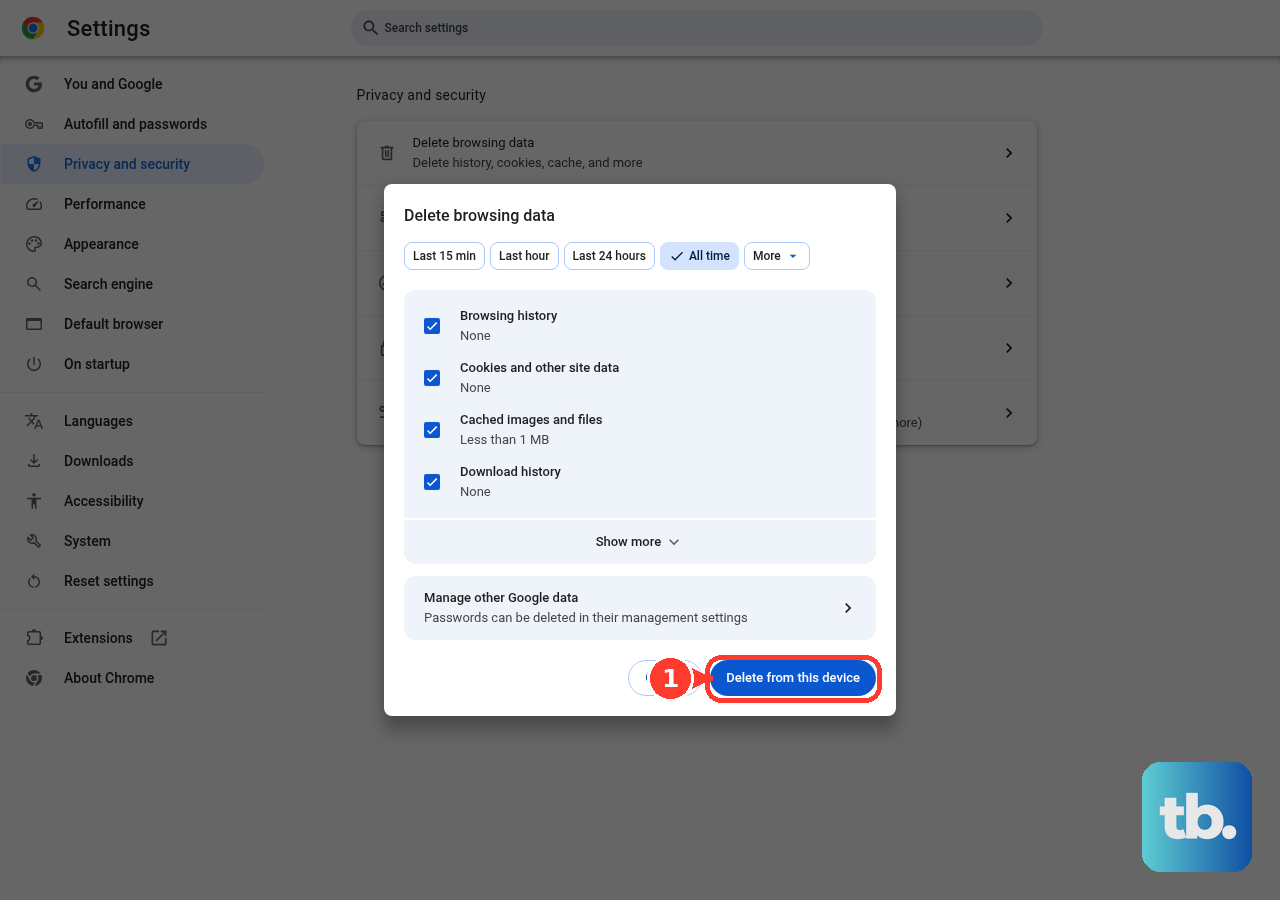
Choose a time range such as Last hour or All time. Select the data types and choose Delete data.
On Chrome for Android, open More > Delete browsing data. Choose a duration and tap Delete data.
On Chrome for iPhone or iPad, open More > Delete Browsing Data. Choose Time Range, select the data types, tap Confirm, and tap Delete Browsing Data.
On Chrome desktop, open More > Settings > Privacy and security > Third-party cookies and allow cookies needed for Google and Gmail sign-in. Keep JavaScript turned on because Gmail requires it.
Reconnect Gmail in Apple Mail, Outlook, or Thunderbird
The most common cause in desktop and third-party mail apps is an old stored login that no longer matches your Google Account.
For Apple Mail on iPhone or iPad, open Settings. Go to Apps > Mail > Mail Accounts, tap the Gmail or Google account, and choose Sign Out or Delete Account. Go back to Apps > Mail > Mail Accounts > Add Account. Choose Gmail or Google, enter your email address, and follow Google sign-in prompts.
For Apple Mail on Mac, open System Settings > Internet Accounts and click the Google account. Choose Delete Account or turn off Mail. Add it again from System Settings > Internet Accounts > Add Account, then choose Google and follow the sign-in prompts. In Mail on Mac, you can also use Mail > Add Account.
If Mail on Mac keeps asking for a password, quit Mail. Open Apple menu > System Settings > Internet Accounts and click your mail account. Click Details if it appears, then complete the account sign-in prompt.
In new Outlook for Windows, go to View > View settings or File > Account info. Open Accounts > Your accounts > Add account. Enter or select your Gmail account, choose Continue, and complete the Google sign-in prompts. To remove the old Gmail account first, use Accounts > Your accounts > Manage, then choose Remove next to the Gmail account.
In classic Outlook for Windows, use File > Add Account. Enter your Gmail address, choose Connect, and complete the Google sign-in window. Select Allow, then choose Done and restart Outlook.
In Outlook for Mac, open Outlook > Settings > Accounts. Click + and choose Add an account. Type your Gmail address, then choose Continue and follow the prompts.
In Outlook for iOS, open Settings > Accounts > Add Account > Email Account. Enter your Gmail address, then choose Add Account and follow the provider prompts.
In Outlook for Android, open Settings > Add Account > Add Email Account. Enter your Gmail address, then choose Continue and use the provider sign-in flow.
In Thunderbird, open the Thunderbird app menu and choose Add Account > Email. Enter your name and Gmail address, then choose Continue and complete the Google OAuth dialog. For an existing broken Thunderbird account, set incoming and outgoing authentication to OAuth2, remove stale saved passwords, and sign in again.
Replace app passwords for older mail devices
Use this for older mail apps, scanners, printers, and devices that do not offer Sign in with Google. Those devices need a Google app password instead of the normal Google password.
Open the Google Account App Passwords page, sign in when prompted, create a new app password, and enter the generated 16-digit password in the older app or device. Google revokes app passwords after a Google Account password change, so the old 16-digit password must be replaced.
App passwords require 2-Step Verification. They are not available when 2-Step Verification uses only security keys, for some work or school accounts, or for Advanced Protection accounts.
When a mail app offers Sign in with Google, use that flow instead. Do not turn on Less secure apps; Google Workspace no longer supports password-only access for those clients.
Check work or school account access
Work and school Gmail accounts stop after a password change when the organization controls Gmail access, POP, IMAP, or third-party app access.
If Gmail says you do not have access, contact your administrator and ask whether Gmail is turned on for your account or organizational unit. If a third-party mail app stopped working, ask the administrator whether POP, IMAP, or that app's Google Workspace data access is allowed for your organizational unit.
For a personal Gmail account, do not look for Enable IMAP or Disable IMAP. Google no longer provides that personal Gmail setting because IMAP access is always on for current connections.
If this method fails and the new password is rejected everywhere, use Google's account sign-in troubleshooter or account recovery flow, choose the matching issue, including You forgot your password, You know your username and password, but you can't sign in, or You can't sign in to your device or an application like Outlook, then follow Google's prompts.
Frequently Asked Questions
Why did Gmail stop working right after I changed my Google password?
A saved session or credential still points to the old Google password. Sign in with Google again, then remove and re-add the account in the app that keeps asking.
Will removing my Gmail account from the Gmail app delete my emails?
No. Your Gmail messages remain stored in Gmail. On Android, removing the Google Account from the device also signs it out of other Google apps on that device.
Do I need to enable IMAP again after changing my Gmail password?
For personal Gmail accounts, no. Google no longer provides the old personal Gmail Enable IMAP or Disable IMAP option because IMAP access is always on for current connections.
What should I use in Outlook or Apple Mail after changing my Google password?
Use the Google sign-in flow when the app offers it. For older apps or devices that cannot use Sign in with Google, create a new Google app password if your account supports app passwords.