Fortnite is running, but the match is silent, your teammates have disappeared from chat, or nobody can hear you. Those are three different problems, each with its own settings to check. Start with the quick checks below, then follow the fixes for the sound that's missing and the device you're using.
Start with these quick checks
Pin down what's silent before changing settings.
- 1.Identify what's missing: game effects and music, other players' voices, or your microphone transmission.
- 2.Raise your headset or speaker volume and release its physical mute control.
- 3.On a wired Windows setup, reseat the audio cable in the correct jack; for a USB device, try another USB port.
- 4.Test another game or app to see whether the silence extends beyond Fortnite.
- 5.For unavailable voice chat, open Epic Games Public Status and inspect Fortnite and Voice Chat. If an incident affects the failing feature, follow its updates and retry after resolution.
Give Fortnite the right volume and output
A muted volume control or the wrong output device leaves Fortnite silent even with your headset turned up.
Open the game menu's Settings > Audio.
Raise the volume controls for the sounds you can't hear. Fortnite separates its volume settings, so missing music doesn't mean effects or voice chat are also broken.
On PC, select your headphones or speakers under Audio Output Device if that control is available. For duplicate entries, Epic recommends the one that does not begin with Default output.
If only licensed music is missing, open Profile Icon > Gear > Audio > Creator Options > Licensed Audio.
Choose a setting that permits playback. Concert and event playlists have exceptions to this control.
If silence starts when you switch to another window, return focus to Fortnite.
On PC, check Settings > Audio > Background Audio. If it shows Notifications Only, try another available option and retest with Fortnite in the background.
For missing Picture In Picture sound, raise the separate Picture In Picture volume slider.
Unmute Fortnite separately in Windows
This fixes app-level muting and sound sent to the wrong Windows output.
Keep Fortnite running so it appears in the Windows 11 volume mixer.
Open Start > Settings > System > Sound > Volume mixer.
Unmute the game under Apps > Fortnite. For browser cloud play, use the browser's entry instead.
Raise that app's volume.
Set its Output device to your headphones or speakers.
If Windows itself is also silent, select your listening device under Settings > System > Sound > Output.
Raise the Windows output volume.
Turn off output mute.
Bring teammate voices back
If game sound works but your team is silent, start with Fortnite's communication controls. Open Profile icon > Settings > COMMUNICATION.
Choose an audience that includes the players you want to hear: Everybody, Friends, Team Members, and Connections, or Friends Only. Off disables communication.
Enter Profile icon > Party chat or Game chat for the conversation you want. Game chat is available only on islands whose creators support it.
Remove mute using the voice controls.
Remove deafen using those controls.
Raise Fortnite's voice-chat volume to at least 50%.
If teammates can't hear you, inspect your voice method under Profile icon > three dots icon.
When using push-to-talk, hold your configured control while speaking.
On Windows PC, select your active microphone in Fortnite's voice settings.
Select your listening device in those voice settings.
If party voice is active on another device, follow the voice-transfer prompt on the device where you want to talk.
For an audience restricted by parental controls, have a parent or guardian adjust Epic Voice Chat Permission in the Epic account portal's parental controls. Age restrictions limit the available audience choices. Cabined accounts require the applicable parental consent before voice chat becomes available, and an active Social Ban also removes voice access.
If these changes fail, try your platform's microphone permissions and party-chat controls below. On PS5, wait until Fortnite finishes loading before retesting voice chat, because loading temporarily interrupts it.
Restore console headset and chat audio
On Xbox, raise Headset volume under Xbox button > audio & music.
Center Headset chat mixer so neither game sound nor chat is excluded.
To move from Xbox party chat to Fortnite chat, open Xbox button > Parties & chats > your party.
Press the View button.
Select Switch to game chat.
On PS5, select your listening device under Settings > Sound > Audio Output > Output Device.
Set Output to Headphones to All Audio to send game sound to your headset.
Raise Headphones volume under Settings > Sound > Volume.
If the DualSense mute button is blinking and speakers are muted, press it to restore audio.
For missing Fortnite voices on PS5, disable Mute Game Voice Chat under PS button > Sound.
Restart Fortnite after changing that voice-chat setting.
On PS4, select Settings > Devices > Audio Devices > Output to Headphones > All Audio.
On the original Switch family, raise headphone volume using the console's volume buttons or Quick Settings.
For stereo TV speakers on a dockable Switch or Switch OLED, select HOME > System Settings > TV Settings > TV Sound > Stereo.
On Switch 2, check HOME > System Settings > Audio > Audio Output Source for your connected equipment.
Set TV Sound to a format your connected TV or audio equipment supports.
Run Test Output to test the selected output.
Tip: Both Switch families support Bluetooth listening but lack Bluetooth microphone input, so use a supported wired or USB microphone arrangement for voice.
Adjust phone volume and microphone permissions
On Android, press a volume button and open More to raise Media volume. With multiple Bluetooth devices connected, select your listening device through Play media to. Menu labels vary by manufacturer.
For Android voice transmission, select Settings > Apps > Fortnite > Permissions > Microphone > Allow only while using the app. Also enable Settings > Security & privacy > Privacy > Privacy controls > Microphone access on devices with that control.
On iPhone, press the volume-up button while audio is playing, or raise the volume slider in Control Center. To correct wireless routing, select your listening device through Control Center > Playback Destination.
On iPhone or iPad, turn off Silent mode in Control Center on models with that control; its effect on game sound depends on the app's audio behavior. Remove any case that blocks the speaker. For iPhone voice transmission, enable the application you're using under Settings > Privacy & Security > Microphone.
Check cloud play's extra audio controls
Cloud play adds browser or client controls to the settings inside Fortnite. In desktop Chrome, open your cloud-play site's View site information > Site settings.
Allow sound if the site's sound permission is blocked.
For cloud voice in Chrome, open More > Settings > Privacy and security > Site settings > Microphone.
Choose the microphone you're using.
Allow the cloud-play site to access it.
In Edge, click the tab's speaker icon to unmute the cloud-play tab.
On GeForce NOW for Windows, press Ctrl+G to inspect microphone mute in the overlay. On Mac, use Cmd+G.
If the microphone is muted, press Ctrl+M on Windows or Cmd+M on Mac to toggle it.
GeForce NOW smart-TV apps do not support voice chat. Use a voice-capable client or separate companion party communication for those sessions.
In the Amazon Luna app, select your microphone under Settings > Audio & Video Quality > Audio Input.
On Mac, select your listening device under Apple menu > System Settings > Sound > Output. Fortnite is unavailable natively on Mac, so these checks apply to your cloud client or browser.
Raise Output volume.
Clear Mute.
If cloud voice still fails, try the operating system's microphone permissions. On Windows 11, enable Let desktop apps access your microphone under Settings > Privacy & security > Microphone; on Mac, enable your browser or client under Apple menu > System Settings > Privacy & Security > Microphone. If a school or work administrator controls Chrome's microphone permission, ask that administrator to allow access.
Repair persistent PC audio problems
These checks address microphone permissions, Windows audio faults, and Fortnite installation problems.
For a microphone that won't transmit, open Settings > Privacy & security > Microphone on Windows 11.
Enable Microphone access.
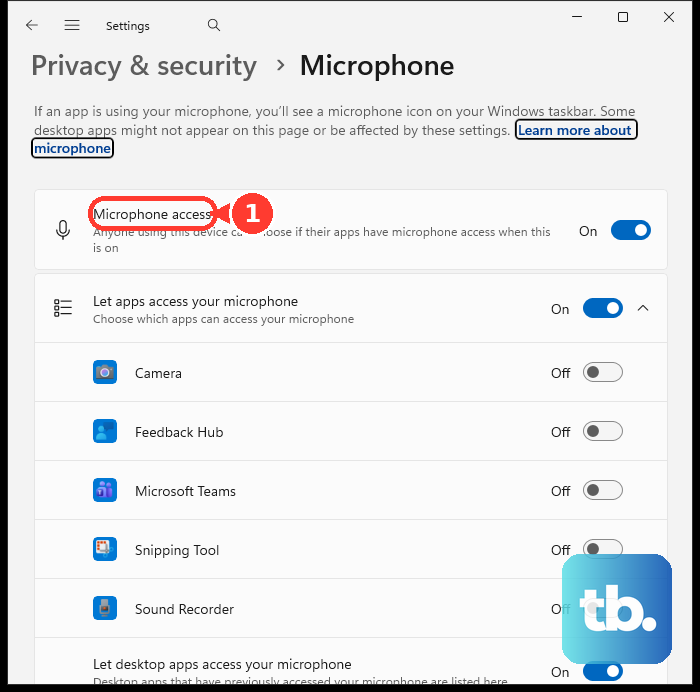
Enable Let apps access your microphone.
Enable Let desktop apps access your microphone.
Select Start test under Settings > System > Sound > Input > microphone > Input settings.
Speak into the microphone.
Select Stop test.
Select Play to hear the recording.
For persistent playback trouble, run the audio troubleshooter in Get Help.
If audio is distorted or crackling, select Settings > System > Sound > output device > Audio enhancements > Off on devices with that control.
For an audio-driver update, open Device Manager > Sound, video and game controllers.
Right-click your audio device.
Select Update driver > Search automatically for drivers.
Restart the PC after installation.
If the failure began immediately after a driver update, use the device's Properties > Driver > Roll Back Driver instead, following its prompts. This option requires a retained previous driver.
Restart the PC after the rollback.
Launch Fortnite through Epic Games Launcher to update the game.
To repair the PC installation, select Epic Games Launcher > Library > Fortnite > three dots > Manage > Verify.
Wait for verification to finish.
Relaunch Fortnite.
If simpler checks and verification fail, select Library > Fortnite > three dots > Uninstall. Reinstallation is a general installation repair.
Reinstall Fortnite from the launcher's Library.
Keep sound cues visible while you troubleshoot
From the lobby, open Display Name icon > Settings gear > Audio.
Set Visualize Sound Effects to ON.
Select Apply.
Tip: Visual sound indicators provide cues while you troubleshoot, but they do not repair missing audio.
Frequently Asked Questions
Can I use Epic party chat outside Fortnite?
Yes. In the friends list in Epic Games Launcher or a supported Epic mobile app, select Invite to Party or Join. From a group text chat, select Start Party. Follow the voice-transfer prompt when moving the conversation into Fortnite.
Will changing DNS fix missing Fortnite sound?
DNS changes address voice-connection or connectivity problems. They do not restore local music or sound effects.
What if my headset also fails in other games?
Test another listening device, then another connection. If the same hardware fails outside Fortnite, use the manufacturer's diagnostics or repair service.
Why can't I hear one particular player?
Check whether that player is blocked in the Social menu. Open their profile and select More Options > Unblock, then confirm Unblock. This removes the Epic block. If the player still appears blocked on PlayStation, Xbox, or Nintendo, check that console account's block list, and add the player as a friend again if needed.