Facebook Memories breaks in a few familiar ways: the shortcut disappears, the page opens empty, alerts stop, or the Share button fails to post. Start with the current Memories screen, then check alerts, hidden filters, app data, browser data, updates, sharing, and reporting.
Skip old On This Day instructions. Current Facebook paths use Memories, and Facebook does not offer a full master switch to turn Memories off and back on.
Open Memories From The Current Menu
On iPhone, iPad, or Android, open Facebook and go to Menu > Memories. When the shortcut is hidden, use Menu > See more > Memories.
On a computer, open facebook.com, go to Home, and choose Memories in the left menu. When it is hidden, click See more and open Memories.
Facebook says Memories remains supported and cannot be fully turned off. Treat a missing shortcut as a menu, notification, hidden-filter, app, or browser problem.
Restore Memories Alerts
This fixes Memories that open in Facebook but stopped sending alerts.
Open Facebook and go to Menu > Memories.
Tap the Settings gear.
Open Notifications.
Choose All Memories or Highlights instead of None.
Allow Facebook Notifications On Your Phone
On iPhone or iPad, open Settings > Apps > Facebook > Notifications.
Turn Allow Notifications on.
When Facebook was muted from an earlier alert, open the Lock Screen or Notification Center.
Swipe left on a Facebook notification.
Tap Options > View Settings and enable the alerts you want.
On Android, open Settings > Notifications > App notifications > Facebook.
Turn Notifications on.
When Facebook is not under Most recent, use the dropdown and choose All apps.
Select Facebook.
For Android Do Not Disturb on Android 14 and later, open Settings > Modes > Do Not Disturb. On older Android versions and some manufacturer menus, swipe down and use the Do Not Disturb quick setting, or search Settings for Do Not Disturb.
Turn Do Not Disturb off.
On iPhone models that support Apple Intelligence, running iOS 18.1 or later with Apple Intelligence turned on, open Settings > Notifications > Summarize Notifications. Summaries bundle alerts rather than block them, so turn this off when Facebook alerts arrive grouped instead of one by one.
Turn Summarize Notifications off.
For priority handling, open Settings > Notifications > Prioritize Notifications and use the Facebook control on that screen, or open Settings > Notifications > Facebook > Prioritize Notifications. This ranks alerts instead of delivering them, so keep Allow Notifications on either way.
Turn Prioritize Notifications off.
Keep Facebook's in-app Notifications setting and your phone's Notifications setting enabled for Memory alerts to arrive.
Unhide People Dates And Suggestions
Hidden filters block specific Memories. In the Facebook app, go to Menu > Memories > Settings gear and open Hide people, then remove any person you want back in Memories.
Open Hide dates and remove date ranges that should appear again. Then open Hide memory suggestions and remove the suggestion filter blocking the expected Memory type.
Memories is date-based, so an empty Memories screen on the current date usually means Facebook has nothing to show for that day. When the screen still looks broken after that, work through the app, browser, and reporting steps below. Check again on another date, or keep All Memories or Highlights enabled under Notifications.
Restart Facebook And Clear Android Cache
This fixes a stuck Memories screen, a blank app view, stale Memories content on Android, or Facebook not responding.
On iPhone X and later, go to the Home Screen.
Swipe up from the bottom and pause.
Swipe to the Facebook preview.
Swipe up on the Facebook preview.
Reopen Facebook and return to Menu > Memories.
On iPhone SE or iPhone 8 and earlier, double-click the Home button.
Swipe to Facebook.
Swipe up on the Facebook preview.
Reopen Facebook and return to Menu > Memories.
On Android, open Settings > Apps > See all apps or App info > Facebook.
Tap Force stop.
Reopen Facebook and return to Menu > Memories.
When Android still shows stale Memories content, open Settings > Apps > See all apps or App info > Facebook > Storage & cache.
Tap Clear cache.
When the same Android screen still fails, tap Clear storage or Clear data and sign back in when prompted.
Fix Memories In Your Browser
When Memories works in the app but breaks on facebook.com, reload the page, close the tab or window, reopen facebook.com, and go to Home > Memories. Open a different supported browser next; a successful load there points to cached site data in the first browser.
In Chrome, open More > Delete browsing data, choose Last hour or All time, select Cookies and other site data and Cached images and files, and click Delete data.
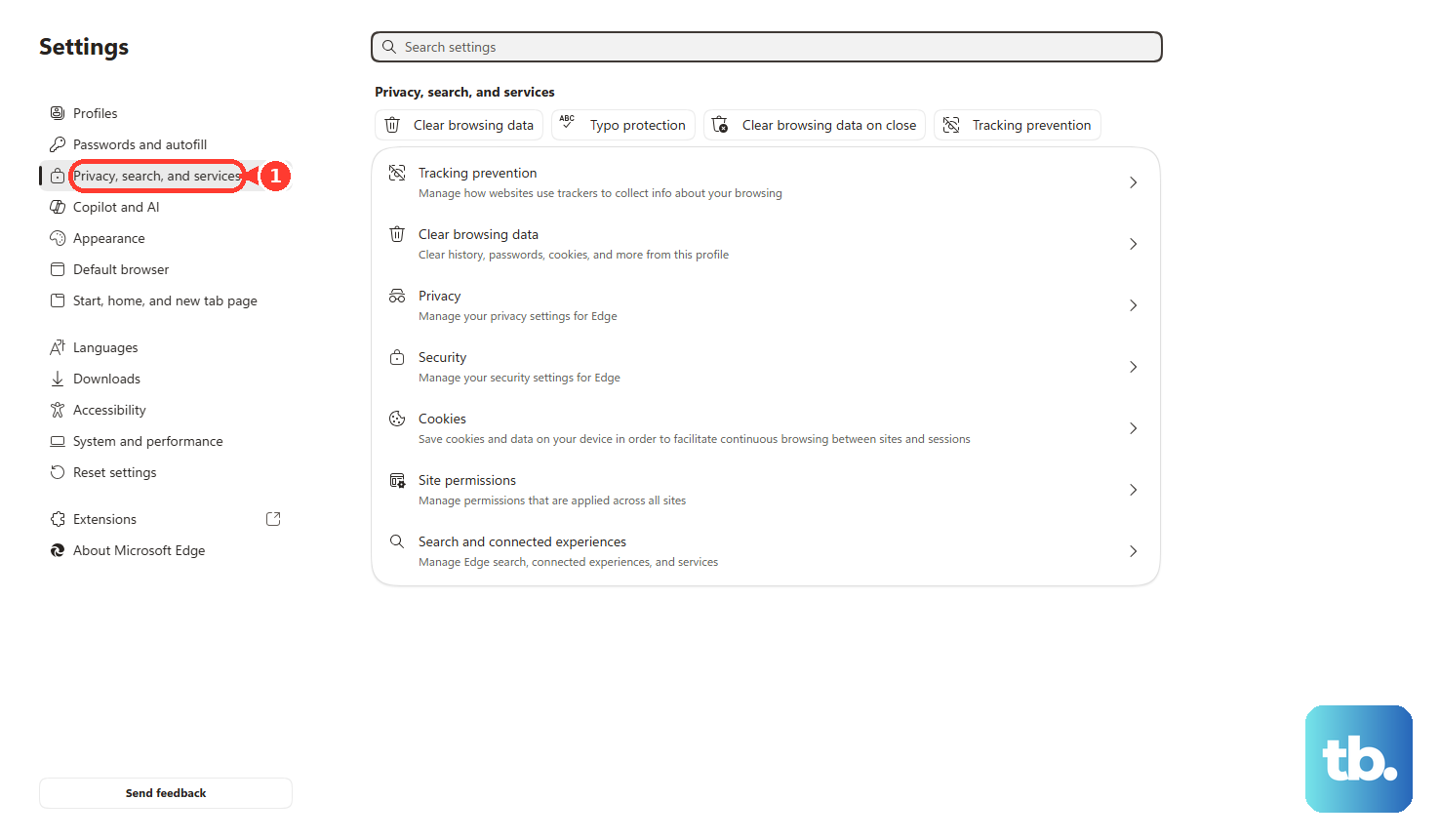
In Microsoft Edge, open Settings and more > Settings > Privacy, search, and services > Clear browsing data > Choose what to clear, select Cookies and other site data and Cached images and files, and choose Clear now.
On iPhone or iPad Safari, use Settings > Apps > Safari > Clear History and Website Data, choose a timeframe, and tap Clear History. For website data only, use Settings > Apps > Safari > Advanced > Website Data > Remove All Website Data > Remove Now.
Update Or Reinstall Facebook
Use this after Memories settings, app restart, and browser checks still leave the feature broken.
- 1.On iPhone or iPad, open App Store > My Account button or photo > App Updates, then tap Update next to Facebook or Update All.
- 2.On Android, open Google Play Store > profile icon > Manage apps & device > Updates available > See details > Facebook > Update.
- 3.When iPhone or iPad blocks deletion, open Settings > Screen Time > Content & Privacy Restrictions > iTunes & App Store Purchases > Deleting Apps and choose Allow.
- 4.On a managed iPhone or iPad, open Settings > General > VPN & Device Management and contact your organization's IT administrator or employer when a Mobile Device Management profile is listed. Family and parental limits are handled separately under Screen Time.
- 5.When updating fails on iPhone or iPad, touch and hold Facebook, tap Remove App > Delete App > Delete, then redownload the official Facebook app from Meta Platforms, Inc. in the App Store.
- 6.When updating fails on Android, open Settings > Apps > Facebook > Uninstall, then install the official Facebook app from Meta Platforms, Inc. in the Google Play Store.
Share A Memory From The Memories Screen
Use this when Memories opens and you see the post, but sharing from that Memory fails. Start from the supported Memories surface instead of an old On This Day path.
Open Facebook and go to Menu > Memories.
Tap Share at the bottom of the Memory.
Select the destination or audience shown on the share screen.
Tap Post or Share to publish it.
Report The Memories Problem
After access, alerts, filters, app data, browser data, updates, and sharing checks are done, report the problem from the place where it happens.
In the mobile app, reproduce the Memories problem, shake the phone, tap Report a problem, choose Include in report or Don't include in report, describe the issue, attach a screenshot or logs when Facebook prompts, and send it.
On facebook.com, open the profile picture or account menu and choose Help & support > Report a problem > Something went wrong, describe the Memories issue, and submit it.
If reporting does not fix it, check Memories on another date and use the Facebook app or facebook.com version that still opens correctly.
Frequently Asked Questions
Is Facebook Memories still called On This Day?
No. Current Facebook paths use Memories. Older Apps > On This Day > Preferences instructions do not match the current product.
Will deleting Facebook remove my Memories?
Deleting the app removes local app data from the device. Facebook account data remains on Facebook when it has already synced to the account.
What if Android only shows Disable instead of Uninstall?
Some preinstalled Facebook builds show Disable instead of Uninstall. Use the official Google Play Store listing to update or re-enable Facebook where available.
How do I reinstall Facebook on Android after removing it?
Open Google Play Store > profile icon > Manage apps & device > Manage > This device > Not installed, select Facebook, and tap Install.