A DNS resolving problem means your device cannot turn a website name into the address it needs to load the page. The internet looks broken even when the Wi-Fi signal is strong.
Start with the connection resets that clear bad temporary network states. Then move into DNS settings, browser Secure DNS, VPN profiles, and Windows network repair until the site loads again.
Restart the connection first
Start with the quickest reset. On Windows, select the Network, Sound, or Battery area on the right side of the taskbar, turn on Wi-Fi, choose your network, and select Connect.
On Android, open Settings, go to Network & internet or Connections, turn Airplane mode on, wait 10 seconds, then turn Airplane mode off. You can also swipe down from the top of the screen and tap Airplane mode.
On a Mac, open the Apple menu and choose Restart. After the restart, reconnect to Wi-Fi and test the same website again.
Power cycle your modem and router
Your router or modem holds the connection state for your home network, and DNS lookups fail when that state breaks. Unplug the power cable from the router, then unplug the power cable from the modem.
If the modem lights stay on, remove its battery. Wait at least 30 seconds before restoring power.
Put the battery back if you removed it, plug in the modem, and wait for its lights to stop blinking. Plug the router back in, wait a few minutes, then try the site again.
If this does not fix it, forget and rejoin the Wi-Fi network on the device with the DNS resolving problem.
Forget the Wi-Fi network and reconnect
This fixes saved Wi-Fi details that are stale, mismatched, or tied to bad network settings. On Windows, open Settings, go to Network & internet, and select Wi-Fi. Open Manage known networks, choose your Wi-Fi network, and select Forget. Reconnect to the same Wi-Fi network and enter the password.
Flush DNS on Windows
Search from the taskbar for Command prompt, select Run as administrator, and choose Yes when Windows asks for permission. Type ipconfig /flushdns and press Enter. Use this when one Windows PC has DNS trouble and other devices on the same network still load the site.
Change DNS settings on your device
Changing DNS servers fixes a failed resolver or router-provided DNS setting that stops websites from opening. On Windows 11, open Start, go to Settings, then Network & internet. For Wi-Fi, open Wi-Fi, then Manage known networks, and choose your network; for Ethernet, choose Ethernet and select the Ethernet network.
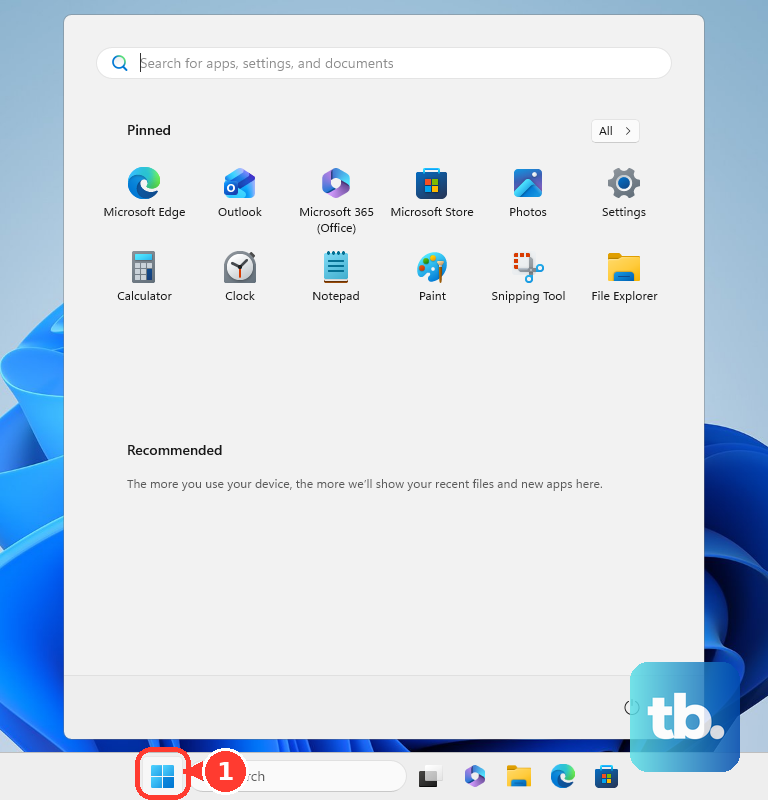
Next to IP assignment, select Edit, choose Manual, turn on IPv4 or IPv6, enter Preferred DNS and Alternate DNS, choose the DNS over HTTPS setting, and select Save. Windows 10 does not include the DNS over HTTPS setting.
On Mac, open the Apple menu, go to System Settings, then Network, click your network service, choose Details, then DNS, use the Add button under DNS Servers, enter the DNS server address, and select OK.
If the DNS change does not help, renew the network address or reset network settings next.
Renew or reset network settings
On Mac, renewing DHCP fixes an expired or conflicting address. Open the Apple menu, go to System Settings, then Network, click the network service, choose Details, open TCP/IP, select Renew DHCP Lease, and click OK.
For a deeper Mac reset on macOS Ventura 13 or later, create a new network location. Open Apple menu, then System Settings, then Network, open the More pop-up menu below the services list, choose Locations, select Edit Locations, click Add, name the location, choose Done, and exit Network settings to save.
On iPhone or iPad, use the full network reset after the easier fixes fail because it removes Wi-Fi networks and passwords, cellular settings, and APN settings, along with any VPN settings that were not installed by a configuration profile or mobile device management.
VPN settings that came from a profile or from device management stay in place until you remove them in VPN & Device Management. Open Settings, go to General, then Transfer or Reset [device], then Reset, and select Reset Network Settings.
Check Secure DNS and Private DNS
Open Chrome on desktop and go to More, then select Settings. Open Privacy and security, choose Security, and under Advanced, turn Use secure DNS on or off, then select your current service provider or choose a custom service provider.
On Android, open Settings, then Network & internet, then Private DNS, choose Off, Automatic, or Private DNS provider hostname, and tap Save.
In Firefox desktop, open the menu, go to Settings, then Privacy & Security, scroll to DNS over HTTPS, open Advanced settings, and choose Default protection, Increased Protection, Max Protection, Custom protection, or Off.
If one specific website breaks in Firefox with stricter DNS over HTTPS settings, open Manage Exceptions for that site.
Remove VPN profiles and managed settings
The most common cause here is a VPN, security app, configuration profile, or work management setting changing how DNS works. On iPhone or iPad, remove the VPN or security software, restart the device, and test Wi-Fi again. If removing it fixes the issue and you need that software, contact the VPN manager or the security software provider.
To check profiles on iPhone, open Settings, go to General, then VPN & Device Management. Select the configuration profile and tap Remove Profile; for management, select the management entry and tap Remove Management.
On work, school, or family-managed devices, Secure DNS and DNS over HTTPS controls are locked by an administrator. Use the available user setting when it is editable, and contact the person who manages the device when it is not.
Use Windows deeper network repair
This fixes broken Windows network components when normal DNS and Wi-Fi steps still fail. Open Search on the taskbar, type Command prompt, select Run as administrator, and choose Yes.
Run netsh winsock reset, then run netsh int ip reset. Next, run ipconfig /release, ipconfig /renew, and ipconfig /flushdns.
If Windows still has DNS trouble, open Start, go to Settings, then Network & internet, then Advanced network settings, then Network reset, select Reset now, choose Yes, and wait for the PC to restart.
Frequently Asked Questions
What does a DNS resolving problem mean?
It means your device cannot translate a website name into the network address needed to open it. The issue can come from the device, browser, router, DNS server, VPN, or managed network settings.
Should I change DNS servers first?
No. Start with reconnecting, restarting the router, and clearing cached DNS on Windows. Change DNS settings after the simple connection fixes fail.
Why does only one browser have DNS errors?
That usually points to browser-level Secure DNS or DNS over HTTPS settings. Chrome, Firefox, and Edge each have their own controls that affect DNS lookups.
Will resetting network settings erase my files?
No. On iPhone or iPad, it removes saved Wi-Fi networks and passwords, cellular settings, APN settings, and VPN settings that were not installed by a configuration profile or mobile device management, but it does not erase personal files.