A DNS resolution problem stops your device from turning a website name into the network address it needs, so pages fail even while Wi-Fi or Ethernet shows connected. Start with the network gear, then check the device, browser, and router settings that control DNS. Use the steps below in order and stop when sites load again.
Start with the router and the device
Home DNS failures start with stale router, modem, or device network state. Power off or unplug the router and cable or DSL modem, then plug them back in.
Restart the phone, computer, tablet, Apple TV, or other device that cannot open websites. After it reconnects to Wi-Fi or Ethernet, try the same site again before changing DNS settings.
On iPhone or iPad, open Settings and reconnect after the router is back online. On a Mac, open the Apple menu and choose Restart; Apple says restarting renews the internet address assigned when the Mac joins Wi-Fi.
Fix Windows network settings that block DNS
The most common Windows-side cause is a stuck network stack, a bad manual DNS setting, or a manual proxy that makes browsing fail.
On Windows 11, open Start, go to Settings, choose Network & internet, open Advanced network settings, select Network reset, then choose Reset now and Yes.
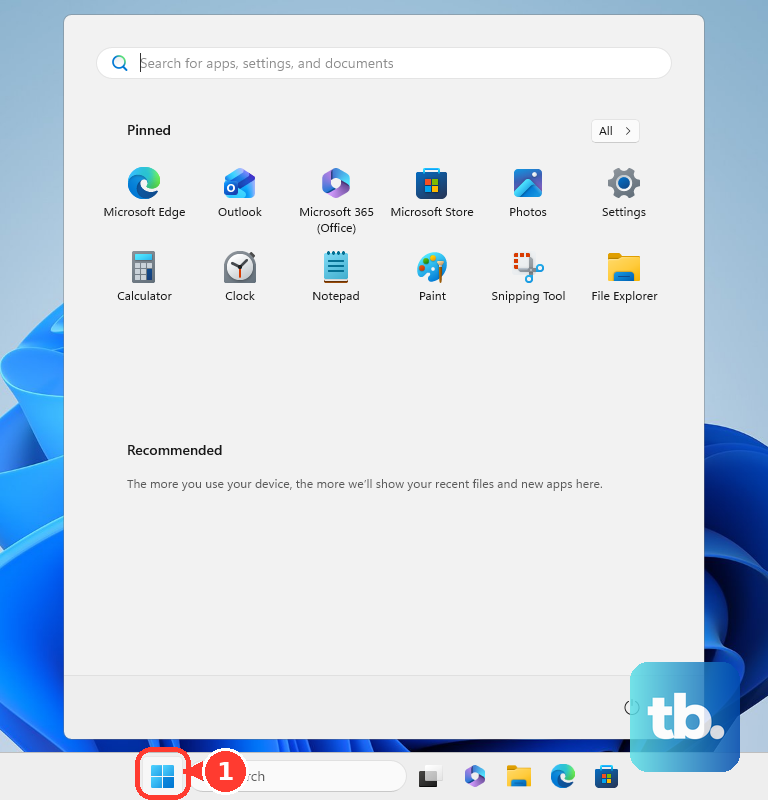
On Windows 10, open Start, go to Settings, choose Network & Internet, open Status, select Network reset, then choose Reset now and Yes.
If you recently entered DNS addresses by hand, return to Settings, open Network & internet, choose your Wi-Fi or Ethernet connection, select Edit next to IP assignment, choose Automatic (DHCP), then select Save.
For custom DNS instead, choose Manual, turn on IPv4, enter the Preferred DNS and Alternate DNS addresses, then select Save.
Open Settings, choose Network & Internet, open Proxy, then turn off manual proxy settings.
Clear Windows DNS from Command Prompt
Windows keeps a local DNS resolver cache, and a stale entry sends website names to the wrong address. Clearing it takes one administrator Command Prompt command.
Select Search on the taskbar, type Command prompt, choose Run as administrator, then select Yes. Type ipconfig /flushdns and press Enter.
For persistent Ethernet or network stack trouble, open the same administrator Command Prompt and run netsh winsock reset, then netsh int ip reset, then ipconfig /release, then ipconfig /renew, then ipconfig /flushdns. If this method fails, use Network reset next or reset the Windows hosts file when the same website names keep resolving incorrectly.
Correct DNS on a Mac
On macOS, custom DNS, proxy settings, VPN apps, security software, or a stale DHCP lease affects Safari and other browsers. Start with the Apple menu, then choose Restart so the Mac renews its assigned internet address.
To change DNS servers, open the Apple menu, go to System Settings, choose Network, select the active Wi-Fi or Ethernet service, open Details, then choose DNS. Use the Add button under DNS Servers, enter an IPv4 or IPv6 DNS server, then select OK.
If Wi-Fi is the only connection failing, click Wi-Fi in Control Center or the menu bar. When Wi-Fi Recommendations appears, open it; for a deeper Wi-Fi check, hold Option while clicking Wi-Fi, then choose Open Wireless Diagnostics.
When only some websites or one browser fails, check VPN, security software, custom proxy settings, and custom DNS settings. Test another browser or device, or set up a new network location, when site access keeps failing on the Mac.
Repair DNS on iPhone and iPad
The most common iPhone or iPad cause is a saved Wi-Fi, VPN, APN, or profile setting that sends traffic through the wrong path.
For a broad reset, open Settings, choose General, open Transfer or Reset [device], select Reset, then tap Reset Network Settings. This resets Wi-Fi networks and passwords, mobile settings, VPN settings, and APN settings.
To adjust DNS for one Wi-Fi network, open Settings, choose Wi-Fi, tap the info button next to the network, open Configure DNS, choose Manual, then add DNS server addresses or remove incorrect entries. Reconnect to the network after saving.
If a profile installed DNS, VPN, or proxy settings, open Settings, choose General, then open VPN & Device Management. Select the installed profile and delete or remove it; deleting a profile also removes its associated settings, apps, and data.
For cellular data problems tied to APN changes, open Settings, choose Cellular, open Mobile Data Network, then tap Reset Settings. This applies only when the carrier allows APN editing.
Check Android Private DNS and VPN
Android Private DNS, available on Android 9 and later, is the usual Android setting behind DNS failures across apps. Open Settings, choose Network & internet, then open Private DNS; choose Automatic, Off, or a Private DNS provider hostname, then tap Save.
If the menu is not in that location, search Settings for Private DNS. Google recommends keeping Private DNS on unless troubleshooting or provider issues require changing it.
Compare connections in Settings under Network & internet or Connections. Turn Wi-Fi off and mobile data on, test the site, then reverse the test.
Open Settings, go to Network & internet or Connections, turn Airplane Mode on, wait 10 seconds, then turn it off.
For VPN issues, open Settings, go to Network & internet, then choose VPN. Tap Settings next to the VPN, turn it off to disconnect, or tap Forget to remove it.
Adjust browser secure DNS
This fixes DNS errors caused by browser-level encrypted DNS settings when the operating system works but one browser keeps failing.
In Chrome on desktop, open More, choose Settings, open Privacy and security, then select Security. Under Advanced, use Use secure DNS to turn it on or off or choose another provider.
In Chrome for Android, open More, choose Settings, then open Privacy and security. Under Security, tap Use secure DNS. Turn Use secure DNS on or off, or pick another provider.
In Firefox desktop, open the menu, choose Settings, open Privacy & Security, find DNS over HTTPS, then choose Advanced settings. Select Default protection, Increased Protection, Max Protection, Custom protection, or Off. Default protection falls back to default resolvers when VPN, parental controls, enterprise policies, or network signals indicate encrypted DNS should not be used.
In Microsoft Edge, open Settings and more, choose Privacy, search, and services, then go to Security. Turn Use secure DNS to specify how to lookup the network address for websites on or off.
If Chrome changed after an extension or unwanted app appeared, open More, choose Settings, open Reset settings, then select Restore settings to their original defaults. Choose Reset settings. Chrome keeps bookmarks and passwords, while startup, search, content settings, and extensions are reset or disabled.
Change DNS on a Chromebook or router
The most common network-wide cause is DNS set at the Chromebook or router, so every device using that path inherits the same failure.
On a Chromebook, select the time at the bottom right, choose Wi-Fi Network, select your wireless network name, open Network, then use Name servers. Choose Google name servers or select Custom name servers and enter the DNS server address.
To manage Secure DNS on ChromeOS, open Chrome, choose More, go to Settings, open Privacy and security, choose Security, then select Manage secure DNS in ChromeOS settings. Turn Use secure connections to look up sites on or off.
For Google Nest Wifi or Google Wifi, open the Google Home app, go to Favourites, choose Wi-Fi, open Network settings, choose Advanced networking, then open DNS. Choose a public DNS server or enter a custom DNS server.
For NETGEAR routers, sign in at www.routerlogin.net, open BASIC, choose Internet, then use Domain Name Server (DNS) Address and Use these DNS Servers. Enter the primary and secondary DNS addresses supported by your router model.
When the device is managed by work or school
Use these checks before asking IT to change a managed DNS policy.
- 1.Look for a work or school profile, a managed VPN, or a browser message that says Secure DNS is unavailable because the device is managed.
- 2.On iPhone or iPad, open Settings, choose General, then open VPN & Device Management to see whether a profile controls DNS, VPN, or proxy behavior.
- 3.In Chrome, Firefox, or Edge, check the Secure DNS or DNS over HTTPS setting and leave it on the default or organization-controlled option when the control is locked.
- 4.Try a personal device on the same home network to separate a home-router DNS issue from a managed-device policy issue.
- 5.Contact workplace or school support when the managed device is the only one failing, because Apple, Chrome, Firefox, and Edge support managed DNS or security controls that consumers cannot override.
Older Windows Server instructions mention WINS for name resolution, but Microsoft says WINS is deprecated and planned for removal after Windows Server 2025. Modern managed networks use DNS-based name resolution instead.
Frequently Asked Questions
What does a DNS resolution problem mean?
It means your device cannot translate a website name into the network address needed to load it. The connection still shows online, but the browser cannot find the site.
Should I change DNS servers or reset network settings first?
Restart the router and device first. If only one device fails, reset or correct that device's network settings. If every device fails, check DNS on the router.
Do VPN apps cause DNS resolution problems?
Yes. VPN, proxy, security software, Private DNS, Secure DNS, and DNS over HTTPS settings all affect how website names are resolved.
Will resetting network settings delete my files?
No. On iPhone and iPad it resets Wi-Fi networks and passwords, mobile settings, VPN settings, and APN settings. On Windows, Network Reset removes and reinstalls network adapters and resets networking components.