You type /tts, send the message, and Discord stays quiet. The fix depends on whether the command is blocked, playback is disabled, the channel denies TTS messages, or Discord audio is routed somewhere else. Start with the quick checks below, then move into permissions, output devices, and app repair only if TTS still does not play.
1. Send a clean /tts test first
Begin with a short desktop or browser test in a text channel where you have permission to send TTS messages.
- 1.Click the channel message box.
- 2.Type /tts, add a space, then enter a short message.
- 3.Press Enter.
Use Discord's own example format: /tts Discord's pretty awesome. If the message sends as normal text, repeat the test and make sure /tts is at the very start of the message.
2. Enable the Accessibility TTS switch
Open User Settings, go to App Settings, and select Accessibility. Turn on Allow playback and usage of /tts command, then send another short /tts test message.
The main playback control is in Discord's Accessibility settings. When it is off, /tts messages are not read aloud for you. Use this current path, not the older Text & Images location found in outdated tutorials.
3. Allow TTS in the channel
If /tts works in some channels but fails in one server or one channel, permissions are the problem to fix next. A server owner, admin, or moderator with permission access needs to check the affected channel through the channel cogwheel and Permissions.
Open the affected channel's cogwheel, select Permissions, and choose the affected role or member. Under text channel permissions, enable Send Text-to-Speech Messages.
For servers using categories, compare the channel overrides with the category permissions. If the channel is meant to inherit the category setup, resync the channel with its category.
4. Unmute Discord and pick the right output
When the command sends but nothing is heard, treat it as a Discord audio output problem. Check the mic and headset controls in Discord's lower-left voice area. If the headset icon has a slash, click it to remove Deafen.
Then open User Settings, go to Voice & Video, and use the Voice tab. Open Output Device, select the speakers or headset you are using, and check the volume controls in the same area.
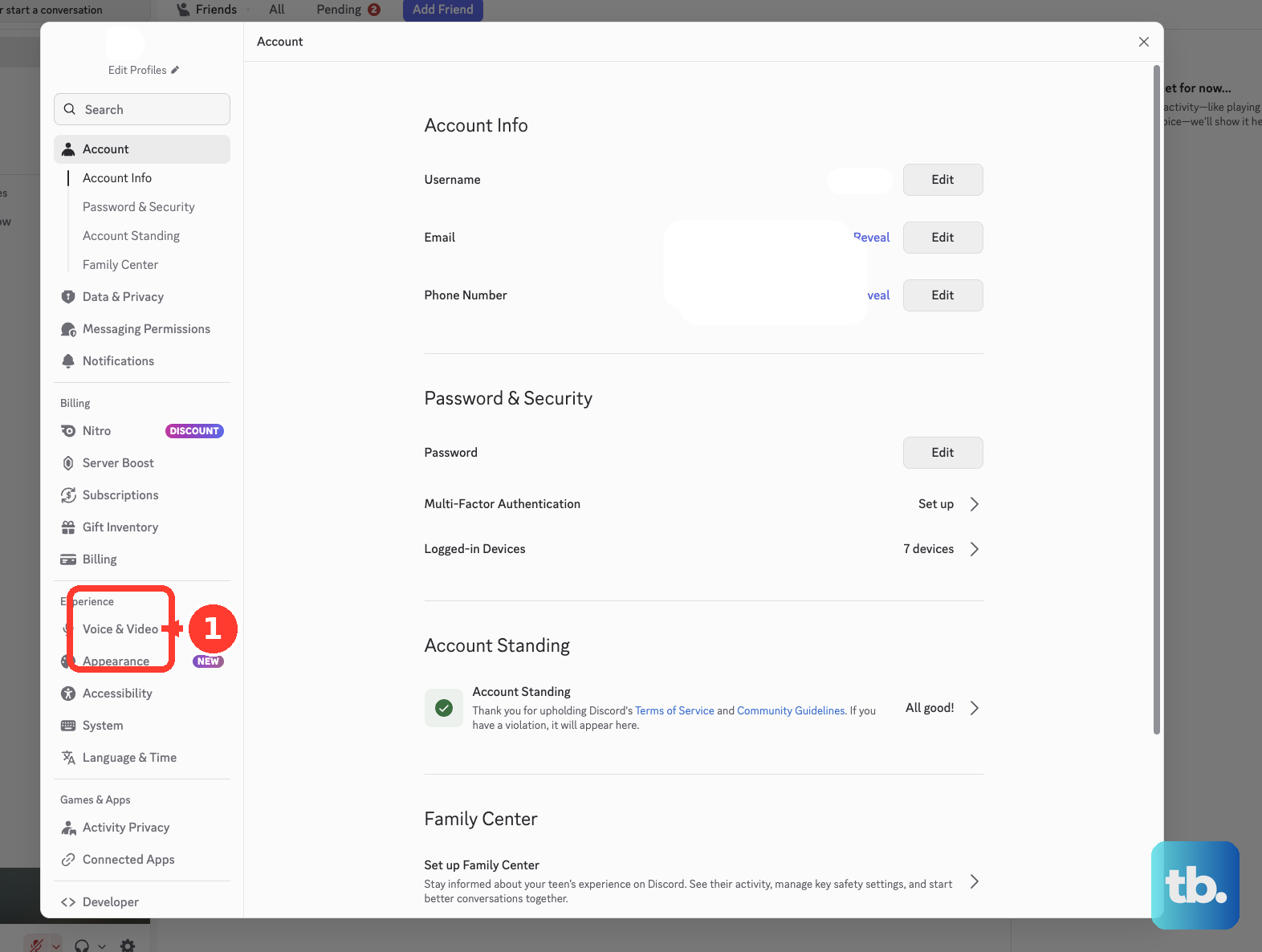
Deafen and the wrong output device can silence the audio you expect from Discord. If the local controls look right and Discord audio is still blocked, ask a server admin to check whether you are server-deafened.
5. Route system audio correctly
Discord can be set correctly while Windows or macOS sends audio to the wrong place. On Windows, select the taskbar Speakers icon and use the output-device arrow to choose the correct speakers or headset. Then select the settings icon beside Volume mixer.
Confirm Discord is not muted and is routed to the intended output device. On macOS, open the Apple menu, select System Settings, then choose Sound. Select the intended output device and make sure the output volume is not muted or set too low.
Check the system output before reinstalling anything.
6. Separate /tts from TTS notifications
Open User Settings, select Notifications, and find Text-to-Speech. Choose For all channels or For current selected channel, and leave Never off when you want automatic TTS notifications.
The /tts command and automatic text-to-speech notifications use separate settings. If you expect Discord to read messages aloud without someone typing /tts, change the notification setting too.
For speech that plays too fast or too slowly, go back to User Settings, App Settings, and Accessibility. Move the Text-to-Speech rate slider and click Preview until the voice plays at a usable speed.
7. Refresh Discord and test the web app
Refresh the client after changing TTS, permission, or audio settings so Discord applies the change cleanly. Press Ctrl + R on Windows or Linux, or Cmd + R on macOS.
If TTS still fails, fully quit Discord. Confirm Discord is closed, then reopen it. Go to discord.com in a supported desktop browser and test /tts there.
Discord supports desktop browser use on Chrome 86+, Firefox 142+, Opera 72+, Edge 86+, and Safari 15.4+. Mobile browser use is not supported, and browser TTS voices can sound different because they follow the platform and browser being used.
8. Update or reinstall Discord cleanly
Use app repair only after the command, settings, permissions, and audio routing checks are done. Download Discord only from the official Discord download page, install the current stable build for your platform, and retest /tts.
On Windows, close Discord from the system tray and end all Discord processes in Task Manager. Press Windows key + R, enter %appdata%, and delete the Discord folder. Press Windows key + R again, enter %localappdata%, and delete the Discord folder there. Restart Windows, then reinstall Discord.
On macOS, quit Discord with Cmd + Q or the menu bar Quit option, then stop remaining Discord processes in Activity Monitor. In Finder, open Go and choose Go to Folder. Delete ~/Library/Application Support/Discord and /Library/Application Support/Discord if present, remove Discord from Applications, and empty Trash. Restart the Mac, and reinstall Discord.
Frequently Asked Questions
Why can other people hear /tts but I cannot?
Your local playback setting is off or your Discord audio output is muted. Open User Settings, go to App Settings, select Accessibility, and enable Allow playback and usage of /tts command. Then remove Deafen and select the correct Output Device under Voice & Video.
Why does /tts work in one channel but not another?
The affected channel has a permission override. A server admin should open the channel cogwheel, select Permissions, choose your role or member entry, and enable Send Text-to-Speech Messages.
Why are normal messages not being read aloud automatically?
Automatic text-to-speech notifications are separate from the /tts command. Open User Settings, select Notifications, find Text-to-Speech, and choose For all channels or For current selected channel.
Does Discord /tts work in a mobile browser?
Discord's current system requirements say running Discord in a mobile browser is not supported. Use the desktop app or Discord in a supported desktop browser when troubleshooting /tts.