Discord opens, then closes again, or freezes just as you join a call or launch a game. The right fix depends on when it fails and which device you use. Start with a full restart, then follow the section that matches your symptoms, testing the same activity after each change.
Start with a full restart
Start here when Discord freezes or closes unexpectedly on your computer. For loading failures and repeated disconnections, check for a service incident too.
If the desktop client stays open but stops responding properly, press Ctrl+R on Windows or Command+R on Mac to refresh it.
If refreshing does not help, close Discord completely, including its background processes in Task Manager on Windows or Activity Monitor on macOS.
Wait 30 seconds.
Reopen Discord.
On a Mac that will not quit Discord normally, press Command+Q.
If it remains unresponsive, press Option+Command+Esc.
Select Discord.
Click Force Quit.
Reopen Discord.
For loading failures or repeated disconnections, check Discord Status for an active incident affecting the feature you are using.
If an incident matches your symptoms, follow its updates.
Retry after recovery.
Turn off hardware acceleration for freezes
Rendering and GPU-related problems are a reason to test hardware acceleration when Discord freezes on desktop.
Open User Settings > Advanced and turn off Hardware Acceleration.
Test the activity that caused the problem.
To reduce animated-content load, open User Settings > Accessibility and turn off Automatically play GIFs when Discord is focused.
Disable Play animated emoji in the same settings area as a separate test.
For stickers, open User Settings > App Settings > Accessibility and set sticker animation to Never animate.
Clear the desktop cache
If the desktop client keeps crashing, clear its cache before moving on to a full reinstall.
- 1.Quit Discord completely, including remaining processes in Task Manager or Activity Monitor.
- 2.Locate
%appdata%/discord/Cacheon Windows, or~/Library/Application Support/discord/Cacheon macOS. - 3.Remove that Cache folder.
- 4.Reopen Discord and test again.
Fix crashes triggered by calls or screen sharing
On desktop, open User Settings > Voice & Video > Video > Advanced and disable Hardware Acceleration. This is separate from the application-wide setting.
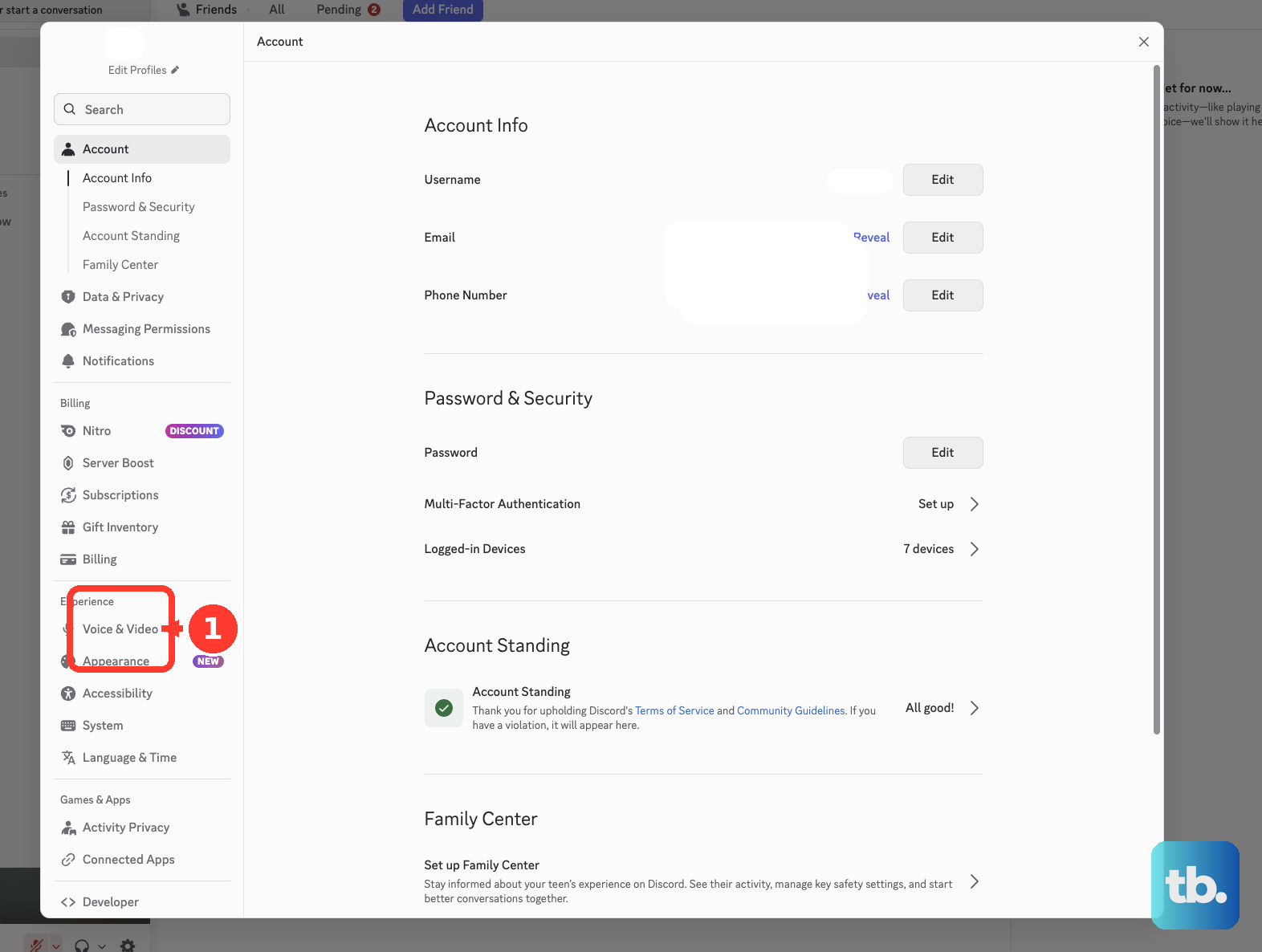
For a streaming-related problem, open the stream’s three-dot menu > Stream Quality.
Choose a lower Frame Rate.
Choose a lower Resolution. The available quality choices depend on your client and subscription.
For desktop call problems, open User Settings > Voice & Video > Voice and disable Noise Suppression to test without Krisp.
If the problem continues, open User Settings > Voice & Video > Debugging and select Reset Voice and Video Settings. This diagnostic step also applies to Discord in a desktop browser.
Retest the same call or stream after each change so you can identify which setting makes a difference.
Get Discord working again on your phone
If Discord closes on your iPhone or Android phone, start by closing the app, then check for an update. Use the instructions for your phone below.
On a Face ID iPhone, swipe up from the bottom and pause. On an iPhone with a Home button, double-click Home instead.
Swipe Discord’s preview upward to close it.
On Android, open Discord’s app-information page in your phone’s Settings.
Select Force stop. The intermediate menus vary by manufacturer.
Reopen Discord to test it again.
To update Discord on iPhone or iPad, open the App Store.
Tap your profile icon.
Open App Updates.
Install the available Discord update.
On Android, open the Play Store > profile icon > Manage apps & devices.
Update Discord under Updates available.
On a Samsung Galaxy, clear Discord’s cache through Settings > Apps > Discord > Storage > Clear cache.
Reopen Discord.
If cache cleanup does not help on your Galaxy, select Clear data > Delete from that same storage screen. This erases local app settings and data.
Reopen Discord.
Sign in again.
For persistent iPhone or iPad crashes, touch and hold Discord.
Select Remove App > Delete App > Delete. Deletion puts locally stored data at risk.
Reinstall Discord using the official App Store link at discord.com/download.
On Samsung Galaxy, touch and hold Discord on the Apps screen.
Select Uninstall.
Install the official Discord app again through Google Play.
Address game-related crashes and driver problems
If problems begin while gaming on Windows 10 or 11, open User Settings > Game Overlay and turn off Enable Overlay. Some clients label the settings category Overlay. Discord’s game overlay is unavailable on macOS and Linux.
If you use Clips on Windows, open User Settings > Clips and turn off Enable Clips as a separate test. Discord recommends this for game-performance problems caused by Clips.
For graphics-, camera-, or call-triggered failures on Windows, right-click Start and open Device Manager. Expand the relevant device category, right-click the device, and select Update driver. Search automatically, or select Browse my computer for drivers to use a driver obtained from its manufacturer.
Discord identifies AMD driver 26.5.1, also numbered 32.0.31007.1017, as a cause of game-launch crashes. If that is your installed driver, follow Discord’s recommendation to perform a clean driver reinstall and check AMD Software: Adrenalin Edition for subsequent updates. Obtain the compatible driver from AMD’s Drivers and Support page.
Reinstall a desktop client that still crashes
A clean reinstall targets corrupt installations and failed updates; be prepared to lose local settings and cached data.
- 1.Quit Discord and terminate every remaining Discord process in Task Manager on Windows or Activity Monitor on Mac.
- 2.On Windows, press Windows+R, open
%appdata%, and delete its Discord folder. Repeat for%localappdata%. - 3.On macOS, use Shift+Command+G in Finder to open
~/Library/Application Supportand/Library/Application Support. Remove the Discord folders in those locations if present. - 4.On Mac, also remove Discord from Applications and empty Trash.
- 5.Restart your computer.
- 6.Install the Stable desktop version from discord.com/download, then test Discord again.
Try a browser workaround for desktop crashes
A supported desktop browser provides another way to access Discord and helps isolate desktop-app failures.
Visit discord.com/download only if you need an installer; for browser access, go to discord.com.
Choose the option to open Discord in your browser.
Sign in.
Test the same activity that crashes the desktop app. Discord does not support mobile browsers.
If Discord crashes in desktop Chrome, close unnecessary tabs.
Close other applications to reduce memory use.
Reload Discord.
If the problem continues, quit Chrome.
Reopen Chrome.
Check for Chrome updates through More > Help > About Google Chrome.
Relaunch when requested.
Test Discord in another supported desktop browser. If it works there, focus further troubleshooting on the original browser.
Send Discord a useful crash report
If Discord still crashes after the relevant fixes, report the exact trigger and what you have tried. You can submit the report in a browser even when the app will not launch.
For a desktop client that stays open long enough, open User Settings > Voice & Video > Debugging and enable Debug Logging.
Reproduce the problem.
Return to Debugging and select Upload.
On mobile, use You > cogwheel > Support > Upload Debug Logs to Discord Support.
Sign into the Discord Help Center with its separate support account.
Select Submit a request.
Choose Help & Support or Bug Reporting.
Include your platform, version, crash trigger, error messages, attempted fixes, and relevant attachments.
Select Submit. Debug logs help diagnose the failure; uploading them does not repair the app immediately.
Frequently Asked Questions
Why won’t current Discord releases launch on macOS 12?
Discord ended support for macOS 12 on September 17, 2026. Upgrade to at least macOS 13 for current releases. If your Mac cannot upgrade, use a supported desktop browser.
Should I switch to Discord Canary or PTB to stop crashes?
Use Stable for initial troubleshooting. Testing PTB afterward is a diagnostic option, not a guaranteed repair, and prerelease clients carry a risk of additional bugs. If crashes occur on PTB or Canary, return to Stable using Discord’s download page.
Will switching Wi-Fi networks fix Discord crashing?
Switching between Wi-Fi and cellular data addresses mobile installation or reinstallation failures. It is not an established fix for the Discord app itself closing unexpectedly.
What if my iPhone will not let me delete Discord?
Check your parental-control settings and ensure Deleting Apps is set to Allow. If the device is managed by an organization, ask its administrator to permit or perform the reinstall.