Device Descriptor Request Failed appears when Windows cannot properly identify a USB device. In Device Manager, it commonly shows as Unknown USB Device (Device Descriptor Request Failed) with Code 43. Start with the checks that rule out the port, cable, and power first, then repair the Windows driver path and system files.
1. Confirm the exact Device Manager error
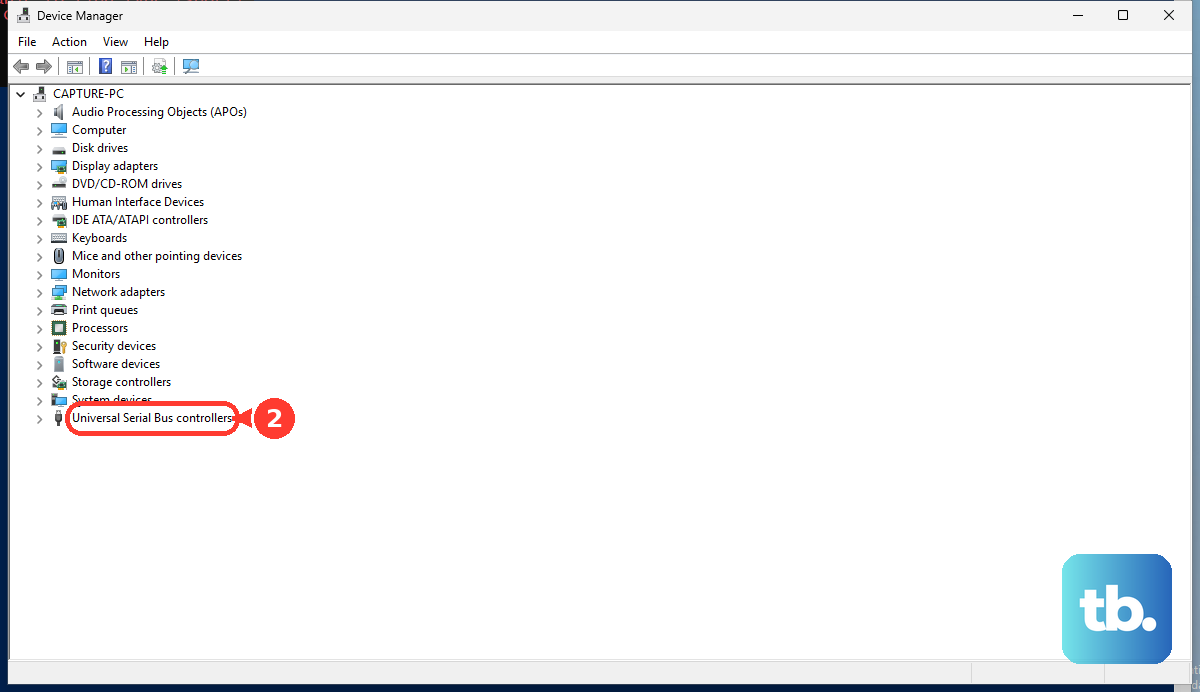
Right-click Start and select Device Manager. Expand Universal Serial Bus controllers or the device category that matches the accessory.
Right-click Unknown USB Device (Device Descriptor Request Failed) or the problem device, then select Properties. Open General and read Device status.
2. Reconnect the device without a hub
Unplug the USB device. Use USB device > PC USB port instead of routing it through a hub or dock.
Try another USB port, including USB 2.0 and USB 3.x ports when the PC has both. Use another USB cable, then test the device on another PC.
For USB-C accessories, connect the device or dongle directly to the PC. Use a port that supports the feature the device needs, such as Thunderbolt or DisplayPort Alternate Mode.
3. Give the USB device enough power
Connect the USB device's own power adapter when it has one. Plug the laptop or PC into AC power, then disconnect unused USB devices. Reconnect the problem device.
4. Restart Windows before changing drivers
Remove the USB device. Use Start > Power > Restart, then sign back in after Windows reloads. Reconnect the USB device after Windows reloads.
Restarting is especially relevant when Device Manager shows Code 38, Code 42, Code 44, or Code 47. Older guides tell you to disable Fast Startup, but current Microsoft power documentation makes Restart the correct first move because it performs a full shutdown and start cycle.
5. Update Windows and optional drivers
Open Start > Settings > Windows Update. Select Check for updates, then choose Download & install for offered updates. Restart when Windows prompts you.
Return to Windows Update. Open Advanced options > Optional updates > Driver updates, then select relevant driver updates. Choose Download and install and restart the PC.
Use the current Windows 11 paths for ordinary home PCs, because Windows 10 Home and Pro consumer support ended on October 14, 2025.
6. Repair the failing USB driver
This fixes a bad or stuck device driver entry, including Code 43 cases. Right-click Start and open Device Manager. Expand the relevant category or Universal Serial Bus controllers.
Right-click the failing device. Select Update driver, then choose Search automatically for updated driver software. Select Close and restart if prompted.
If the error remains, right-click Unknown USB Device (Device Descriptor Request Failed) or the failing USB device again. Select Uninstall device, then open Action. Select Scan for hardware changes. Restart the PC if Windows does not reinstall the device.
7. Reinstall USB controllers and adjust USB power saving
Right-click Start and open Device Manager. Expand Universal Serial Bus controllers. Right-click each USB Host Controller and USB Root Hub entry, then select Uninstall device. Restart the computer so Windows reinstalls the USB controller drivers automatically.
Open Device Manager again. Expand Universal Serial Bus controllers, then right-click USB Root Hub. Select Properties and open Power Management.
Clear Allow the computer to turn off this device to save power. Repeat for every USB Root Hub that shows the tab, then restart the PC.
Search for Edit Power Plan. Select Change advanced power settings, then open USB settings > USB selective suspend setting. Set it to Disabled, then select Apply. Select OK and restart.
8. Install manufacturer firmware and drivers
This fixes USB descriptor failures caused by outdated chipset, dock, BIOS, firmware, or device-specific drivers. Download the correct Windows 11 driver from the device or PC manufacturer's official support site.
Right-click Start. Open Device Manager, then expand the device category. Right-click the device and select Update driver.
Choose Browse my computer for drivers. Select Browse..., then choose the downloaded or unzipped driver folder. Select OK, then select Next. Select Close.
For Dell PCs, open SupportAssist. Go to Home > Update software > Start. Follow the prompts for driver and BIOS updates. Keep laptops connected to AC power during BIOS updates.
For HP PCs, use HP Support. Open Software and Drivers or Download drivers. Select the exact HP product, then install relevant Windows 11 BIOS, chipset, firmware, dock, and device drivers.
For Lenovo PCs, open Lenovo Vantage > System Update > Check for Updates. Install selected updates or all updates, then restart when prompted.
For Surface devices, connect Surface accessories. Plug the Surface into power with at least 40 percent battery, then run Windows Update. Install Surface-named drivers from View optional updates > Driver updates.
9. Use repair options when Windows itself is failing
When USB errors appear alongside broader driver, update, or system corruption symptoms, run Windows repair tools before reinstalling Windows. Use Search > Command Prompt > Run as administrator > Yes.
Run DISM.exe /Online /Cleanup-image /Restorehealth. Run sfc /scannow, then restart if repairs were made.
On Windows 11 systems that include the repair option, use Start > Settings > System > Recovery > Fix problems using Windows Update > Reinstall now. For a work or school PC, ask your IT admin to check USB device restrictions or removable storage access rules, because managed policies can block installation or access even when the hardware is fine.
Frequently Asked Questions
What does Device Descriptor Request Failed mean?
It means Windows could not properly identify the USB device. In Device Manager, it commonly appears as Unknown USB Device (Device Descriptor Request Failed) with Code 43.
Should I replace the USB device right away?
No. Test another port, another cable, direct connection without a hub, enough power, and another PC first. Those checks separate a bad accessory from a Windows driver or power issue.
Does Disk Management fix this error?
Only in a different situation. Disk Management helps when a USB storage drive is detected but missing from File Explorer. Device Descriptor Request Failed often means Windows could not enumerate the device at all.
Should I use msdt.exe -id DeviceDiagnostic?
No. Microsoft lists Hardware and Devices among the legacy MSDT inbox troubleshooters being removed rather than redirected to Get Help, and that retirement applies to current Windows 11 releases. Microsoft also states that Windows 11 version 22H2 and older, and Windows 10, are not affected by the MSDT retirement, so msdt.exe -id DeviceDiagnostic can still launch on those builds, but it is a deprecated legacy tool either way. Use Windows Update, Device Manager, and Get Help troubleshooters for matching device categories instead.