Clash Royale audio not working can turn battles, menus, and chest openings silent even when the game still runs normally. Start with the in-game sound controls, then move through volume, Bluetooth, app, update, and device fixes. These steps cover iPhone, iPad, Android, and Windows through Google Play Games.
Turn Clash Royale sound back on
The most common cause is that Clash Royale has Music or SFX turned off inside the game.
Open Clash Royale.
Tap the menu or settings button.
Open Settings.
Open Audio Settings.
Set Music to ON and SFX to ON.
Raise Music Volume and SFX Volume before leaving the screen.
Raise media volume and leave silent modes
Game sound uses media volume, so the ringer slider is the wrong control. Open Clash Royale, press the volume buttons while the game is on screen, and raise the volume slider that appears.
On iPhone or iPad, turn off Silent mode. Move the Ring/Silent switch toward the display so orange is not showing, press the Action button if it controls Silent mode, or open Control Center and make sure Silent mode is off.
On Android 12 and later, press a volume button, tap More when it appears, and raise Media volume. You can also open Settings > Sound & vibration and raise Media volume.
On older Android versions, press a volume button, tap the Down arrow at the right, then raise Media volume. On those versions the settings path is Settings > Sound.
If Clash Royale is still silent after volume and Silent mode are correct, disconnect Bluetooth next because the audio is playing through another device.
Make sure sound is not going to Bluetooth
On iPhone or iPad, open Control Center and tap the Bluetooth button so it dims. That disconnects current Bluetooth accessories and sends audio back to the device speaker.
To remove a specific iPhone or iPad accessory, open Settings > Bluetooth, tap the Info button beside the device, then tap Forget This Device and Forget Device.
On Android, open Settings > Connected devices or Bluetooth, then disconnect the active headset, speaker, or car audio. Select the speaker or headphones you want to use before reopening the game.
On Windows, click the Sound icon on the taskbar and choose the correct Bluetooth output. You can also open Start > Settings > System > Sound and pick the right device under Choose your output device.
Restart Clash Royale and your device
Close Clash Royale completely.
On iPhone or iPad, open the App Switcher.
Swipe right until you find Clash Royale.
Swipe up on the app.
On Android, open Settings > Apps > Clash Royale.
Tap Force stop.
Reopen Clash Royale from the Home Screen, App Library, or app drawer and test the sound.
If the game is still quiet, restart the phone or tablet.
On Android, use your manufacturer's restart method. On Pixel 6 and later, press and hold the Power button and Volume up button for a few seconds, then tap Restart.
On Pixel 5a and earlier, press and hold the Power button for about 30 seconds, or until the phone restarts.
A restart helps most after switching apps, connecting headphones, or leaving the game open for a long session.
Clear Android cache or reinstall on iPhone
This fixes corrupted temporary app data and stubborn local audio glitches.
On Android, open Settings > Apps > Clash Royale.
Tap Storage & cache or Storage.
Tap Clear cache.
Reopen Clash Royale and test audio.
Before using Clear storage or Clear data, make sure your Clash Royale account is linked. That option permanently deletes app data and signs you out or removes local state.
On iPhone or iPad, Apple does not provide a supported per-app cache button for Clash Royale. Touch and hold Clash Royale, tap Remove App, tap Delete App, confirm with Delete, and redownload it from the App Store.
Update Clash Royale from the official store
The most common update-related cause is an old Clash Royale build that no longer behaves cleanly with the current game.
On iPhone or iPad, open the App Store.
Tap the My Account button or your photo at the top of the screen.
Open App Updates.
Tap Update next to Clash Royale, or tap Update All.
On Android, open the Google Play Store.
Tap your profile icon.
Open Manage apps & devices.
Under Updates available, update Clash Royale or update all apps.
For a clean install, use Supercell's Clash Royale page, the App Store, Google Play, or Google Play Games for PC. Skip third-party APK and download portals.
Check iPhone Focus and volume limits
Open Settings > Focus > Do Not Disturb and make sure Do Not Disturb is off. You can also open Control Center > Focus > Do Not Disturb and turn it off there.
For headphones, open Settings > Sounds & Haptics > Headphone Safety. Adjust Reduce Loud Audio or turn it off if it is keeping game sound too low.
For the built-in speaker limit, open Settings > Sounds & Haptics > Volume Limit. Adjust Limit Maximum Volume or turn it off.
If family or managed settings block changes, the parent, organizer, or device owner needs to allow audio-limit changes in Screen Time.
Fix Clash Royale audio on Windows
This fixes Clash Royale through Google Play Games when the app is muted, assigned to the wrong output, or blocked by Windows audio settings.
Open Start > Settings > System > Sound > Volume mixer.
Under Apps, make sure Clash Royale or Google Play Games is not muted.
Turn up the app volume slider.
Confirm the correct Output device is selected for Clash Royale or Google Play Games.
If Windows Bluetooth audio is connected but silent, open Start > Settings > Bluetooth & devices > Devices.
Select the Bluetooth device.
Open Advanced sound properties.
Set Format to 2 channels, 16 bit, 48000 Hz (DVD Quality).
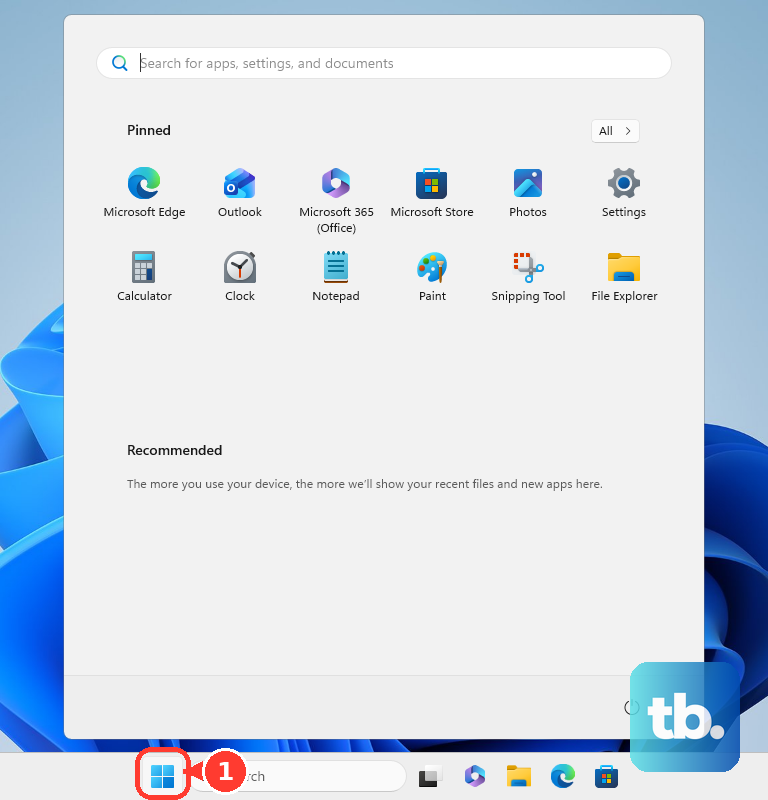
If the app still has no sound, open Start.
Type services.msc.
Press Enter.
Right-click Windows Audio and choose Restart.
Right-click Windows Audio Endpoint Builder and choose Restart.
When nothing else works
Update your device software.
On Android, open Settings > System > Software updates and follow the onscreen steps.
On some Android devices, use Settings > About phone or About tablet > Software update.
On iPhone or iPad, check whether all app audio is missing or distorted, not just Clash Royale.
Remove cases, films, or screen protectors that block the speaker opening.
Clean the speaker opening gently with a small, clean, dry soft-bristled brush.
Open Clash Royale.
Go to Settings > Help and Support.
Follow the contact or help flow for the audio issue.
If the speaker still has no sound in any app, use Apple service rather than continuing with game fixes.
Frequently Asked Questions
Why does Clash Royale have music but no sound effects?
Open Clash Royale's Audio Settings, set SFX to ON, and raise the SFX Volume slider. Music and sound effects use separate controls.
Can I clear Clash Royale cache on iPhone?
No. Apple does not provide a supported per-app Clear cache button for Clash Royale. Delete the app and redownload it from the App Store after making sure your account is recoverable.
Why is Clash Royale silent only when headphones are connected?
The sound is routed to the wrong Bluetooth device or lowered by a headphone volume limit. Disconnect Bluetooth, then check Headphone Safety on iPhone.
Should I reinstall Clash Royale to fix audio?
Reinstall only after the faster checks fail. Link your Clash Royale account first because deleting or clearing app data can remove local state or sign you out.