Chrome can fail before the window even appears, or it may flash open, freeze, and vanish again. Start with the fixes that clear stuck processes and bad session data, then move to extensions, settings, profiles, system blocks, and reinstalling. Use the mobile section at the end when Chrome will not open on Android, iPhone, or iPad.
Close stuck Chrome processes first
The most common quick-start problem is a Chrome process that is still running in the background. On Windows, press Ctrl + Alt + Delete, then open Task manager.
Under Processes, click Google Chrome or chrome.exe. Select End task, then open Chrome again.
On Mac, press Option + Command + Esc. Select Google Chrome, choose Force Quit, and open Chrome again.
Restart after a clean quit
Quit Chrome with Ctrl + q on Windows or Command + q on Mac when the browser still responds to shortcuts. Open Chrome again. Restart the computer when another program or process is blocking Chrome.
Open Chrome again after the restart. Use Ctrl + Shift + t on Windows or Command + Shift + t on Mac to reopen tabs after Chrome starts. Restarting the computer is the better move when Chrome quits cleanly but still will not launch on the next try.
Free memory when Chrome opens and then crashes
Use this when Chrome opens but crashes, freezes, or pages fail during loading. It fits memory pressure, bad cached data, and graphics-related crashes.
Close every tab except the one showing an error. Quit other apps or programs and pause app or file downloads. Open Chrome again.
Open More > Delete browsing data. Choose a time range such as Last hour or All time. Select the types of information to remove, then choose Delete data.
For graphics-related crashes or bad rendering, open More > Settings > System. Turn off Use hardware acceleration when available, then restart Chrome.
Remove extensions that break startup
This fixes crashes, freezes, and corrupted extension warnings that can keep Chrome from staying open.
Open Chrome and select More. Go to Extensions > Manage extensions. On an extension you do not need, select Remove, then confirm with Remove.
When the extension icon appears by the address bar, right-select the icon and choose Remove from Chrome. When Chrome flags an extension as corrupted, choose Repair and confirm with Repair.
When the same extension corrupts again, run antivirus or anti-malware software on Windows, Mac, or Linux. Remove software affecting Chrome, then try Repair again.
Reset Chrome settings without losing bookmarks
The most common reset problem is bad Chrome setup data, including settings, extensions, startup pages, search engine, cookies, site data, or pinned tabs.
Open Chrome > More > Settings > Reset settings. Select Restore settings to their original defaults, then choose Reset settings.
Resetting Chrome does not delete bookmarks or passwords. When Settings is missing or will not open, reinstall Chrome instead.
Create a new profile for damaged Chrome data
Use this when Chrome opens and profile data appears to be causing crashes or launch failures. A new profile gives Chrome a separate profile to start from.
Open Chrome and select Profile. Select Add Chrome profile. Choose whether to sign in, then choose a name, photo, and color scheme.
Delete the old profile only when you are ready to erase that profile's local bookmarks, history, passwords, and settings from the computer. Open Profile and, under Other Chrome profiles, select Manage Chrome profiles.
Select the old profile. Choose More, then choose Delete. Confirm with Delete.
Check supported systems and security blocks
Current Chrome needs Windows 10 or later on an Intel system with a Pentium 4 processor or newer that is SSE3 capable, Windows 11 or later on an ARM system, macOS 13 Ventura or later, or Linux on a supported 64-bit distribution. For Linux, Google lists Ubuntu 18.04 or later, Debian 10 or later, openSUSE 15.5 or later, and Fedora Linux 39 or later with an x86-64 SSE3-capable CPU or a 64-bit ARM CPU.
Windows XP, Windows Vista, Windows 7, Windows 8, Windows 8.1, and macOS 10.12 through 12 are not supported by current Chrome. When Chrome opens, update it from More > Help > About Google Chrome, then choose Relaunch; when the toolbar shows New Chrome available, choose Relaunch to Update.
On Windows, Compatibility Mode is not supported in Chrome. Right-click the Chrome icon, open Properties > Compatibility, and clear Run this program in compatibility mode for.
Antivirus, firewall, parental control, or other security software can block Chrome from opening, installing, or updating; let software updates go online, and do not block tools.google.com or dl.google.com. Starting in Chrome 111, users can no longer request a Chrome Cleanup Tool scan through Safety Check or Reset settings; use Safe Browsing and normal antivirus or anti-malware software instead.
Reinstall Chrome from Google
Close all Chrome windows and tabs. On Windows 11, open the Start menu > Settings > Apps > Installed apps.
Next to Google Chrome, choose More > Uninstall. Choose Uninstall again, then choose Yes if User Account Control prompts you.
On Windows 10, open the Start menu > Settings > Apps. Under Apps & features, find and click Google Chrome. Choose Uninstall, then confirm with Uninstall.
Optionally tick Also delete your browsing data. Then choose Uninstall.
On Mac, right-click Chrome in the Dock and choose Quit. Open Finder and go to the folder containing Google Chrome, usually Applications. Drag Google Chrome to the Bin.
On Linux, open a terminal with Ctrl + Alt + t on GNOME, Unity, or Cinnamon, or open Application menu > System > Konsole on KDE. On Debian-based systems, enter sudo dpkg -r google-chrome-stable. On other systems, enter sudo rpm -e google-chrome-stable. Enter your computer password when prompted.
Go to google.com/chrome and use the Download Chrome flow. Use Google's official download page instead of third-party download portals. Reinstall is the cleanest path when Settings is missing, update files are missing, or Chrome still will not open after the earlier desktop fixes.
Fix Chrome on phones and tablets
Use the matching mobile path below.
- 1.On iPhone or iPad, open the App Switcher, swipe the Chrome window closed, reopen Chrome, and restart the iPhone or iPad when Chrome still will not start.
- 2.On iPhone or iPad, update Chrome from the App Store by opening Profile, finding Chrome under Available Updates, choosing Update, and entering your Apple ID password when prompted.
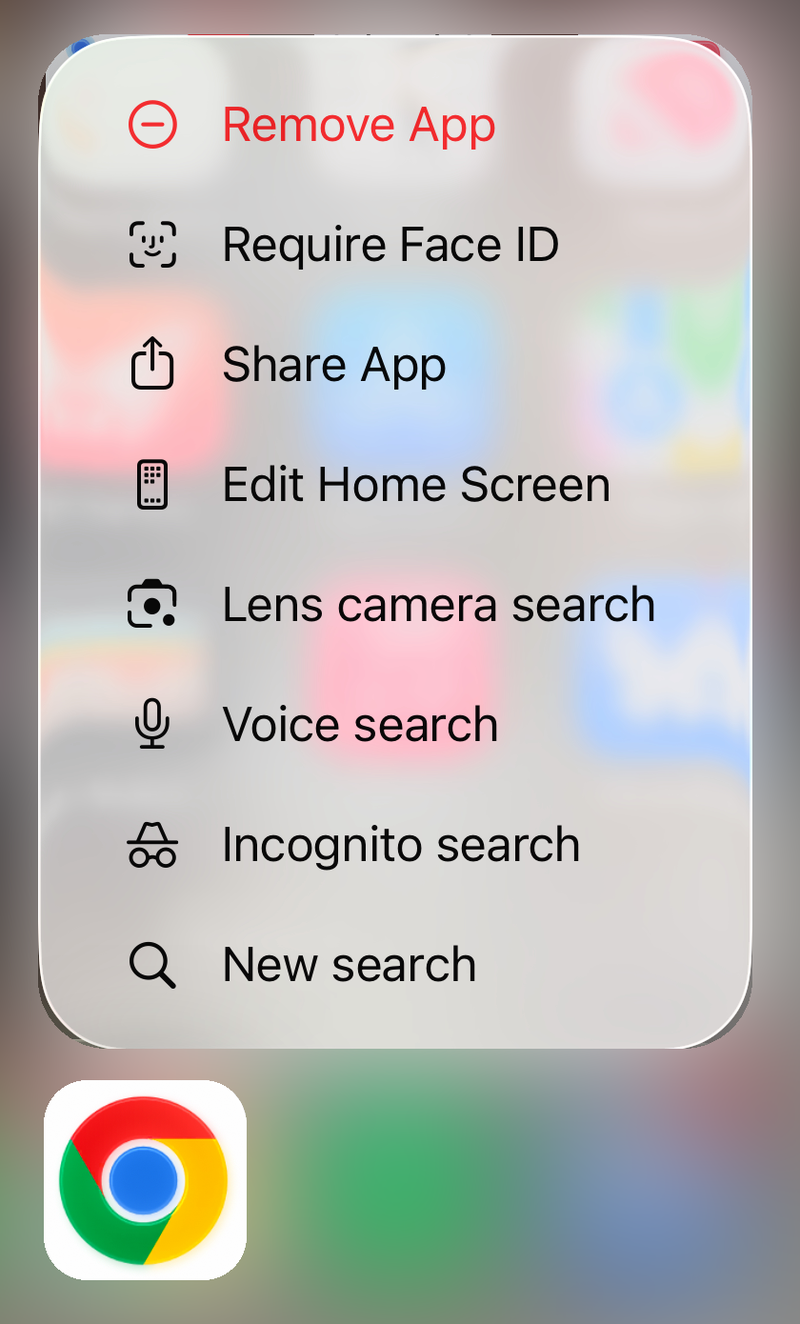
- 3.On iPhone or iPad, touch and hold Chrome, choose Remove app > Delete app, then reinstall Chrome from the App Store; deleting the app removes local Chrome profile information from the device, while synced data may remain in the Google Account.
- 4.On Android, swipe up from the bottom of the screen while Chrome is open, swipe up on the Chrome app to close it, reopen Chrome, and use Settings > Apps or Applications > Chrome > Force stop when Chrome is stuck in the background.
- 5.On Android, press the Power button for about 30 seconds or until the phone or tablet restarts; tap Restart > Restart when the device asks.
- 6.On Android, open Settings > Apps or Applications > Chrome > Storage or Storage & cache > Clear cache; clear app data or storage from the same area only when needed because it can remove local app data and sign-in state, then update Chrome from Google Play Store > profile icon > Manage apps & device > Updates available > Chrome > Update.
Frequently Asked Questions
Will resetting Chrome delete my bookmarks or passwords?
No. Resetting Chrome restores default settings but does not delete bookmarks or passwords. It can affect extensions, startup pages, search engine, cookies, site data, and pinned tabs.
What should I do when Chrome Settings will not open?
Reinstall Chrome from Google's official download page. Google lists reinstalling as the path when Chrome opens partially but Settings is missing or will not open.
Why will Chrome not install again after I remove it?
Check the internet connection, confirm the computer meets Chrome's system requirements, download the installer again, and install from the new file. If installation still fails, use Google's offline installer.
Can the old Chrome Cleanup Tool fix Chrome now?
No. Starting in Chrome 111, users can no longer request a Chrome Cleanup Tool scan through Safety Check or Reset settings. Use Safe Browsing and normal antivirus or anti-malware software instead.