Your appointment is in Calendar, but the reminder never arrives. Start with notification permissions and the event’s alert time, then check Focus, sound, and syncing settings. These fixes cover Apple Calendar, with separate instructions for the Google Calendar and Outlook apps.
Allow Calendar to notify you
Disabled Calendar notifications block reminders even when the events themselves are saved correctly.
Open Settings > Notifications > Calendar. Turn on Allow Notifications. Then enable your preferred alert locations: Lock Screen, Notification Center, and Banners.
Open Customize Notifications. Turn on the notifications for the reminders you’re missing, such as upcoming events, invitations, or invitee responses.
For delayed reminders, open Settings > Notifications > Scheduled Summary. Exclude Calendar to keep its notifications out of the scheduled summary.
Give the affected event an alert
An appointment on the calendar isn’t enough. Check that the event has an alert time attached to it.
Open the affected event in Calendar. Tap Edit, then open Alert. Select At time of event, 5 minutes before, or another interval that suits you.
Tap Done. Check the saved event to confirm its alert timing.
To set your defaults, open Settings > Apps > Calendar > Default Alert Times. Choose the timing under Birthdays. Set your preferred timing under Events. Choose a timing under All-Day Events too.
Check existing events individually instead of assuming those defaults supplied an alert. If the event still stays silent, open Calendar > Calendars. Tap the Info button beside the affected calendar. Turn on Event Alerts if that control is available.
Tap Done. If the reminder still doesn’t arrive, or that calendar has no Event Alerts control, try the Focus checks next.
Check whether Focus is silencing reminders
Turn off the active Focus to test it, then give Calendar an exception.
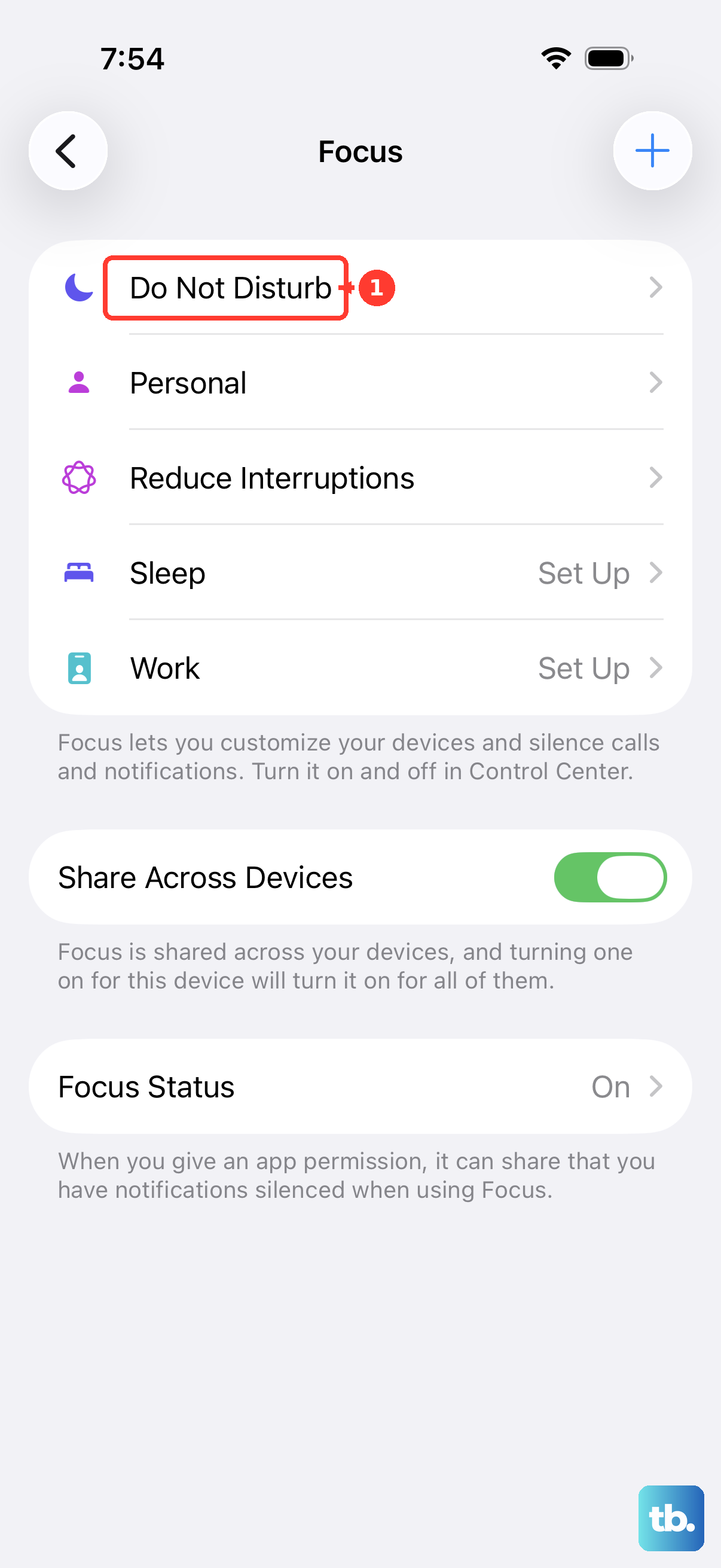
- 1.Open Control Center, tap the active Focus, such as Do Not Disturb, then tap it again to turn it off.
- 2.For an exception, open Settings > Focus and select the Focus you use. Driving Focus does not offer the same app exceptions.
- 3.Open Apps or Choose Apps. Select Allow Notifications From and add Calendar. If you use Silence Notifications From, remove Calendar from that list instead.
- 4.Review that Focus’s schedules and linked Lock Screen if it keeps turning back on.
- 5.Check the active Focus on your linked Apple devices if Share Across Devices is enabled.
Bring back sound for visible notifications
Silent mode or low alert volume makes a delivered Calendar reminder easy to miss.
On an iPhone with a Ring/Silent switch, move the switch out of Silent mode. On an Action button model, open Control Center. Use Mute Switch to turn Silent mode off.
Open Settings > Sounds & Haptics > Calendar Alerts. Select an audible sound and listen to its preview. Open Haptics within that sound category. Choose a vibration pattern.
For volume, open Settings > Sounds & Haptics. On iOS 27, turn off Match Ringtone Volume under Alerts and System Sounds if you want independent alert volume. Raise the Alerts and System Sounds slider. If you keep the volumes matched, raise the ringtone volume instead.
On installations with the combined volume control, raise Ringtone and Alerts. If alerts become too quiet while you look at a Face ID iPhone, open Settings > Face ID & Passcode.
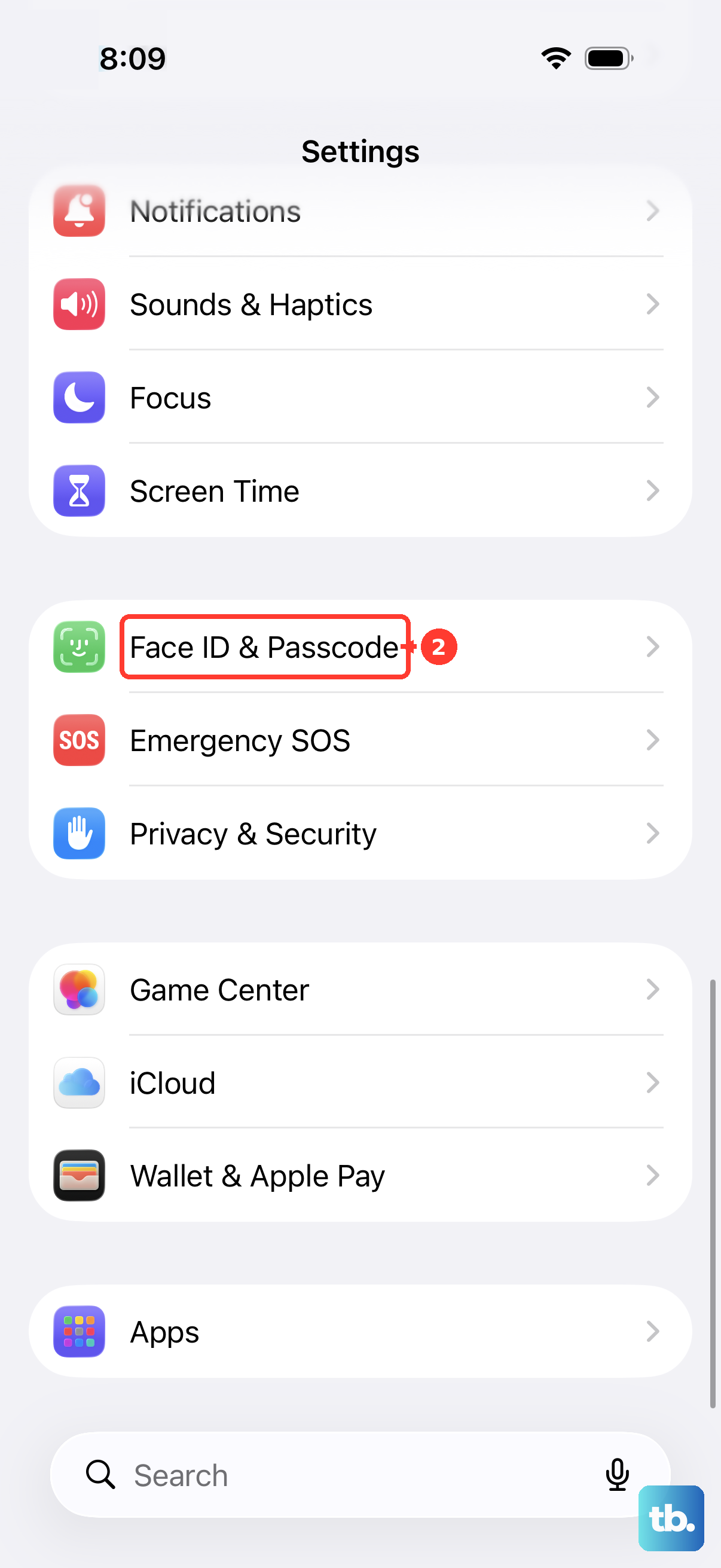
Turn off Attention Aware Features. This addresses reduced volume; it does not restore missing notifications.
Look for the reminder on Apple Watch
This check locates alerts sent to your wrist and corrects Calendar notification settings on the watch.
Test an alert with your iPhone unlocked. Notifications normally appear on the iPhone while you’re using it.
Check Apple Watch when your iPhone is locked or asleep. Notifications normally go to the watch unless the watch is locked. Reading or dismissing a notification there also dismisses it on your iPhone.
Open Watch on your iPhone. Navigate to My Watch > Notifications > Calendar. Select Mirror my iPhone to follow your phone’s settings.
If you prefer separate watch settings, select Custom instead. For that custom configuration, choose Allow Notifications instead of Send to Notification Center or Notifications Off.
Restore events missing from Calendar
If events are missing or out of date, open Calendar > Calendars. Select the relevant iCloud calendars. Swipe down on the calendar list to refresh it.
Check the Apple Account under Settings > your name against the account on the device where you created the missing iCloud event. Open Settings > your name > iCloud > See All beside Saved to iCloud > iCloud Calendar. Enable Use on this iPhone.
For an existing Outlook account used inside Apple Calendar, open Settings > Apps > Calendar > Calendar Accounts. Select the Outlook account. Enable its Calendar toggle.
For a missing account, open Settings > Apps > Calendar > Calendar Accounts > Add Account. Select your provider. Sign in to that account.
For accounts without Push support, open Settings > Apps > Calendar > Calendar Accounts > Fetch New Data. Choose a refresh schedule under Fetch. The Automatically option downloads new data when your iPhone is charging and connected to Wi-Fi.
Use these sync fixes for missing or stale events; fetching more often does not change the alert timer for an event already on your phone.
Adjust Google Calendar or Outlook’s own controls
Use these settings if you rely on the Google Calendar or Outlook app. Each app has its own reminder controls and iPhone notification permissions.
In Google Calendar, open Menu > Settings. Select the affected calendar. Tap Add another notification. Choose your reminder timing.
Open iPhone Settings > Notifications > Google Calendar. Turn on Allow Notifications.
In Outlook, tap Inbox to open the side panel. Open Settings > Notifications & Sounds > Calendar. If you don’t see Notifications & Sounds, open Settings > Notifications > Calendar instead. Enable the calendar notifications you want.
Open iPhone Settings > Notifications > Outlook. Turn on Allow Notifications.
Correct reminders arriving at the wrong time
A mismatched event time zone shifts a Calendar reminder to an unexpected hour.
Open the affected event in Calendar. Tap Edit. Correct the event’s start time. Correct its end time.
Use Time Zone to select the intended location. Tap Done to save.
Check the phone’s clock under Settings > General > Date & Time. On iOS 27, enable Set Time Automatically. Review Set Time Zone Automatically as well. Earlier layouts use Set Automatically and Time Zone.
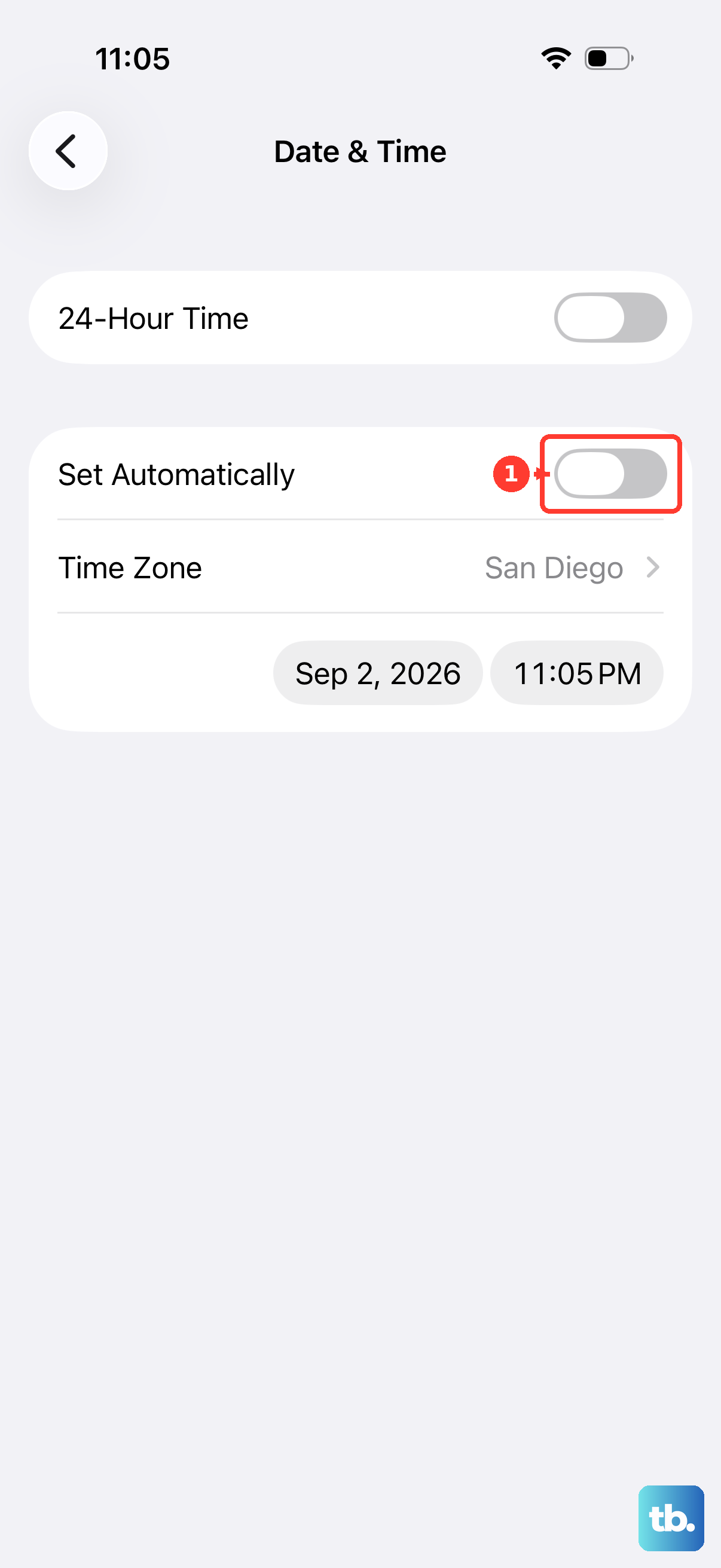
Review Settings > Apps > Calendar > Time Zone Override if the displayed event time is confusing. This setting changes the display time zone only.
For missing departure reminders, open Settings > Apps > Calendar > Default Alert Times. Enable Time to Leave. Open the event in Calendar. Tap Edit.
Enter its physical address in Location or Video Call. Maps uses the address, traffic, and transit information to calculate departure alerts. Tap Done.
Restart and update after checking the settings
If the relevant settings are correct and the problem continues, work through these recovery steps.
- 1.If Calendar is not updating, close it, return to the Home Screen, wait about one minute, and reopen Calendar.
- 2.Restart your iPhone. On Face ID models, hold either volume button and the side button until the power-off slider appears. On iPhone SE second or third generation, hold the side button alone. Drag the slider, wait 30 seconds, then hold the side button until the Apple logo appears.
- 3.Back up your iPhone before updating its software.
- 4.Connect the phone to power and Wi-Fi.
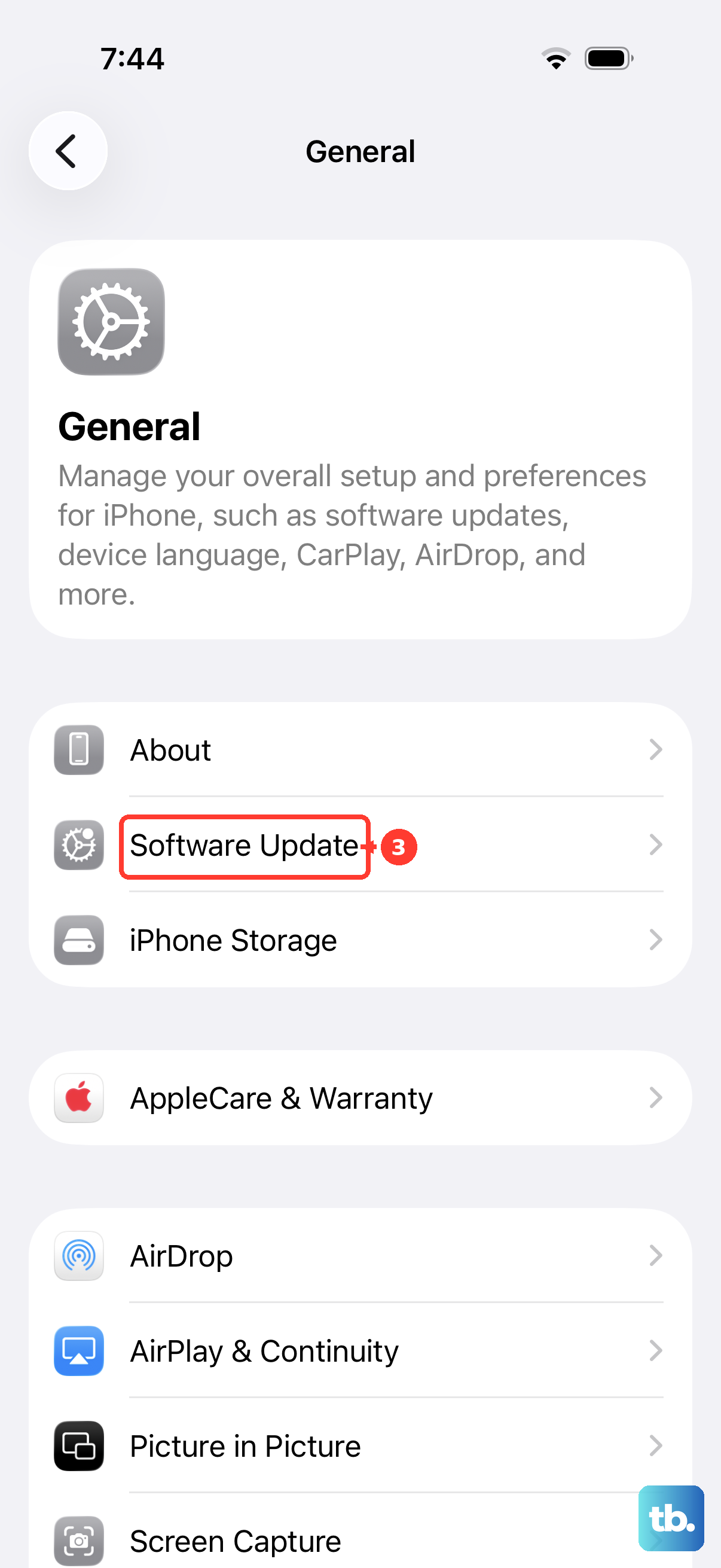
- 5.Open Settings > General > Software Update. Use Download and Install and follow the onscreen instructions for the compatible update offered. Updating is a general troubleshooting step, with no guaranteed fix for a specific Calendar alert problem.
Frequently Asked Questions
Does Calendar’s Sync setting control how quickly alerts arrive?
No. Sync controls the date range of calendar data, not the interval between alert deliveries.
Can Siri fix Calendar notifications?
Siri can create an appointment when you ask something like “Set up a meeting with Gordon at 9.” Open the event afterward and check its Alert setting, because a Siri-created event still needs the correct alert timing.
Should I reset all settings for missing Calendar alerts?
Keep this as a late recovery option. Apple calls it rarely necessary, and it does not guarantee a Calendar fix. It preserves personal content but resets notification, sound, and other system settings. You will need to reconfigure settings and networks, with some device pairings also requiring attention.
What if my employer or school controls Calendar notifications?
On a supervised work or school iPhone, ask IT to inspect the calendar app’s notification management settings. Administrators control permissions for sounds, Lock Screen alerts, Notification Center, and the alert style shown while the phone is unlocked.