Bluetooth usually fails in one of four ways: the device never appears, pairing stops halfway, the connection drops, or audio goes nowhere. Start with the fast checks that fix the largest share of pairing problems, then move through the exact Windows 11, Apple, Android, Chromebook, Google TV, and Roku paths that match your device.
Start with the quick Bluetooth basics
Run these checks before changing drivers, resetting settings, or removing devices.
- 1.Turn the Bluetooth accessory on, confirm it is charged or has fresh batteries, and keep it close to the phone, computer, tablet, watch, TV, or streaming device.
- 2.Put the accessory in pairing or discovery mode, then open the device list where Bluetooth accessories appear.
- 3.Turn Bluetooth off, wait a few seconds, then turn Bluetooth back on.
- 4.Restart the accessory, then restart the phone, computer, tablet, watch, TV, or streaming device.
- 5.Turn off Airplane mode on the device you are pairing from.
- 6.Disconnect the accessory from another nearby phone, tablet, computer, or TV, then try pairing again.
Forget the device and pair it again
This fixes stale pairing records when a Bluetooth device used to work but will not reconnect now.
On Windows 11, open Start.
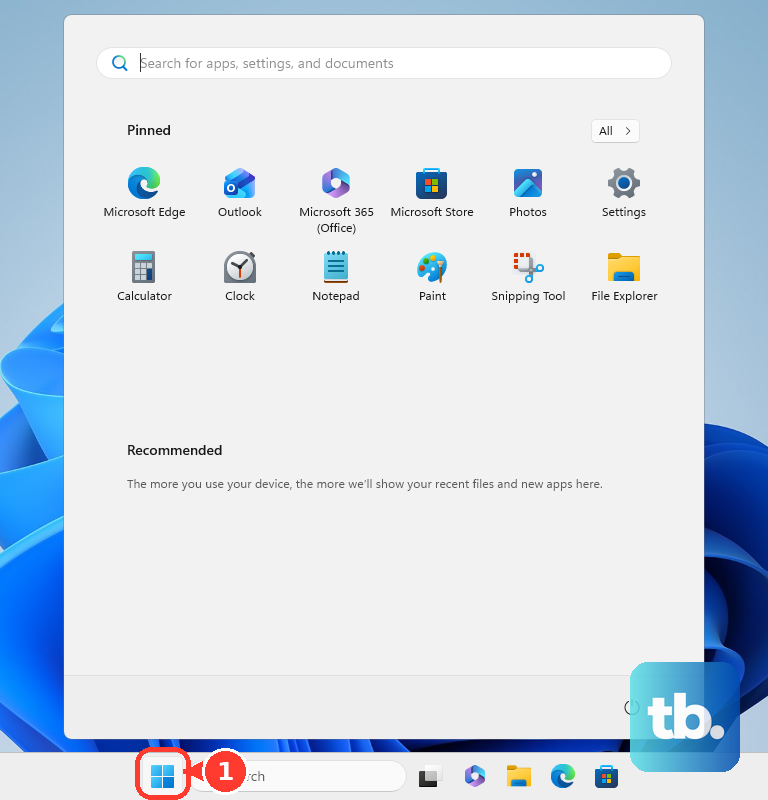
Go to Settings, choose Bluetooth & devices, then open Devices.
Select More options next to the Bluetooth device.
Choose Remove device, confirm with Yes, then pair the device again.
On iPhone or iPad, open Settings and tap Bluetooth.
Tap the More Info button next to the accessory.
Tap Forget This Device.
Put the accessory back in discovery mode, then pair it again from Settings and Bluetooth.
On Android, swipe down from the top of the screen and touch and hold Bluetooth.
Tap Settings next to the accessory, then tap Forget.
Return to Pair new device and select the accessory again.
On a Mac, open Apple menu, choose System Settings, then choose Bluetooth.
Control-click the device name, choose Forget, then connect it again from Bluetooth settings.
Show devices that do not appear
Use this when Bluetooth is on but the accessory never shows up in the available-device list. The usual causes are a missing discovery mode, a narrow Windows discovery setting, or a device that needs a specific pairing path.
On Windows 11, open Start, go to Settings, choose Bluetooth & devices, open Devices, then set Bluetooth devices discovery to Advanced.
To pair from Windows 11 Quick Settings, select the Network, Sound, or Battery icon near the taskbar clock.
Open the Bluetooth device menu, select the device under New devices, then finish the prompts.
On Android, touch and hold Bluetooth, tap Pair new device, then select the accessory.
If Pair new device is not shown, check Available devices or tap More and then Refresh.
On Samsung Galaxy, open the Quick settings panel with two fingers, touch and hold the Bluetooth icon, confirm the switch is on, then tap Scan.
Keep the devices within 30 feet, and remove third-party cases or covers that interfere with pairing.
On Chromebook, select the time at the bottom right.
If Bluetooth appears, the Chromebook supports Bluetooth; turn it on, choose Pair new device, select the accessory, and follow the prompts.
Fix Bluetooth with no sound
A speaker, headset, headphones, car system, or TV can connect successfully and still stay silent when the output route or audio role is wrong.
On Windows 11, click the Sound icon in the taskbar and select the correct Bluetooth device as the audio output.
You can also open Start, go to Settings, choose System, then Sound, and confirm the Bluetooth device is selected under Output.
For some Windows 11 Bluetooth audio devices, open Settings, choose Bluetooth & devices, open Devices, select the connected Bluetooth device, then open Advanced sound properties.
Under Output settings, set Format to 2 channels, 16 bit, 48000Hz (DVD Quality).
On a Mac, open Apple menu, choose System Settings, then choose Sound.
Pick the Bluetooth headphones or speakers under Output, or choose the headset under Input when the microphone is the issue.
On Android or Pixel, open Settings, go to Connected devices, open the paired device settings, then turn on Media audio for music or Phone audio for calls.
If this method fails, remove the Bluetooth device from both sides when possible, pair it again, then check for system updates on the phone, computer, tablet, or TV.
Repair iPhone, iPad, Android, and Samsung pairing
On iPhone or iPad, open Settings.
Tap Bluetooth, turn Bluetooth on, and tap the accessory name when it appears.
Enter the PIN or passcode when prompted.
If an app cannot use a Bluetooth accessory, open Settings.
Choose Privacy & Security, then choose Bluetooth.
Turn on Bluetooth access for that app, or tap OK when the app asks for Bluetooth access.
On Android, swipe down from the top of the screen and tap Bluetooth.
To pair manually, touch and hold Bluetooth, tap Pair new device, tap the accessory name, and follow the on-screen instructions.
If Android asks for a passcode and you do not have one, try 0000 or 1234.
For Fast Pair accessories, turn on Scan for nearby devices under your profile, All services, Connected devices & sharing, and Devices.
On Samsung Galaxy, go to Settings, then General management, then Reset, and use Reset Wi-Fi and Bluetooth settings when normal pairing still fails.
This removes saved Wi-Fi and Bluetooth settings.
Pixel 6 and newer phones, including Fold, include Bluetooth diagnostics under Settings and Connected devices.
Keep the accessory manual nearby for PINs, pairing mode, and device-specific button timing.
Repair Windows 11 and Mac Bluetooth
On Windows 11, confirm the PC has Bluetooth and turn on any physical Bluetooth switch if your laptop includes one.
Select the Network, Sound, or Battery icon near the taskbar clock and select Bluetooth to turn it on.
You can also open Start, choose Settings, choose Bluetooth & devices, and turn Bluetooth on there.
Run the Windows Bluetooth troubleshooter from Start, Settings, System, Troubleshoot, and Other troubleshooters.
Next to Bluetooth, select Run and follow the instructions.
Update the Windows Bluetooth driver by opening Start, typing Device Manager, opening Device Manager, and expanding Bluetooth.
Right-click the Bluetooth adapter, choose Update driver, then select Search automatically for drivers.
Restart the PC after the driver update.
If the driver still behaves badly, expand Bluetooth in Device Manager, right-click the Bluetooth adapter, and choose Uninstall device.
Restart the PC, and Windows automatically reinstalls the Bluetooth driver.
On a Mac, open Apple menu, choose System Settings, choose Bluetooth, hold the pointer over the device, and choose Connect.
You can also connect from the Bluetooth status menu in Control Centre.
If this method fails, install available updates: on Windows 11 use Start, Settings, Windows Update, and Check for updates; on Mac use Apple menu, System Settings, General, and Software Update.
Fix car Bluetooth pairing
Car Bluetooth has extra failure points because both the phone and the car stereo store pairing records. Use this when calls, music, contacts, or pairing approval fail in the vehicle.
On iPhone or iPad, restart the device.
Open Settings, tap Bluetooth, turn Bluetooth off, wait about 5 seconds, and turn Bluetooth back on.
Use the car display for setup, since most cars require phone setup from that screen.
If several phones are connected to the stereo, rename the iPhone or iPad from Settings, General, About, and Name.
Update the device, then make sure the stereo uses the latest firmware from the car manufacturer.
On Android or Pixel, clear the car from the phone by opening Settings, then Connected devices, then Saved devices, or Bluetooth if that menu is missing.
Tap Settings next to unused devices and the car name, then tap Forget and Forget device.
Clear old phones from the car using the car manual.
Pair from the phone by opening Settings, then Connected devices, then Pair new device, and selecting the car name.
To pair from the car, keep the Android Connected devices screen open, pick the phone name on the car device list, and verify the PINs.
Allow access to contacts and call history, then tap Pair, Accept, or Confirm.
Reconnect TVs, watches, Roku, and Chromebooks
The most common cause on TVs, streaming boxes, watches, and Chromebooks is an accessory that is not in pairing mode or a device trying to reuse an old pairing.
On Apple Watch, open Settings, tap Bluetooth, choose the accessory, and enter the passkey or PIN when asked.
To start over, tap the information button next to the accessory, tap Forget Device, then pair it again.
On Apple TV, put the accessory in pairing mode, then open Settings, choose Remotes and Devices, then choose Bluetooth.
Select the accessory, and enter the code or PIN when asked.
If Apple TV loses connectivity, make sure the accessory is charged and powered on, reduce interference, update the accessory software and Apple TV, and move Apple TV to a different location near the television.
On Google TV, open the profile picture or initial from the home screen, choose Settings, then Remote & Accessories, then Pair remote or accessory.
Put the device in pairing mode, select it, and choose Pair.
Bluetooth pairing works only on compatible Roku devices. A phone, tablet, or computer connects directly to a Roku Plus Series TV; on other Roku TV systems you need paired Roku wireless speakers or a Roku TV Wireless Soundbar to add Bluetooth, and Roku Ultra models 4670, 4661, 4660, and 4640 and Roku Ultra LT model 4662 are not compatible. Check Roku's compatible device list before you start.
On a compatible Roku device, use the Roku remote to open Home, then Settings, then Remotes & devices, then Smartphones & tablets, and choose Add a new smartphone or tablet.
On the phone, tablet, or computer, open Bluetooth settings, turn Bluetooth on, wait for scanning, and select the Roku device.
On Chromebook, select the time at the bottom right, open Bluetooth, turn it on, choose Pair new device, and select the device.
Phones cannot pair to Chromebooks with Bluetooth for phone integration.
Update, reset, or check restrictions
When Bluetooth still is not connecting after pairing fixes, install current system software.
Use Windows Update on Windows 11.
Use Software Update on iPhone, iPad, and Mac.
Use Software update or System updates on Samsung Galaxy.
On Windows 11 laptops and tablets where Bluetooth keeps disconnecting, select the Battery icon and turn off Energy Saver Mode.
Run the automated Bluetooth troubleshooter in the Get Help app.
On Pixel or Android devices that expose it, open Settings, choose System, then Reset options, and tap Reset Bluetooth & Wi-Fi.
On Samsung Galaxy, use Reset Wi-Fi and Bluetooth settings from Settings, General management, and Reset.
On Samsung Galaxy, a factory data reset is a last resort because it erases all data.
Back up the phone or tablet first, search settings for Factory data reset, complete the reset prompts, and test Bluetooth before installing apps again.
For work or school devices, Bluetooth may be blocked by device management.
Ask your organization whether Bluetooth, Bluetooth settings changes, or Bluetooth services are restricted on that device.
Use resets only after removing and re-pairing the device, because resets clear saved connection settings.
Frequently Asked Questions
Why is my Bluetooth device paired but not connected?
The saved pairing record can be stale, the accessory may already be connected to another nearby device, or the phone or computer may need you to select the device again from saved devices. Forget the accessory on both sides when possible, then pair it again.
Why does Bluetooth connect but no sound plays?
The wrong audio output or audio role is usually selected. Choose the Bluetooth speaker, headset, or headphones as the output device on Windows or Mac, and turn on Media audio or Phone audio on Android when needed.
What passcode should I try for Bluetooth pairing?
Use the passcode from the accessory manual. If Android asks for a passcode and you do not have one, try 0000 or 1234.
Will resetting Bluetooth delete anything?
Resetting Bluetooth and Wi-Fi settings on Android or Samsung removes saved Wi-Fi and Bluetooth settings. A Samsung factory data reset erases all data, so back up first and use it only as a last resort.