Arma Reforger voice chat can fail even when the same headset works in Windows, Steam, or another app. On PC, the fix usually comes down to the correct transmit key, the active radio channel, Windows microphone access, or the input device selected before launch. Start with the Reforger controls, then move outward to Windows, Steam, mods, and server settings.
Use the right Reforger voice key
Use this first when other players cannot hear you in a live session but your microphone works outside the game. Reforger separates nearby voice from radio transmission, so the key decides who receives your voice.
For nearby proximity chat, press and hold T while you speak.
To toggle voice communications, double-tap T.
For handheld radio chat, make sure a handheld radio is in your inventory, then press and hold CAPS LOCK.
For a manpack radio, select the manpack radio as the active channel, then press and hold CAPS LOCK.
When you carry both handheld and manpack radios, press L-CTRL + CAPS LOCK to transmit on the manpack while leaving CAPS LOCK for the handheld radio.
Confirm the active radio channel
Press G to open the radial Radio Select Menu.
Select the channel you want to use as active.
Double-press CAPS LOCK to cycle through tuned channels.
Move the mouse SCROLL WHEEL to adjust the frequency.
Press Q or E to cycle predetermined channels.
Press R while a channel is highlighted to toggle radio power.
Open Field Manual > Gameplay > Communication to check the built-in communication reference.
Stay on one server for this test, because radio behavior depends on having a compatible radio and frequency on that server.
Fix quiet voice or missing transmit
The most common in-game cause after the keys are correct is that push-to-talk is not firing or the VON threshold is set too high.
Join a low-population server so the transmit check is easy to read.
Hold T and speak into the microphone.
Watch for the speaker icon next to your name to confirm that Reforger is transmitting.
Open Options > Audio.
Raise the VON volume slider if your voice is too quiet.
Adjust the threshold slider if your voice is not triggering cleanly.
Allow microphone access in Windows
This fixes a Windows privacy block that prevents desktop games from using the microphone.
Open Start > Settings > Privacy & security > Microphone.
Turn on Microphone access.
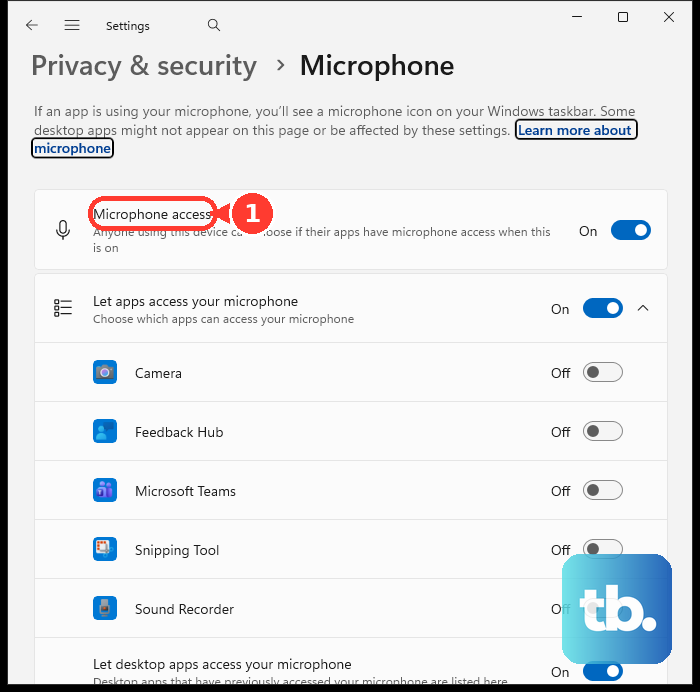
Turn on Let apps access your microphone.
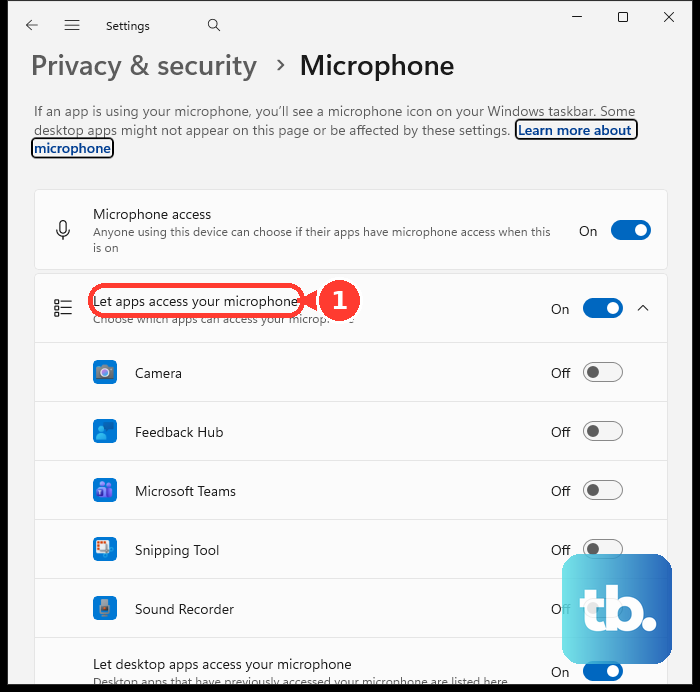
Turn on Let desktop apps access your microphone.
Treat Arma Reforger as a desktop app in this panel, because desktop apps are not toggled individually in the Windows microphone list.
Match the Windows and Steam input devices
Connect the headset or microphone before you launch Arma Reforger. Turn off the physical Mute button, and pair Bluetooth microphones before starting the game.
In Windows, open Start > Settings > System > Sound > Input > Choose a device for speaking or recording, then select your microphone. Select the > control beside the device, choose Microphone test, press Start test, speak, press Stop test, choose Play, and adjust Input volume if playback is too quiet.
In Steam, open Steam > Friends & Chat > gear icon > Voice > Voice Input Device, select the same microphone, and test voice input on that page.
Close Discord, TeamSpeak, OBS, browser calls, and other voice or capture apps. Quit Arma Reforger and Steam, plug in the USB mic or headset, launch Steam, launch Arma Reforger, then repeat the T transmit test.
Repair Windows audio detection
This fixes a missing microphone or a driver-related input problem.
Open Settings > System > Sound > Advanced > Troubleshoot common sound problems > Input devices.
Run the recording-audio troubleshooter for Input devices.
If the microphone is still missing, right-click Start and open Device Manager.
Expand Sound, video and game controllers.
Right-click the audio device and choose Uninstall device.
Check Attempt to remove the driver for this device and choose Uninstall.
Restart the PC.
Open Device Manager again.
Expand Sound, video and game controllers.
Right-click the audio driver and choose Update driver.
Use Action > Scan for hardware changes if the device still has not returned.
Test mods and community servers
Use the current Workshop and vanilla-server checks before blaming the microphone.
- 1.Open Main menu > Workshop > Mod Manager and disable voice-related or conflicting mods one by one.
- 2.Open Server Browser > filters > Vanilla.
- 3.Join a server with no puzzle-piece mod marker.
- 4.If voice works there, treat the issue as mod or server-specific.
- 5.For a private or community server, ask the owner to review the server gameProperties values for VONDisableUI, VONDisableDirectSpeechUI, and VONCanTransmitCrossFaction.
Verify the Steam installation
Use Steam's file check when voice broke after an update or the game files may be corrupted. Open Steam Library, right-click Arma Reforger, choose Properties > Installed Files, then select Verify integrity of game files.
For install, ownership, or update paths, open the official Arma Reforger product page and choose Buy on BI Store or Buy on STEAM Store for the PC route that matches your copy. The Buy on XBOX Store button on that page covers Xbox Series X|S and Xbox Cloud Gaming, not a PC installation.
If verification fails, return to the Windows input-device test and the vanilla-server test to separate a local microphone problem from a Reforger mod or server problem.
Check managed PC restrictions
On managed PCs, the most common cause is that an administrator has restricted microphone access before Arma Reforger starts.
Arma Reforger from Steam or the BI Store runs as a desktop app, so the Computer Configuration > Administrative Templates > Windows Components > App Privacy > Let Windows apps access the microphone policy will not unblock it. That policy governs Windows Store apps and targets them by Package Family Name.
Ask the administrator to turn on Settings > Privacy & security > Microphone > Let desktop apps access your microphone on the machine, and to review any endpoint or security tooling that blocks desktop microphone capture.
After the policy changes, restart Steam and Arma Reforger.
Repeat the Windows Microphone test and the in-game T transmit check.
Frequently Asked Questions
Why can nearby players hear me but radio chat does not work?
Proximity voice and radio use different controls. Proximity uses T, while handheld radio uses CAPS LOCK and requires the right active channel, radio, and compatible server frequency.
Can I toggle voice chat instead of holding the key?
Yes. Double-tap T to toggle voice communications. Holding T is the normal proximity voice control.
Does Windows show Arma Reforger as its own microphone permission toggle?
No. Steam games are desktop apps in Windows microphone privacy settings, so use Let desktop apps access your microphone.
What should I test before changing drivers?
Use T in a live session and look for the speaker icon next to your name. Then test the same microphone in Windows Sound settings and Steam Voice settings.