Apple TV keeps asking you to sign in, and entering your password again hasn’t stopped it. The next step depends on what’s actually appearing: a sign-in screen, a profile picker, or a purchase-password request. Start with that distinction, then use the fixes for your Apple TV box, smart TV app, or browser.
Make sure it’s actually a sign-out
If you’re being asked to choose a profile or authorize a purchase, start here. Those prompts have separate controls from your Apple Account sign-in.
On Apple TV 4K, hold the remote’s TV button to open Control Center. Open the profiles tab. Select your profile. Switching profiles signs out the previous current profile and refreshes TV and Music for the selected person.
For a picker that returns whenever the device wakes, turn off Settings > Profiles and Accounts > Choose Profile on Wake. This stops the picker; it does not prevent account sign-outs.
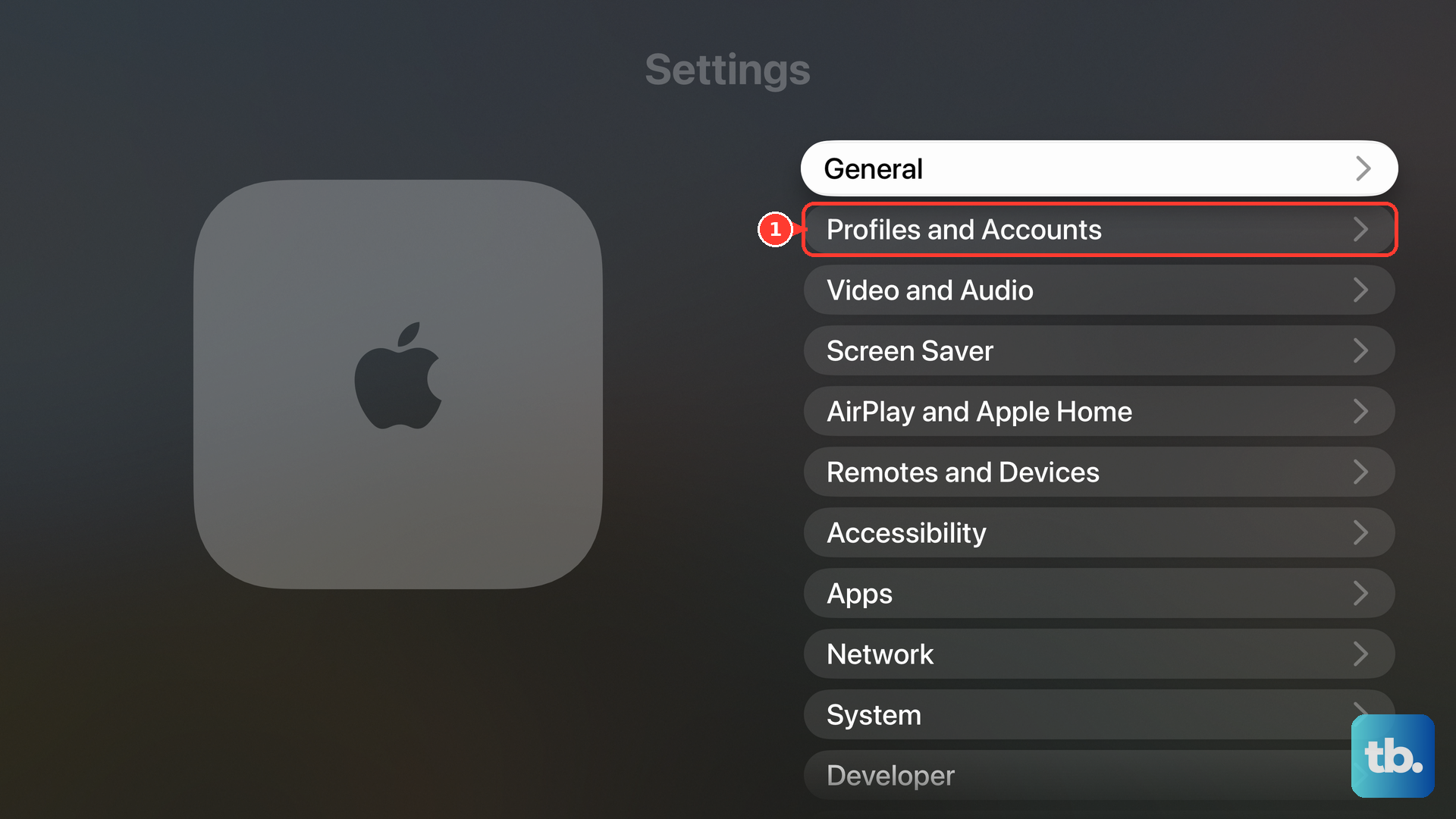
If the password request appears only when buying something, open Settings > Profiles and Accounts > [your profile] > Purchases. Choose your preferred password frequency: every purchase, after 15 minutes, or no purchase password. Adjust Free Downloads separately to change its password requirement.
If you see a subscription offer, check Settings > Profiles and Accounts > [your profile] > Subscriptions using the purchasing account. An offer alone does not establish that you’ve been signed out. For subscriptions billed through another provider, check that provider’s subscription account.
Check service status, then restart and update
Open Apple’s System Status page. Check the affected Apple TV and Apple Account services. If an interruption is listed, wait and retry before changing your device.
On Apple TV 4K, press the remote’s TV button twice quickly to open the app switcher. Highlight the affected app. Swipe up on the clickpad or touch surface to close it.
Reopen the app from the Home Screen. Test the sign-in again. If the problem returns, select Settings > System > Restart.
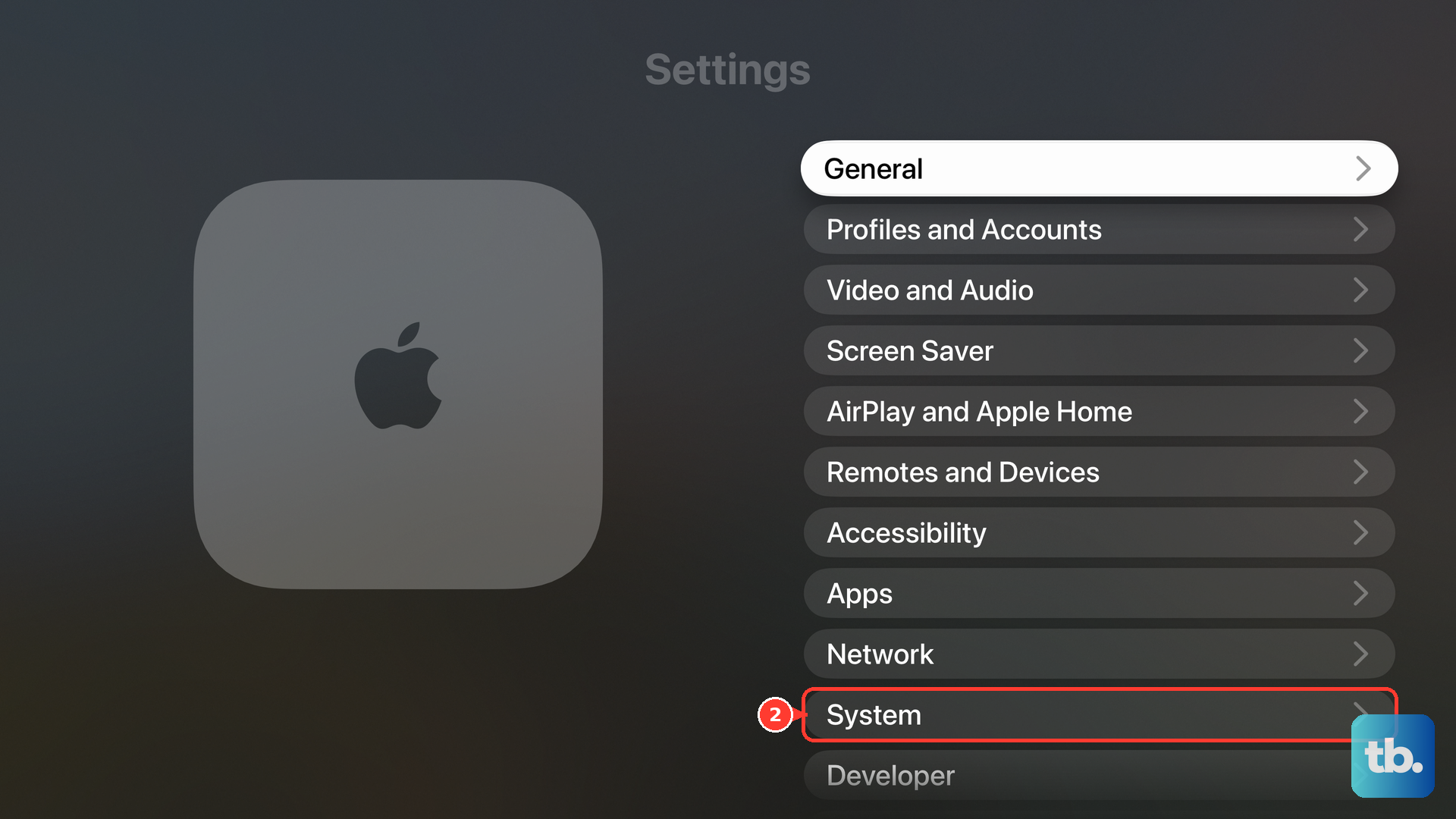
Check for software updates through Settings > System > Software Updates > Update Software. Select Download and Install when an update is offered. Keep power connected throughout installation. Turn on Settings > System > Software Updates > Automatically Update to receive future updates automatically.
A changed password needs a fresh sign-in
If repeated password requests began after an Apple Account password change, update your sign-in information using the new password. On Apple TV hardware, open Settings > Profiles and Accounts > [your name] > Store > Sign Out.
Select Sign In. Sign in with the Apple Account associated with your subscription or Family Sharing, using its current password. Repeatedly submitting an obsolete saved password risks locking your account.
For two-factor authentication, select Allow on your trusted device’s sign-in notification. Enter the resulting six-digit code on the device signing in. If you cannot access the trusted device, select Didn’t get a code? or Can’t get to your devices?. Request a text or call to a trusted number.
For an incomplete setup message, a terms problem, or No iTunes Store account, open tv.apple.com or music.apple.com. Select Sign In. Complete the account-setup prompts.
Sign in to Apple TV again. Accept the terms and conditions if requested.
If you’ve forgotten your password, open Settings > [your name] > Sign-In & Security > Change Password on a trusted iPhone or iPad. Follow the password-reset prompts. The web alternative is iforgot.apple.com. Sign in to Apple TV with the new password.
When the connection is interrupting sign-in
Use these checks when Apple TV also has trouble connecting or sign-in fails on more than one device. A hotel Wi-Fi login is separate from your Apple Account login.
Try the same Apple Account on another device connected to the same network. If both fail, check the network and Apple’s service status. Test a different network if one is available. If another network works, contact the original network’s administrator or internet provider.
If only one device fails, check that device’s VPN or third-party security software. To reconnect Apple TV to Wi-Fi, disconnect Ethernet first if it is attached. This exposes the Wi-Fi options. Open Settings > Network > Wi-Fi > [your current network] > Forget Network.
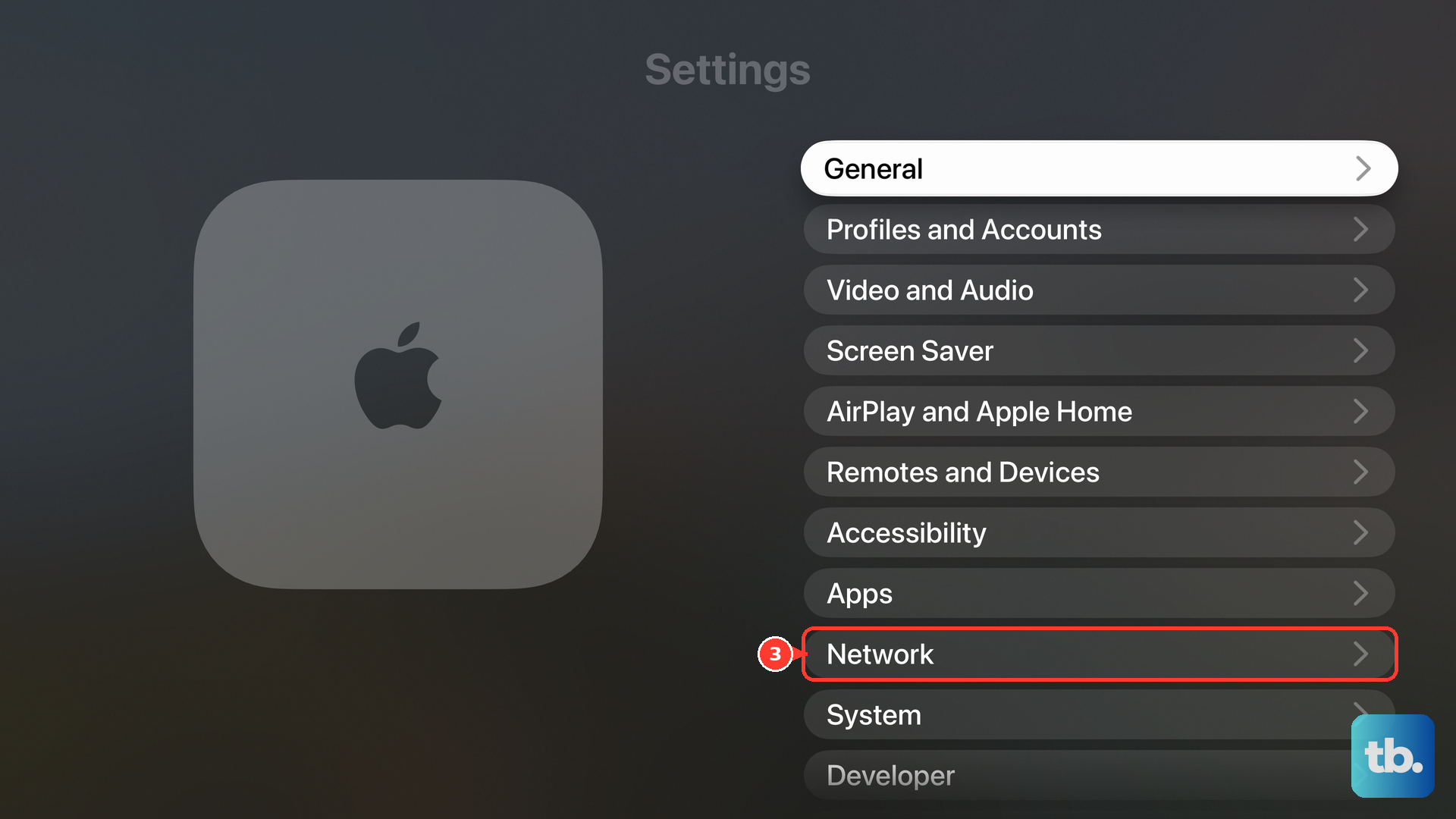
Press Back or Menu. Return to Network. Select your network. Enter its password to reconnect.
To restart your networking equipment, unplug the router and modem from power. Reconnect their power and allow connectivity to return. For Apple TV models with an Ethernet port, connect the device directly to the router with Ethernet. Apple TV uses that connection automatically.
For hotel or other captive Wi-Fi, first install any offered update through Settings > System > Software Updates > Update Software. Join the Wi-Fi network through Settings > Network. Select Continue on iPhone or iPad when prompted. Complete the network’s sign-in on that device.
Check Apple TV’s clock through Settings > General > Date and Time. Correct the time and time zone, or enable automatic time setting.
Refresh the Apple TV app on a smart TV
On supported smart TVs and streaming devices with the current profile interface, open the Apple TV app sidebar’s Settings > Profiles > [your Apple Account profile] > Sign Out. For a profile mismatch, use Settings > Profiles > Switch Current Profile instead.
To sign in again, choose Sign In On Mobile Device. Scan the displayed QR code, or visit link.apple.com and enter the television’s code to complete authentication.
If repeated sign-outs continue, select the app’s Settings > Reset and complete confirmation. This erases its personal information and settings. On a smart TV also signed in to Apple Music, it restores Apple Music’s original settings too.
Sign in again after the reset. On a compatible smart TV, streaming device, or gaming console connected to the internet, the Apple TV app should update automatically. If an update doesn’t arrive, contact the device’s manufacturer.
Keep your browser from deleting the login
A browser that deletes site data when all windows close makes websites less likely to remember you. Repeatedly clearing cookies also removes the session you’re trying to keep.
In desktop Chrome, open More > Settings > Privacy and security > Site settings > Additional content settings > On-device site data. Select Allow sites to save data on your device. If the login remains broken, open More > Settings > Privacy and security > Third-party cookies > See all site data and permissions. Search for the affected Apple website.
Select Delete beside it. Confirm Delete. This intentionally signs you out once. Reopen tv.apple.com and sign in again.
In Safari on Mac, open Safari > Settings > Privacy > Manage Website Data. Select the affected Apple website. Click Remove. Click Done.
Reopen the website in a non-private window and sign in again.
If this fails, try another browser or network. In Safari, test extensions through Safari > Settings > Extensions. In Chrome, if the address bar shows Third-party cookies blocked during sign-in, select it and turn on Third-party cookies for that site as a diagnostic test.
Roku Guest Mode can sign you out automatically
Leaving Roku’s Guest Mode, sometimes labeled Auto Sign Out, stops its scheduled sign-outs. On your own Roku, complete the welcome screen if necessary. Open Settings > Guest Options > Sign out and clear info.
Enter the owner’s Roku PIN. Select OK to exit Guest Mode. This clears the guest session once. Sign in to Apple TV normally afterward.
On a rental-property Roku, press Home to begin correcting the checkout date while keeping the guest session. Open Guest Options > Change automatic sign-out date. Choose the correct date on the calendar. Select Checkout to confirm that date.
Remove the profile before considering a full reset
On Apple TV 4K with the tvOS 27 profile interface, select Settings > Profiles and Accounts > [your profile name] > Remove Profile. The separate Delete Profile command deletes a managed profile’s data.
Open Profiles and Accounts > Add New Profile > Sign in with Apple Account. Complete authentication. Test Apple TV again before proceeding to a device reset.
If less disruptive troubleshooting has failed, open Settings > System > Reset on Apple TV 4K or Apple TV HD. A factory reset removes accounts and configuration. Choose Reset to erase the device and restore defaults, or Reset and Update to erase it and install available software updates. Keep power connected until completion.
During setup, choose Set Up with iPhone. For manual setup instead, choose Set Up Manually and enter your network and Apple Account details.
For iPhone setup, unlock your iPhone. Hold it near Apple TV. Follow the instructions on both devices.
Use the reset that matches your device: the Apple TV app’s reset on a smart TV and an Apple TV box’s factory reset are separate procedures.
Persistent sign-outs need targeted support
Contact Apple when the sign-in problem remains isolated to Apple TV after account, connection, and app troubleshooting. For Apple TV hardware problems that continue after a factory reset, follow Get service on Apple’s reset support page.
If several apps fail on your television or streaming device, contact its manufacturer. Include the device you use, the exact message you see, and whether the same Apple Account works on another device or network.
Frequently Asked Questions
Is there a setting that keeps Apple TV signed in permanently?
Apple TV’s Profiles and Accounts settings don’t include an option to keep your Apple Account signed in. Choose Profile on Wake and the Purchases password setting control profile and purchase prompts, not account sign-outs, so use the fixes above that match what you’re seeing.
Should I remove Apple TV from my Apple Account device list?
Removing Apple TV from your account signs it out. If unexpected sign-outs accompany unfamiliar sign-in alerts or account changes, change your password. Review your security information at account.apple.com, remove unfamiliar devices, and confirm that you control the account’s email addresses and phone numbers.
What if I use physical Security Keys with my Apple Account?
Apple TV sign-in requires a trusted iPhone or iPad already signed in to your account, running iOS or iPadOS 16.3 or later. Bring it near Apple TV and follow the instructions on both devices. Removing Security Keys is not a general sign-out fix.
Do I need to sign out of iCloud to fix Apple TV on my iPhone or iPad?
For an incorrect media-account sign-in or missing shared content, open Settings > [your name] > Media & Purchases > Sign Out > Confirm. Tap Media & Purchases again. Use Not [your name]? if you need a different account, then sign in with the account used for your subscription or Family Sharing. Signing out of unrelated iCloud services is unnecessary.