An Apple TV stuck in recovery mode won't get past the screen on your television, and the right fix depends on what that screen shows. An iPhone pictured beside an Apple TV means you need nearby iPhone recovery. An update-error menu comes with its own set of options. Match your screen to the steps below, and keep the box plugged in the whole time.
Recover Apple TV with your iPhone
Use this method when your television shows an iPhone beside an Apple TV. It works with Apple TV HD or later running tvOS 17 or later, including compatible Apple TV 4K models running tvOS 27.
Bring an unlocked iPhone running iOS 17 or later close to Apple TV. When the Recover Apple TV prompt appears on your iPhone, tap Continue.
Complete the prompts that follow, and keep Apple TV connected to power until recovery finishes.
You need an iPhone for this. Apple's recovery instructions don't mention iPad support.
Switch Wi-Fi networks and retry
If nearby iPhone recovery fails, change your iPhone's network and try again.
- 1.Connect your iPhone to a 2.4GHz Wi-Fi network instead of a 5GHz network.
- 2.Avoid captive portals (networks that make you sign in through a web page) and networks using 802.1X authentication.
- 3.Bring the unlocked iPhone close to Apple TV again, repeat the recovery prompts, and keep the box powered throughout.
Work through the update-error menu
Some update-error screens offer three controls. Select Restart first.
If the update error persists, select Reset All Settings. If neither option clears the error, select Restore. Keep in mind that a restore can erase data.
These options belong to that particular update-error menu and don't appear on every recovery screen. If your television shows the iPhone recovery image instead, go back to nearby iPhone recovery.
Give a stalled update more time
Checking the screen first stops you from interrupting an installation that is still running.
If the screen says Preparing Update or Applying Update, leave Apple TV connected to power.
If that screen lasts more than an hour, contact Apple before restarting or unplugging the box.
If an Apple-logo progress bar with no text has been stuck for over an hour, disconnect power.
Then reconnect it.
Restart an unresponsive box
A restart reboots Apple TV but doesn't reinstall tvOS. Follow the update waiting advice above before interrupting an installation.
- 1.Hold TV and Back together on a newer Siri Remote, or TV and Menu on a first-generation Siri Remote.
- 2.Release the buttons when Apple TV's status light flashes rapidly.
- 3.If the box still doesn't respond, disconnect its power cable, wait 30 seconds, and reconnect it.
- 4.If the power problem continues, try another outlet or power strip and a different compatible Apple TV power cable.
Finish the job once Settings opens
These options need the normal Apple TV interface. They won't work while the box is stuck on a recovery-only screen.
To reboot Apple TV 4K, open Settings > System > Restart.
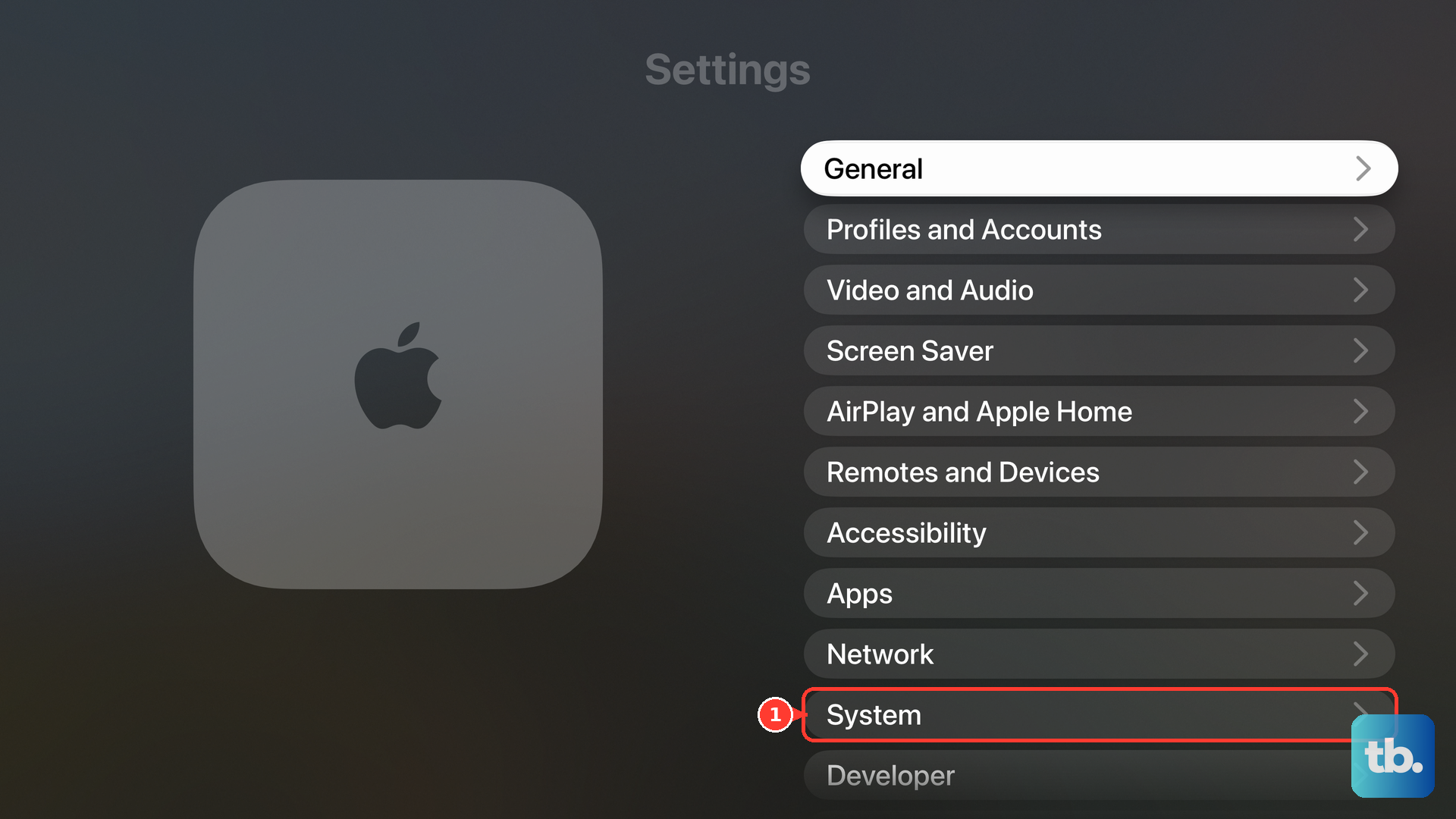
To install an available update, open Settings > System > Software Updates > Update Software. Choose Download and Install when it's offered, and keep power and network connected until installation finishes.
For a factory reset, open Settings > System > Reset > Reset. This erases your information and settings and doesn't need internet. Keep power connected until it completes, then set up Apple TV again.
You can also choose Reset and Update from the same menu. It erases information and settings and installs available software updates. This one needs internet, so leave power connected until it finishes.
Contact Apple for service
After an unsuccessful iPhone recovery, ask Apple to assess service or replacement eligibility. Warning-symbol or flashing-light problems that won't clear also need Apple's attention. A replacement is not guaranteed.
A USB computer restore exists for Apple TV HD and third-generation Apple TV, but it's an older-hardware procedure. It doesn't apply to Apple TV 4K. Supported models showing the iPhone recovery image use nearby iPhone recovery instead.
If Apple TV still won't recover, stick with Apple's service process rather than repeating reset attempts that already failed.
Frequently Asked Questions
Can I recover Apple TV with an iPad instead of an iPhone?
Apple's nearby-device recovery instructions require an iPhone running iOS 17 or later and don't mention iPad support. An iPad can control accessible menus through Apple TV Remote when Apple TV accepts network remote control.
Will fixing recovery mode erase my Apple TV settings?
A factory reset erases information and settings, and a restore can erase data. A successful recovery that keeps your data is not guaranteed.
What if my Apple TV remote isn't working?
Re-pair it. Hold the remote about three inches from Apple TV, then press and hold Back and Volume Up together. Use Menu instead of Back on the older remote. Place the remote on the box if asked. This fixes remote pairing, not tvOS itself.
What should I do with a workplace or school Apple TV?
Ask its administrator for help. A managed Apple TV that can still receive management commands may accept a remote restart or erase, but a box that can't boot or communicate can't be assumed to receive those commands.