Android Setup keeps stopping when your phone freezes during first setup, crashes while adding a Google Account, or keeps looping back to the same setup screen. Start with fixes that do not erase anything, then move to app repair, transfer changes, and reset options only when setup is still stuck.
Restart the phone first
A restart clears temporary software problems that can stop Android Setup or Setup Wizard from finishing. On most phones, press and hold the Power button for about 30 seconds, until the phone restarts. On Pixel 6 and later, including Pixel Fold, press and hold the Power button and Volume up for a few seconds, then tap Restart.
If a restart prompt appears, tap Restart, then tap Restart again. After the phone boots, continue setup and check whether the crash returns at the same point.
If Android Setup keeps stopping after the restart, update Android and the Google components that setup uses.
Update Android and Google apps
This fixes setup crashes caused by outdated Android software, Google Play services, Android System WebView, or other Google app components. Open Settings, go to System, then open Software updates. Tap System update and follow the on-screen instructions.
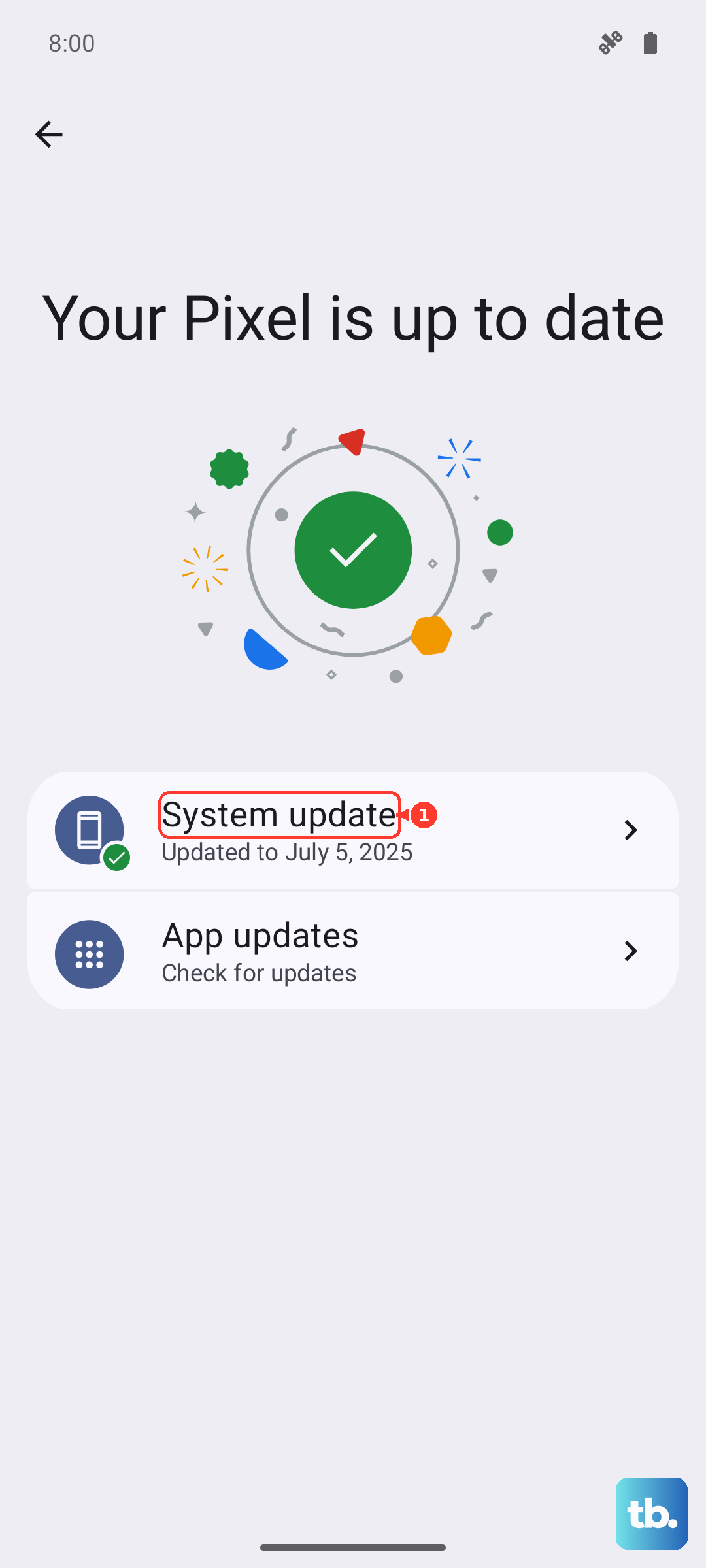
If your phone uses a different path, open Settings, then About phone or About tablet, then Software update. Open the Google Play Store, tap your profile icon, and open Manage apps & device. Choose Updates available, then tap See details. Tap Update next to the apps you want, or tap Update all.
Open the Play Store page for Google Play services and use Install or Update if that button appears. Then open the Play Store page for Android System WebView and use Install or Update if that button appears.
Clear Android Setup cache and storage
Use this when setup opens, then crashes after a partial setup or after you can reach Settings.
- 1.Open Settings, go to Apps, then tap See all apps.
- 2.Select Android Setup or Setup Wizard. If it is missing, use your phone's system-app visibility or search controls.
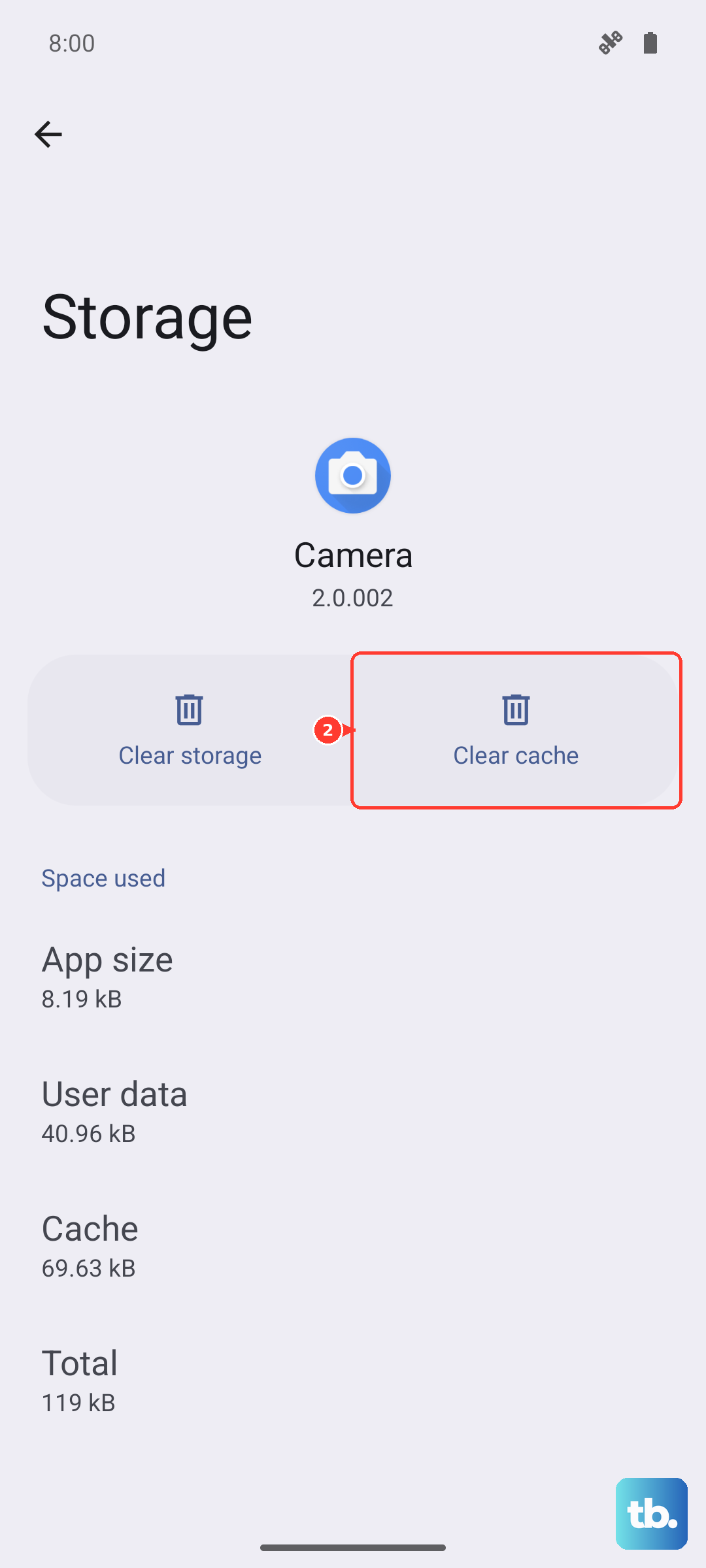
- 3.Open Storage & cache.
- 4.Tap Clear cache, then try setup again.
- 5.If the same crash returns, go back to Storage & cache, tap Clear storage, and confirm the prompt.
Repair Samsung Google account crashes
On Samsung Galaxy phones and tablets, a setup crash during Google sign-in can come from Google Play Services. Open Settings, then Apps, search for Google Play Services, and open it.
Go to Storage, tap Clear cache, then tap Clear data. Choose CLEAR ALL DATA, tap DELETE, restart the phone, and try adding the Google Account again.
If Google account setup still fails, return to Google Play Services, open More options, choose Uninstall updates, and tap OK. Then update the phone from Settings, then Software update or System updates, using Download and install, Check for system updates, or Check for software updates.
Resync date and time
Google account and app setup can fail when the phone's time is out of sync with Google's servers. Open Settings, then go to System and Date & Time.
Turn off Automatic Time Zone and Automatic Date & Time. Change the date or time to an incorrect value, then turn Automatic Time Zone and Automatic Date & Time back on so the phone syncs again.
If the setup crash returns after the time resets, change the transfer method or check whether a downloaded app is interfering.
Skip transfer or switch copy methods
When Android Setup crashes during phone-to-phone transfer, stop repeating that same copy flow.
- 1.On the new or reset phone, tap through the first setup screens.
- 2.When setup asks about using another device, tap Skip.
- 3.Connect to Wi-Fi, provision the SIM, and sign in with your Google Account.
- 4.Choose an available apps and data backup to restore.
- 5.To copy directly instead, restart setup and try a different method: cable, wireless transfer, or the old phone's Google app flow with set up my device.
Check Safe mode for app conflicts
This fixes cases where a downloaded app interferes after setup or on a phone that can still reach the power menu. Restart the phone in Safe mode using your phone maker's method.
Check whether Android Setup or the setup-related crash stops happening in Safe mode. Restart normally to exit Safe mode. Remove recently downloaded apps one by one, restarting after each removal, until the crash no longer returns.
Use Pixel and Samsung recovery tools
On Pixel 4a and later, including Pixel Fold, the Pixel Update and Software Repair tool can add the most recent Android version from a computer. Connect the Pixel with USB, go to pixelrepair.withgoogle.com, and follow the on-screen instructions.
If a Pixel cannot open Settings or the setup flow is unusable, use hardware-button recovery. Enter Fastboot mode and choose Recovery mode. When the screen shows No command, press and hold Power, then press Volume up and let go of both buttons quickly. In Android recovery, select Wipe data/factory reset, Factory data reset, and Reboot system now.
Samsung has a specific workaround for the Galaxy A56 5G when Setup Wizard loops or returns to a white dots screen. Press Power to turn the screen off, wait 5 to 10 seconds, press Power again, unlock with your PIN, pattern, or password, finish Setup Wizard, then update from Quick settings, Settings, and Software update or System updates.
Factory reset after easier fixes fail
The most common reason to save factory reset for last is simple: it erases the phone and you may need the previous PIN, password, or Google Account afterward because of Factory Reset Protection.
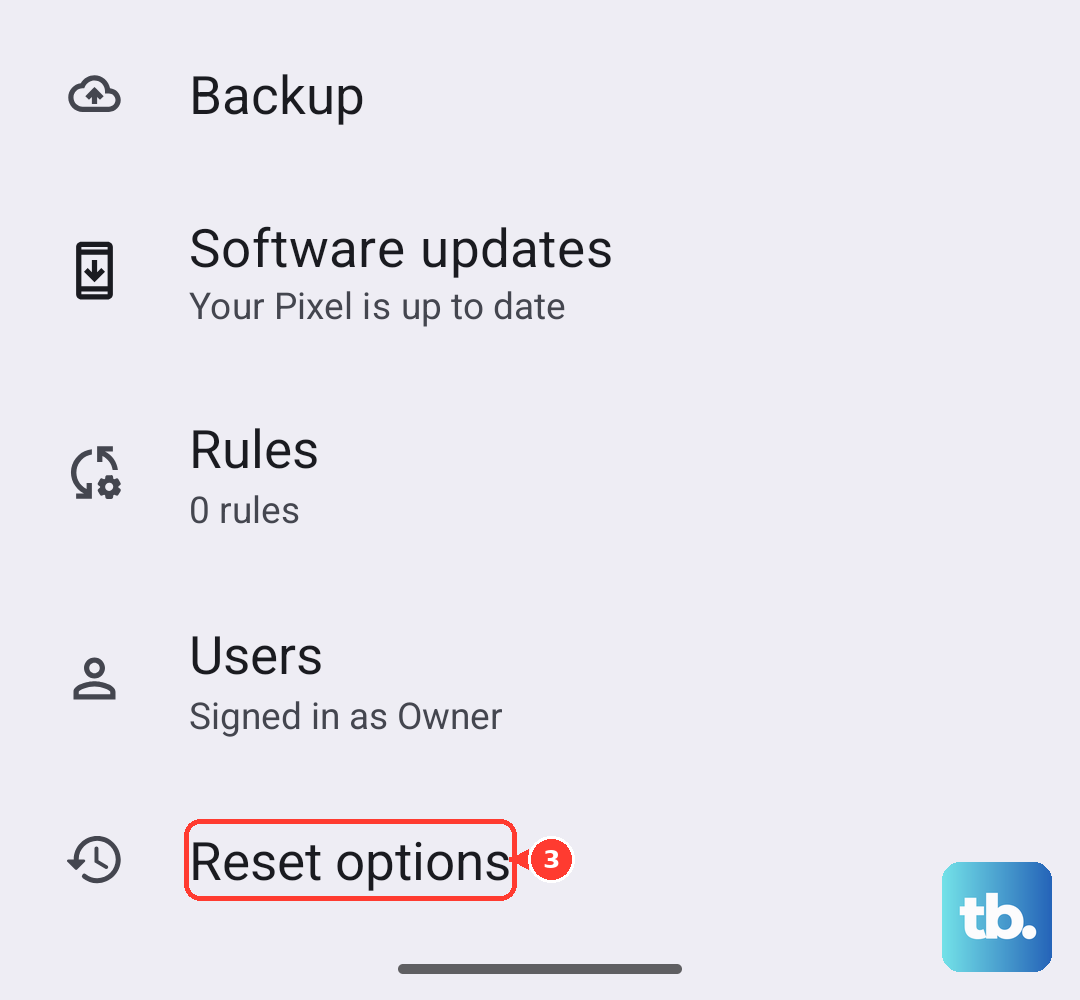
On Pixel phones, open Settings, then System, then Reset options. Choose Erase all data (factory reset), tap Erase all data, enter your PIN when asked, tap Erase all data again, then restart and set up the phone.
If the setup screen says Your device at work and the phone should not be managed, stop resetting it. Ask the organization shown on that screen to deregister the device; work and school phones need that organization or IT admin to remove management or wipe the managed device.
Skip sideloaded Setup Wizard APKs, ADB clearing commands, disabling Android Setup, generic wipe-cache-partition advice, and setup-protection bypass tricks. Use supported updates, app storage controls, transfer workarounds, device repair tools, or a factory reset instead.
Frequently Asked Questions
Why does Android Setup keep stopping during Google sign-in?
Google sign-in can crash when Google Play services, Android System WebView, Google apps, or the phone's date and time are out of sync. Update apps first, then use the Samsung Google Play Services reset steps if you are on a Galaxy device.
Will clearing Android Setup storage erase my phone?
Clearing storage resets Android Setup app data. It is not the same as a factory reset, which erases the phone and starts setup again.
What should I do if Android Setup crashes during phone transfer?
Skip the device-to-device transfer, connect to Wi-Fi, sign in with your Google Account, and restore from a backup. You can retry direct copying later with cable, wireless transfer, or the old phone's Google app setup flow.
Why does a used phone show Your device at work during setup?
The phone is still tied to Android Enterprise enrollment. The organization listed on the setup screen has to deregister it before it can be set up as a personal device.